Opus Clip Alternative: Video Cutter AI vs. Opus Clip

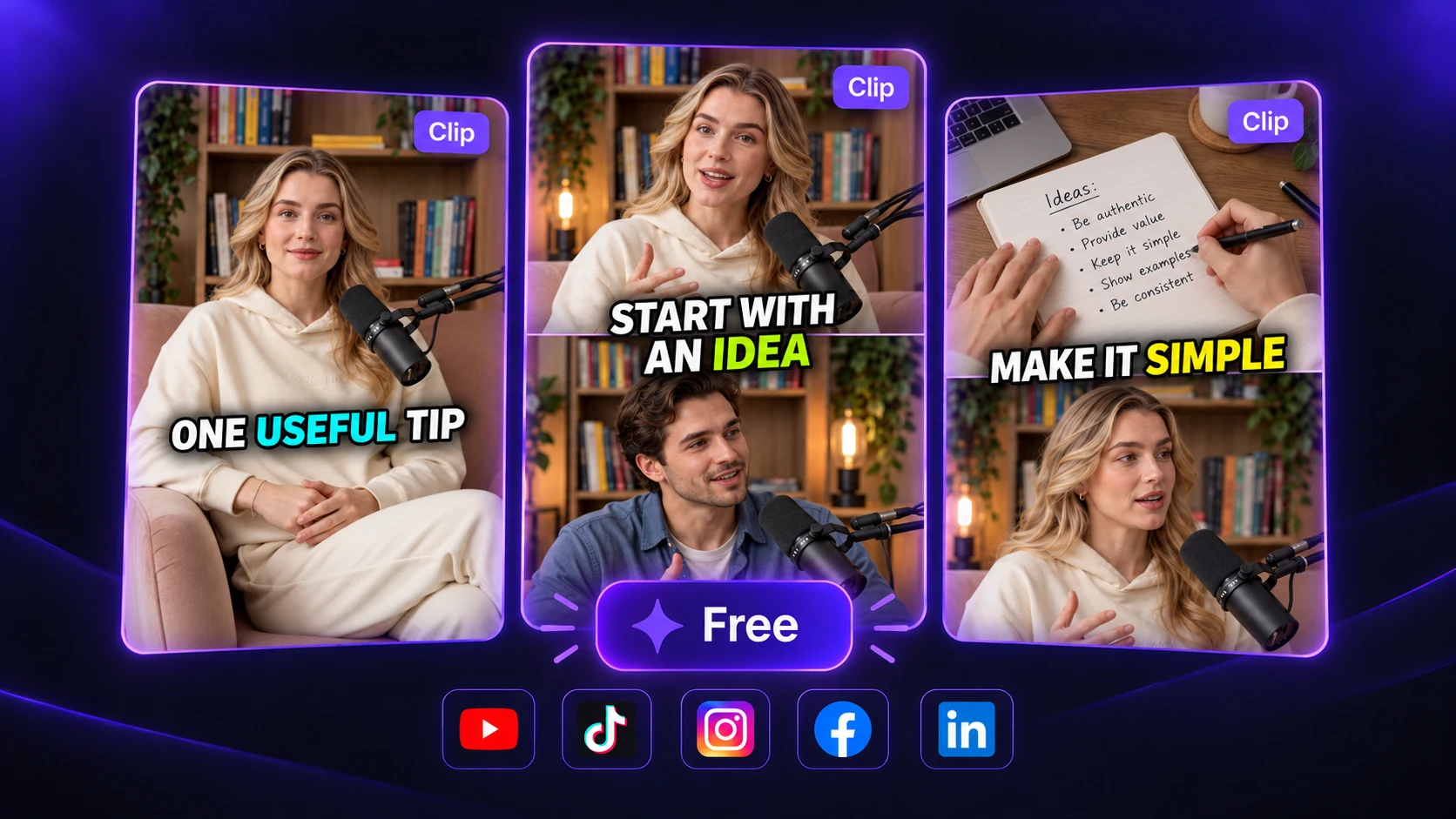
Opus Clip’s free plan limits editing and exports. Create more compelling shorts for free with Video Cutter AI, using AI-selected highlights, animated captions, and smart framing.

Upload files
Video Cutter AI and Opus Clip pricing and feature comparison

Video Cutter AI vs. Opus Clip: Plans and Editing Features

Explore Video Cutter AI as an Opus Clip alternative. Compare pricing, usage limits, editing tools, and export options.

FeatureVideo Cutter AIOpus Clip
PRICE & INCLUDED USAGE
Free processing allowance
180 credits/day
60 credits/month
Price
Free
Free plan available

Starter: $15/month · 150 credits

Start without signing up
Yes
No
EXPORT & EDITING ACCESS
Watermark-free exports
Free
Paid plans only
Clip editing
Timing & caption adjustments
Starter or above
Project retention
No limit
Varies by plan
FORMAT & CUSTOMIZATION
Video aspect ratios
9:16, 16:9, 3:4, 1:1, 4:5
Free & Starter: 9:16

Pro adds 1:1 & 16:9

Caption presets
Multiple styles
Animated templates
Clip length selection
Yes
Yes
Processing range selection
Yes
Yes
CORE CLIPPING
AI highlight selection
Yes
Yes
Automatic captions
Yes
Yes
Vertical reframing
Yes
Yes
INPUT
YouTube links & local files
Both supported
Both supported
Selected pricing and clipping features, not a full plan comparison. Video Cutter AI details based on official pages and product owner confirmation; Opus Clip details checked October 12, 2026.

Why Choose Video Cutter AI over Opus Clip?

See why Video Cutter AI is an Opus Clip alternative for creators who want to spend more on content and make final fixes without a paid upgrade.

Put More of Your Budget into Creating Content

01 / YOUR PUBLISHING BUDGET

Put More of Your Budget into Creating Content

Paste a YouTube interview or upload a recorded podcast to Video Cutter AI. Use 180 free credits daily to find highlights, add captions, and prepare short clips without a subscription. Opus Clip's free plan includes 60 credits monthly, so compare the allowance with the recordings you plan to process.
Share Brand Content Without a Tool Watermark

02 / YOUR FINISHED PRESENTATION

Share Brand Content Without a Tool Watermark

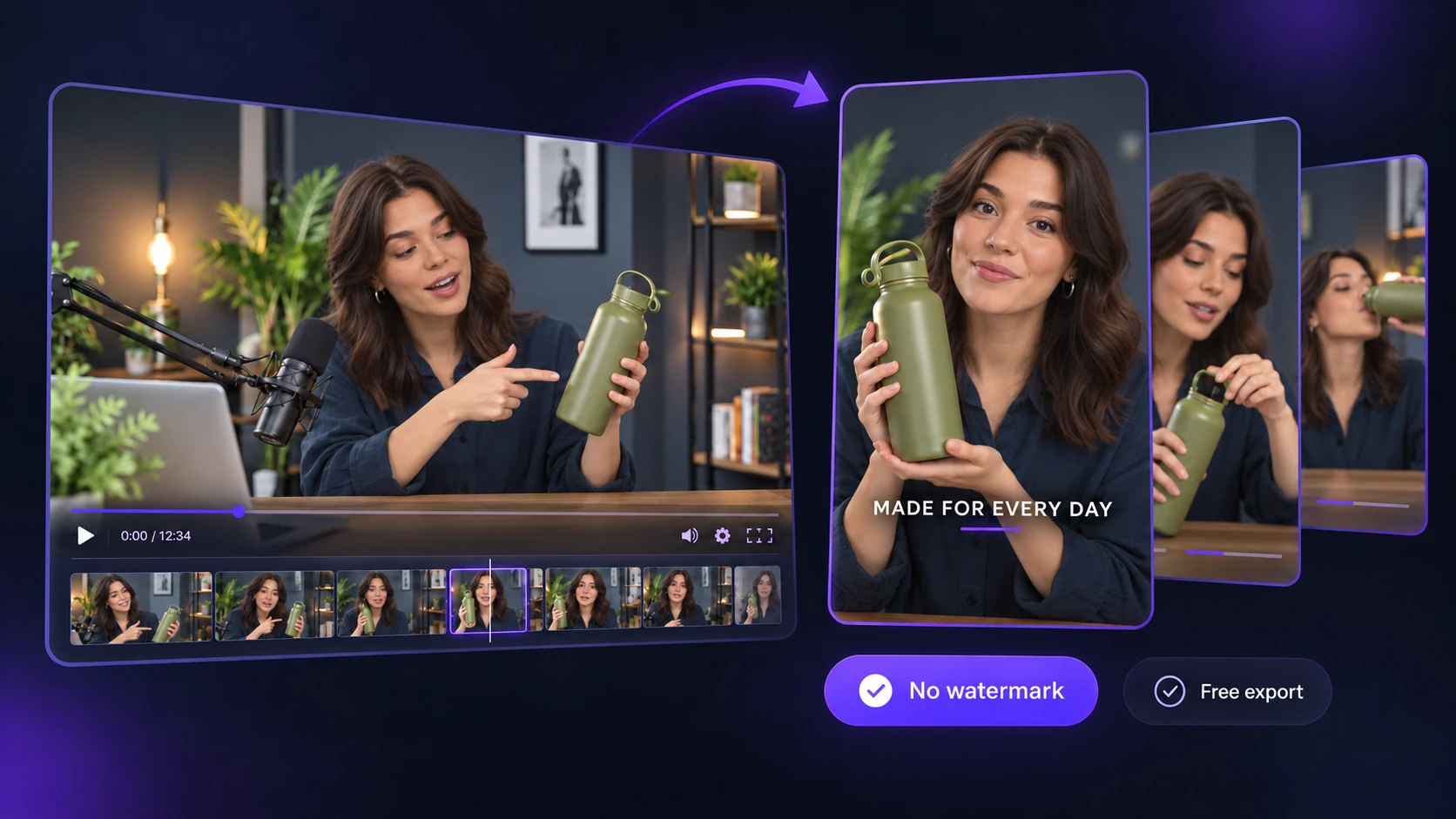
Upload a product demo or client interview, generate captioned clips, and export them from Video Cutter AI without a watermark. Share them on your brand's social accounts without adding a clipping tool's logo to the video. Opus Clip's free exports carry a watermark; removing it requires a paid plan.

Make Small Corrections Without Upgrading

03 / YOUR FINAL CORRECTIONS

Make Small Corrections Without Upgrading

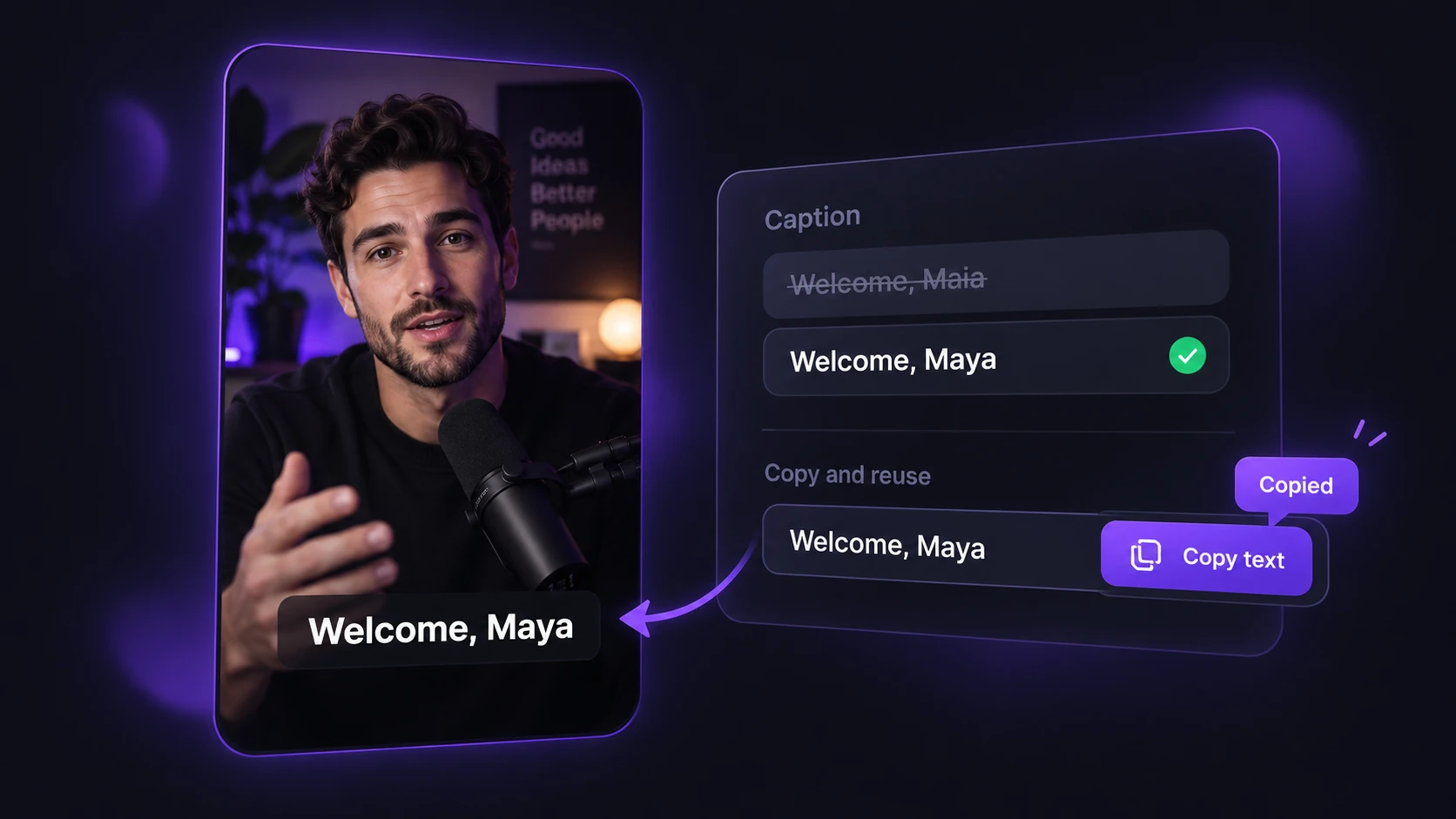
Review the AI-generated captions in Video Cutter AI, correct a misspelled name or technical term, and copy the subtitle text for reuse in a post or description. Export the clip with corrected captions at no extra cost. Opus Clip requires Starter or above to edit captions.

An Opus Clip Alternative for Podcasts, YouTube Videos and Entertainment

Use Video Cutter AI to turn podcasts, YouTube videos, and entertainment recordings into short clips. Start with a video file or link, choose the format or processing range, and review AI-selected highlights for episode previews, social posts, or challenge recaps.

01 / Podcasts & Interviews

01 / Podcasts & Interviews

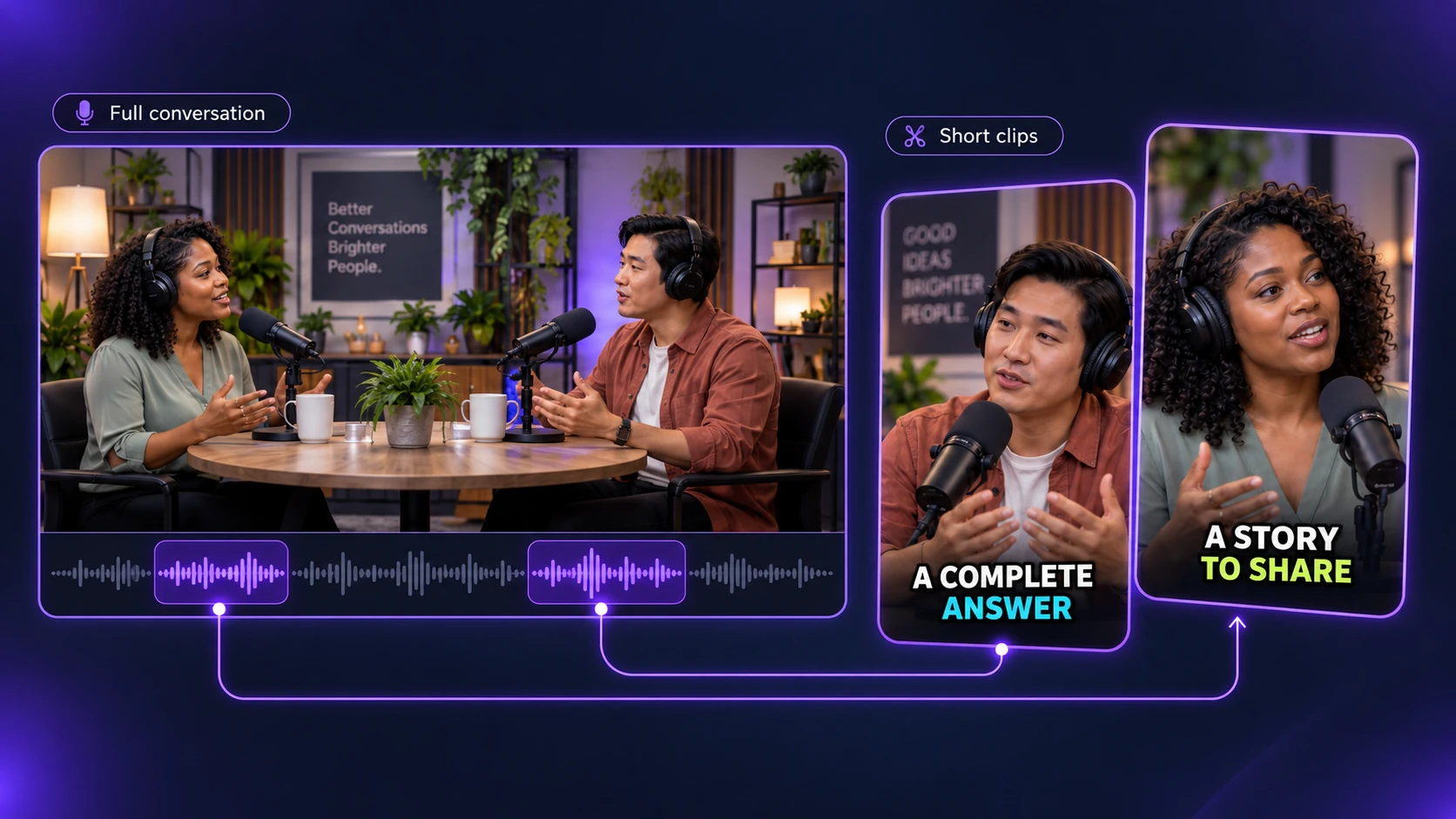
Upload a recorded podcast or interview and let AI find highlights. Choose a guest's story or an expert answer that makes sense on its own. Share the clips as episode previews and posts between releases, giving listeners more ways to discover the full conversation.

02 / YouTube Videos

02 / YouTube Videos

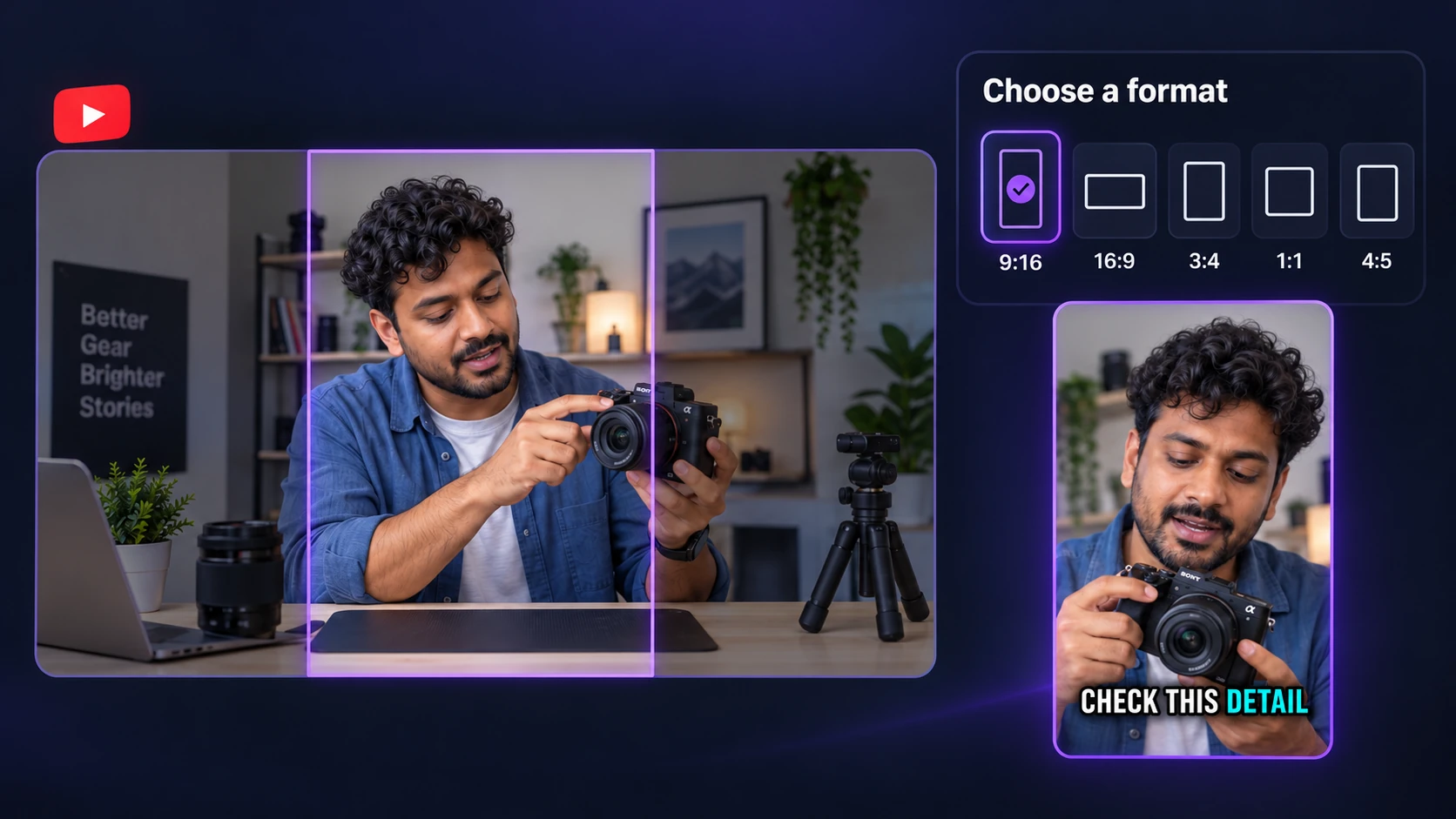
Paste a YouTube link to generate clips from a tutorial, review, or product demo. Choose from five aspect ratios to prepare videos for vertical, square, or landscape placements. Opus Clip lists square and landscape output on Pro, while VC makes these formats available for free. Use our YouTube clipper to turn moments from your channel’s longer videos into Shorts.

03 / Entertainment & Challenge Videos

03 / Entertainment & Challenge Videos

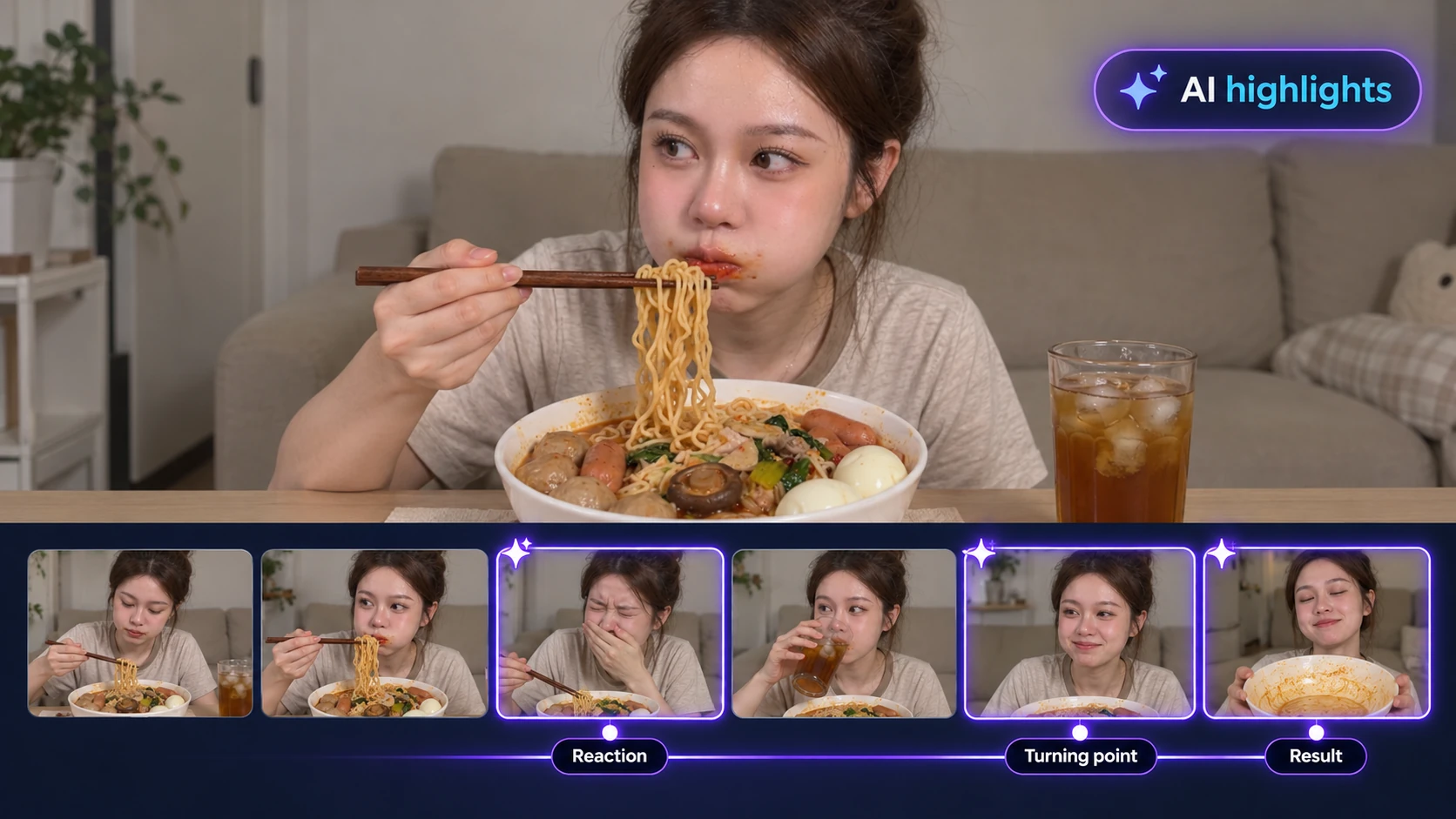
Upload a TV episode, food challenge, or prize competition video and select the section to process. Use our AI highlight video maker to generate clips, then review them for a character exchange, a contestant’s reaction, or the challenge result. Choose moments that make sense on their own for short social posts.

How to Use Video Cutter AI as an Opus Clip Alternative

Start with a YouTube link or a video file. Set your clipping preferences, let AI identify highlights, then review the captions and download the clips you want to share.

  1. 01 /

    Add Your Video

    Paste a YouTube link or upload a video from your device. Start with a podcast, interview, tutorial, or entertainment recording that you want to turn into short clips.

  2. 02 /

    Set Your Clipping Preferences

    Select the section to process before clipping begins. Choose your clip length, caption preset, and video ratio from 9:16, 16:9, 3:4, 1:1, or 4:5. Start generation and let AI find highlights within your selected range.

  3. 03 /

    Review and Export Your Clips

    Preview the generated clips and check the captions for names or technical terms. Correct any errors, copy the subtitle text if needed, and download your chosen clips for free without a watermark.

What Creators Say About Video Cutter AI

I record long interviews, but each episode has several ideas worth sharing separately. Video Cutter AI gives me suggested highlights with captions, so I can review a guest’s answer and choose what to post between releases. As an Opus Clip alternative, it fits my podcast workflow: upload the recording, check the wording, and download the clips I want.

A. Chen

Podcast Host

My channel includes product reviews and how-to videos. I paste a YouTube link, choose the clip length and screen ratio, then review the suggested moments. Having vertical, square, and landscape options helps me prepare content for different placements. Video Cutter AI is an Opus Clip alternative I would consider when I want to reuse footage without recording another video.

R. Evans

YouTube Creator

When I prepare a product demo for a client’s social account, I want the finished video to show their content without a tool watermark. Video Cutter AI lets me generate captioned clips and download them for free. For that task, it works as an Opus Clip alternative: I can check the result and deliver a clean file without paying just to remove another platform’s logo.

M. Brooks

Freelance Video Editor

Software lessons often include product names and technical terms that need a careful subtitle check. I review the captions in Video Cutter AI, correct the words, and copy the text when I need it for a post description. That control makes it a useful Opus Clip alternative for my teaching videos. I still check each excerpt to make sure the explanation is clear on its own.

S. Patel

Tutorial Creator

I work with food challenges and competition recordings, where a reaction needs enough context to make sense. Before generation, I select the part of the recording to process. Then I review the suggested clips and keep the moments that show the setup or result clearly. Video Cutter AI gives me an Opus Clip alternative for preparing short posts from material I already have.

J. Morgan

Entertainment Content Creator

Our small team records interviews and product walkthroughs for social content. With 180 free credits each day, Video Cutter AI lets us try clipping those recordings without adding a subscription. We choose a format, review the highlights, and download the versions that fit our posts. It is an Opus Clip alternative worth testing when the goal is to keep using footage we have already made.

L. Wilson

Social Media Manager

FAQs About Choosing Video Cutter AI over Opus Clip

Create Your First Short Clips with Video Cutter AI

Paste a YouTube link or upload a recording. Try this Opus Clip alternative with 180 free credits daily, review the highlights, and download your clips without a watermark.

Explore More Alternatives and AI Video Tools

Compare AI video tools or choose a workflow for YouTube videos, podcasts, and highlight clips.

10 Best Opus Clip Alternatives

Compare AI video editors and clip generators by pricing, free access, captions, and export features.

Vizard Alternative

Compare Video Cutter AI and Vizard for AI clipping, captions, video formats, and exports.
Comparison Coming Soon

YouTube Clipper

Turn a YouTube video into short clips with AI highlight detection and automatic captions.

Podcast to Video

Convert podcast episodes and interviews into captioned short videos for social media.

AI Highlight Video Maker

Find highlights in interviews, challenges, webinars, and other long videos.