
Opus Clip can turn a long recording into short videos, but its free clips carry a watermark and stop being exportable after three days. If you publish every week, its $15 Starter plan can also run short of processing credits. This guide compares ten Opus Clip alternatives by price, free access, and the work each tool does best. Video Cutter AI leads the list for its focused, free starting workflow: paste a YouTube link, review short clips, and skip a full editing timeline. The other nine may fit better when you need a full editor, a social calendar, or game-aware detection.
Opus Clip Alternatives at a Glance
Opus Clip is the baseline; the other ten rows are the alternatives in this guide. Each price is labeled with its billing basis, because published monthly and annual rates differ.
| Tool | Best for | Free access | Starting price | What to know |
|---|---|---|---|---|
| Opus Clip (baseline) | General AI clipping | 60 credits/month; watermark, no editing; clips cannot be exported after 3 days | Starter $15/month | 1 credit = 1 source minute; Starter includes 150/month |
| Video Cutter AI | Long-video-to-Shorts clipping | Free to start; no card or sign-up needed to begin | Free to start | Focused clipper rather than a social scheduler |
| VEED | Clips inside a full editor | One free AI Clips try per account; watermarked exports | US Creator $147/user/year (about $12.25/month) | Annual billing; AI Clips has its own free limit |
| Submagic | Animated captions and effects | Free trial | Starter $19/member/month ($12/month billed yearly); Magic Clips add-on +$19/month | Starter editor: 15 videos/month, each up to 2 minutes; Magic Clips is separate |
| CapCut | AI clips with full editing control | Free core editor and online AI clip maker | Free to start | Some effects and templates require Pro |
| quso.ai | Clipping plus social scheduling | 75 credits/month, 720p, 7-day retention | Lite $29/month; $19/month billed yearly | Lite includes 100 credits monthly or 200 with annual billing |
| Vizard | Podcasts and webinars at volume | 60 credits/month, 720p, 3-day storage | Creator $29.99/month in the US iOS app | iOS Creator includes 600 credits/month; web tiers differ |
| Descript | Transcript-based podcast editing | 60 media minutes/month | Hobbyist $16/person/month, billed yearly | Hobbyist includes 10 media hours/month and AI credits |
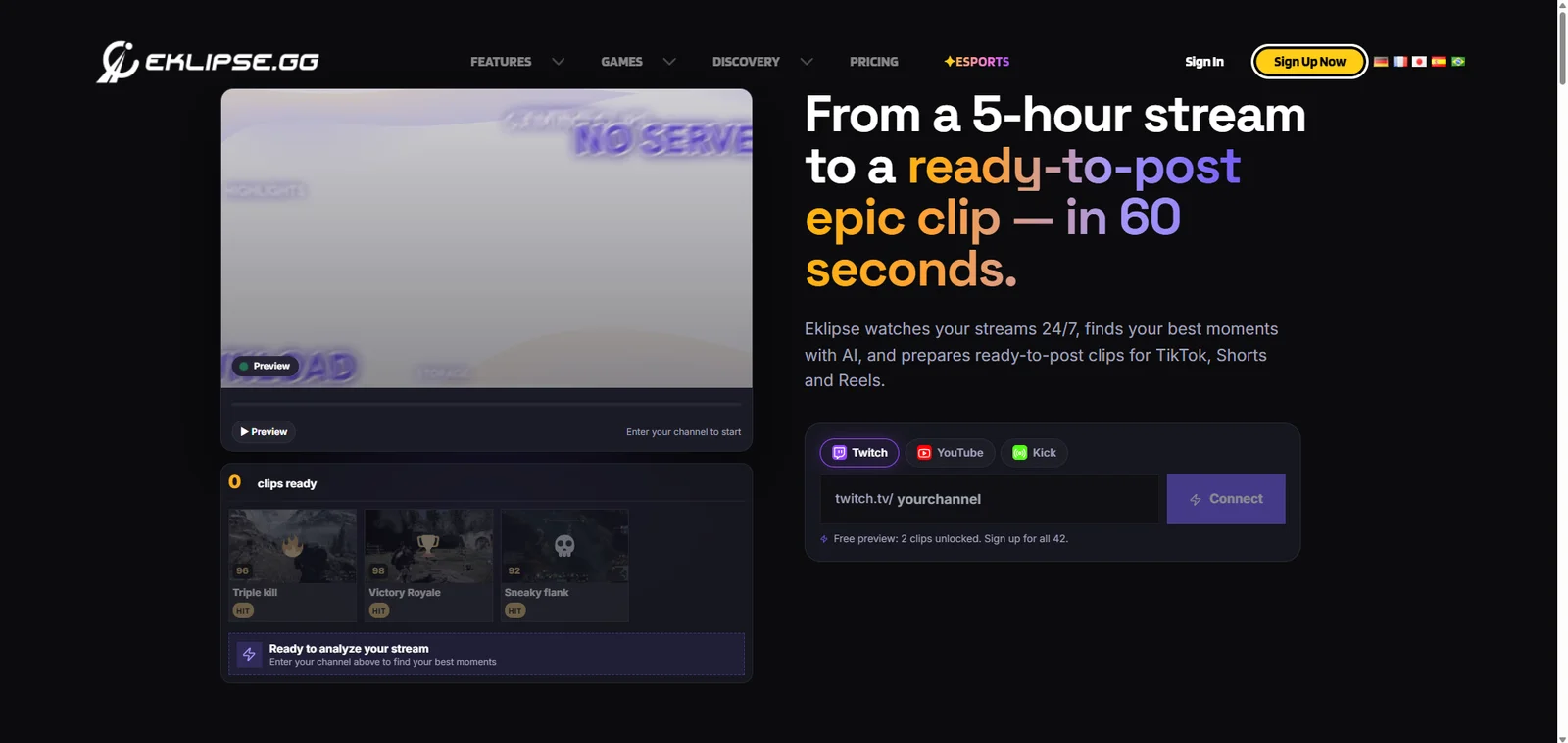
| Eklipse | Gaming stream highlights | Clip preview | Premium $24.99/month | Regular clipping and export need paid access |
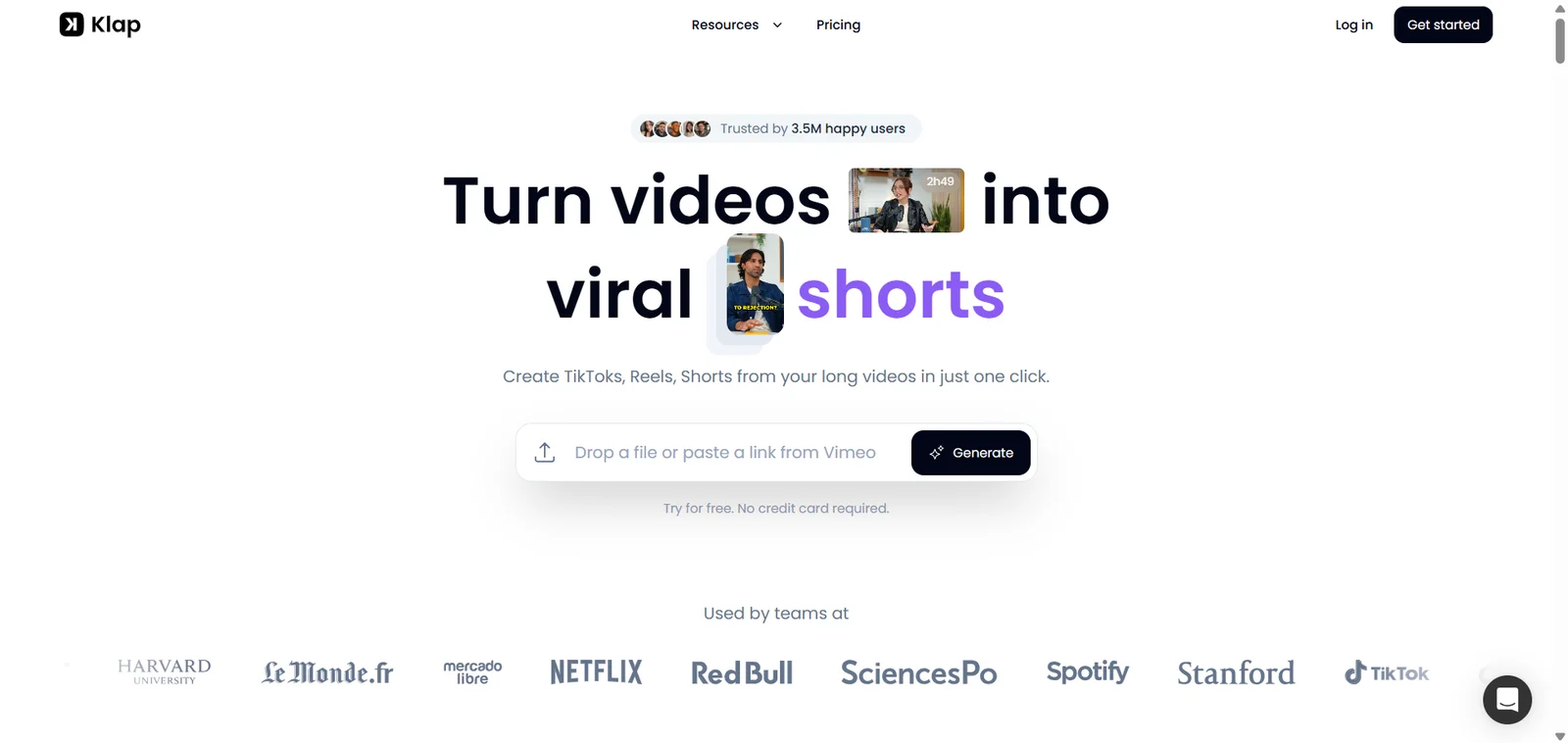
| Klap | Fast YouTube-to-Shorts workflow | One source video | Basic $14/month, billed yearly | Basic includes 100 clips/month |
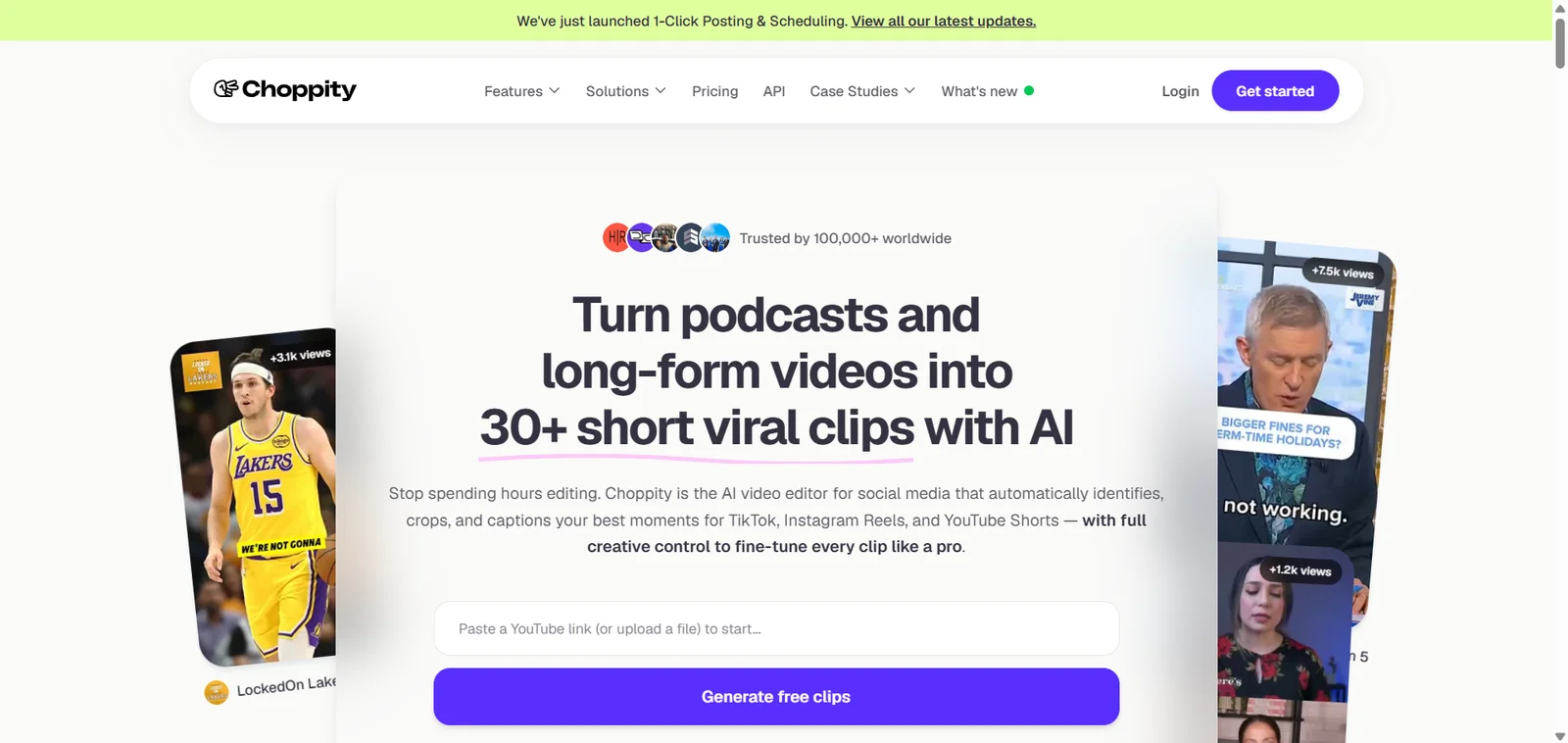
| Choppity | Finding specific spoken moments | One hour of analysis; no downloads | Starter $20/month; $14/month billed yearly | Starter includes three analysis hours/month |
Start with the unit each plan measures. Opus Clip and quso.ai count processing credits, Choppity counts analysis hours, and Klap counts generated clips. A cheaper monthly price will not help if its allowance cannot cover the videos you publish. The weekly podcast example below shows how quickly source minutes add up.
Why Creators Look for an Opus Clip Alternative
A Weekly Podcast Runs Out of Credits by Episode Three
One minute of source video uses one credit. Publish a 60-minute podcast weekly and episode one uses 60 credits, episode two brings the total to 120, and episode three needs 60 more when only 30 remain. The month needs 240 credits: 90 more than Starter includes.
In other words, $15 covers two and a half hours of source video a month, while a weekly one-hour show needs four. Opus Clip does give Starter users editing and watermark-free exports. On Free, clips have a watermark and cannot be exported after three days, so you must also work inside a short export window.
AI Finds a Reaction but Misses the Answer Your Audience Needs
An AI clip can look polished and still make no sense. It might start after the question that gives an answer context, or end before the speaker reaches the point. In a podcast, it may pick a loud reaction over a useful idea, and every repair costs you time.
Ask whether the tool lets you inspect suggestions, change the start and end, and correct captions. A clip that needs two small fixes still saves work; one that needs a full rebuild does not. That is why “cost per usable clip” matters more than a claim about how many clips a tool can generate.
You Still Spend Time Fixing Captions and Crops
A good moment is only the start: a wide interview shot may crop the guest once it becomes a 9:16 video, and captions may cover a face.
Write down the steps you repeat every time you publish — select, trim, caption, reframe, export, post — then look for the tool that removes the ones you dislike most. A broad editor suits control; a focused clipper suits volume.
How We Compare These Opus Clip Alternatives
Price and Free Plan Limits
“Free” can mean a lasting free plan, a short trial, or one test project, and it may still carry a watermark or an export cap. Check the terms for the exact feature you want to use.
Two habits distort this comparison. The first is mixing billing bases: $12 per month billed annually and $19 billed monthly are not the same offer. The second is assuming every alternative costs less than Opus Clip. Several tools below cost more per month because they bundle a full editor, publishing, or analytics — and a per-minute credit model can still work out cheaper than a flat fee when your source videos are short.
Clip Selection and Editing Control
An automatic clip finder gives you a starting point, not a verdict. Judge whether each short has a hook, enough context, and a complete ending. Transcript editing makes that review faster, because you can read a clip before watching every second, and search tools help when you remember a specific quote.
No score can promise a video will go viral. Treat any engagement score as a sorting hint.
Captions, 9:16 Framing, and Export Options
Watch one finished clip on a phone before judging a tool. Are both speakers visible, and can you read the captions without covering the action? Can you correct names and technical words? These checks matter more than a long feature list.
Confirm that the format, resolution, watermark rules, and aspect ratio match where you plan to post, and test any language you actually use on a short sample first.
10 Best Opus Clip Alternatives by Use Case
1. Video Cutter AI — Best for Free Long-Video-to-Shorts Clipping
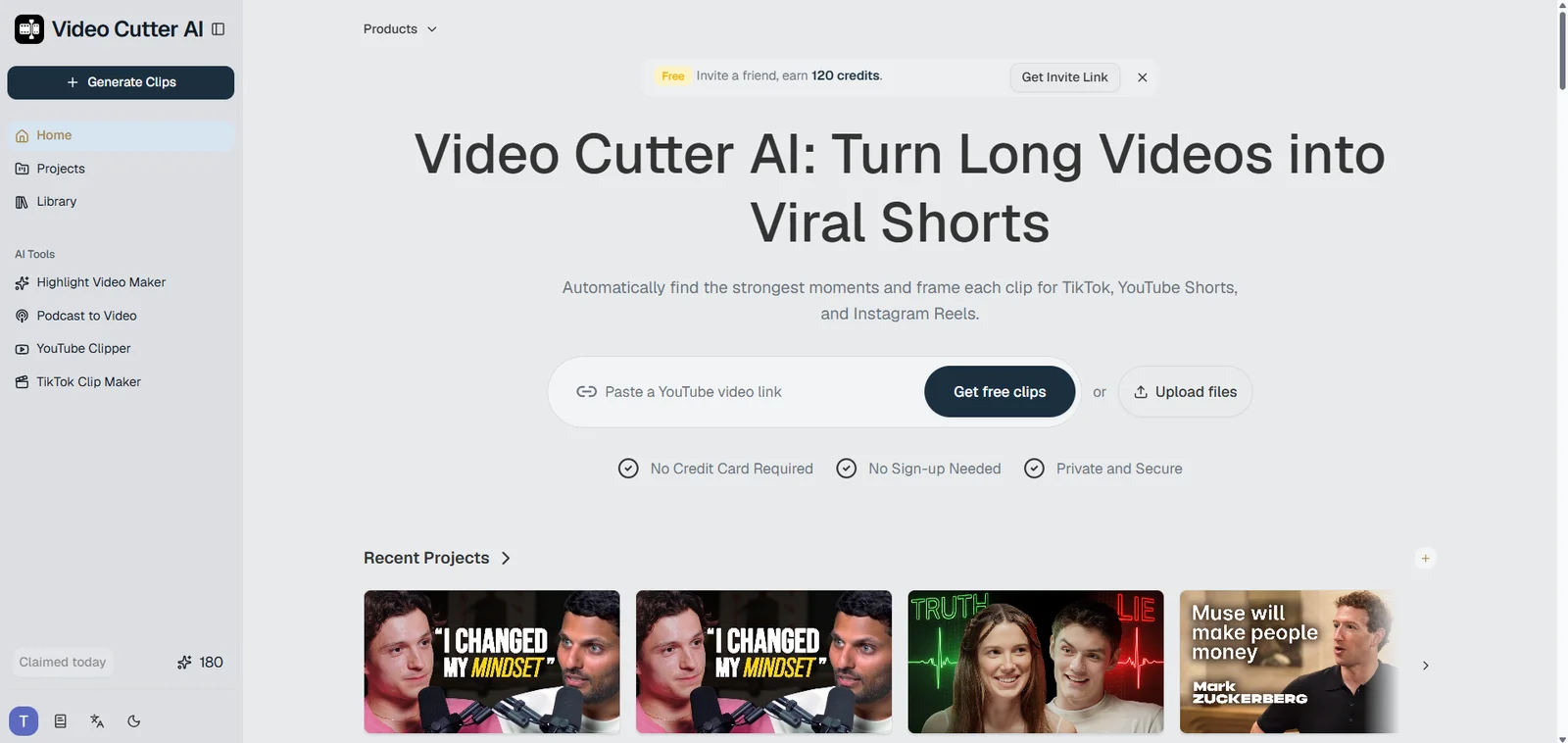
Video Cutter AI is the first option to try if you have a long video and want short clips without paying to begin. Paste a YouTube link or upload a file, and the tool looks for useful moments, writes captions, and reframes clips for vertical platforms. Its public pages describe a free starting workflow with no credit card and no sign-up needed. Compare that with Opus Clip's free plan: 60 processing minutes a month, a watermark, and no editing — a single 60-minute upload reaches that allowance.
The advantage is focus. You do not build a video from scratch or learn a timeline; you bring a podcast, webinar, interview, lesson, or YouTube video and review the suggested moments. The product page describes controls for clip length, language, format, caption corrections, and timing. If your source is already on YouTube, the YouTube Clipper starts from a link rather than a download.
Picture a coach with a 50-minute recorded Q&A: one answer explains a common mistake in under a minute, another tells a short client story. Instead of watching the whole session with a notepad, you review candidates, keep the two that stand alone, and fix their openings. Choosing the right moment stays with you; the tool should make that choice faster, not take it over.
Pros: free to start without a credit card, a Highlight Video Maker for long recordings, automatic captions, and a TikTok Clip Maker that prepares 9:16 clips.
Limits: review each suggested clip for context, caption accuracy, and framing before you publish it; AI picks are a starting point, not a final editorial decision.
2. VEED — Best for Clipping Inside a Full Video Editor
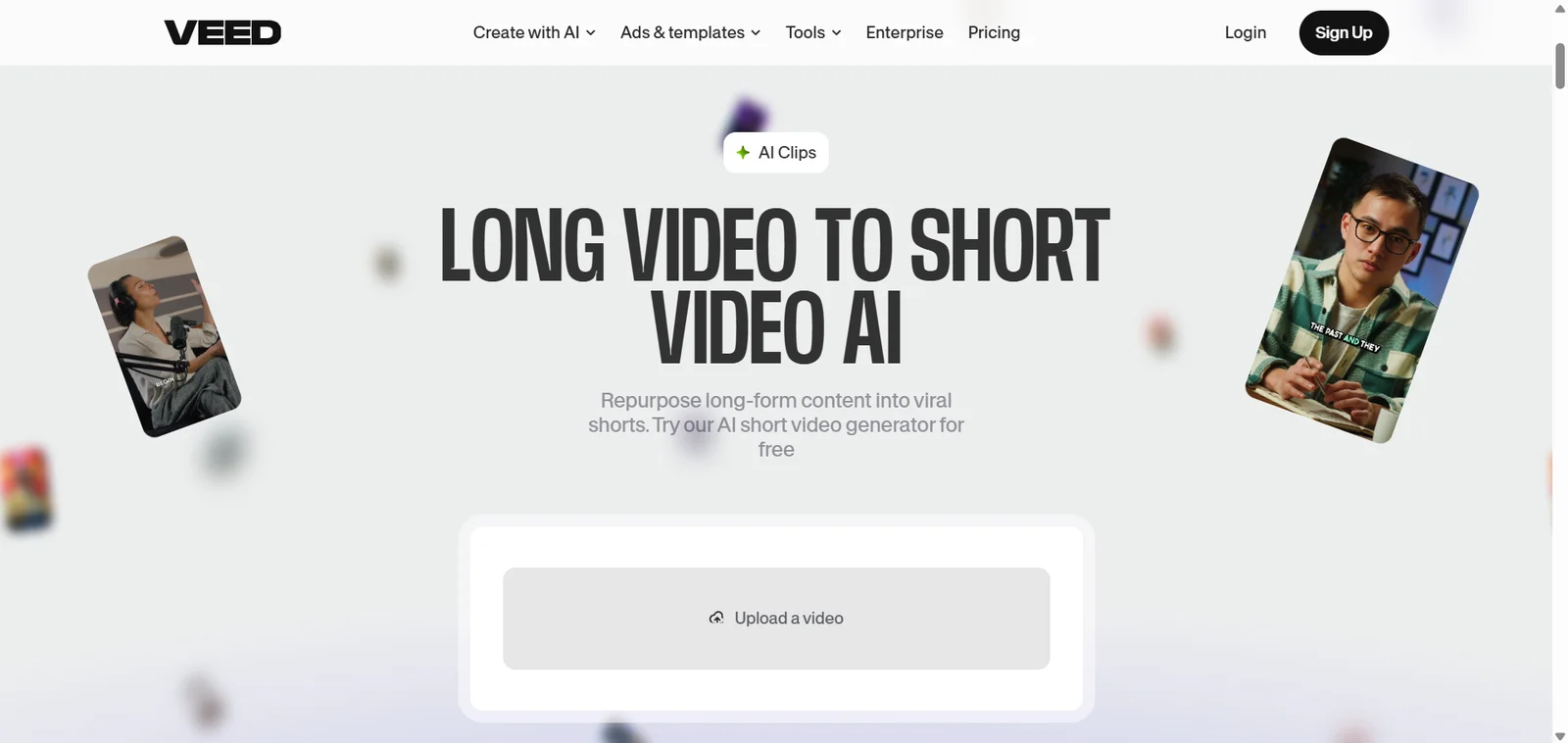
VEED fits creators who want AI clip suggestions but also expect to edit more in the same place. Its Clips feature finds highlights, adds subtitles, keeps a speaker centered, and removes filler words, and you can open a clip in its browser editor to adjust text, music, and details — or trim by reading the transcript instead of searching a timeline.
It suits you when the clip is only one part of the job: cut a webinar into Shorts, then reuse the same editor for a longer recap. The US Creator annual offer is $147 per user per year, or about $12.25 a month, and includes watermark-free exports. VEED's free AI Clips allowance covers one try per account, so a regular clipping routine needs a paid plan.
Pros: a full editor around the clipper, transcript-based trimming, watermark-free exports on paid plans.
Limits: priced per user; the roughly $12.25 monthly equivalent requires a $147 annual payment.
3. Submagic — Best for Animated Captions and Short-Form Effects
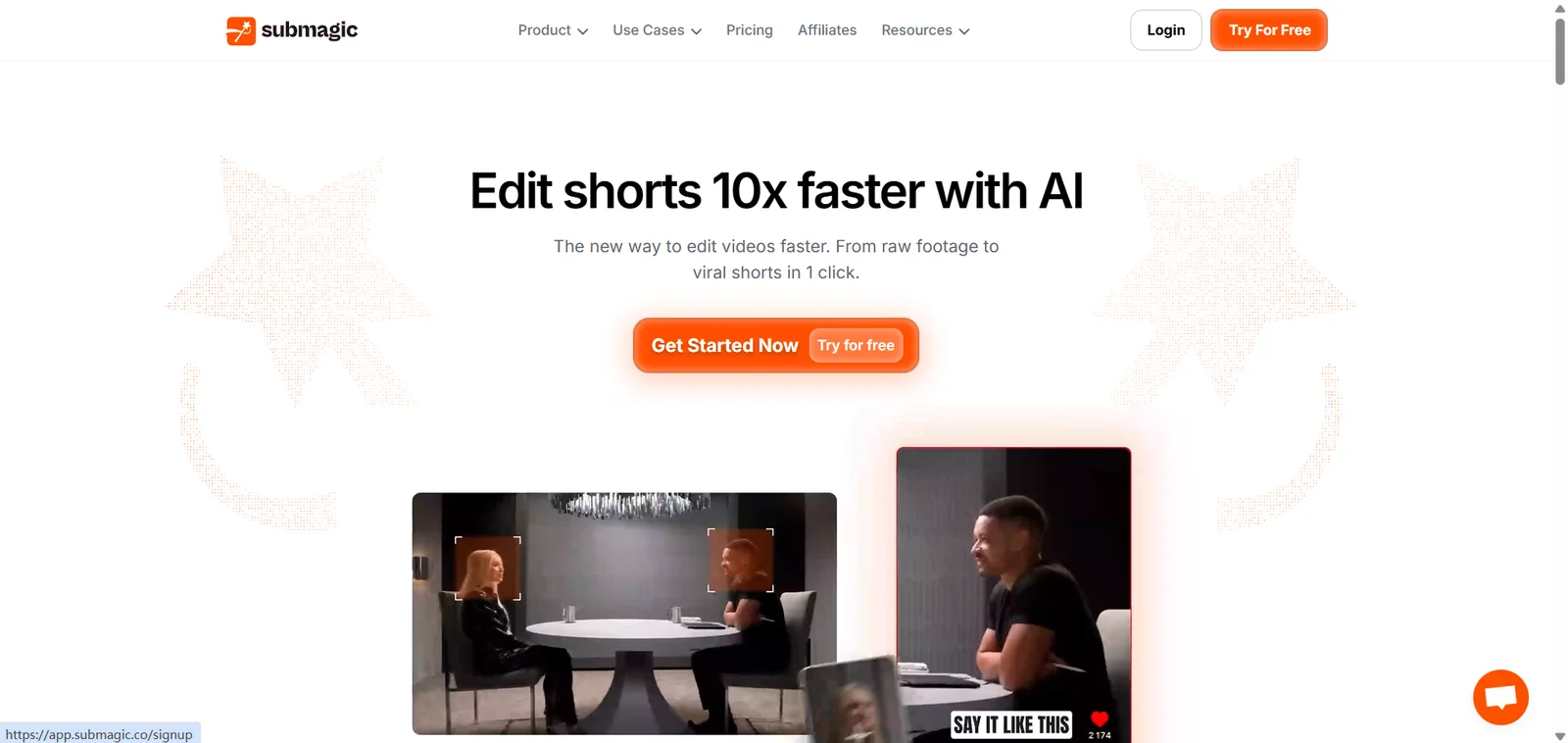
Submagic focuses on how a short looks and moves. Magic Clips pulls clips from longer content, while the editor adds animated captions, B-roll, zooms, and sound effects — a strong match for talking-head videos where words on screen carry the energy. Starter costs $19 per member per month, or $12 per month billed yearly. Its standard editor covers 15 videos a month, with a two-minute limit per video on Starter. Magic Clips is a separate $19-per-member monthly add-on covering 10 long videos, so the monthly Starter plan plus that add-on costs $38 per month.
If you publish quick tips about fitness or personal finance, the message may be strong while the shot stays identical for 40 seconds. Submagic gives you more ways to style the captions and add movement. Those effects help a short feel finished, but they will not rescue an unclear idea — pick it when the final look is your bottleneck, not when you are screening hour-long episodes for a quote.
Pros: animated caption styles, plus B-roll, zooms, and sound effects.
Limits: automatic long-video clipping is a paid add-on. The Starter plan's two-minute video limit belongs to its standard editor; Submagic describes Magic Clips separately as a long-video tool.
4. CapCut — Best for AI Clips with Full Editing Control
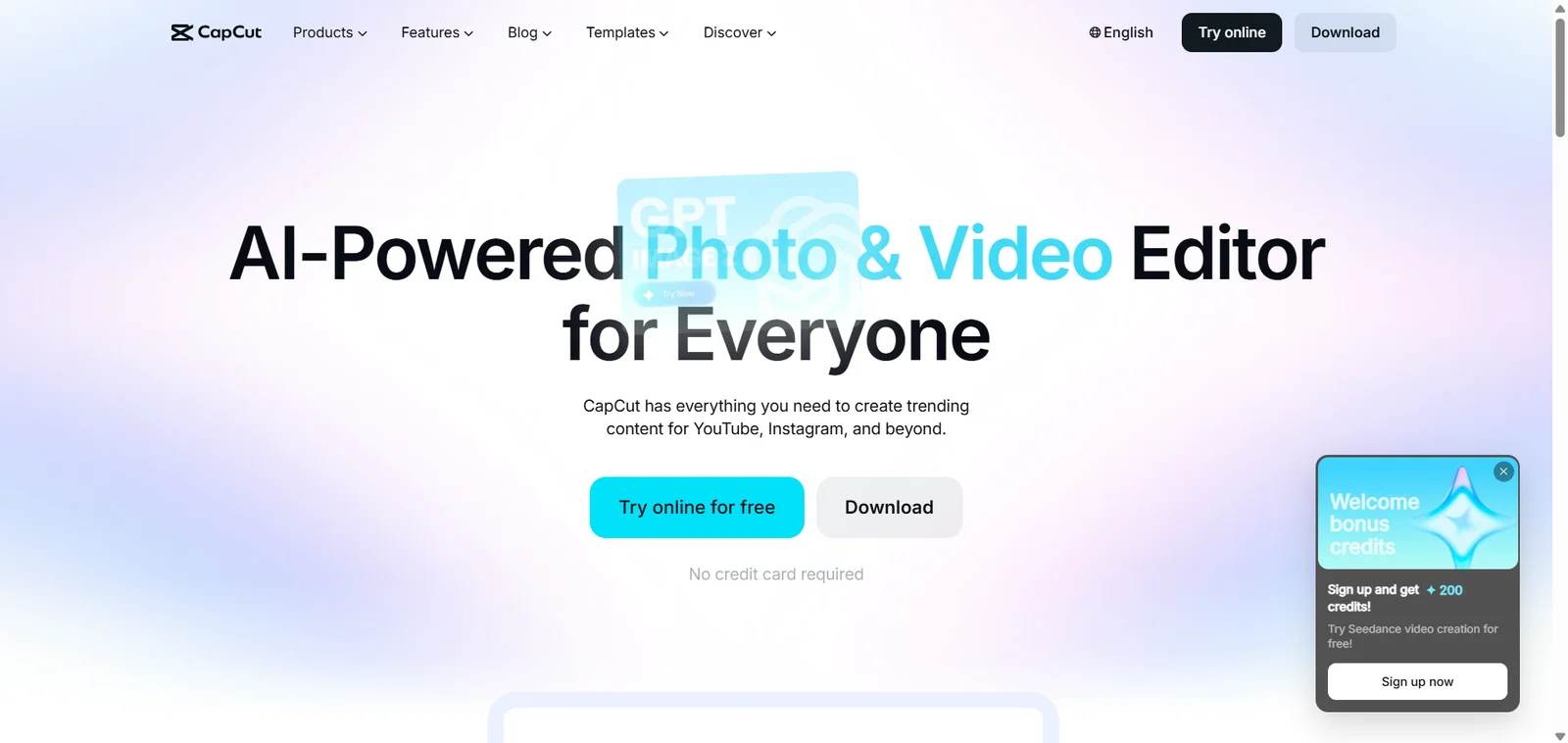
CapCut combines a full timeline editor with templates, transitions, effects, and music across browser, desktop, and mobile. Its online AI clip maker can also find highlights in a long video and make short clips with captions. After it suggests moments, you can open a clip in the editor to change the cut, text, and style yourself.
The core editor and CapCut's online AI clip maker offer a free starting route, which matters if budget is the reason you are looking for an Opus Clip alternative. Suppose the AI finds a good answer in a one-hour podcast but cuts off its last sentence. You can move the end point in the editor instead of accepting the first version. Some effects and templates require Pro; CapCut works best here when you want both automatic suggestions and detailed control over the finished short.
Pros: online AI highlight detection, a free core editor, and detailed timeline controls.
Limits: the broader editor takes more time to learn than a focused link-to-clips workflow; some creative assets require Pro.
5. quso.ai — Best for Clipping and Scheduling Social Content
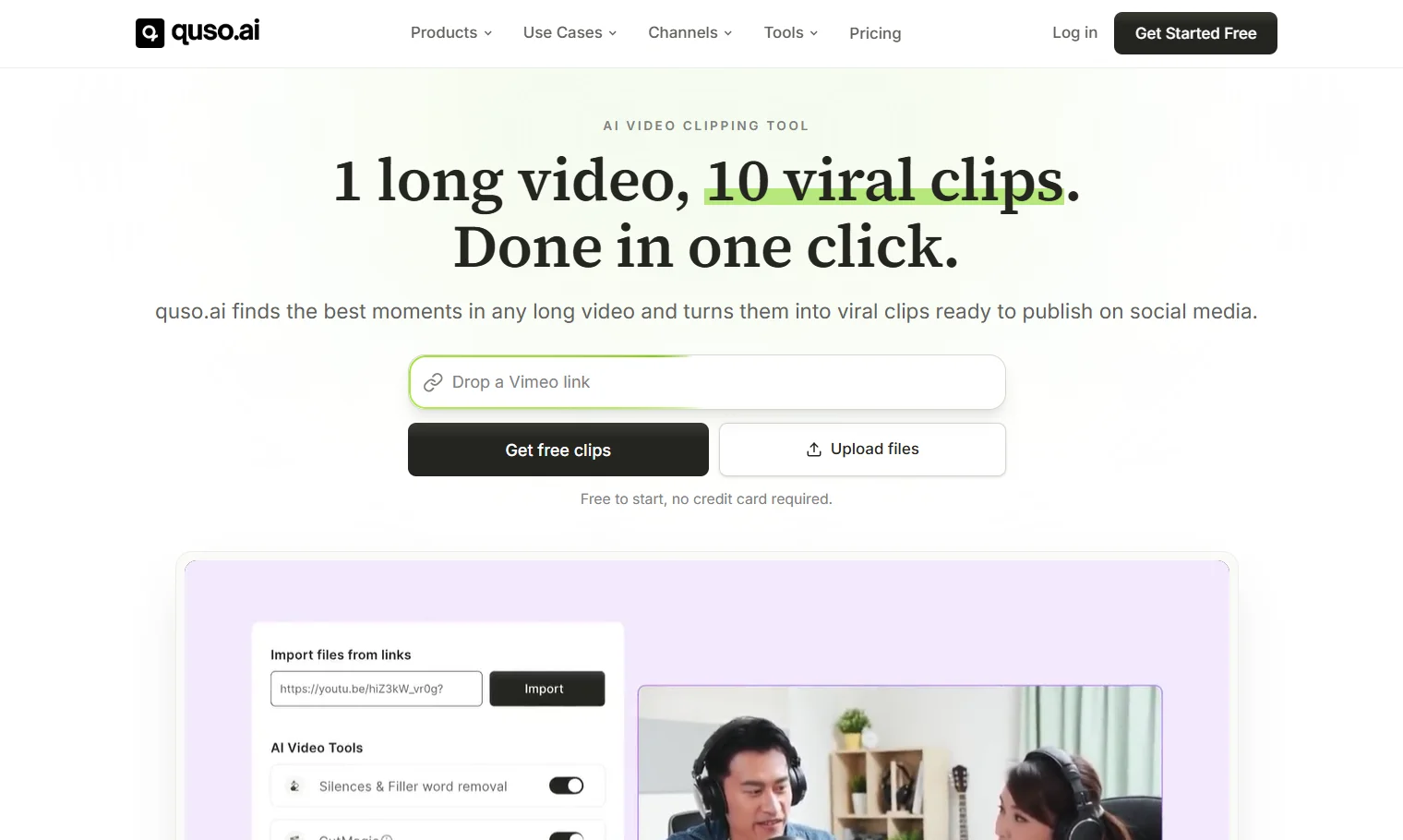
quso.ai connects clipping with what follows it: it turns long video into short clips and adds planning, scheduling, and analytics for social accounts, which helps when you run several channels. Its Free plan lists 75 monthly credits, 720p exports, and seven days of data retention, with one credit equal to about one processed minute. Lite is $29 per month billed monthly, or $19 billed yearly, and adds scheduling to six platforms plus unlimited 1080p clips.
A marketing manager recording one founder interview a month needs clips for each platform, captions, posting dates, and a view of what performed — a clipper covers only the first step. But a weekly 60-minute show burns about 240 credits across four episodes, far beyond the free 75. Choose it for the end-to-end routine, not because the free tier sounds generous.
Pros: clipping, scheduling, and analytics in one account, which suits multi-channel teams.
Limits: credits scale with source minutes, so high-volume shows outgrow the free tier quickly.
6. Vizard — Best for Repurposing Podcasts and Webinars at Volume
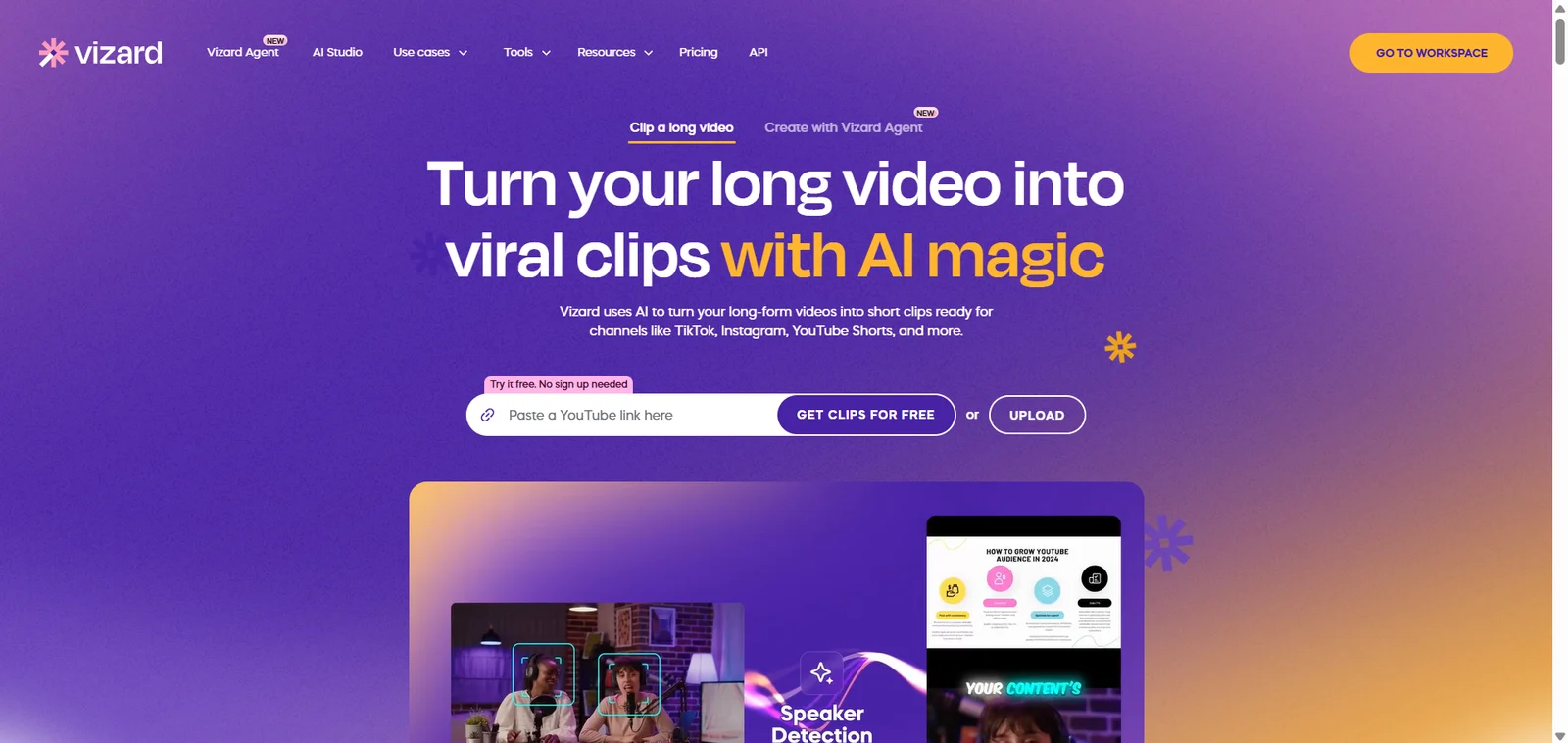
Vizard is built around making many short clips from long recordings. It offers AI clipping, speaker-aware layouts, subtitles, and post scheduling, a mix that suits a podcast producer on a regular schedule. Free lists 60 credits a month, 720p exports, and three days of storage, and one uploaded minute uses one credit. The US iOS app lists Creator with 600 monthly credits at $29.99 per month; web plans let you select a credit tier.
An editor can prepare candidates from a webinar while a manager checks which answers fit the brand. That shared workspace belongs to Vizard's Business tier, rather than the Creator price shown in the table. The other catch: one 60-minute upload can use the entire free allowance, and you must export inside the storage window. If you manage clients, compare workspace access, seats, and upload minutes before upgrading.
Pros: high clip volume per upload, speaker-aware layouts, and team workspaces on higher tiers.
Limits: the quoted Creator price is for the US iOS app, and free storage lasts only three days.
7. Descript — Best for Editing Podcasts and Interviews by Transcript
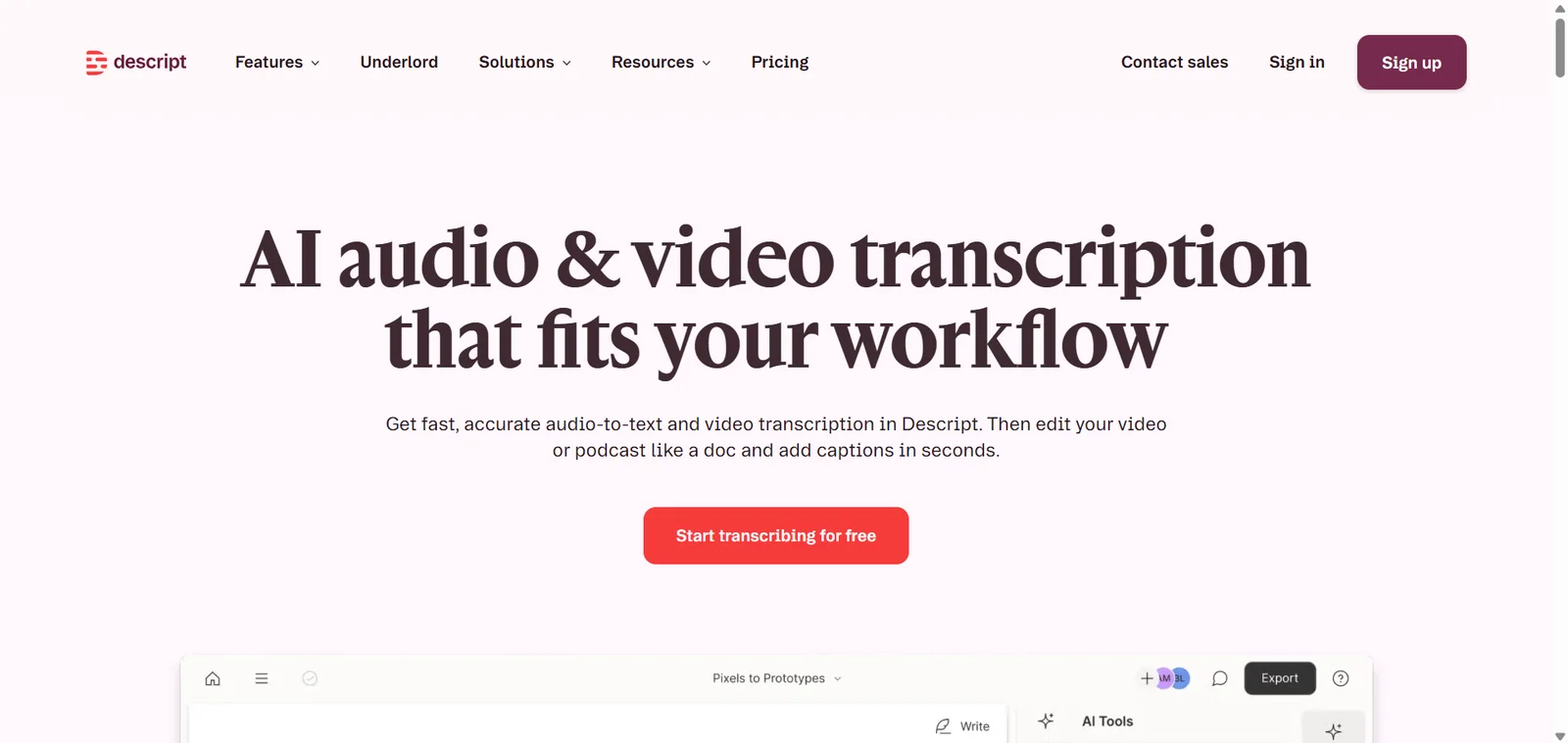
Descript treats the transcript as the editing surface: delete a word in the text and the matching audio and video go with it, which beats scrubbing a timeline when the source is mostly speech. Filler-word removal and audio cleanup target podcast and interview recordings, and it can suggest clips from a finished file.
The approach changes how you make the editorial call. If you remember a guest explaining one rule, you can find that sentence in the transcript and build a clip around it. Descript also includes a Create Clips tool. Its free plan includes 60 media minutes a month; Hobbyist starts at $16 per person per month billed yearly and includes 10 media hours, while Creator is $24 per person per month billed yearly and includes 30 hours. Choose Descript when the podcast's main edit and the shorts need to happen in the same workspace.
Pros: precise transcript editing, filler-word removal, and strong audio cleanup for spoken recordings.
Limits: its broader editing workflow may take more setup than a tool built only for turning one long video into shorts.
8. Eklipse — Best for Gaming Stream Highlights
Eklipse suits gaming streams better than a general podcast clipper. It reads stream video for game events, reactions, and audience activity, then turns them into vertical clips — which matters because a great gaming moment often has little speech for a transcript-based tool to read. Premium costs $24.99 per month. Its ongoing free clipping tier ended in June 2026: you can preview clips, but producing and exporting them needs a paid plan.
If you stream for hours, you want a close match, a funny failure, or a sudden reaction without reviewing the recording, and that is the task Eklipse is built for. A silent game-winning play still counts as a highlight. The trade-off is specialization: a coach cutting spoken advice from a webinar has little reason to pay for game-aware detection.
Pros: highlights driven by game events rather than speech, which suits silent action moments.
Limits: the ongoing free clipping tier has ended, and detection is not built for talking-head content.
9. Klap — Best for a Simple YouTube-to-Shorts Workflow
Klap keeps the entry point simple: add a YouTube link or upload a video, then get vertical clips with AI selection, reframing, and captions. It lets you create one source video for free. Its Basic plan is $14 per month billed yearly and includes 100 clips per month; the 300-clips-per-month allowance belongs to Pro, which is $39 per month billed yearly.
A solo creator can pull several points from a weekly tutorial. Klap says its selection works best on speech-driven video such as interviews, lessons, and reviews, which is a reason to test it carefully on action-heavy footage. A tutorial may also rely on a screen share, so check that important text survives the reframe.
Pros: a fast link-to-clips path, plus reframing and captions with few settings to learn.
Limits: one free source video only, and selection is tuned to speech, so screen-share detail can suffer.
10. Choppity — Best for Finding and Editing Specific Moments
Choppity pairs automatic clip suggestions with search and editing inside the transcript. Keyword search finds a quote or topic you already remember, and you can trim a clip by working with the words. Free includes one hour of AI analysis, 2 GB of cloud storage, and a three-day project retention period, but its pricing table shows no exports on Free. Starter costs $20 per month, or $14 billed yearly, and adds three hours of analysis plus 1080p downloads.
That search control answers a common weakness of generic “viral clip” tools. Suppose a guest explained a useful rule about tax records while the loudest moment of the podcast was an unrelated joke: you search for the rule instead of hoping an AI ranks it highly. The free analysis is enough to judge the suggestions, but downloading finished clips needs a paid plan.
Pros: keyword search inside the transcript, so you can target a specific quote instead of trusting a score.
Limits: no exports on the free plan, and a weekly 60-minute show uses more than three Starter hours a month.
Which Opus Clip Alternative Fits Your Workflow?
For Free AI Clipping from Long Videos
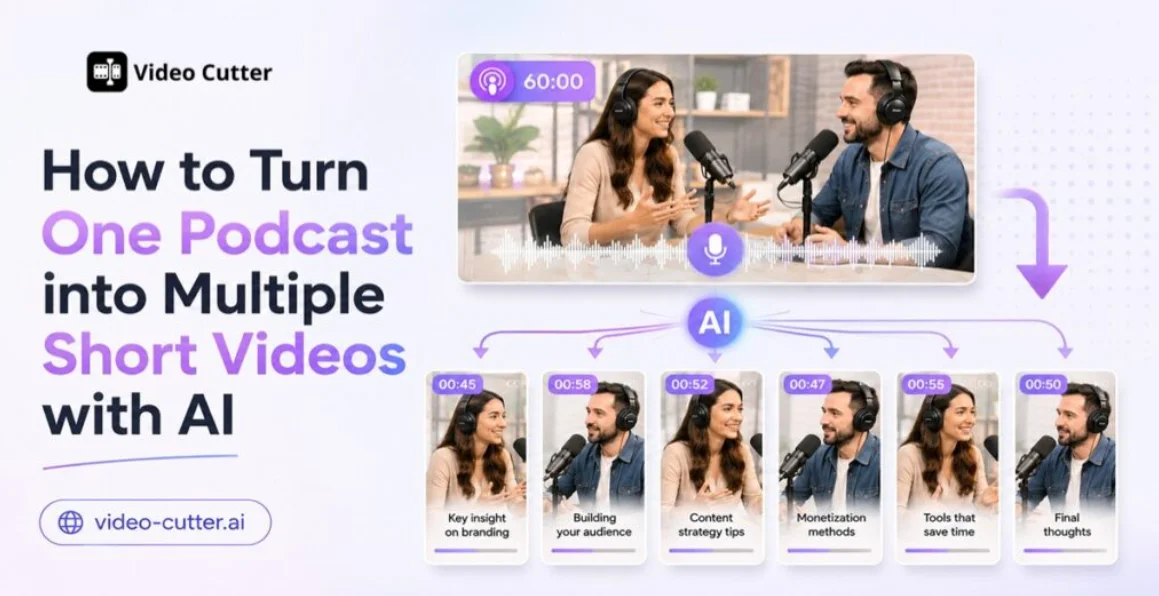
Start with Video Cutter AI when the main task is turning a long recording into short, captioned clips and you want to test the process for free. Pick a 20- to 60-minute video you know well, review the suggestions, and ask whether two or three results could be published after light edits. The guide on how to turn a podcast into short videos covers how to spot self-contained moments; when a clip needs the full episode to make sense, it is not ready yet.
For Podcast and Interview Clips
Focus on clean beginnings, complete thoughts, and captions you can fix. Video Cutter AI, Vizard, Choppity, Descript, VEED, and Klap all cover parts of this workflow. Compare them on one real episode and note how many suggestions you review, how many you keep, and how long each repair takes — five suggestions where three work can beat twelve where only one does.
For Caption-Heavy Social Videos
Choose Submagic when caption style and visual rhythm carry your videos; VEED and CapCut also shape the finished short. If you mainly need a readable subtitle track, start with a focused clipper before paying for effects. Export one clip and watch it without sound: are the captions accurate, well timed, and legible on a phone?
For Gaming Streams or Team Publishing
Eklipse fits streamers who want game-aware highlights. Vizard and Choppity fit teams sharing review and editing work, and quso.ai fits anyone who also wants a publishing workflow. These solve different problems, so do not pick one from a single price number.
Frequently Asked Questions
Is There a Free Opus Clip Alternative for Long Videos?
Yes. Video Cutter AI offers a free starting route: add a YouTube link or upload a file, then review the suggested highlights. Free plans in this category vary, so check source-length, export, and watermark rules before committing to a full schedule.
Which Tool Finds Usable Podcast Clips Automatically?
Several tools here can suggest podcast clips, including Video Cutter AI, Vizard, VEED, Klap, and Choppity. “Usable” still depends on your recording. Try one episode with a story, a direct answer, and a few weak sections, and see whether the tool picks complete ideas rather than loud moments.
Can I Correct AI-Generated Captions Before Exporting?
Many clippers include caption editing, but depth varies: some let you fix words and timing, others add styling controls. If your show includes names, technical terms, or a second language, test those cases first rather than assuming an automatic transcript is ready to publish.
Which Alternatives Support 9:16 Clips and Non-English Speech?
Many tools reframe a wide recording into a vertical clip, and several offer multilingual captions, but language support does not guarantee accuracy for your accent, guests, or audio quality. Upload a short sample with two speakers, then check the crop and the text before paying.
Why Do AI Clippers Sometimes Choose the Outro or Cut Too Early?
AI tools look for signals such as speech, topic changes, or excitement, and they do not always know which idea matters to your audience. An outro may sound energetic while a useful answer starts quietly. Treat suggestions as drafts: move the start back for context and extend the ending until the speaker finishes the thought.
Can I Find a Specific Moment Instead of Relying on AI Picks?
Yes, if the tool supports transcript search or targeted editing. Choppity is one option. The strongest workflow uses both: let AI scan the long video, then use your own knowledge to refine the moment.
Final Verdict: Choose the Tool That Fits Your Videos and Budget
The best Opus Clip alternative is the one that makes your own videos easier to publish. If you want a free starting point for long videos, begin with Video Cutter AI: it handles the path from a YouTube link or uploaded file to suggested, captioned short clips, and leaves the final cut to you. Try it with a recording you already know.
Choose a different tool when the job calls for a different strength — Submagic for short-form styling, Eklipse for gaming moments, quso.ai for a publishing calendar, Choppity for exact quotes. Whatever you choose, measure the whole job: source minutes, useful clips, editing time, and export rules. A short that tells a complete story beats a folder of cuts you never publish.