AI Clip Finder for Your Best Moments

Upload a long video or paste a YouTube link. Preview the clips Video Cutter AI finds and pick the best ones without rewatching the full video.

or
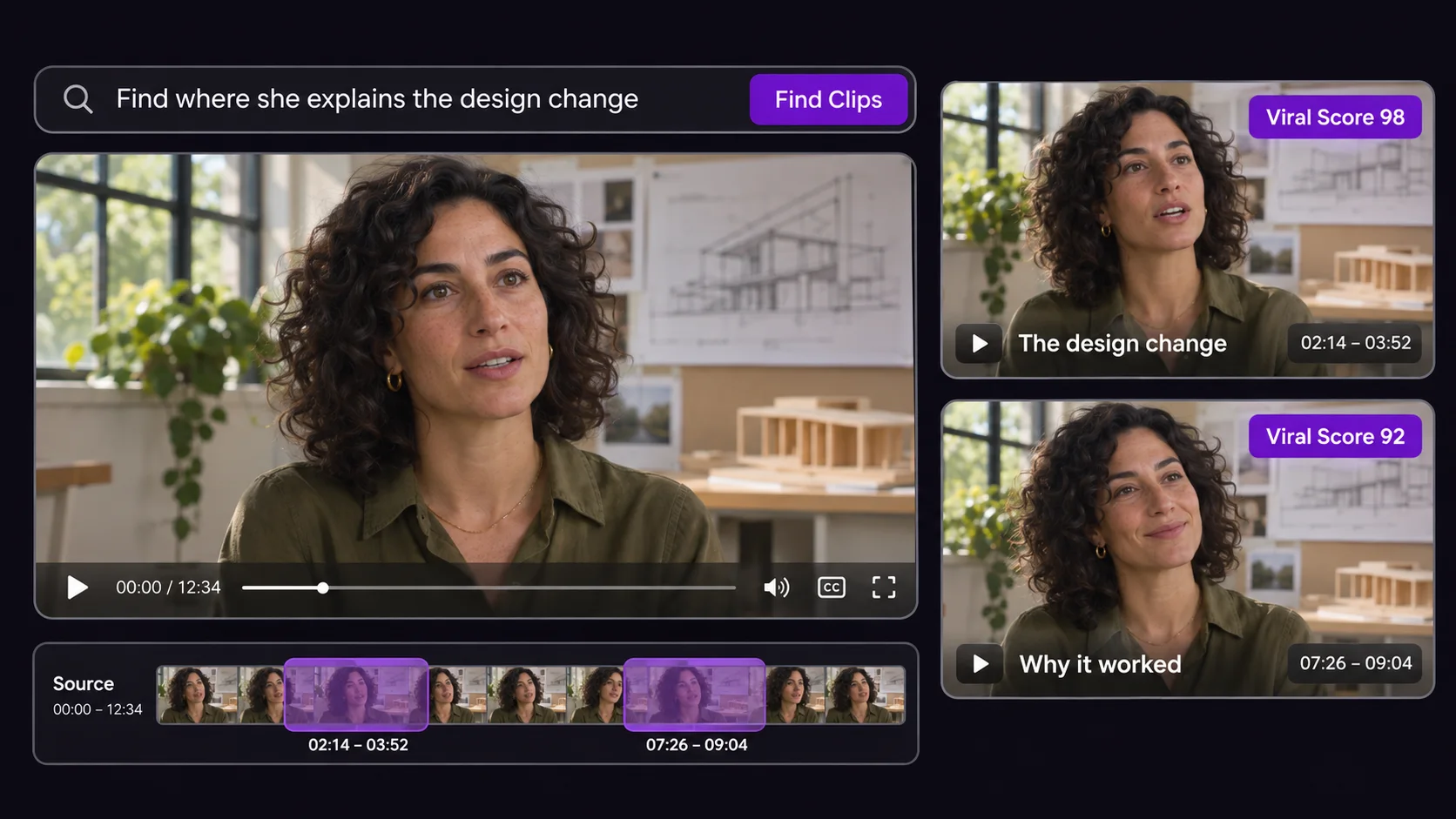
Clip search for a design change with two matching excerpts and scores
AI Clip Finder banner with video editing screens

AI Clip Finder: Find the Best Clips in Long Videos for Free

Video Cutter AI’s AI Clip Finder scans long videos for clips worth keeping. Upload a video or paste a YouTube link to preview and pick the clips you want.

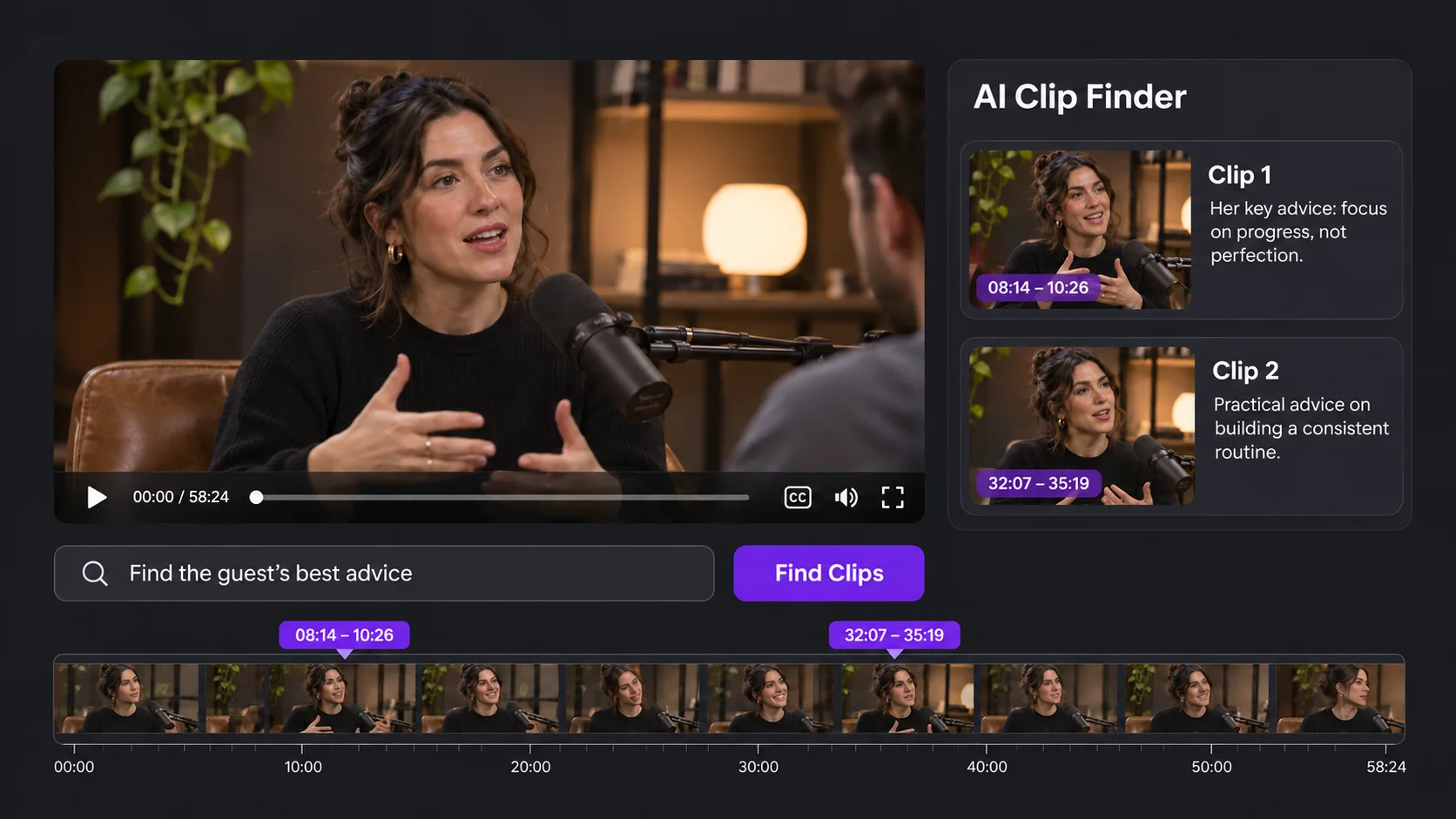
Interview preview and suggested clips for the guest’s best advice

What Is AI Clip Finder?

Remember a strong interview answer but not when it starts? Describe it in AI Clip Finder and preview the matches to see which clip makes sense on its own. If you’re starting without a specific moment in mind, AI Clip Finder can suggest clips from the recording. If the interview is on YouTube and you want to check the exact wording before sharing a clip, use YouTube Transcript Generator to review the timestamped transcript.

How to Use AI Clip Finder

1

Upload or Paste a Link

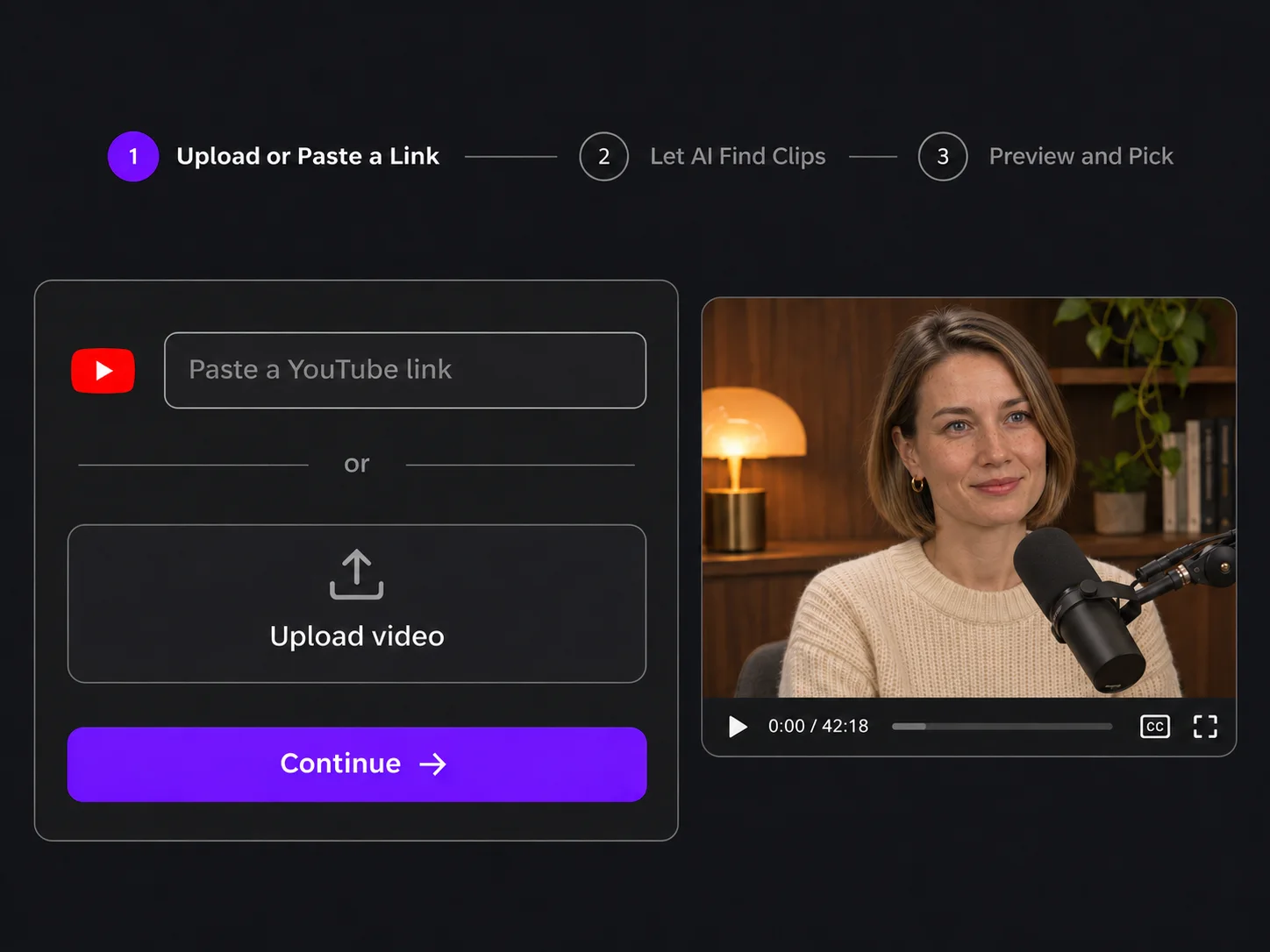
Open AI Clip Finder and upload the original recording if you have it on your device. If the video is already on YouTube, paste its link.

Video upload and YouTube link entry in AI Clip Finder
2

Let AI Find Clips

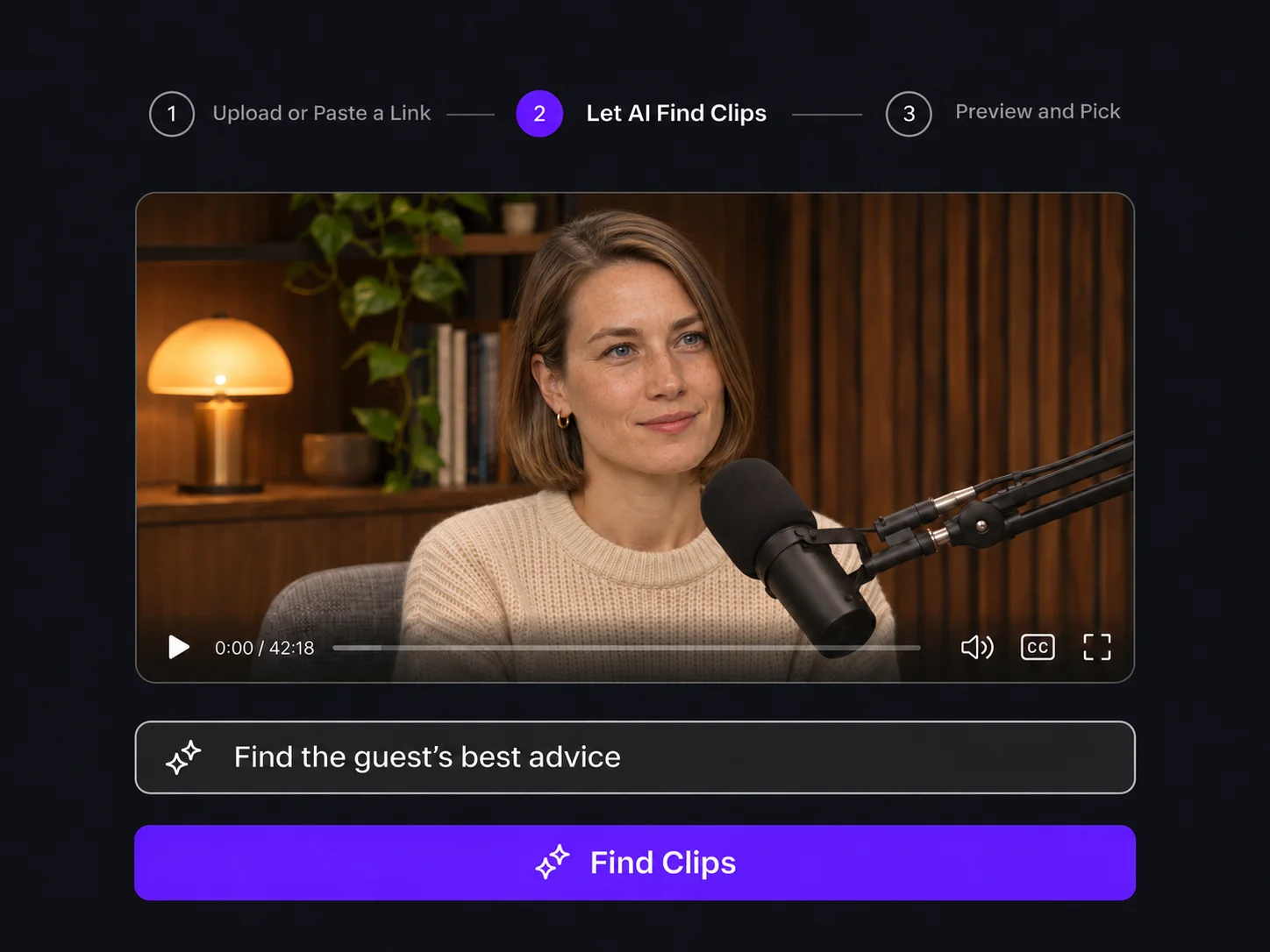
In AI Clip Finder, describe the moment you want to find or leave the prompt blank for automatic suggestions. Click Find Clips to scan your video.

Clip search field filled with a request for the guest’s best advice
3

Preview and Pick

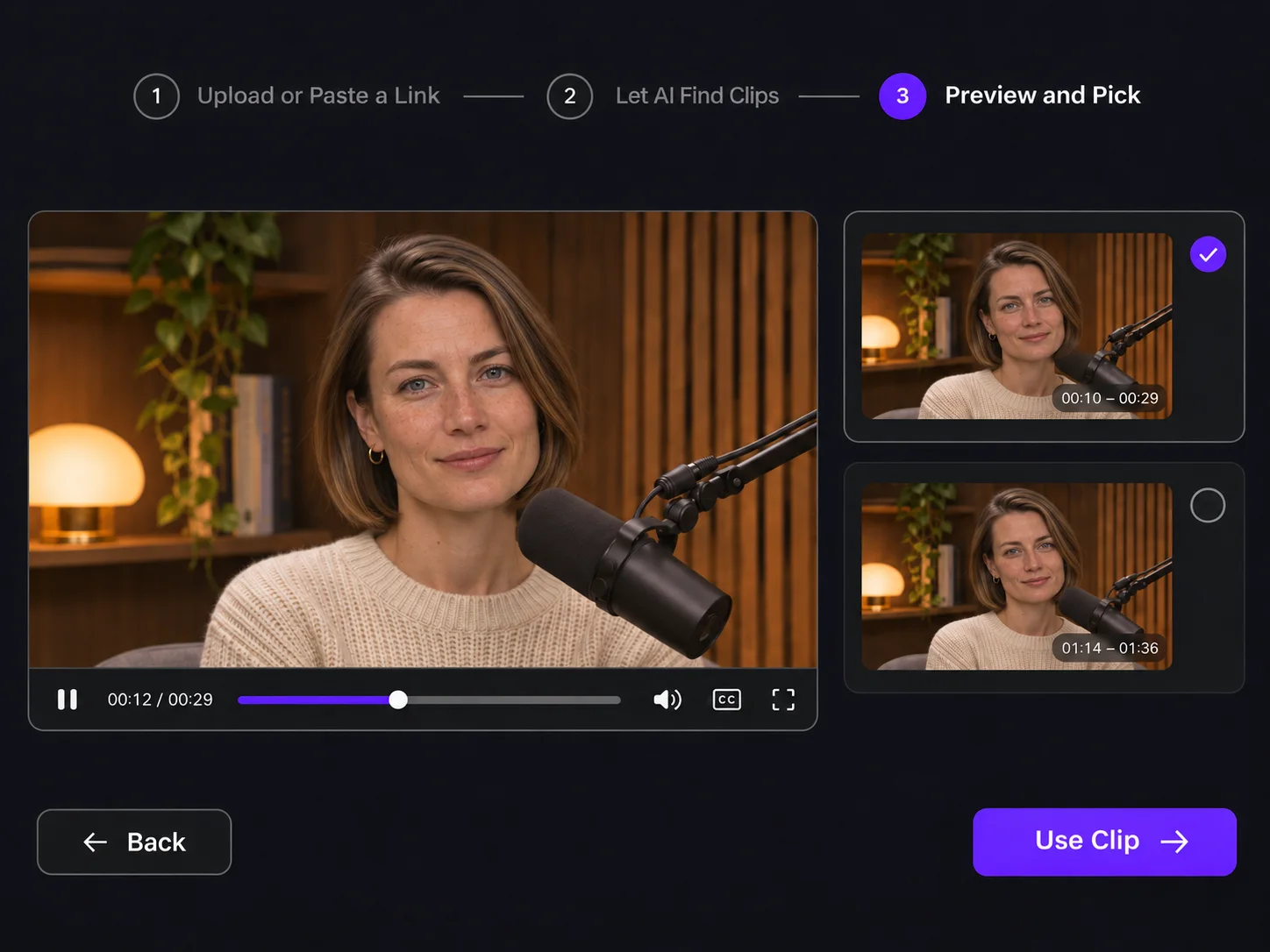
Preview each clip in AI Clip Finder to see what it covers. If several clips cover the same topic, compare them and keep the one that best fits what you want to share.

Preview and selection of AI-generated clips

Why Choose AI Clip Finder?

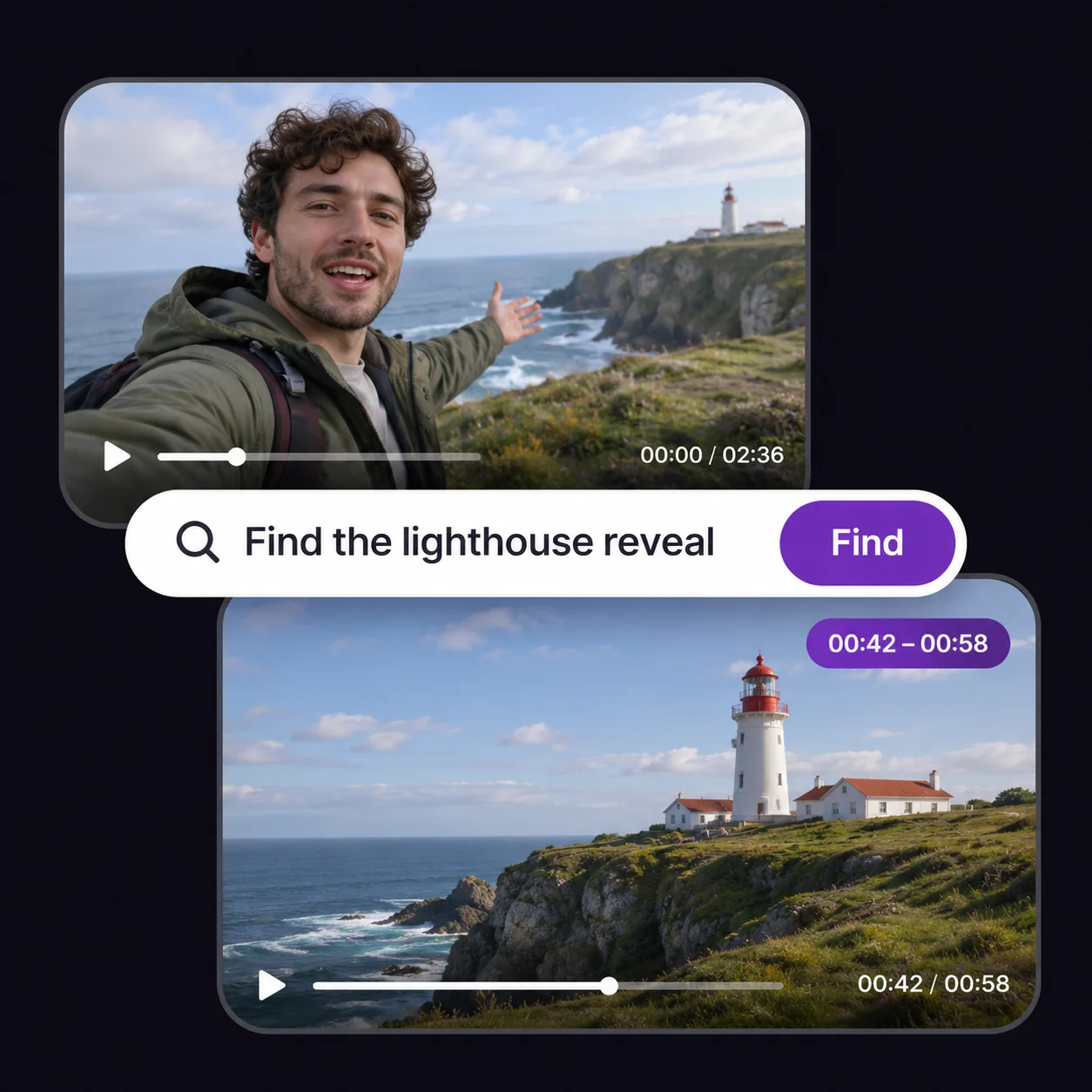
Lighthouse footage matched to a written search request

Find Clips by Description

Tell AI Clip Finder what you remember, even if you can’t recall the exact words. Try “Find where the guest explains why they raised prices.” Preview the matches to find the explanation without searching the recording line by line.
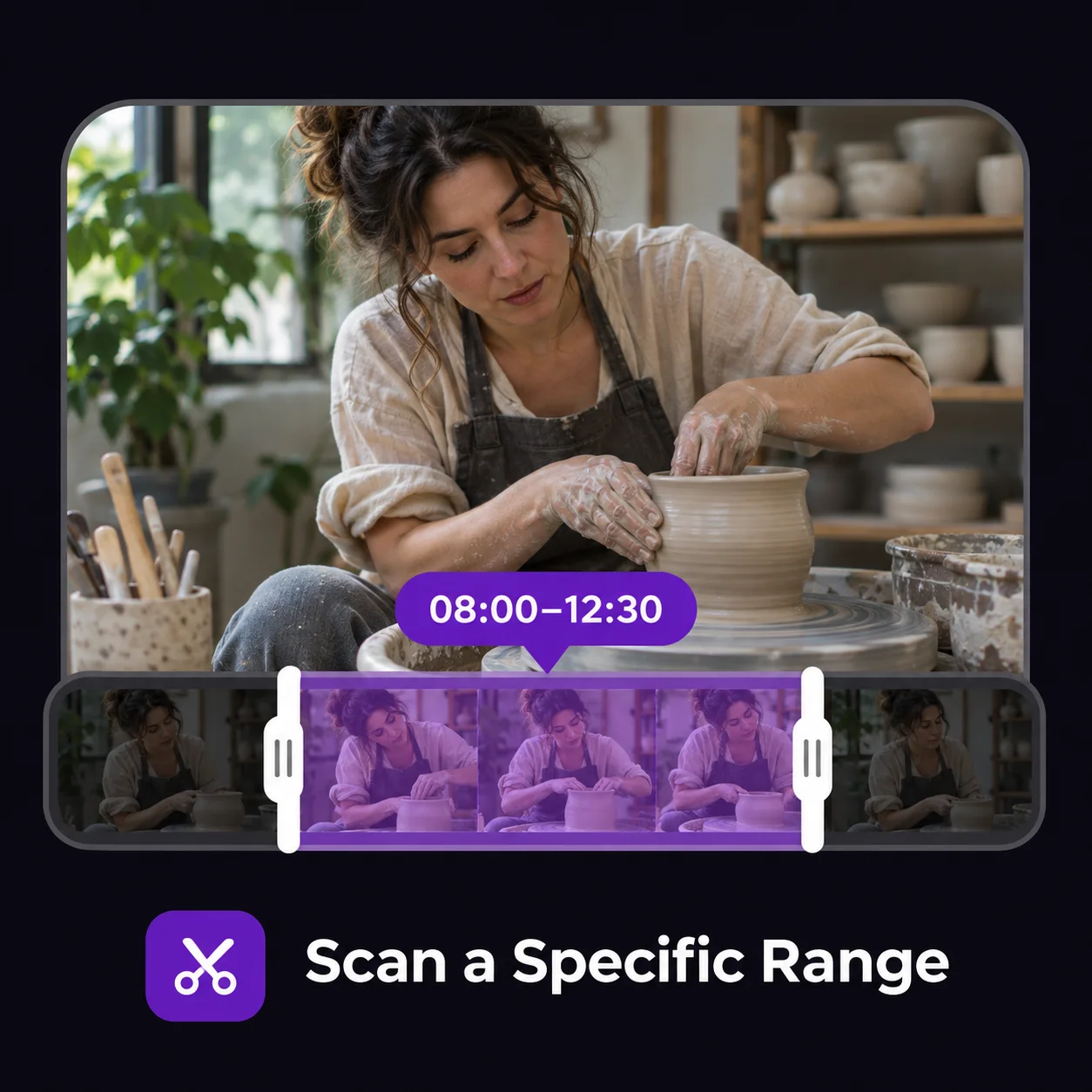
Pottery video timeline with a selected analysis range

Scan a Specific Range

Go straight to the part of the recording you want to use. If a webinar opens with housekeeping and ends with announcements, set the scan range around the main discussion. AI Clip Finder looks for clips within that section, so your results stay focused on the material you came for.

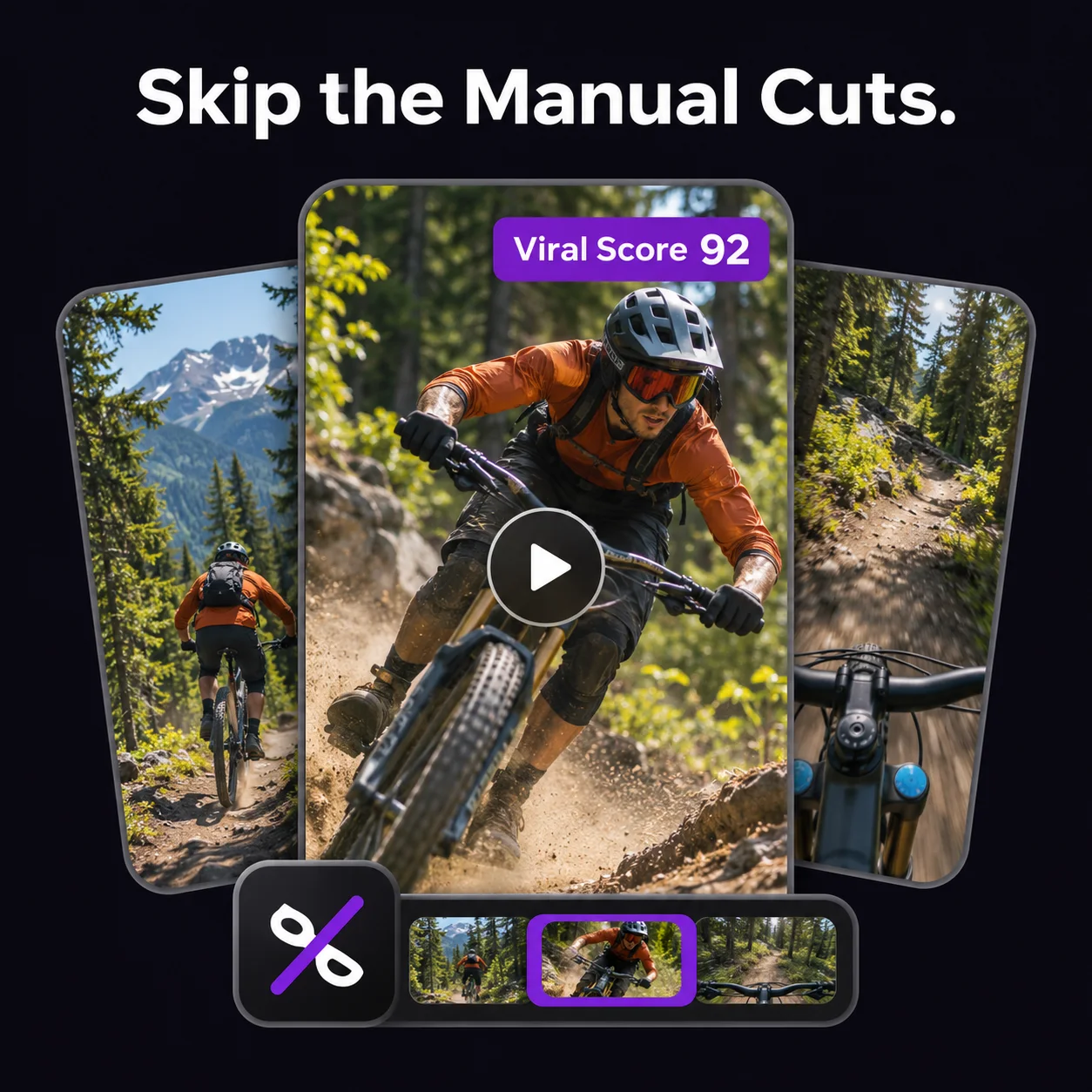
Mountain biking clip with a Viral Score

Skip the Manual Cuts

AI Clip Finder automatically cuts long videos into short clips. Use the Viral Score to decide which clips to preview first, then keep the ones that fit your audience. If a clip needs more context, extend it or fine-tune the cut before sharing.

AI Clip Finder Use Cases for Creators

A line you remember from a movie, the play that saved a match, or an answer buried in a podcast can all work as clips on their own. Tell AI Clip Finder what you’re looking for, and it finds and cuts matching clips for you to review.

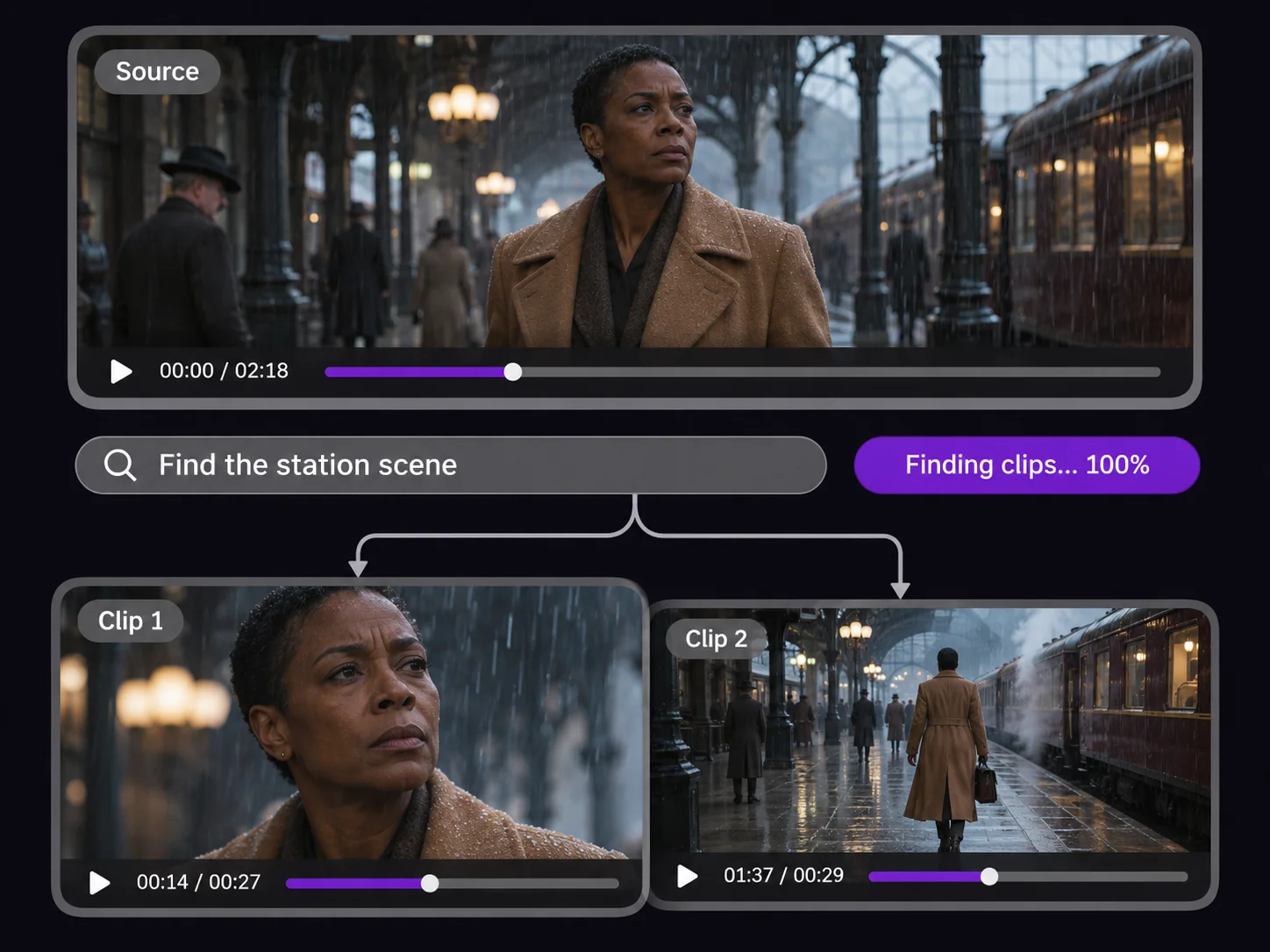
Film clip search for a train station scene

Find Movie Scenes by Dialogue

You remember the line, but which scene was it in? Give AI Clip Finder the words you remember or describe the exchange. Preview the matching clips and pick the scene you need for a recap or commentary video.

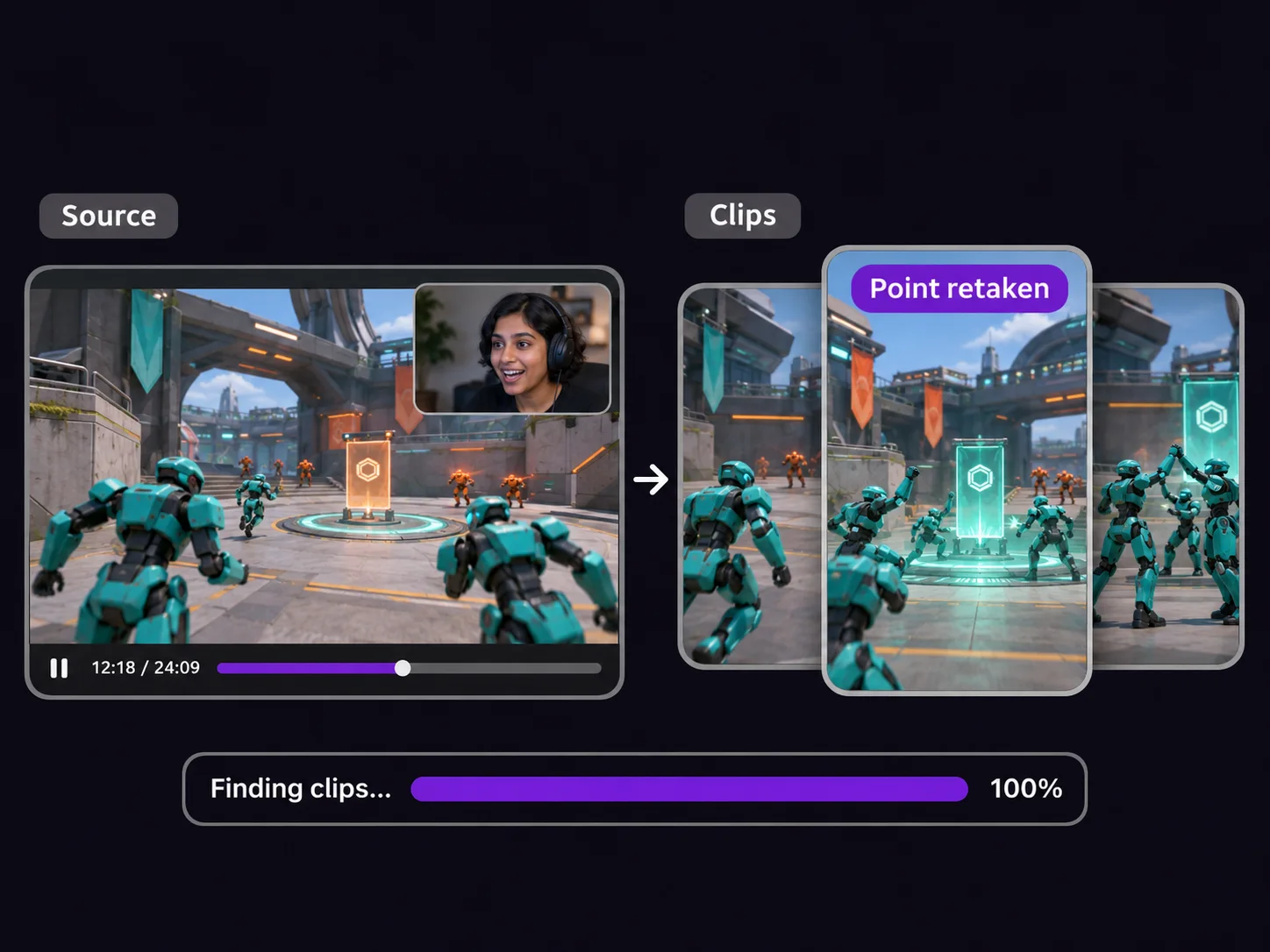
Game replay with a clip of the team retaking a point

Turn Match Replays into Comeback Clips

The comeback starts well before the win screen. Ask AI Clip Finder to find where your team retakes the point. Review the cut to make sure it shows the play and how it changed the match, then share it with your squad.

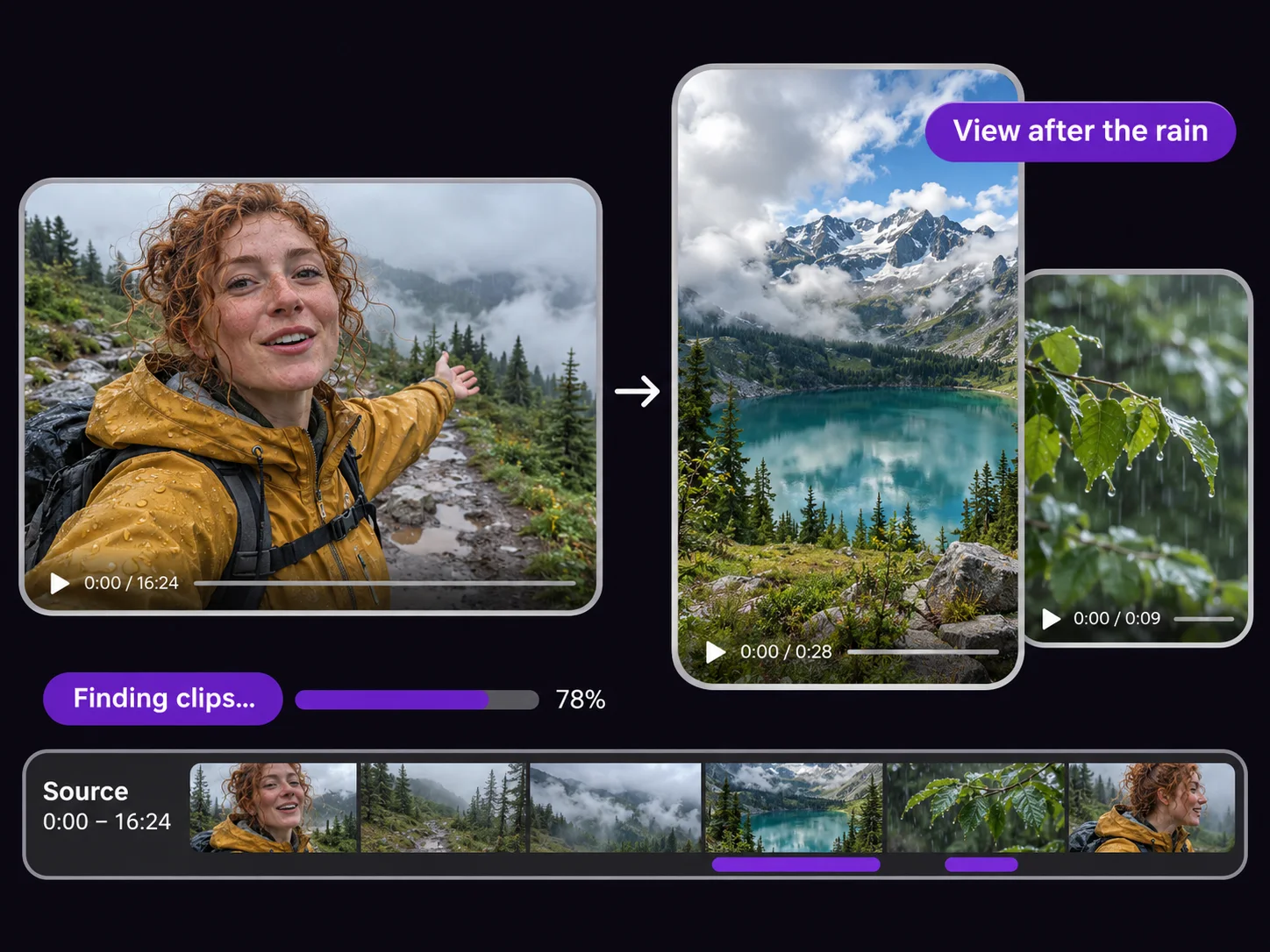
Travel vlog clip showing a mountain lake after the rain

Turn a Day of Travel into One Short Clip

A day of travel footage might have one moment that tells the story, like the first clear view after a rainy hike. Let AI Clip Finder find and cut a few clips, then pick the one that best captures the day.

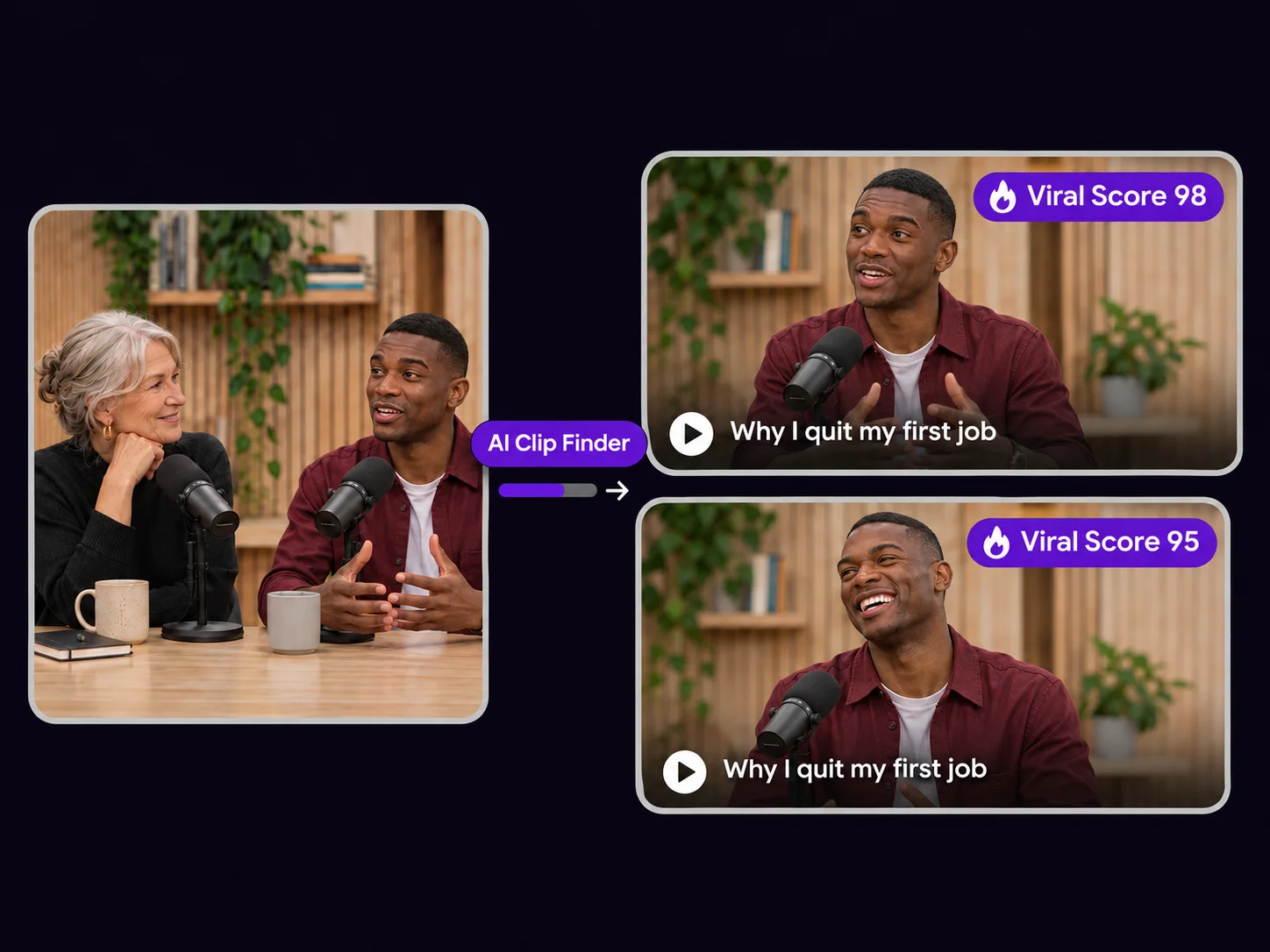
Two podcast clips about why the guest quit their first job

Turn Guest Answers into Podcast Teasers

The best teaser might be an answer halfway through the episode. In AI Clip Finder, try “Find where the guest explains why they quit their first job.” Review the cut and pick a version that makes sense to someone who hasn’t heard the episode. To share it as a YouTube Short, use Video to Shorts Converter to format it vertically.

What Users Say About AI Clip Finder

I host a weekly interview show. I used to scrub through the whole episode looking for a few good moments. AI Clip Finder gives me a shortlist, so I can preview the clips and pick the ones worth posting.

Maya Chen

Content Creator

Cutting product demos for Reels used to mean rewatching the whole file. AI Clip Finder marks the strongest segments with timestamps, and I approve them in minutes instead of an afternoon.

Daniel Ruiz

Social Media Manager

I pull short examples from long lectures. The suggested clips help me find explanations my students can follow on their own, so I can drop one into a lesson without replaying the whole lecture.

Priya Nair

Teacher

There’s a lot to sift through in a full podcast episode. The suggested clips give me a starting point for finding quotable moments. If a cut needs a little more context, I can adjust it before exporting.

Tom Becker

Podcast Editor

Clients send me long reference videos and ask for specific segments. I start with the suggested clips and check which one matches the brief before sending it back.

Sofia Marin

Freelance Video Editor

I only need short teasers from our channel videos. AI Clip Finder finds the moments worth clipping and lets me export MP4 in a few clicks, with no full editing suite.

Kenji Ito

Small Business Owner

AI Clip Finder FAQs

Find Your Next Clip with AI Clip Finder

Start with a video you already have. Describe the moment you want or let AI pick and cut a few options. Preview the results and keep the one worth sharing.