Kapwing Alternative: Video Cutter AI vs. Kapwing

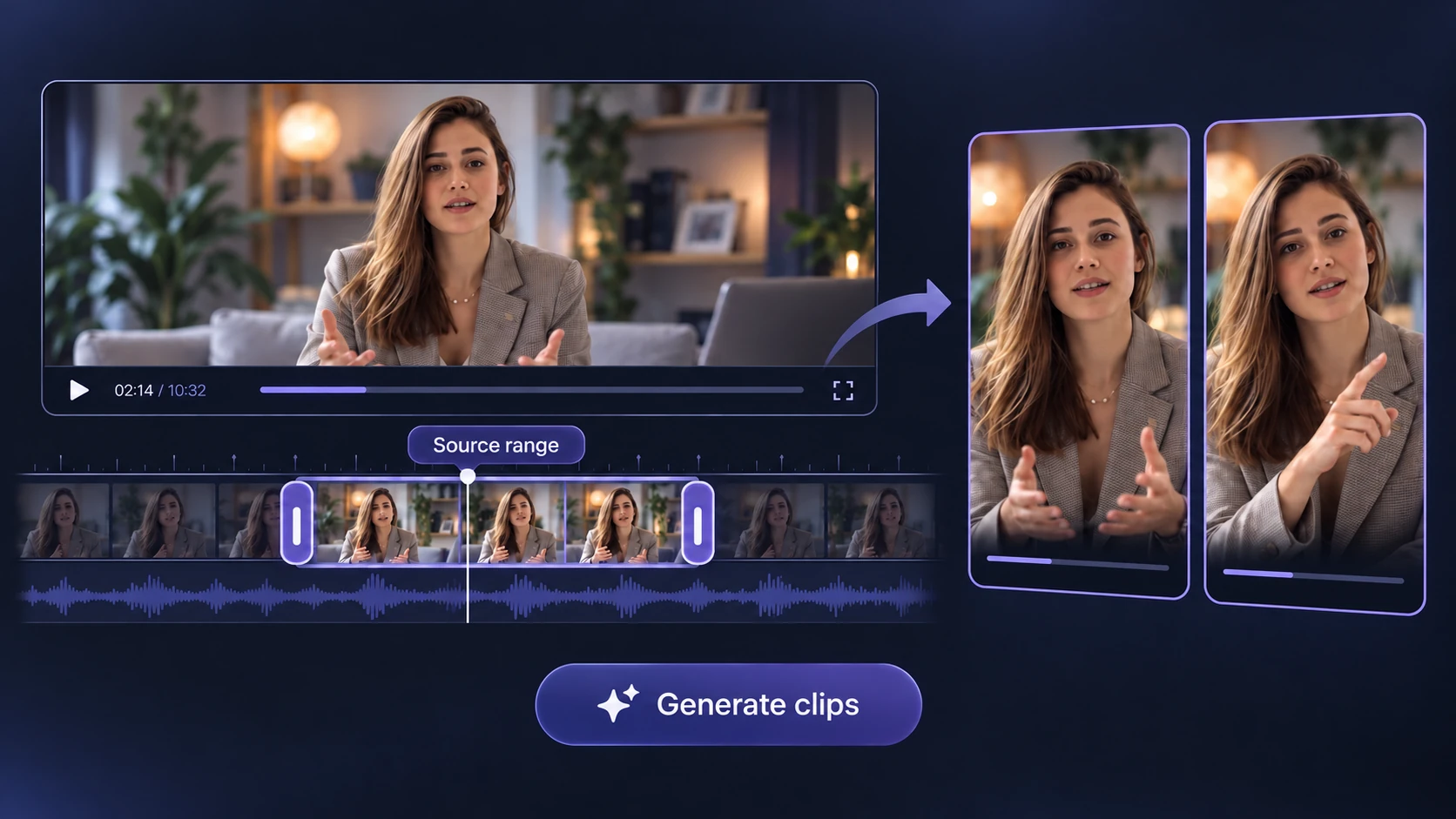
Already have a recording to repurpose? Paste a YouTube link or upload a video, review AI-selected moments, and make captioned clips for free.

Upload files
Kapwing Alternative: Video Cutter AI vs. Kapwing

Video Cutter AI vs. Kapwing: Plans and Editing Features

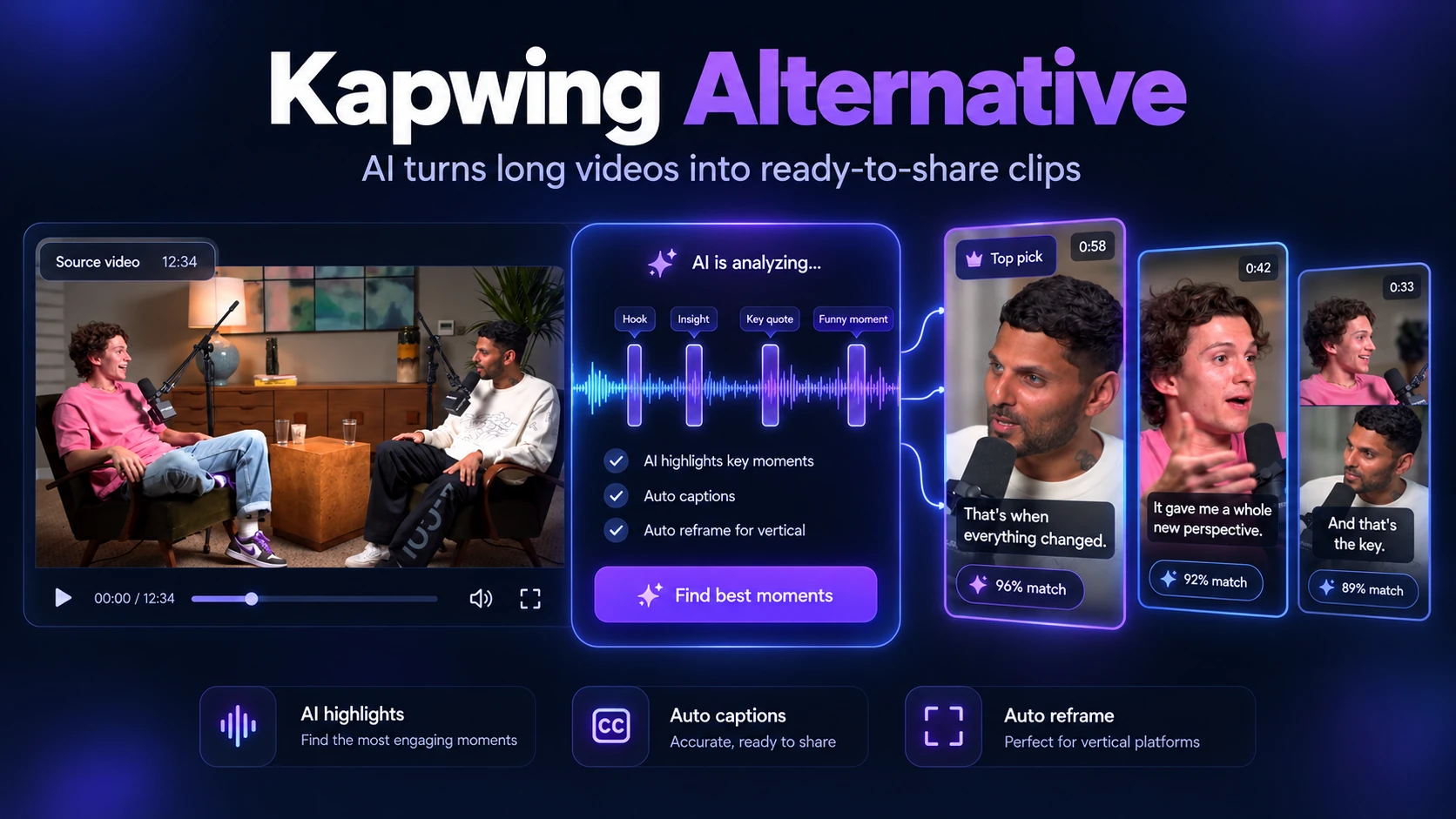
Looking for a Kapwing alternative for AI clipping? Compare Video Cutter AI and Kapwing on free usage, export limits, and editing controls to find the right fit for your videos.

FeatureVideo Cutter AIKapwing
PRICE & INCLUDED USAGE
Free processing allowance
180 credits/day
10 credits on the Free plan
Usage calculation
1 credit per minute of source video
Credit cost varies by AI operation
Price
Free to use
Free plan; Pro: $16/member/month billed annually or $24 billed monthly
EXPORT & EDITING ACCESS
Watermark-free exports
Free
Paid plans only
Free export quality
HD export
Up to 720p
Free export duration
No per-video length limit
Up to 4 minutes per video
Clip editing
Timing and caption adjustments
Full browser editor
Project retention
No time limit
Free projects may be deleted after 3 days
FORMAT & CUSTOMIZATION
Video aspect ratios
9:16, 16:9, 3:4, 1:1, 4:5
9:16, 16:9, 1:1, 4:5; custom sizes
Caption presets
Multiple styles
Animated templates and custom styles
Clip length selection
Yes
Set a desired length in a prompt
Processing range selection
Select a source range
Request specific segments in a prompt
CORE CLIPPING
YouTube video links
Yes
Yes
Video uploads
Yes
Yes
AI clip selection
Yes
Yes
Automatic captions
Yes
Yes
Vertical reframing
Yes
Yes
Selected features, not a full plan comparison. Video Cutter AI details confirmed by its team; Kapwing checked October 15, 2026.

Why Choose Video Cutter AI as Your Kapwing Alternative?

Choose the Source Range Directly

01 /

Choose the Source Range Directly

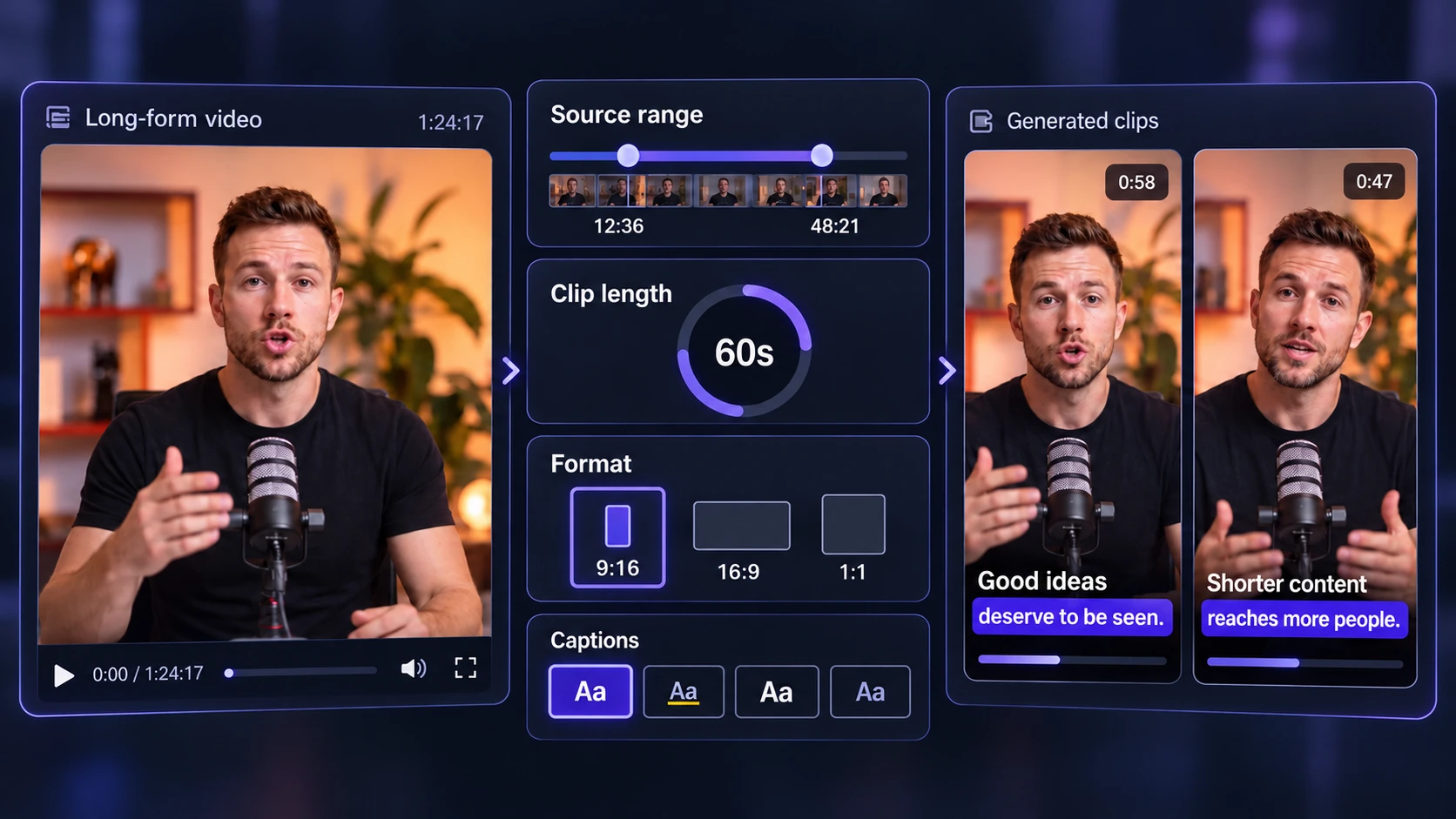
Kapwing’s AI Clip Maker lets you describe the clips you want in a prompt. When you already know which part of a recording matters, Video Cutter AI lets you select that source range directly before generation. Set the boundaries around a tutorial chapter, product feature, or interview answer, then review the clips suggested from that section.
Keep the Full Answer in Your Export

02 /

Keep the Full Answer in Your Export

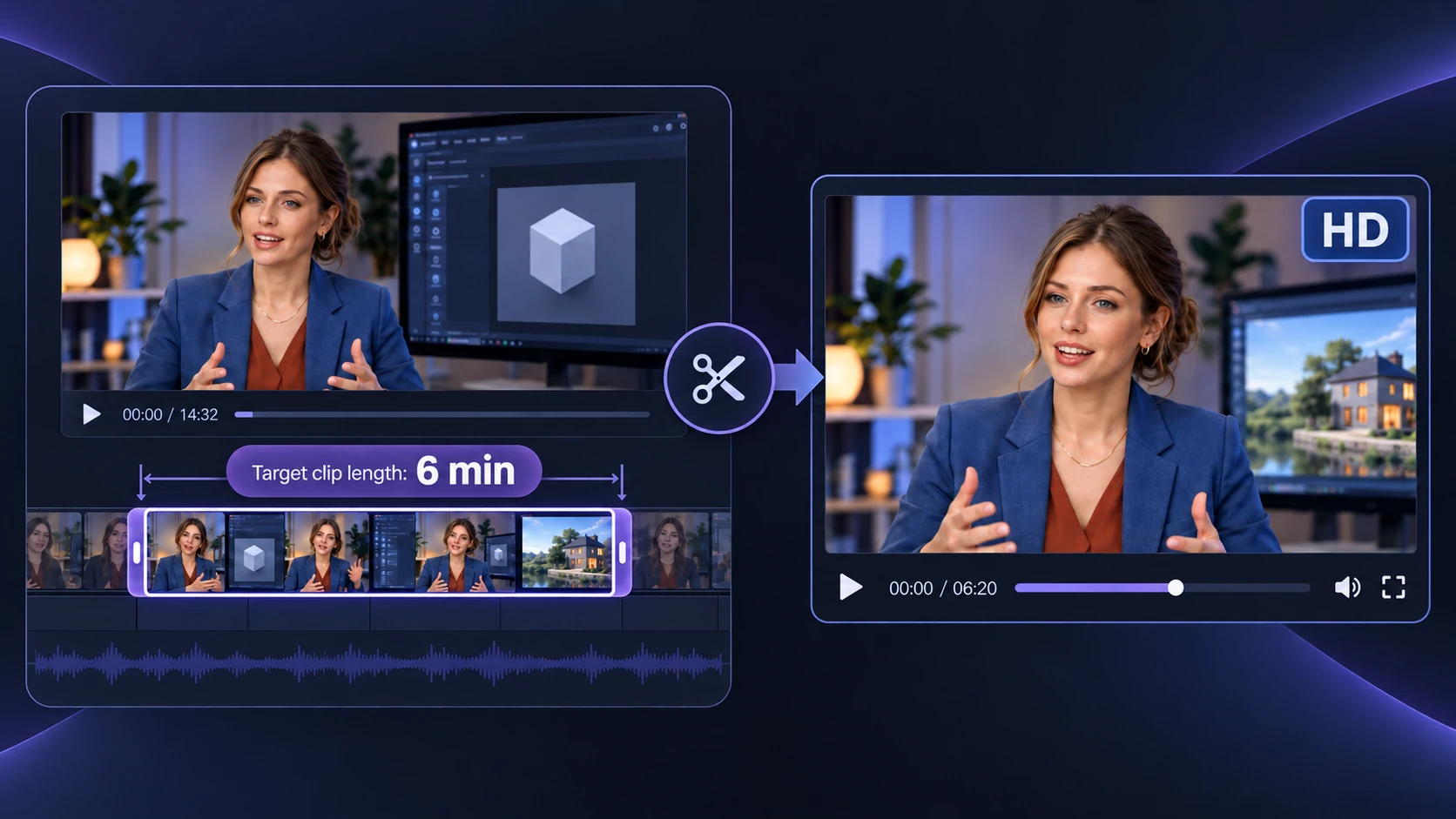
Kapwing’s Free plan limits each exported video to four minutes. That may be enough for a social teaser, but a product walkthrough or teaching excerpt sometimes needs more time to finish the explanation. In Video Cutter AI, choose the section and target clip length before generation, then check that the exported clip includes the steps or answer your viewer needs. Free HD exports come without a tool watermark.

Choose the Tool for the Editing You Actually Need

03 /

Choose the Tool for the Editing You Actually Need

Kapwing combines AI clipping with a full editor, translation, and team collaboration. Those tools make sense when your project needs layered edits or several people working in one space. When your recording is already finished and the task is to find and prepare excerpts, Video Cutter AI provides a focused route: set the source range, clip length, video ratio, and caption style; review the suggested clips; then adjust timing or captions before export.

A Kapwing Alternative for Interviews, Courses, and Talking-Head Videos

Choose Video Cutter AI when the source video is finished and you need a clip you can publish without moving through Kapwing’s full editing workspace.

01 / Interviews

01 / Interviews

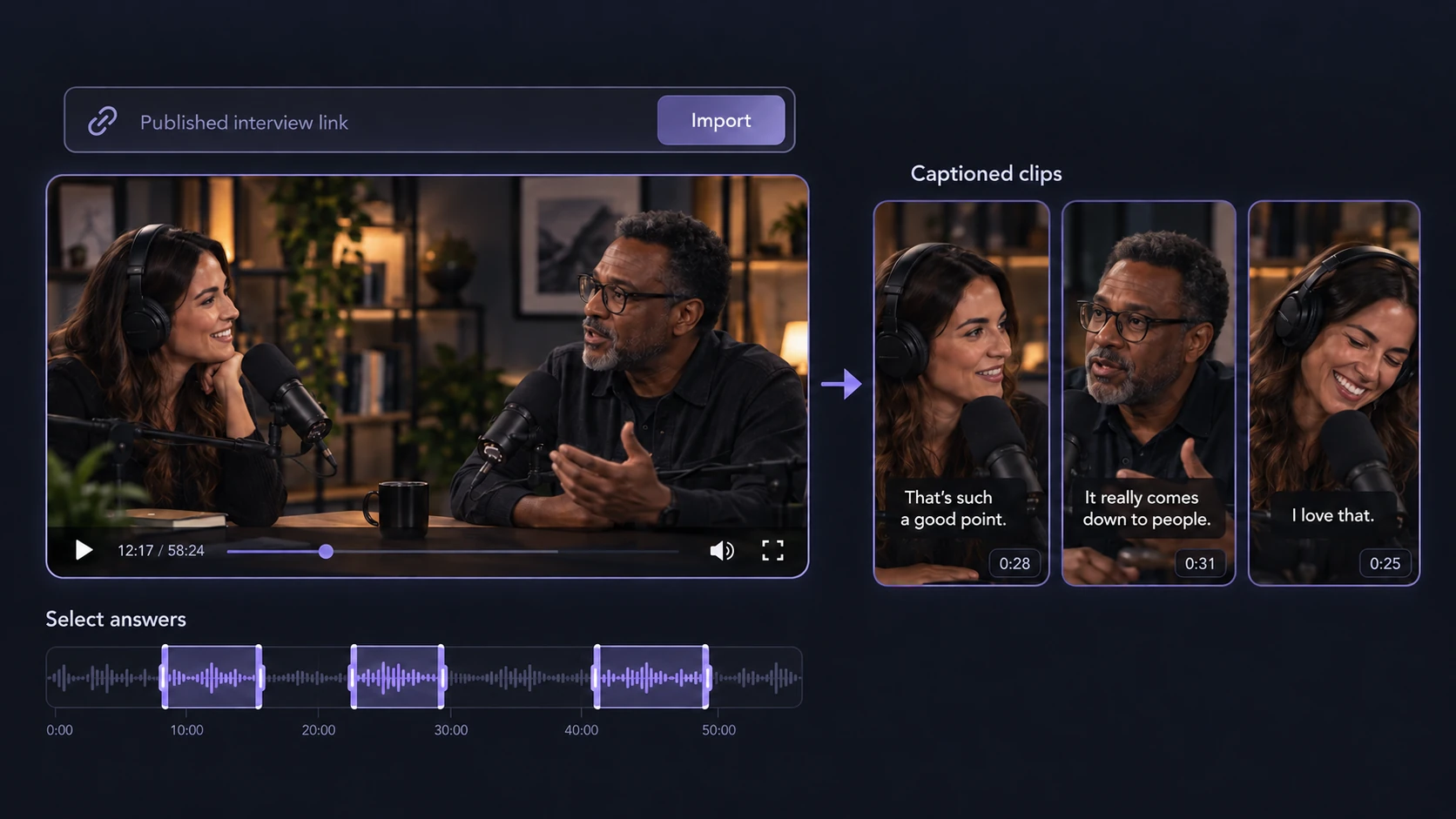
One interview can produce several answers worth sharing, and each clip needs readable captions. Kapwing’s Free plan includes up to 10 minutes of auto-subtitling. If the clips you need exceed that allowance, use Video Cutter AI’s YouTube Clipper to work from the published interview and create captioned clips within its daily free processing allowance. Choose the answers your audience needs rather than limiting the set to Kapwing’s free subtitle minutes.

02 / Webinars & Courses

02 / Webinars & Courses

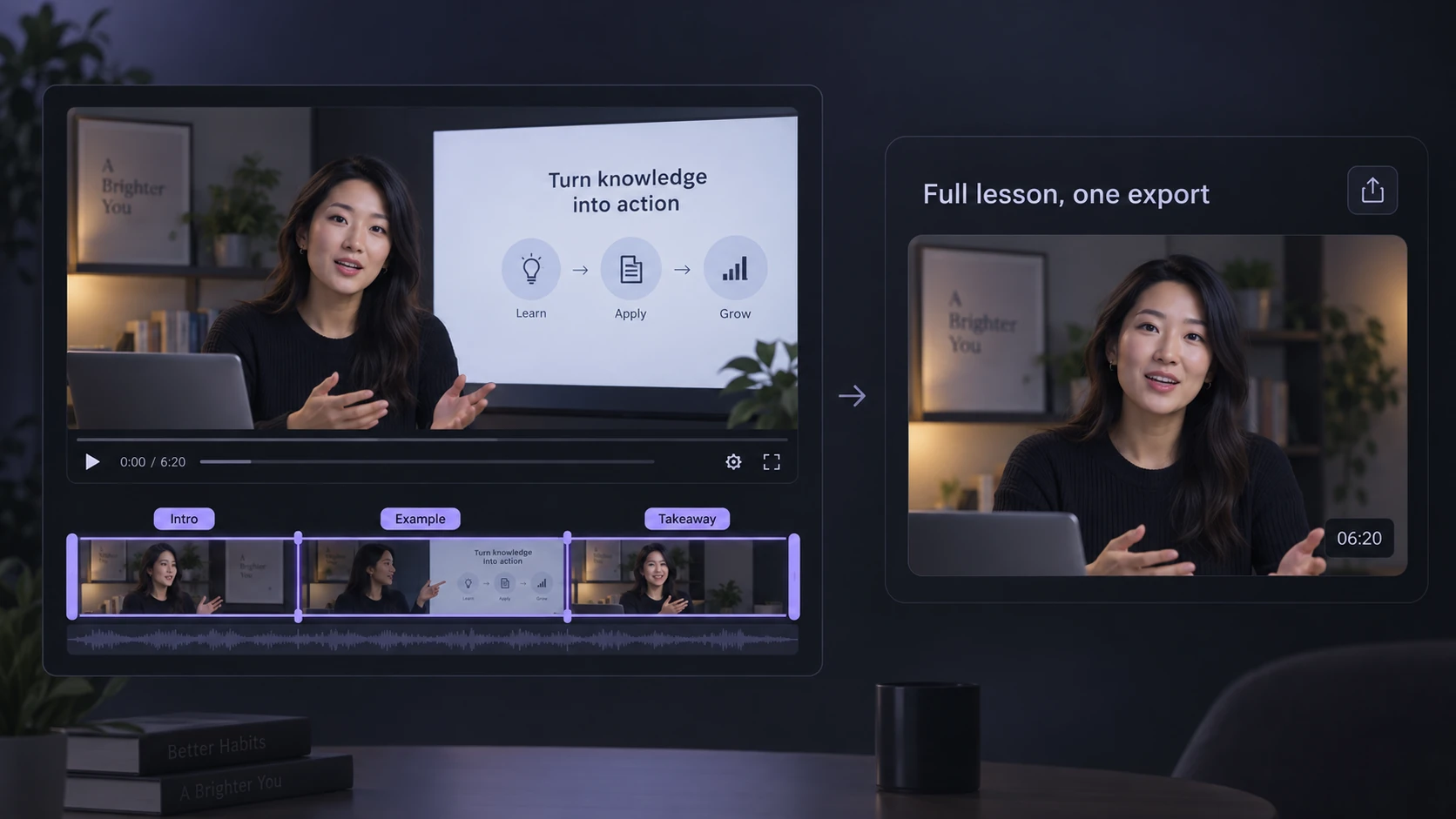
A webinar takeaway may fit in a minute; a course demonstration may need six. Kapwing’s Free plan limits each export to four minutes. Video Cutter AI lets you choose the length the material calls for and export a video longer than four minutes for free. Keep the introduction, example, and conclusion together so the excerpt works as a complete lesson.

03 / Talking-Head Videos

03 / Talking-Head Videos

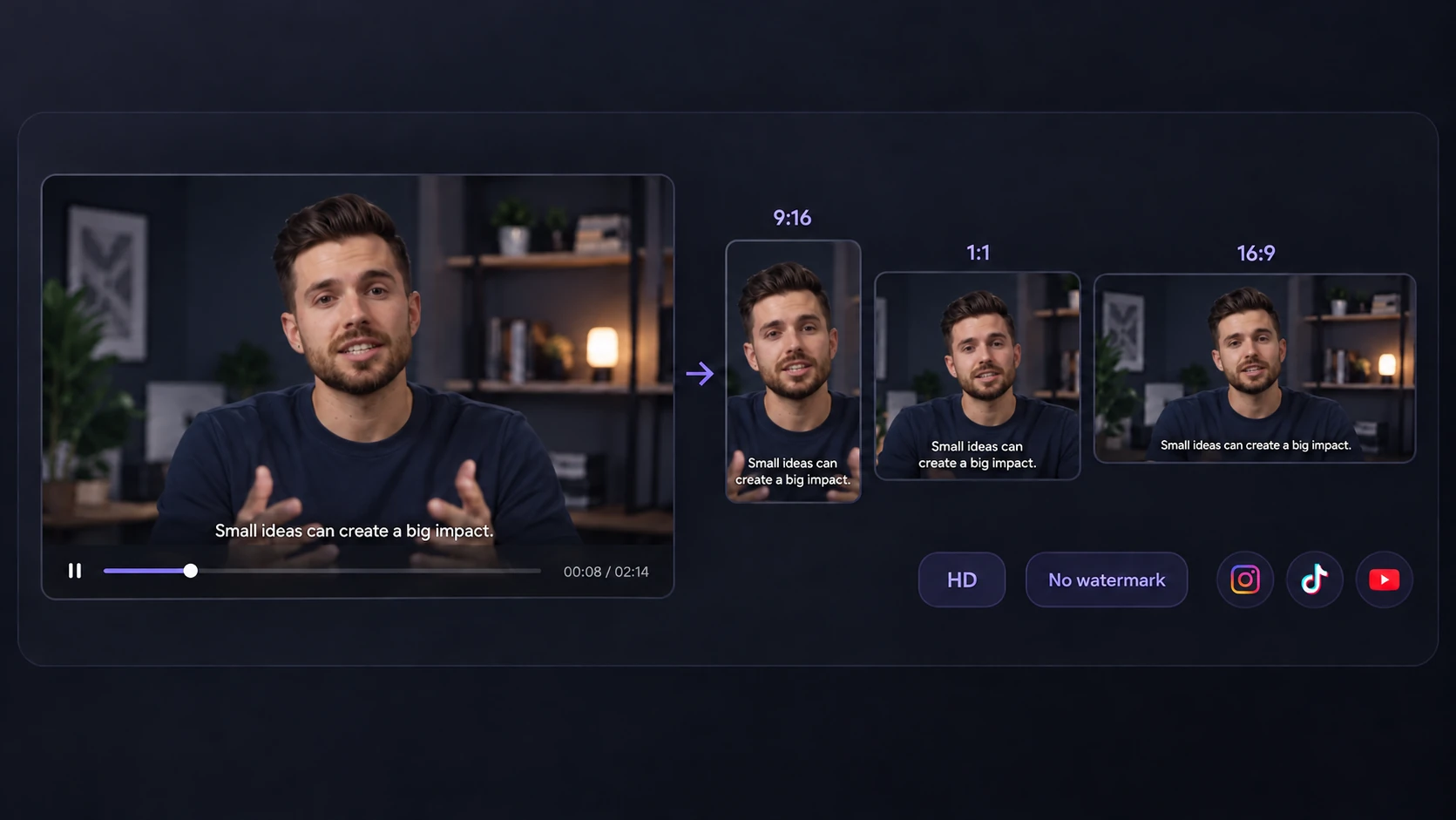
A spoken update may be headed for Shorts, Reels, or a square social post. Use the Video to Shorts Converter to prepare the clip in the ratio you need, then check the speaker’s framing and captions in the downloaded file. Video Cutter AI’s free HD export has no tool watermark; Kapwing’s Free export is limited to 720p and carries one.

How to Use Video Cutter AI Instead of Kapwing for AI Clipping

Start with your original video or its YouTube link to make new clips in Video Cutter AI. This workflow does not import Kapwing projects.

  1. 01 /

    Add the Source Video

    Upload the original video file to Video Cutter AI, or paste its YouTube link if it is already published. Use the recording that contains the moment you want to share, rather than trying to upload a Kapwing project file.

  2. 02 /

    Set Up the Clip You Need

    Select the part of the source video to process. Choose a target clip length that fits the full answer or demonstration, along with the video ratio and caption style for its destination. Generate clips from that section and choose the result that best covers your intended point.

  3. 03 /

    Review and Export the New Clip

    Check the selected clip’s start and end, captions, and framing. Adjust the timing or caption text if needed, then download the finished video. Video Cutter AI supports free HD exports without a tool watermark, including videos longer than Kapwing Free’s four-minute export limit.

What Creators Say About Video Cutter AI as a Kapwing Alternative

Our interview series has a large back catalog on YouTube. When an older conversation becomes relevant to a new story, I need one exchange from the published episode, not a new edit of the whole show. Kapwing asked me to upgrade when I tried its pasted-link import. In Video Cutter AI, I can work from the YouTube link and go straight to the section I want to revisit. That makes older interviews easier to turn into timely follow-up content.

M. L.

Interview Series Producer

The strongest part of my recorded workshop is often the example after the introduction. By the time I show the problem, work through it, and explain the result, the section can run past four minutes. Kapwing’s free export limit would make me shorten the instruction. With Video Cutter AI, I can export a longer clip for free and keep the demonstration in the order I actually taught it.

T. R.

Workshop Instructor

I can describe the clip I want in a prompt, but for a course recording I usually know exactly which chapter matters. I prefer choosing that source range and a target length before generating anything. Video Cutter AI gives me those settings directly. I spend less time explaining the assignment to the tool and more time deciding whether the resulting excerpt serves the lesson.

N. P.

Course Video Producer

Kapwing remains useful when our team is assembling a video from graphics, footage, and several rounds of edits. Once that video is finished, my next job is different: make a few excerpts from the final recording. I use Video Cutter AI for that narrower job and leave the Kapwing project available for any changes to the main video. I do not need to move the editing project to make new clips.

C. W.

Marketing Production Lead

We have older event videos that were edited by different people, and I do not always have access to their original editing projects. What I do have is the finished recording. Starting from that file lets me prepare a new excerpt without first reconstructing somebody else’s timeline. For our archive, that distinction matters more than having another full editor.

D. K.

Event Archive Manager

I wanted to find out whether a clipping tool would be useful for our recurring training videos before adding another paid plan. I tested it with a recording our team knows well: one section where the speaker gives a direct answer and another where the explanation needs more time. Comparing those outputs told me more about the fit than a feature list. Video Cutter AI let me make that assessment with its free daily allowance.

R. S.

Training Content Manager

FAQs About Choosing Video Cutter AI Instead of Kapwing

Your Next Clip Starts with a Free Kapwing Alternative

Turn your recording into clips with Video Cutter AI. Choose a target length, review the captions, and export for free without a tool watermark.

Explore More Alternatives and AI Video Tools

Compare Video Cutter AI with other clippers, or choose a tool to turn your recordings into videos ready to share.

Opus Clip Alternative

See how free processing, caption editing, and download rules differ between Video Cutter AI and Opus Clip.

Vizard AI Alternative

Check free allowances, HD export access, and project retention to decide which tool fits your publishing schedule.

YouTube Clipper

Have a demo or interview on YouTube? Add its link to Video Cutter AI and create clips from the section you need.

Podcast to Video

Give listeners a quick way to revisit a guest’s answer. Make a captioned clip from your recorded conversation.

Video to Shorts Converter

Prepare recordings for TikTok, YouTube Shorts, and Instagram Reels with a choice of video ratios and caption styles.