
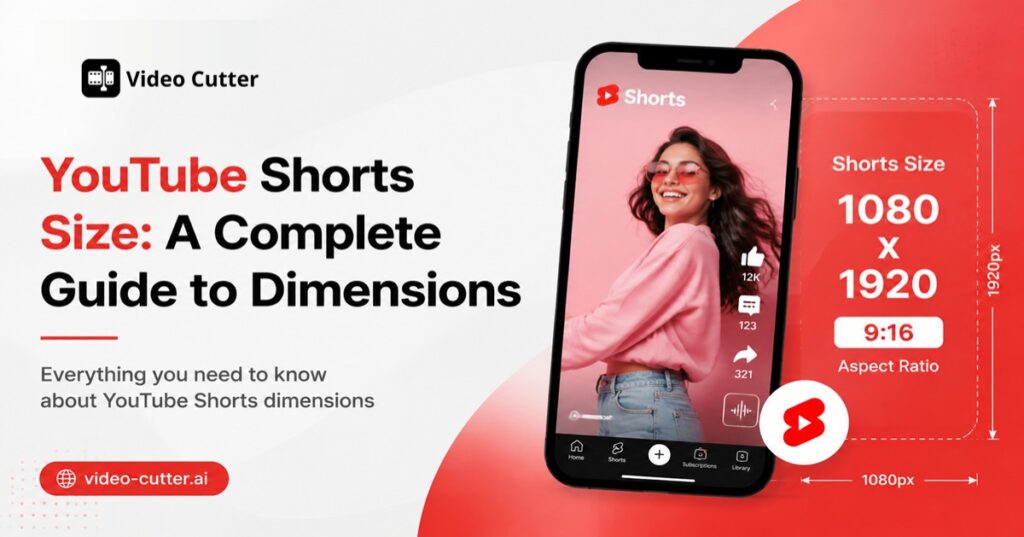
If your Short looks tiny, pixelated, or surrounded by black bars, it almost always comes down to one thing: the wrong size. YouTube Shorts follow a specific set of dimensions, and getting them right is the difference between a video that fills the screen and one that looks like it doesn't belong on the platform. This guide breaks down the exact YouTube Shorts size, aspect ratio, resolution, and upload requirements you need — plus how to resize any video, including long-form footage, to fit, and where tools like Video Cutter AI can automate that resizing.
What Is the YouTube Shorts Size?
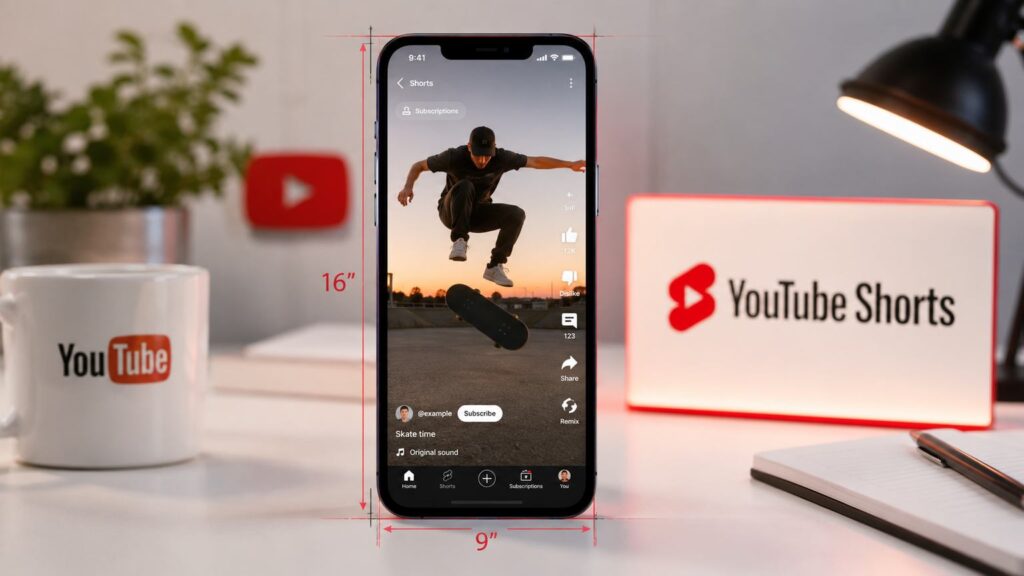
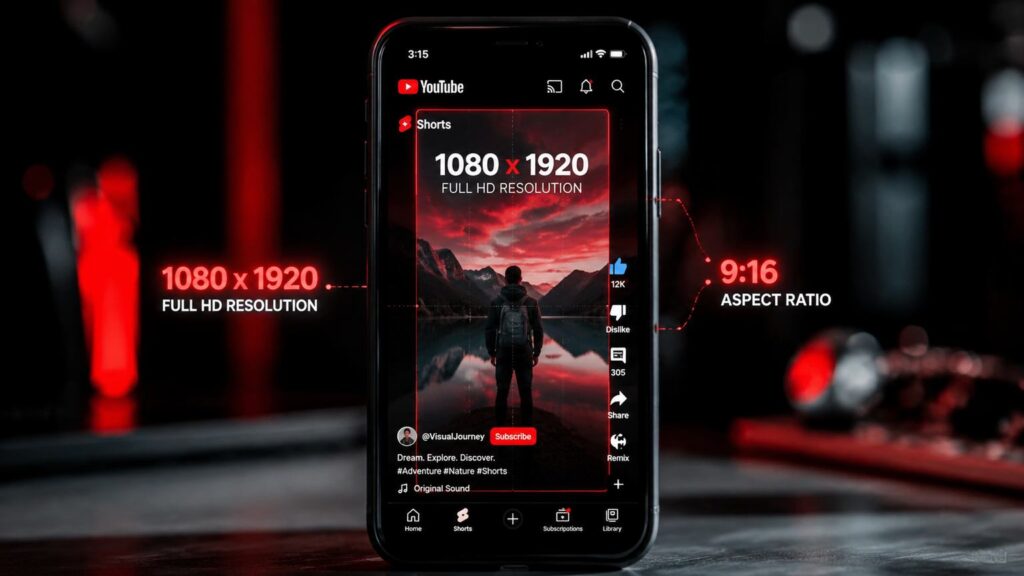
The YouTube Shorts size is 1080 × 1920 pixels, shot or exported in a 9:16 vertical aspect ratio. This is the format YouTube's Shorts player is built around — a tall, mobile-first frame designed to fill a phone screen edge to edge with no black bars and no cropping surprises.
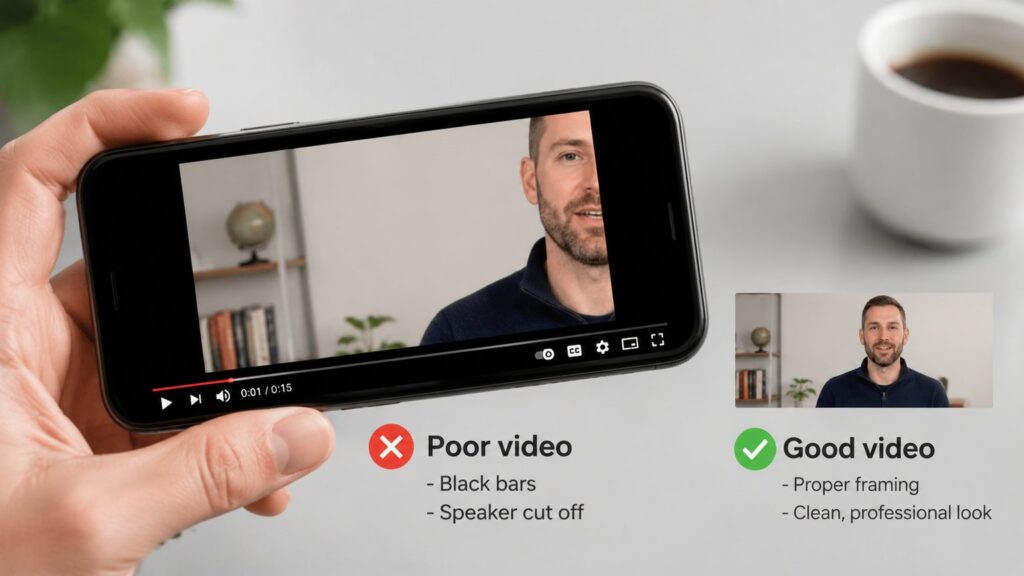
Any video that isn't shot or reframed to these dimensions will either get letterboxed with black bars, cropped in ways you didn't intend, or in some cases won't qualify to appear in the Shorts feed at all. Whether you're filming directly on your phone or repurposing a long-form video into a Short, this 1080 × 1920, 9:16 combination is the number to build around.
YouTube Shorts Dimensions at a Glance
Here's the quick-reference version before we get into the details:
| Spec | Requirement |
| Aspect ratio | 9:16 (vertical) |
| Resolution | 1080 × 1920 pixels (recommended) |
| Minimum resolution | 720 × 1280 pixels |
| Maximum length | 3 minutes (180 seconds) |
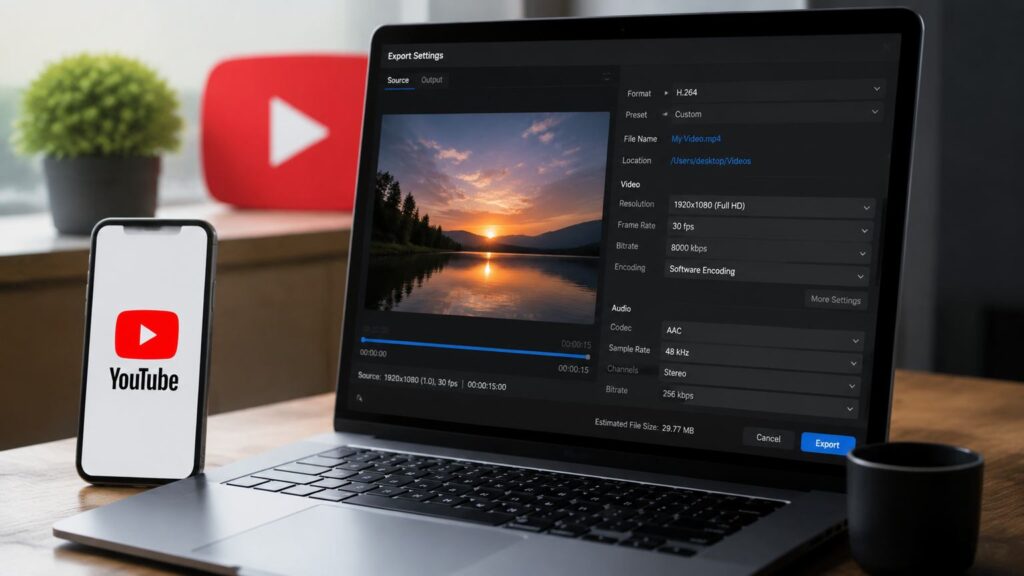
| File format | MP4 (H.264 video, AAC audio) |
| Frame rate | 24–60 fps, matching your source footage |
Keep this table as a pre-upload checklist. If your video matches every row, it's ready for the Shorts feed.
What Are the Recommended YouTube Shorts Dimensions?
YouTube Shorts are built around a single core spec: a 9:16 vertical frame rendered at 1080 × 1920 pixels. Aspect ratio and resolution work together — the ratio defines the shape of your video, and the resolution defines how sharp it looks inside that shape. Get either one wrong and the video won't feel native to the Shorts feed, even if the other is correct.
1080 × 1920: The Recommended Shorts Size
1080 × 1920 is the sweet spot between visual quality and file size. It's sharp enough to look crisp on modern phone screens, TVs, and tablets, without producing an unnecessarily large file. YouTube does accept uploads up to 4K (2160 × 3840), but Shorts are served to viewers at a maximum of 1080p regardless of the source resolution — so uploading beyond 1080 × 1920 mostly adds upload time without a visible quality gain for most creators. The safe floor is 720 × 1280; anything lower tends to look soft or blurry, especially on larger screens.
9:16: The Standard Vertical Aspect Ratio
9:16 is the vertical equivalent of the widescreen 16:9 format most cameras default to, just rotated so height is greater than width. It's the same ratio used by TikTok and Instagram Reels, which is why a single 1080 × 1920 export usually works across all three platforms without extra reformatting.
Can YouTube Shorts Use Other Video Sizes?
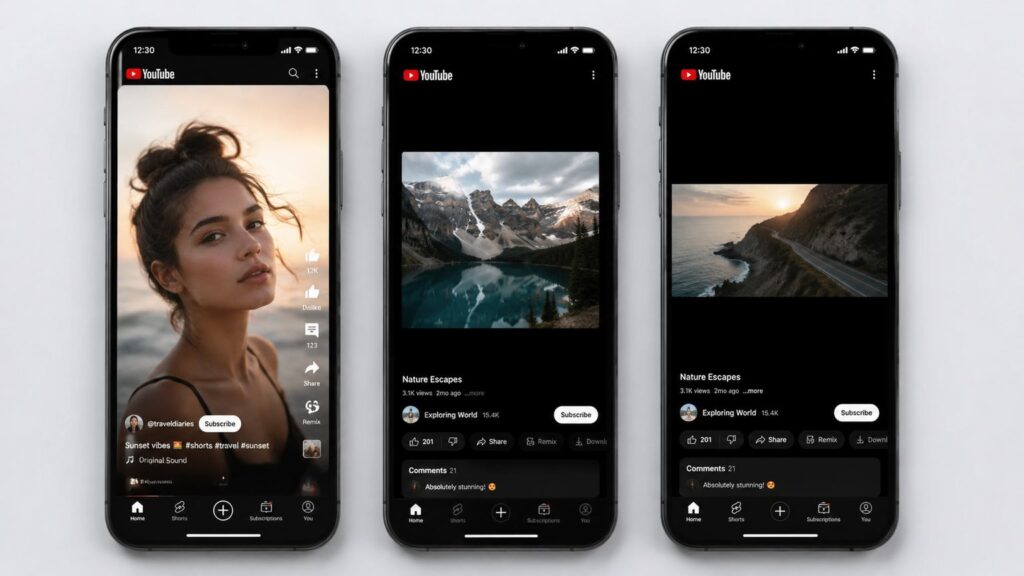
Technically, yes — YouTube will still process a square (1:1) or horizontal (16:9) video and, if it's under the length limit, may still classify it as a Short. But neither format looks right in the vertical player. A square video leaves black bars above and below; a horizontal video gets shrunk down with even larger bars on top and bottom, wasting most of the screen. Both read as content that wasn't made for Shorts, which tends to hurt watch time and how far the algorithm pushes the video. If you're starting from square or horizontal footage, it's worth reframing to 9:16 rather than uploading as-is.
YouTube Shorts Video Requirements
Beyond aspect ratio and resolution, a few other specs determine whether your video uploads cleanly and qualifies as a Short.
Length Limit
A YouTube Short can run up to 3 minutes (180 seconds) — up from the original 60-second limit, giving creators more room for tutorials, mini-vlogs, and storytelling formats. There's no strict minimum length, though most creators aim for 15–45 seconds, since shorter Shorts tend to see stronger completion rates.
File Format and Frame Rate
Export your video as an MP4 file using the H.264 video codec and AAC audio — this combination is universally supported, uploads reliably, and processes fastest on YouTube's end. For frame rate, match whatever you filmed in; 30fps and 60fps are both standard and well supported. If you're exporting from Video Cutter AI, clips are already output in this exact format, so there's nothing extra to configure.
File Size
YouTube's general upload ceiling is 256 GB, and there's no separate, smaller cap specifically for Shorts. In practice, though, a well-compressed Short rarely comes close to that limit — a 1080p video a few minutes long, exported with a reasonable bitrate, typically lands well under 100 MB. Large file sizes usually point to an uncompressed export or an unnecessarily high source resolution, not an actual requirement to hit.
Why Does YouTube Shorts Size Matter?
Getting the size right isn't just a technical checkbox — it directly affects how your video looks and performs.
Make Videos Fit the Vertical Screen
A correctly sized 9:16 video fills the entire Shorts player. Anything off-ratio gets padded with black bars, which immediately signals to a viewer that the content wasn't made for the format — and that's often enough for someone to scroll past in the first second.
Keep Faces, Text, and Key Elements Visible
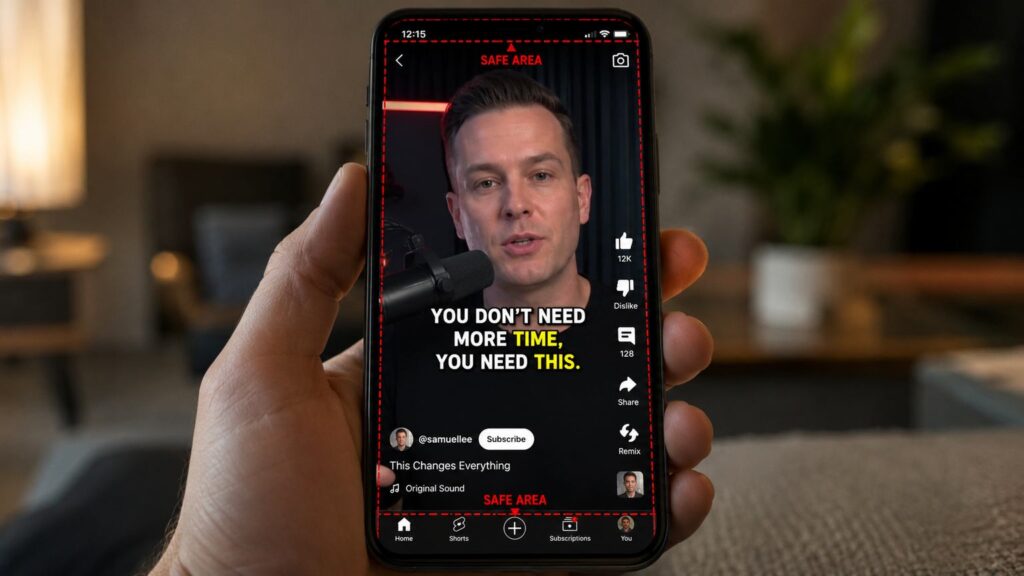
YouTube's interface overlays elements like the channel name, caption, and engagement buttons near the edges of the frame. If your subject, text, or key visual sits too close to those areas, it risks being partially covered. Framing your most important content toward the center of the 1080 × 1920 canvas keeps it visible no matter what YouTube places on top.
Avoid Unnecessary Cropping and Empty Space
The wrong aspect ratio forces a choice between two bad outcomes: YouTube crops your footage to fit, cutting off parts of the frame you cared about, or it pads the video with empty black space. Starting from the correct 9:16 size means you control the composition instead of leaving it to automatic cropping.
How to Resize a Video for YouTube Shorts
If your footage wasn't shot vertically, here's the general process for getting it into Shorts-ready shape.
Start with Your Original Video
Identify the aspect ratio and resolution of your source footage. Most cameras and phones default to 16:9 landscape, which is the format you'll need to convert.
Reframe the Video to 9:16
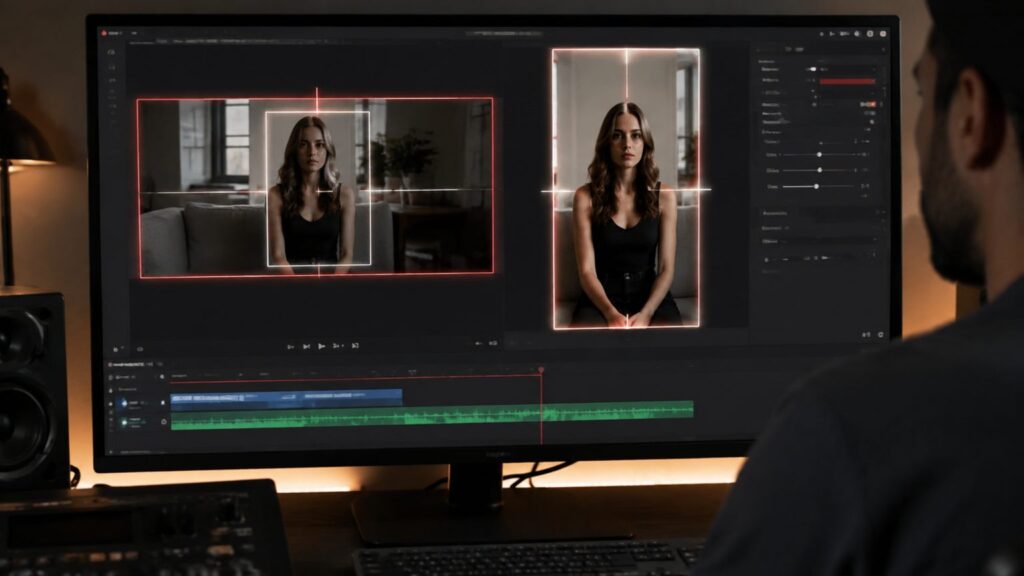
Rather than simply stretching or squeezing the frame, reframe it — repositioning the visible area so your subject stays centered in a tall 1080 × 1920 canvas. Stretching distorts the image; a proper reframe crops intelligently around what matters.
Check the Crop and Important Content
After reframing, review the full video to confirm nothing important — faces, on-screen text, product shots — got pushed outside the frame or too close to the edges. This is the step most people skip, and it's where reframed videos most often go wrong.
Add Captions and Make Final Adjustments
Since a large share of Shorts get watched with the sound off, captions aren't optional if you want your message to land. Add them within the safe, centered portion of the frame, then do a final pass to confirm the export matches the specs from the table above before uploading.
Create YouTube Shorts from Long Videos with Video Cutter AI
Manually reframing footage clip by clip works fine for a single video, but it doesn't scale if you're regularly turning long-form content — podcasts, webinars, tutorials, interviews — into Shorts. That's the exact problem Video Cutter AI is built around.
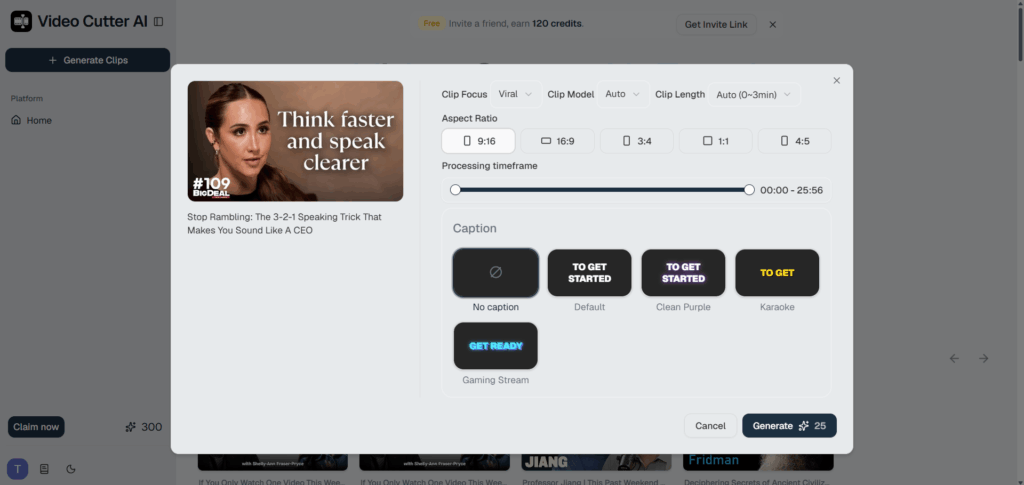
Instead of scrubbing through long footage and manually cropping each clip to 1080 × 1920, you upload your long video and let the AI handle the sizing: it automatically reframes clips to the 9:16 aspect ratio, keeping faces and key visual elements centered instead of cropped out at the edges. Captions get added automatically too, so clips are watchable with the sound off from the moment they're exported — no separate editing pass required.
The workflow follows the same logic covered above, just automated: upload your long video, let the AI analyze it for clip-worthy moments, let it handle the reframing and editing, then review and publish. It's a faster path to Shorts that are already sized correctly, without redoing the manual crop-and-check process for every clip.
YouTube Shorts Size: Common Mistakes to Avoid
Even experienced creators run into the same handful of sizing mistakes. Here's what to watch for.
Using the Wrong Aspect Ratio
Uploading a 16:9 or 1:1 video as a Short is the single most common mistake. It doesn't just look off — it actively shrinks your usable screen space and signals to viewers that the content wasn't made for the feed.
Cropping Important Parts of the Frame
When you reframe from horizontal to vertical, it's easy to accidentally cut off a face, a product, or on-screen text that sat near the edge of the original shot. Always review the reframed version before exporting, not just the original.
Making Text Too Close to the Edges
Captions or graphics placed near the top, bottom, or side edges risk getting covered by YouTube's interface elements — the channel name, like button, and comment icon all sit in those zones. Keep text and key visuals toward the center of the frame.
Uploading Low-Quality Videos
A video below 720 × 1280 will look noticeably soft on modern phone screens, and stretching low-resolution footage to fill a 1080 × 1920 frame only makes it worse. Start with the highest-quality source you have.
YouTube Shorts Size: Frequently Asked Questions
What size should a YouTube Short be?
A YouTube Short should be 1080 × 1920 pixels in a 9:16 vertical aspect ratio. This fills the Shorts player edge to edge without black bars or cropping.
Is 1080 × 1920 the best size for YouTube Shorts?
Yes. It's YouTube's recommended resolution — sharp enough for modern screens without producing an oversized file. 4K uploads are supported but are downscaled to 1080p for playback, so there's little practical benefit to going higher.
What aspect ratio should YouTube Shorts use?
9:16 vertical. It's the standard across YouTube Shorts, TikTok, and Instagram Reels, which means one properly sized export can typically be used on all three.
Can I turn a horizontal video into a YouTube Short?
Yes — reframe it to 9:16 rather than uploading it as-is, since a horizontal video shown in the vertical player will appear small with large black bars. Tools like Video Cutter AI can automate this reframing for long-form footage.
Can I resize a video for YouTube Shorts without cropping it?
Not entirely — converting from a wider ratio to 9:16 always means removing some of the original frame's width. The goal isn't to avoid cropping altogether, but to crop intentionally so the important parts of the shot stay centered and visible.
Final Thoughts
Once you've got the size right, the rest of your Shorts strategy comes down to consistency — publishing at the correct 1080 × 1920 dimensions every time, whether you're filming vertically from the start or repurposing longer content. For creators working from long-form footage, Video Cutter AI handles that resizing automatically, so every clip is Shorts-ready without a manual crop-and-check pass.