
Sometimes you don’t need an entire YouTube video. You may only want one useful answer from a podcast, one funny moment from a livestream, or a short section from a tutorial. In that case, the real goal is simple: save only the part you need without spending unnecessary time working through the whole video.
So, how do you download clips from YouTube in 2026?
The answer depends on what you mean by a “clip.” YouTube has a built-in Clip feature that lets you share a short section of an eligible video, but it does not create a standalone video file. If you want a clip that you can store, edit, or repurpose, you need a different workflow.
In 2026, you can choose between YouTube’s own sharing and offline options, manual trimming, and AI-assisted clipping depending on what you actually need. Tools such as Video Cutter AI’s YouTube Clipper can also make the process easier when you are working with longer videos and only want a few specific moments.
This guide explains four practical ways to download or save YouTube clips and how to choose the right method for your situation.
Can You Download Clips from YouTube?
Yes, but there is an important difference between a YouTube Clip and a downloaded video clip.
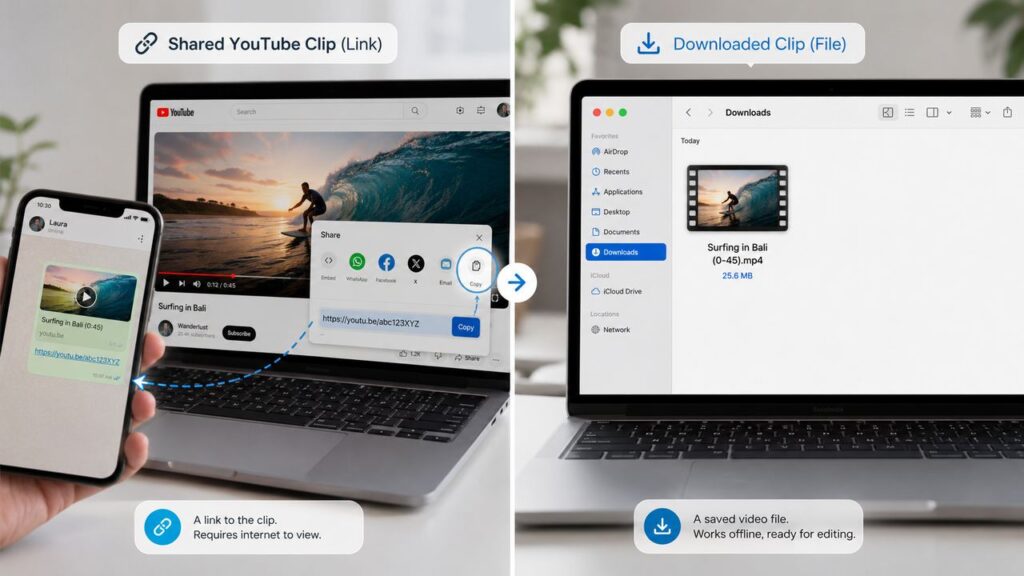
YouTube lets viewers create short Clips from eligible videos and livestreams. These Clips are typically between 5 and 60 seconds long and are designed to be shared through a link. The Clip still points back to the original YouTube video instead of becoming a separate file on your device.
If by “download a clip” you mean saving an independent video file that you can edit, organize, or use offline, YouTube’s Clip button does not do that.
YouTube Clips vs. Downloaded Video Clips
The distinction is straightforward:
| YouTube Clip | Downloaded Video Clip |
| Points to part of the original YouTube video | Exists as a separate video file |
| Mainly intended for sharing | Can be stored and edited locally |
| Usually 5–60 seconds | Can be any length you choose |
| Depends on the original video remaining available | Can remain available independently |
| No separate export file | Can be exported as a video file |
If you only want to send someone a specific moment, YouTube’s Clip feature may be enough. If you need the actual footage for editing, archiving, or an authorized reuse workflow, you need to create a standalone clip instead.
How to Download Clips from YouTube: 4 Easy Ways
There is no single best method for every situation. The right choice depends on whether you simply want to share a moment, work with your own video file, save a known timestamp, or find useful moments inside a much longer video.
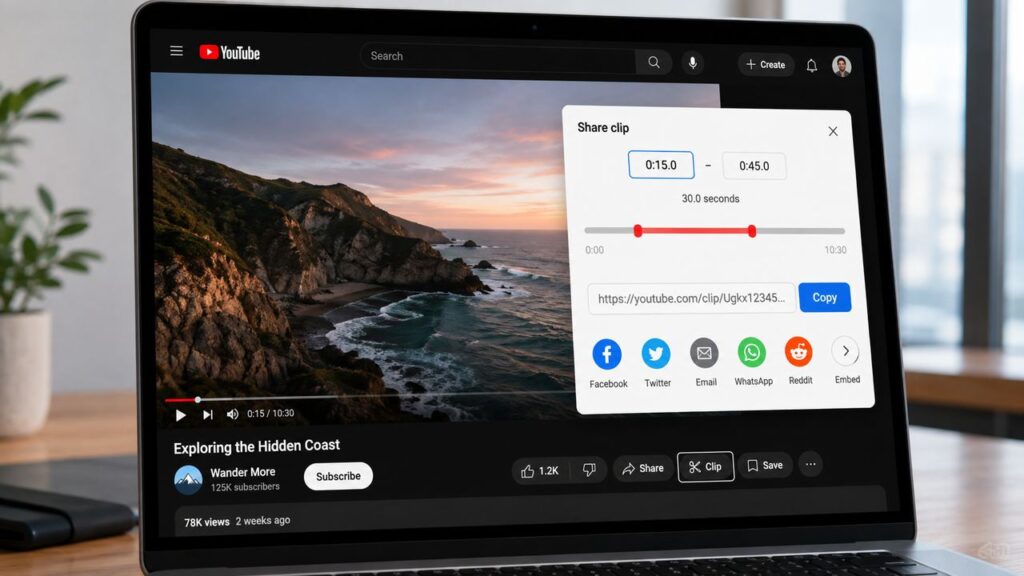
Method 1: Share a Clip with YouTube's Built-In Clip Feature
The easiest option is YouTube’s own Clip feature.
Open an eligible video, select Clip, choose the section you want, add a title, and share the generated link. YouTube currently lets you create Clips between 5 and 60 seconds long.
This method is fast because there is no downloading, trimming, or exporting involved. The trade-off is that the Clip remains part of the original YouTube video.
In other words, you are sharing a selected moment rather than downloading that moment as a separate file.
Use this option when your goal is simply to point someone to a specific section of a video.
Method 2: Download the Full Video and Trim It
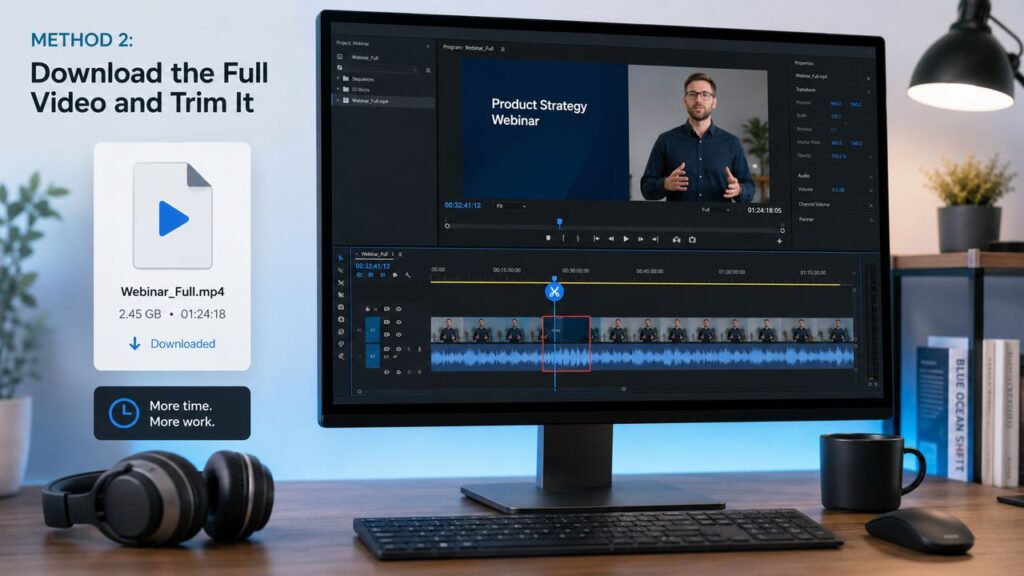
If you already have permission to download the source video, you can use the traditional workflow:
download the full video → open it in an editor → trim the section → export the clip
For your own uploads, YouTube Studio allows you to download your videos as MP4 files. Once you have the source file, you can open it in a video editor, move to the section you want, set your start and end points, remove the rest, and export the remaining clip.
This gives you precise control, but it becomes inefficient with long videos.
Downloading a 90-minute podcast just to keep a 40-second answer means transferring the full file, loading it into an editor, finding the exact moment, trimming it, and exporting again. If you only need a small part of the video, that is often more work than necessary.
Method 3: Manually Cut and Save Only the Part You Need
If you already know the exact timestamp, you can skip much of the searching.
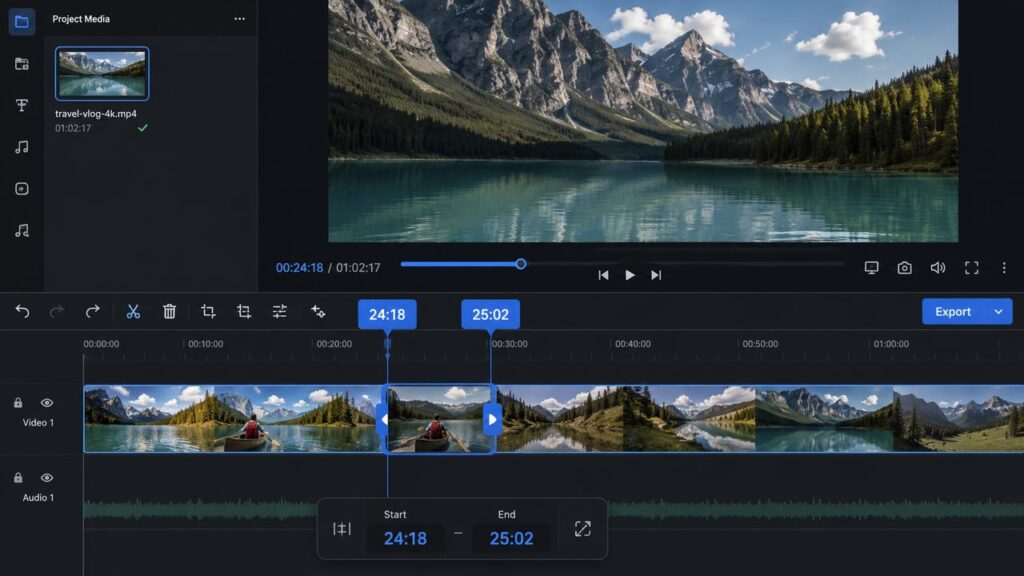
For example, if the moment you want begins at 24:18 and ends at 25:02, you can go directly to that section in an authorized editing or clipping workflow and isolate the relevant range.
The main advantage is speed. You are not reviewing the entire video when you already know where the useful section is.
The challenge is that this method depends on knowing the right timestamps. That may be easy in a short tutorial, but it becomes much harder with a one-hour interview, a two-hour livestream, or a long podcast where the strongest moments are not obvious in advance.
That is where AI-assisted clipping becomes more useful.
Method 4: Use an AI Video Cutter for Long Videos
Long videos often create a discovery problem rather than a trimming problem.
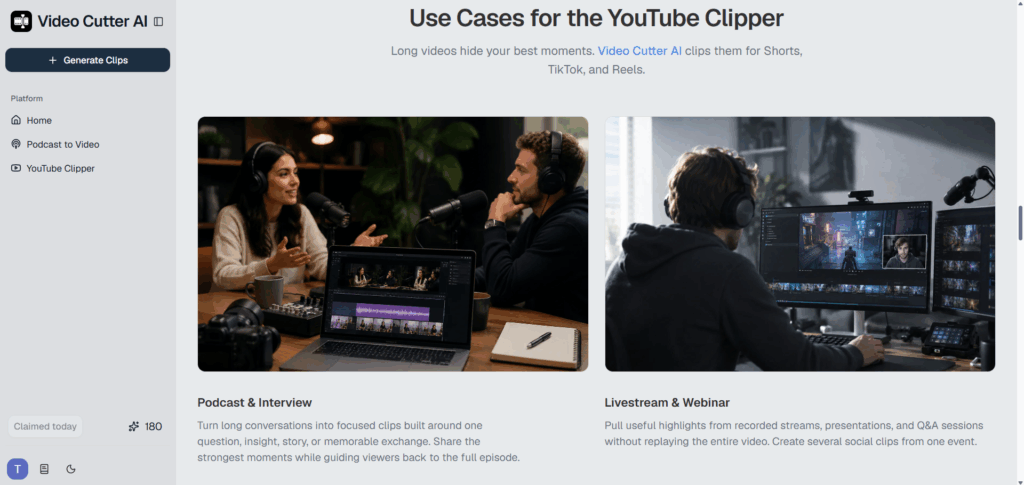
You may know there are useful moments somewhere inside a podcast, interview, livestream, webinar, or YouTube video, but you do not know where they occur. Manually dragging through an hour-long timeline is slow, especially if you need more than one clip.
Video Cutter AI is designed around this long-to-short workflow. It can analyze long videos, identify potential highlights, generate shorter clips, add captions, and adapt footage for short-form formats.
Instead of:
Watch the full video → find a moment → trim it manually
the workflow becomes:
Add the video → review suggested moments → select what matters → refine and export
For YouTube-specific workflows, the YouTube Clipper is designed to help you focus on the section you want without manually working through the entire video.
AI does not remove the need for judgment, though. A suggested highlight still needs to make sense on its own, start at the right point, and end naturally.
Which Method Should You Use?
| Method | Best for | Full video download required? | Effort |
| YouTube Clip | Sharing a moment | No | Minimal |
| Full download + trim | Your own or authorized files | Yes | High for long videos |
| Manual clipping | Known timestamps | Depends on workflow | Medium |
| AI video cutter | Long videos with unknown highlights | Depends on tool | Low to medium |
If you know exactly where the clip is, manual trimming may be enough. If you do not know where the strongest moments are, an AI-assisted workflow can save much more time.
How to Download Part of a YouTube Video with Video Cutter AI
If your real goal is not to download the entire YouTube video but to save one specific part of it, Video Cutter AI can help reduce the time spent searching and preparing the clip.
This is particularly useful when the source video is long and the useful moments are spread throughout the recording.
Step 1: Add Your Video
Start by adding the source video to Video Cutter AI.
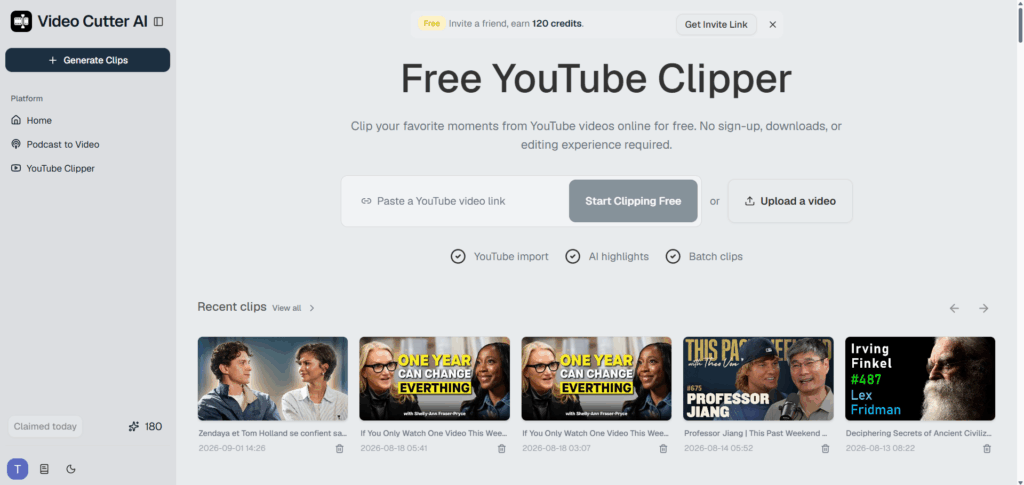
The main interface supports video-link workflows for long-form content. For a YouTube-focused workflow, open Video Cutter AI’s YouTube Clipper and add the video you want to work with.
At this stage, you do not need to know the exact start and end points. The goal is simply to bring the source video into the clipping workflow.
Step 2: Find the Part You Want to Keep
If you already know the timestamp, go directly to that section.
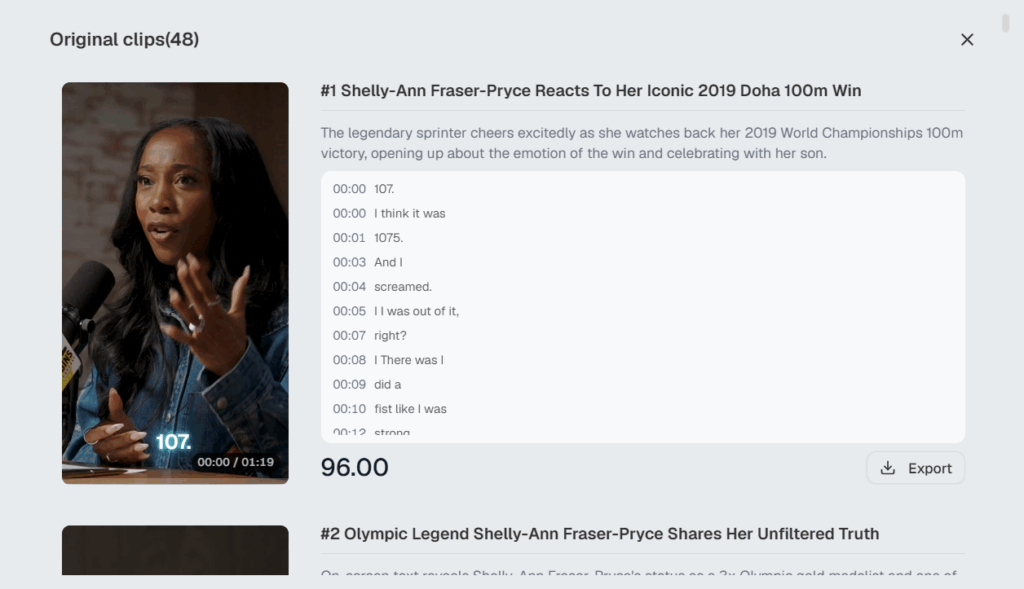
If you are working with a longer podcast, interview, webinar, or livestream, AI-assisted analysis can help surface potential highlights. This can significantly reduce the time spent scrubbing through the full timeline.
Still, do not automatically keep the first suggested clip. Ask whether the section communicates one clear idea, whether it makes sense without the previous few minutes, and whether the ending feels complete.
A good clip should work independently.
If you want a more detailed framework for evaluating candidate moments, read our guide on how to find good clips in a long video.
Step 3: Cut the Clip
Once you have found the right moment, refine the boundaries.
A practical approach is to begin with the strongest sentence, reaction, or action and then expand outward until the clip has enough context to make sense.
Starting too early can leave you with unnecessary setup. Starting too late can create a confusing opening, especially if the first line depends on something that happened earlier.
The goal is not simply to make the shortest possible clip.
It is to keep the shortest complete version of the moment.
That distinction matters because a 20-second clip with clear context is usually more useful than a 12-second clip that begins halfway through an idea.
Step 4: Export Your Clip
Before exporting, watch the clip once from beginning to end.
Check whether the opening feels natural, whether the audio is clear, whether the clip ends at the right moment, and whether any captions or reframing still need adjustment.
If you plan to repurpose the clip for YouTube Shorts, TikTok, or Instagram Reels, Video Cutter AI can also help prepare the footage for short-form formats with automated captions and reframing.
Once the clip looks right, export it.
You now have the section you actually wanted without spending unnecessary time working through the entire long video.
When Should You Download Only Part of a YouTube Video?
Not every video needs to be treated as an all-or-nothing download.
In many cases, creators, researchers, marketers, and viewers only need a few useful moments from a much longer recording.
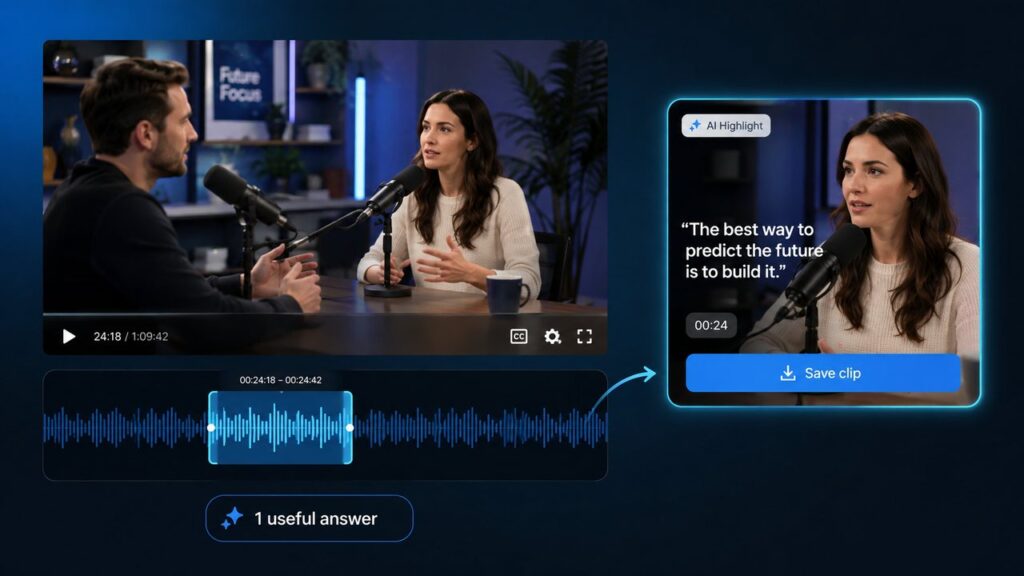
Podcasts and Interviews
A one-hour podcast may contain several standalone moments: a strong opinion, an unexpected answer, a useful tip, a memorable story, or a concise explanation.
If your goal is short-form content, it makes more sense to identify those moments first than to treat every minute of the recording equally.
This is one of the clearest use cases for AI-assisted clipping because the value of a podcast often lies in a handful of strong moments rather than in the full recording.
Livestreams and Long Videos
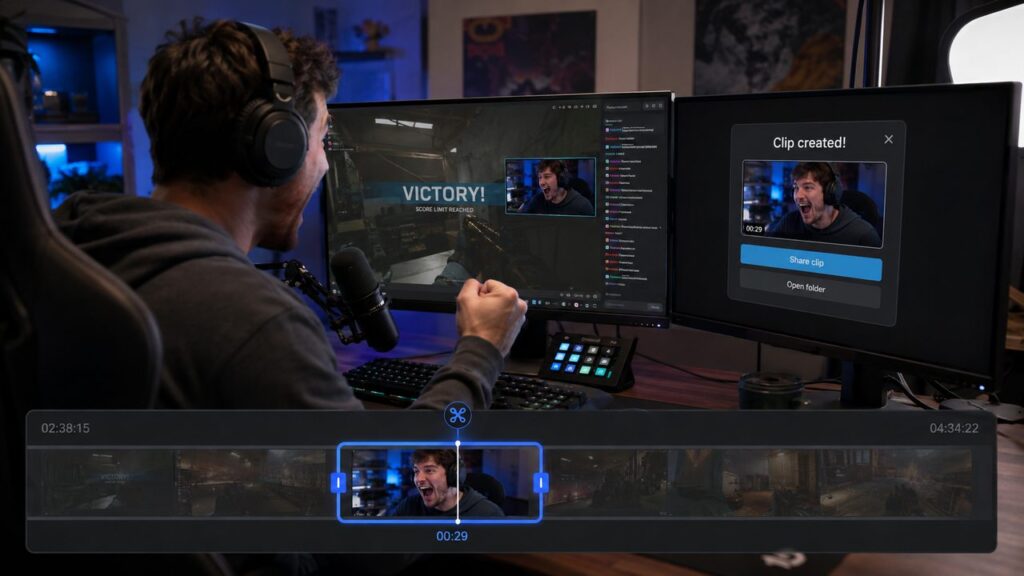
Livestreams can run for hours, while the moment you care about may last less than a minute.
It might be a game-winning play, a streamer reaction, a product reveal, a live Q&A answer, or a key announcement.
In these cases, downloading the entire video just to isolate one short section can add unnecessary work. A focused clipping workflow is better aligned with the actual task: find the relevant moment first, then keep only what matters.
Tutorials and Educational Videos
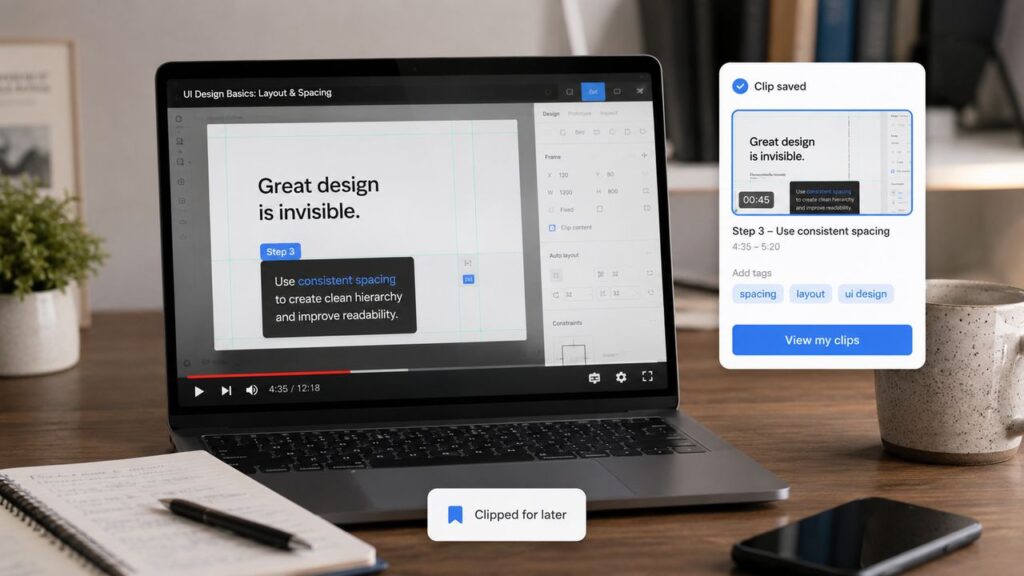
Tutorials are another common example.
You may only want to save one coding explanation, one Photoshop technique, a spreadsheet formula, a software setup step, or a short demonstration.
A focused clip is often much easier to revisit than repeatedly scrubbing through a 40-minute tutorial.
As always, make sure the way you save or reuse the content complies with the creator’s rights and any applicable platform rules.
Tips for Downloading YouTube Clips Safely and Efficiently
A good clipping workflow starts with knowing what you actually need.
If possible, identify approximate start and end timestamps before you begin. Even a rough estimate can reduce the amount of searching.
Avoid downloading the full video by default when your goal is only one small section. The more unnecessary footage you process, the more time you spend transferring, trimming, and exporting material you will never use.
Context also matters. The most dramatic sentence is not always the best opening. A strong clip usually includes enough setup for the viewer to understand what is happening without needing the previous five minutes.
Try to keep the workflow simple. Repeated exporting and re-encoding can reduce quality, so avoid unnecessary conversions where possible.
Most importantly, check the rights attached to the content before you reuse it. Being able to technically save a clip does not automatically give you permission to repost, modify, or commercially distribute it.
For official options, YouTube Studio lets creators download their own uploads, while YouTube Premium supports offline playback for eligible videos. Premium downloads remain available through YouTube rather than becoming normal video files in your device gallery.
YouTube Clip Downloader FAQs
Can I Download a YouTube Clip Directly?
Not through YouTube’s built-in Clip feature.
YouTube Clips are designed to share a 5–60 second section of an existing video through a link. They do not create a separate downloadable video file.
If you need an actual file, use an authorized download, editing, or clipping workflow instead.
How Do I Download Part of a YouTube Video?
First, identify the part you want to keep. If you already have access to an authorized video file, trim that section in an editor and export it as a separate clip.
For longer videos where you do not know the exact timestamp, an AI-assisted clipping tool can help surface candidate moments before you choose the final start and end points.
Can I Download a YouTube Clip Without Downloading the Full Video?
In some workflows, yes.
You may be able to isolate or export a specific section without manually downloading and trimming the entire video yourself. The exact process depends on the tool and the source video.
This is the core workflow behind Video Cutter AI’s YouTube Clipper: helping you focus on the section you want instead of manually working through the whole video.
What Is the Best YouTube Clip Downloader?
There is no single best option for every use case.
If you only want offline viewing, YouTube Premium is the most direct official option for supported videos. If you need your own uploaded video as a file, YouTube Studio provides a download option.
If your goal is to find useful moments inside long-form content and turn them into shorter clips, a video cutter or AI clipping tool may be more efficient than a traditional full-video downloader.
Can I Download YouTube Clips on My Phone?
YouTube Premium supports offline viewing on mobile devices where the feature is available, but those downloads remain inside YouTube rather than appearing as normal video files in your device gallery.
For standalone video clips, mobile support depends on the clipping or editing tool you use.
Is It Legal to Download Clips from YouTube?
It depends on the video, the rights attached to the content, how you obtain it, and what you plan to do with the clip.
YouTube provides official ways to download your own uploads and save supported videos for offline viewing through Premium. That does not automatically mean other users’ videos can be freely downloaded, edited, or reposted.
Copyright is a separate issue as well. A clip may contain video, music, performances, or other protected material. Downloading or editing it does not automatically give you permission to republish it.
When in doubt, use your own content, licensed material, public-domain footage, or content you have explicit permission to reuse.
Final Thoughts: Download Only the YouTube Clips You Need
If you only need a small part of a long YouTube video, downloading and trimming the entire file may be unnecessary.
The best method depends on your goal. Use YouTube’s built-in Clip feature when you simply want to share a moment. Use manual trimming when you already have an authorized source file and know the exact timestamp. And when you are working with longer videos and do not yet know where the strongest moments are, AI-assisted clipping can reduce the time spent searching and preparing footage.
Video Cutter AI can help shorten the process of finding and preparing useful moments from long-form video. For YouTube-focused workflows, try its YouTube Clipper to focus on the section you actually want instead of manually working through the entire video.
Keep the moment. Skip the unnecessary footage.