
A long podcast can hold several moments worth sharing. The hard part is deciding which answer can stand on its own—and where that clip should begin and end. Once you find a promising moment, you still need to check its pacing, captions, and vertical frame.
That is the workflow behind the video editing tips below: find one clear idea, shape it into a complete clip, then review how it looks and sounds. Video Cutter AI helps you turn a longer recording into clips you can compare and refine. These 12 tips will help you make the editing decisions that matter most.
Key takeaways
-
Build each video around one idea that makes sense without the full recording.
-
Remove repetition and long pauses while keeping the speaker’s meaning and natural rhythm.
-
Check the audio, captions, framing, and exported file before sharing your video.
Choose Footage Worth Watching
1. Give Each Video One Clear Idea
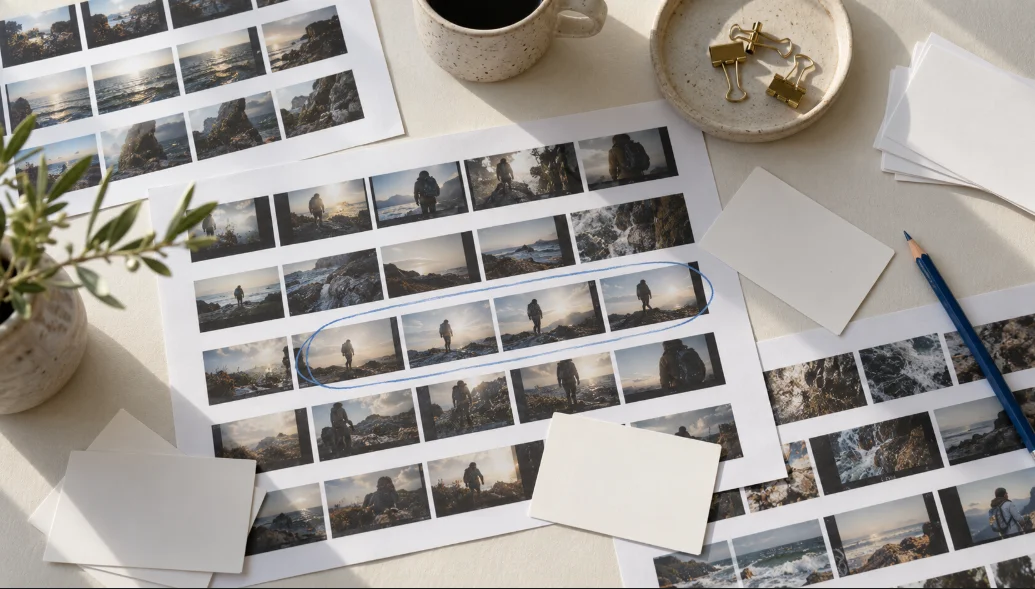
Before making a cut, ask: “What should someone remember after watching this video?” Write the answer in one sentence. Use it to decide what belongs in the edit.
If your footage covers several topics, you may have material for several clips. One focused video is easier to follow than a short video that rushes through every point.
Example: A product demo shows how to set up an account and use a new feature. Make one clip that answers a common setup question. Save the feature walkthrough for another video.
2. Find a Moment That Makes Sense on Its Own
A strong sentence can still make a weak clip if viewers need the rest of the recording to understand it. Listen for references such as “this,” “that,” or “the second option.” Make sure the subject is clear before the speaker reaches the main point.
Video Cutter AI’s Highlight Video Maker can suggest several clips from a long recording. Watch each one and compare its opening, context, and ending.
Example: A podcast guest says, “That changed everything.” Start a little earlier so viewers hear what changed and why it mattered.
3. Start With the Most Compelling Part
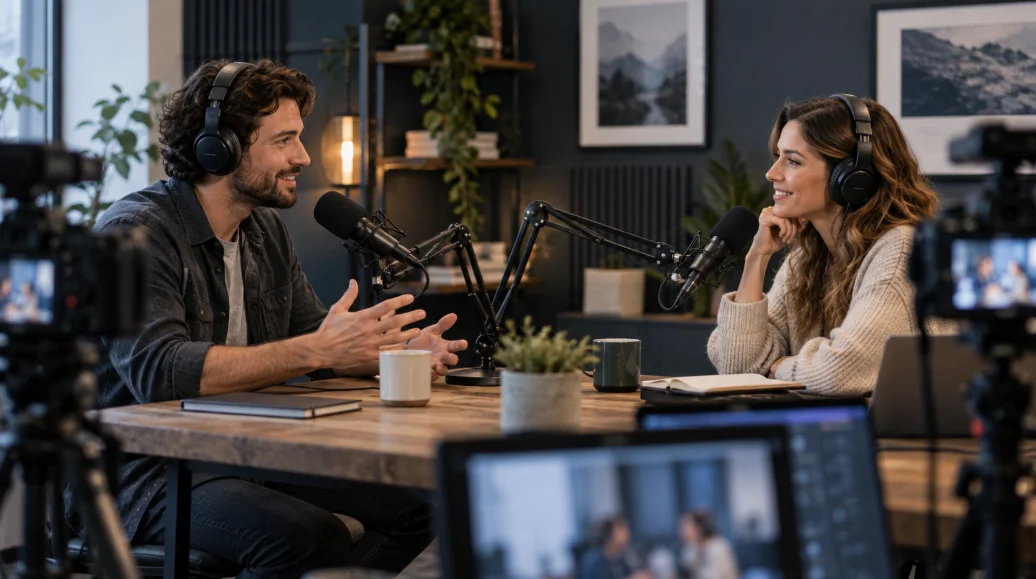
The beginning should quickly give viewers a reason to keep watching. Greetings and lengthy introductions can work in a full interview, but they often delay the useful part of a short clip.
Start where the topic becomes clear and the speaker begins delivering the idea. A clip can begin in the middle of the original recording as long as it gives viewers enough context.
Example: A travel vlog spends several seconds showing the creator leaving a hotel. If the video is about a difficult mountain trail, opening as the trail comes into view brings viewers closer to the story.
Shape the Story and Pace
4. Remove Mistakes and Repeated Ideas
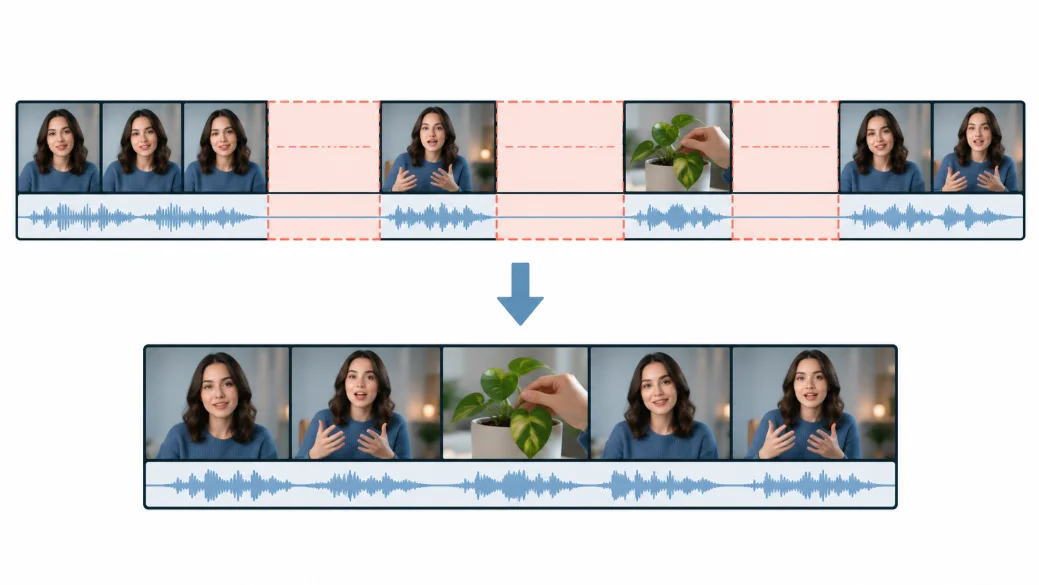
On your first pass, cut false starts, repeated explanations, and side stories that do not support the main point. Then watch what remains in order. A shorter edit should still preserve the speaker’s meaning.
Example: In a tutorial, the presenter explains twice where to find a setting. Keep the clearer explanation and remove the repeat, but retain the warning about when to use that setting.
5. Trim Pauses Without Rushing the Speaker
Some pauses interrupt the flow. Others give an important point time to land. Shorten gaps that make viewers wait for the next idea, then listen to the result at normal speed.
Watch the picture as well. Removing a pause from a talking-head video can create a jump cut: the speaker suddenly appears in a slightly different position. You can cover the cut with a relevant shot of what the speaker is discussing. If you stay on the speaker, check that the jump does not distract from the point.
Example: A presenter hesitates midway through a sentence, then continues with the answer. Trim the hesitation and play across the cut. The speech should sound natural, and the change on screen should not pull attention away from the answer.
6. Use Cutaways to Show What the Speaker Means
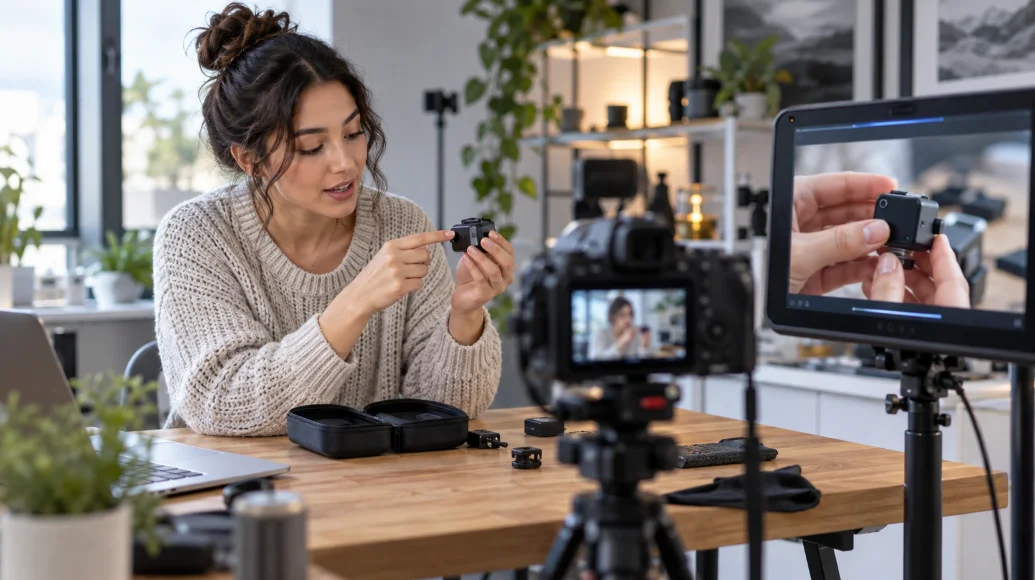
A cutaway shows something related to the speaker’s words: a product screen, an object, an action, or a result. Use it when seeing the detail makes the explanation clearer. It can also cover a visible jump between two parts of a talking-head recording.
Example: While a creator explains how they pack a camera bag, show the items going into the bag. Viewers can see the arrangement instead of trying to imagine it from the narration.
7. End With a Clear Takeaway
Let the video finish the idea it started. Cutting immediately after an attention-grabbing line can remove the explanation that makes it useful. Once the point is complete, end the clip before the speaker moves to another topic.
Example: The presenter shows a revised product page and explains what problem the changes solve. The clip can end there; it does not need to include the unrelated discussion that follows in the original recording.
Improve Audio, Captions, and Transitions
8. Make Dialogue Easy to Hear
Listen to the video without looking at it. Can you understand every important sentence? Check whether music covers speech and whether the volume changes sharply between shots or speakers.
Pay particular attention to the opening. Viewers should be able to hear the first line without adjusting their volume.
Example: A tutorial starts with background music at the same volume as the presenter. Lower the music so the instruction is clear.
9. Add Captions and Check Them for Errors
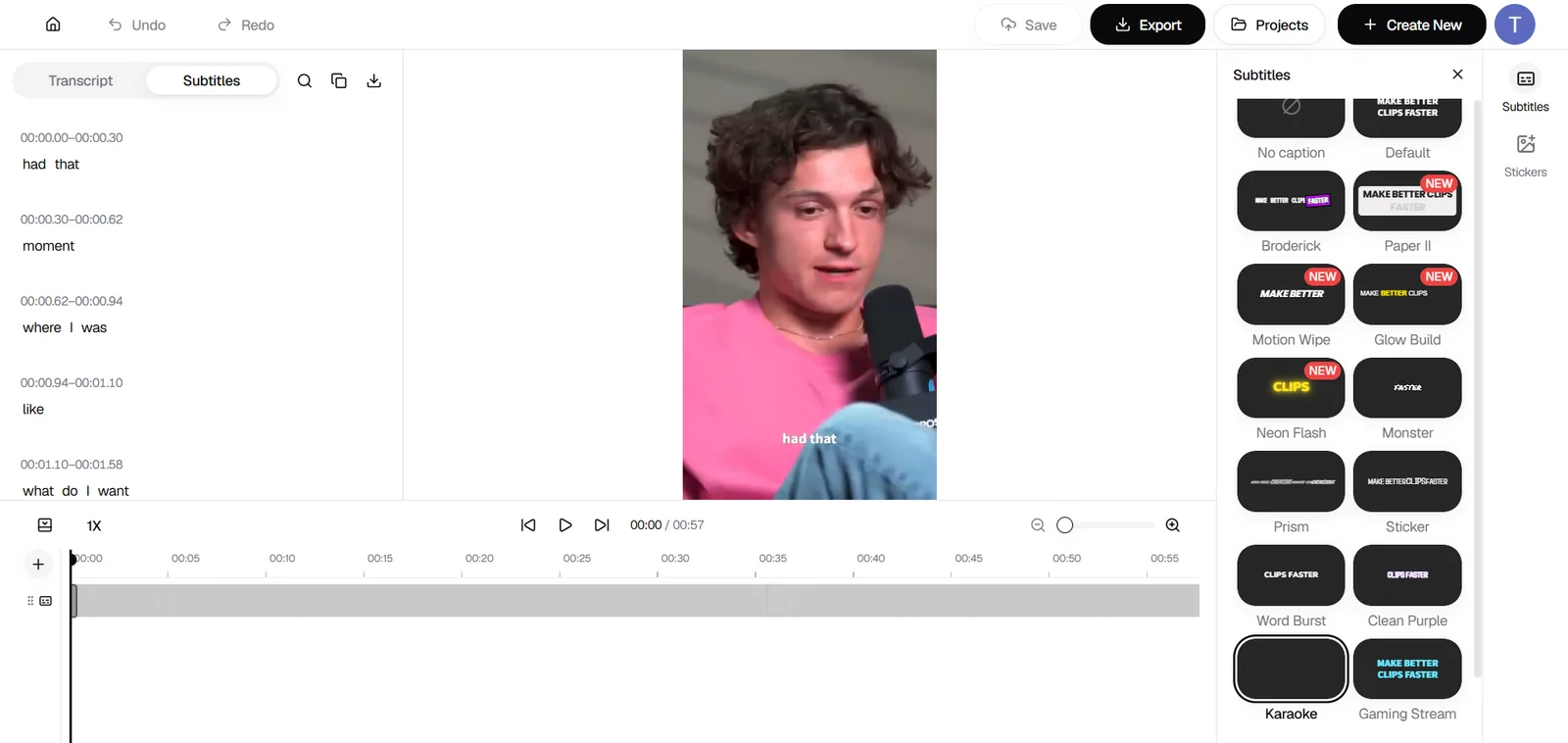
Captions help viewers follow speech, but generated text needs a final read. Play the clip while checking each line against the audio. Pay close attention to names, numbers, product terms, and captions that appear too early or too late.
Check the video preview as well as the text. Choose a readable caption style, and keep words away from faces, important controls, and the bottom edge where a platform’s interface may cover them.
Example: The presenter says “15 percent,” but the caption reads “50 percent.” Correcting that one word prevents the video from giving the wrong information.
10. Keep Transitions Simple
A direct cut often works between related thoughts. Use a transition when it helps viewers understand a change in time, location, or subject. Watch the transition as part of the finished video. If the effect interrupts the explanation, use a direct cut.
Example: A cooking tutorial moves from preparation to the finished dish. A simple cut to the result makes the change clear without a long animated effect.
Reframe for Short-Form and Check Your Final Edit
11. Reframe Footage for Shorts, Reels, or TikTok
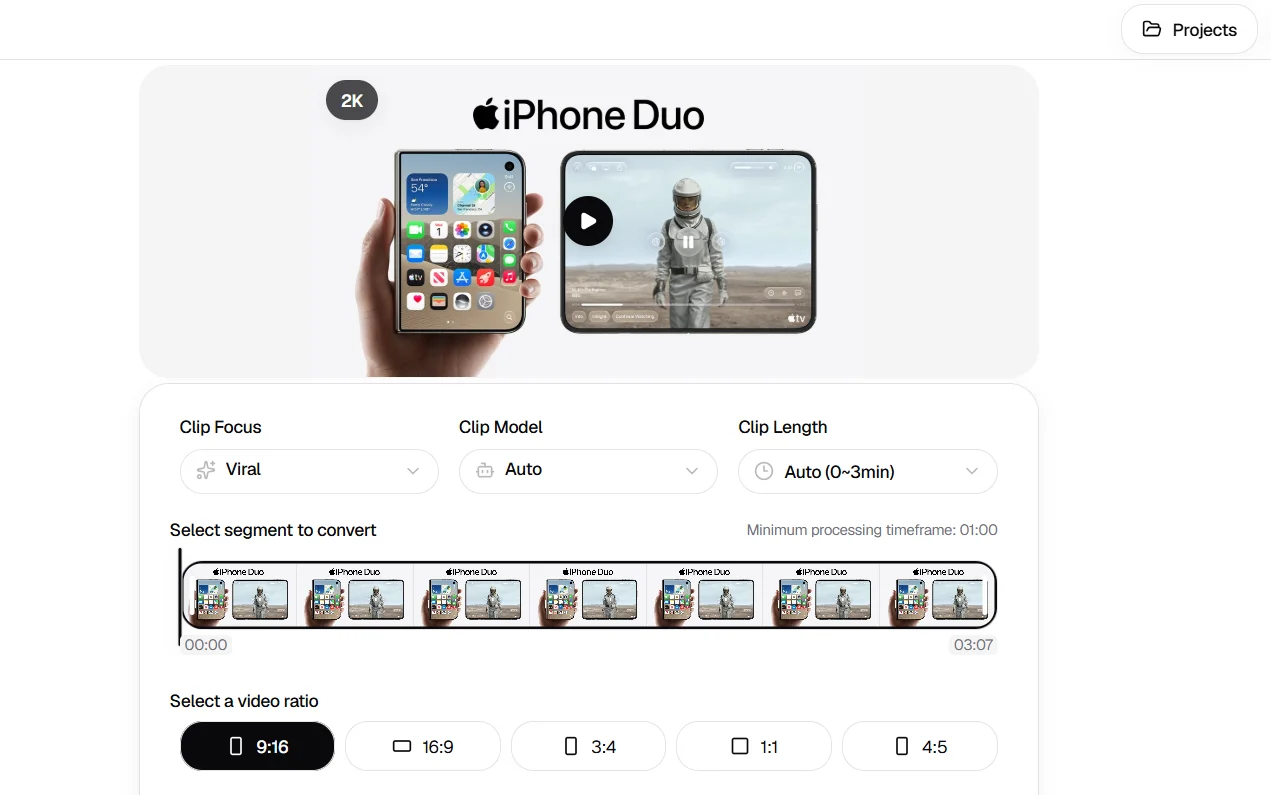
For a vertical video, 9:16 is a useful starting point, and 1080 × 1920 pixels is a common export size. The more important editing decision is what stays visible within the frame. Watch the whole clip and follow the speaker, product, or action as it moves.
Video Cutter AI lets you choose a target video ratio when preparing clips. Review each generated result, especially where the shot changes or important details sit near the edge.
Example: In a product demo, a centered vertical crop shows the presenter but cuts off the controls they are describing. Adjust the framing so viewers can see the controls when they matter.
12. Watch the Finished Video Before Publishing
Once your cuts, captions, and framing are in place, watch the whole edit at normal speed. Then check it at phone size. Look for awkward cuts, text that is hard to read, subjects moving out of frame, and an ending that stops too soon.
Do this review before export so you can make changes. After export, open the saved file to confirm the final version looks and sounds as expected.
Example: The edit looks balanced in a large preview, but a caption covers the product name on a phone screen. Move the caption and review the revised clip.
Step-by-Step Example: Turn a Long Interview Into a Short Video
Imagine a 30-minute interview in which a founder answers: “What changed after your first product launch?” One part of the answer tells a complete story. Customers misunderstood a feature, the team changed how they explained it, and the founder shares what they learned.
Here is how to turn that answer into a focused short video.
Step 1: Set Up the Clip and Compare the Results
Add the recording and choose the section you want to work with. Choose the kind of moment you want to find, a target clip length, and a video ratio. You can also choose a caption preset before generating clips.
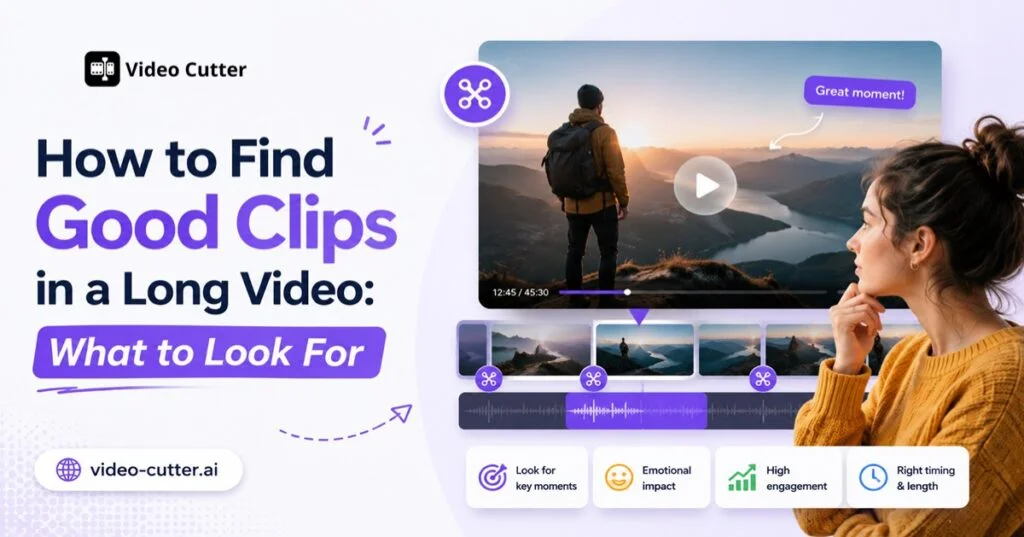
Review the resulting options side by side. Look beyond a score or an appealing first frame: which clip introduces the problem, explains the change, and reaches the lesson? This guide to finding good clips in a long video offers more ways to compare promising moments.
Step 2: Cut the Opening, Pauses, and Repetition
If the founder names the problem in their first sentence, you may not need the interviewer’s full question. Remove repeated setup and shorten pauses that break the flow.
Keep the detail that explains why the team changed its approach. Without it, the story may be shorter but harder to understand.
Step 3: Check Captions and the Vertical Frame
In the clip editor, play the video while reading the timed subtitles. Correct the product name, numbers, and any line that does not match the speech. Preview the caption style and placement on the video itself.
Check the framing whenever the shot changes between the interviewer, founder, and product. Play across the cuts you made in Step 2. If a cut creates a distracting visual jump, adjust the cut. You can also use a separate video editor to place a relevant product shot over it.
Step 4: Review the Finished Clip
Play the clip without referring back to the original interview. Can you follow the problem, the change, and the lesson? Check it at phone size, then watch once with the sound off to review the captions.
The clip is ready when it tells that complete story clearly, without requiring viewers to know what happened earlier in the interview.
Video Editing Checklist Before You Publish
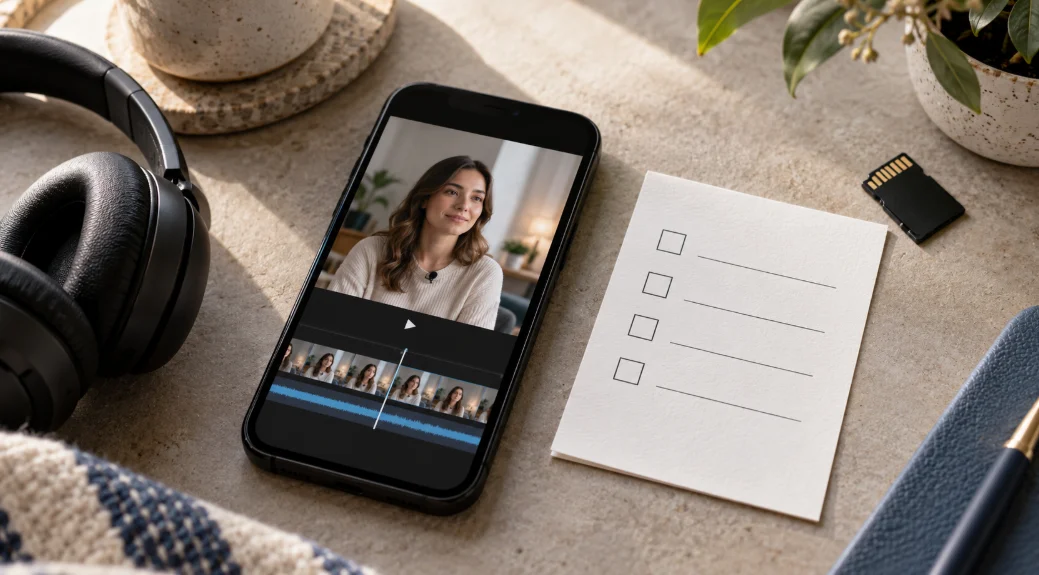
Before export
-
Main idea: Can you describe the video in one sentence?
-
Opening: Does it reach the main idea quickly?
-
Context: Will it make sense without the full recording?
-
Cuts: Have you removed repetition without changing the meaning?
-
Pace: Does the speech sound natural?
-
Picture: Are any jump cuts distracting?
-
Audio: Is the dialogue clear and reasonably consistent in volume?
-
Captions: Are the words and timing correct, and is the text easy to read?
-
Framing: Do the subject and important details remain visible?
-
Ending: Does the video complete its thought?
-
Export settings: Check the aspect ratio, video resolution, and whether the audio plays clearly.
After export
- Open the saved file and watch it from beginning to end. Confirm that the picture, sound, and captions match what you reviewed in the editor.
FAQs About Video Editing for Beginners
What should I learn first in video editing?
Start with choosing one clear idea and making clean cuts. Practice by taking a longer explanation and trimming it into a clip that still makes sense to someone who has not seen the full recording.
How can I edit videos faster?
Work in passes: choose the footage, cut for meaning, adjust the pace, add captions, reframe, and review. This keeps you from polishing sections you may later remove.
How do I turn a long video into a good YouTube Short?
Choose one complete idea. Start where the topic becomes clear, keep the context needed to understand it, and end when the point is resolved. Then check the captions, audio, and vertical frame. If the source is already on YouTube, you can use Video Cutter AI’s YouTube Clipper to add a video link and review suggested clips.
Do I need expensive video editing software?
No. To get started, you need a way to trim footage, hear and check the audio, add or review captions, and export the video in the format you need. Clear content and careful cuts matter more than a large collection of effects.