
You paste a YouTube link, click what looks like a download button, and land on an ad. Another tool asks you to install software, while a third gives you a file without a clear choice of quality or size. When you just want an MP4 for offline viewing, a presentation, or editing your own footage, those extra steps get in the way.
For a quick download, Video Cutter AI’s YouTube to MP4 converter keeps the workflow in two simple stages: paste a link to get the download options, then choose your preferred quality and prepare the file for download. Its free, ad-free converter shows the estimated size beside each resolution, so you can choose the right balance of detail and storage without signing up or installing software. Desktop applications become more useful when you regularly handle playlists, queues, or advanced settings.
The best YouTube to MP4 converters match the way you work. This comparison covers seven options, from quick browser downloads to desktop tools for playlists and a command-line option for automation.
YouTube to MP4 Converters at a Glance
Choose by the job you need to finish: a quick MP4, a video with specific quality settings, or a collection of downloads. This table summarizes the main differences as of October 2026.
| Tool | Setup and free access | MP4 output options | Best use | Download experience |
|---|---|---|---|---|
| Video Cutter AI | Phone or computer browser; free; no sign-up or installation | Sample interview: 360p–2160p options, each with an estimated size | Quick, ad-free downloads with a choice of quality and size | Two-stage flow with clearly labeled options |
| YTMP3 | Browser; free; no sign-up | Successful download with 1080p and Origin selected | Switching between video and audio formats | Separate Windows downloader promoted on result page |
| TurboScribe | Browser; free; no sign-up | Successful download; sample result card listed 640 × 360 and 43.1 MB | Simple MP4 downloads alongside transcription tasks | Download and Transcribe buttons on the result card |
| noTube | Browser; free; no registration | Successful MP4 download | Converting links from several supported platforms | Multiple ads encountered, including a download-style overlay |
| 4K Video Downloader Plus | Desktop installation; restricted free access and paid upgrades | Quality and format controls | Downloading playlists, channels, and subtitles | Graphical desktop application |
| SnapDownloader | Windows or macOS installation; trial and paid access | MP4 conversion and trimming | Queuing, scheduling, and trimming downloads | Desktop download manager |
| yt-dlp | Command-line setup; free and open source | Format selection, merging, and configurable output | Automating downloads and file naming | Terminal commands and reusable settings |
Our Comparison Criteria
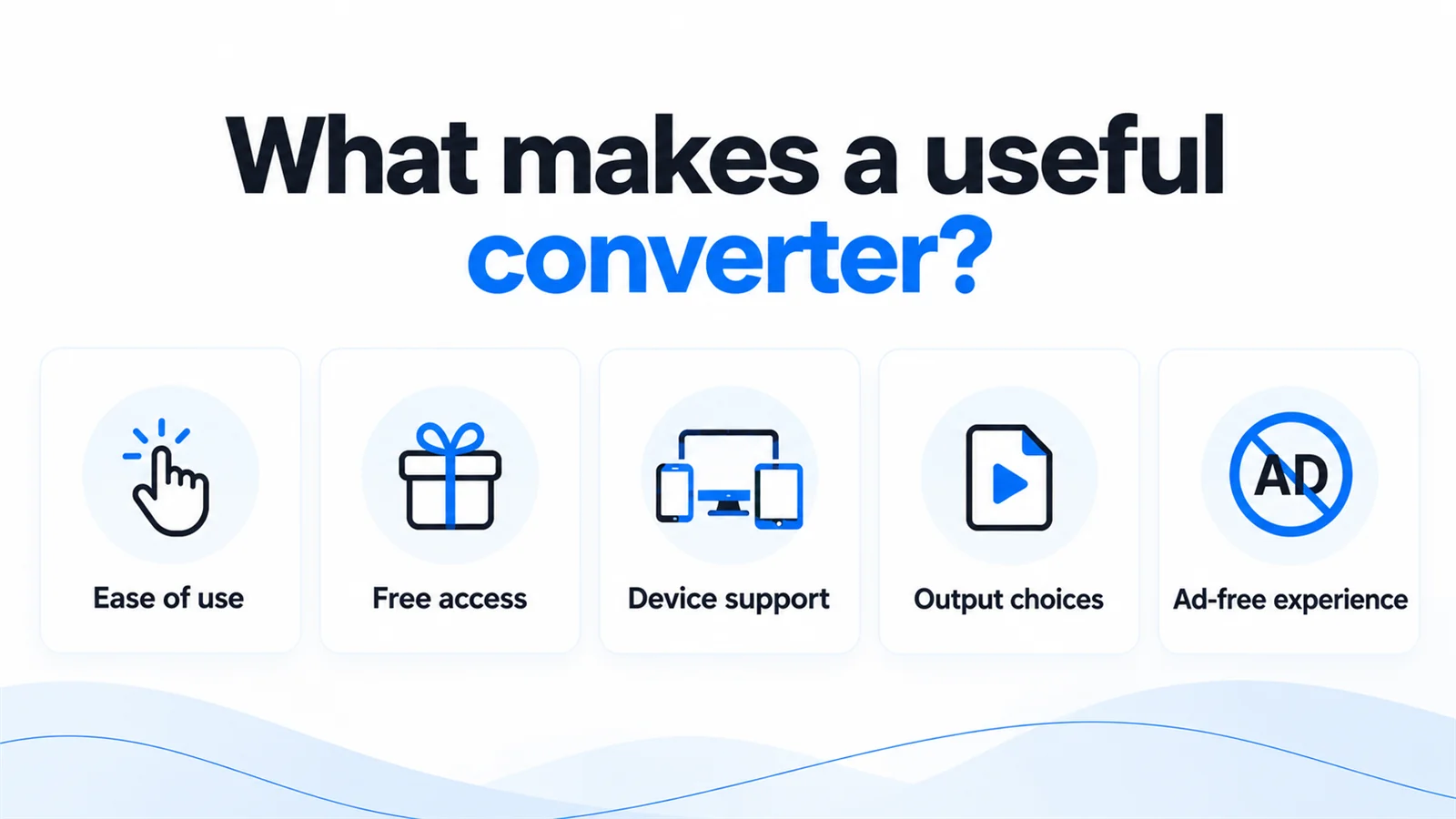
The comparison focuses on five practical questions: how easily you can start, what is free, which devices fit, how much output control you get, and whether ads interrupt the process. The online examples use the same 15-minute, 16-second interview, “Matt Damon & Tom Holland Debate the Best & Worst Things Ever | GOAT Talk,” to illustrate the differences in settings and result pages.
Ease of Use
A converter should make the path from link to file easy to follow. Consider whether you need an account, installation, or several settings before you can start. Seeing the title and duration before downloading also helps you catch a wrong link early.
Free Features and Limits
For a single MP4, free browser conversion keeps the cost and setup low. Desktop tools offer additional capabilities through restricted free plans or paid licenses. Choose based on the features you need: a direct download, playlist management, scheduling, or more detailed controls.
Device Compatibility
Browser tools are convenient when you move between a phone and a computer. Desktop software needs a compatible operating system, while command-line tools require more setup. Also consider where the file will be saved and which app you will use to open it.
Batch Downloads and Output Options
For one video, a clear MP4 selector may be enough. For a collection, queues, playlist handling, filenames, and subtitle options can matter more. Quality choices depend on the source and the versions a tool can retrieve; a higher advertised ceiling does not guarantee that option for every link.
Ads, Promotions, and Installation Requirements
A successful download is only part of a good experience. The noTube walkthrough encountered multiple ads, including a floating message styled as a download notification. YTMP3's result page also promoted a separate Windows application. An ad-free converter removes that extra decision-making: you can follow the actual file-download flow without sorting through advertising.
Online YouTube to MP4 Converters
Online converters suit users who want to work from a browser without maintaining a separate download application. For occasional use, that lower setup effort can matter more than a large collection of advanced features.
Video Cutter AI
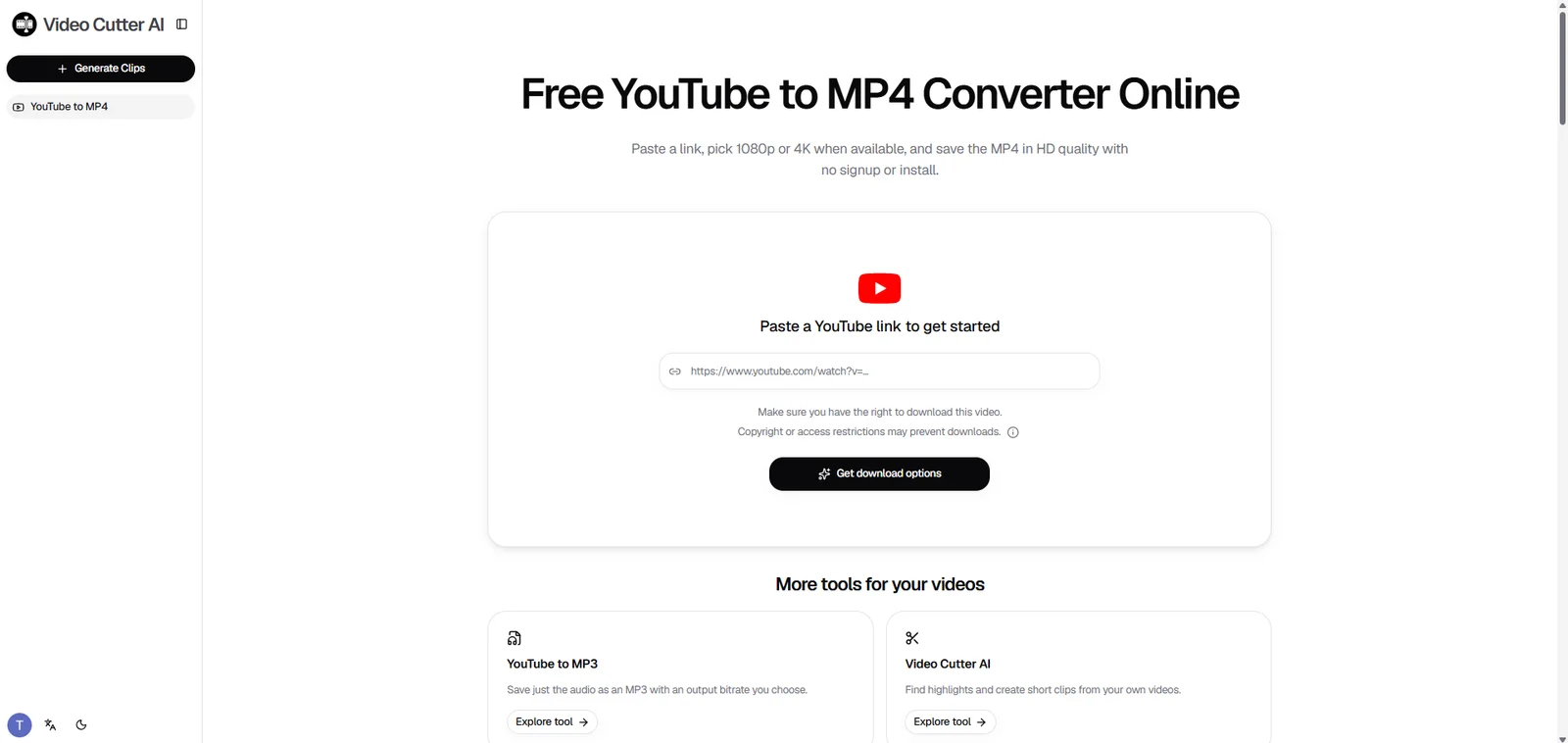
Video Cutter AI includes a dedicated YouTube to MP4 converter alongside its video-clipping tools. Saving a full video does not require starting an editing project. Open the free YouTube to MP4 converter, paste your link, and retrieve the available download options.
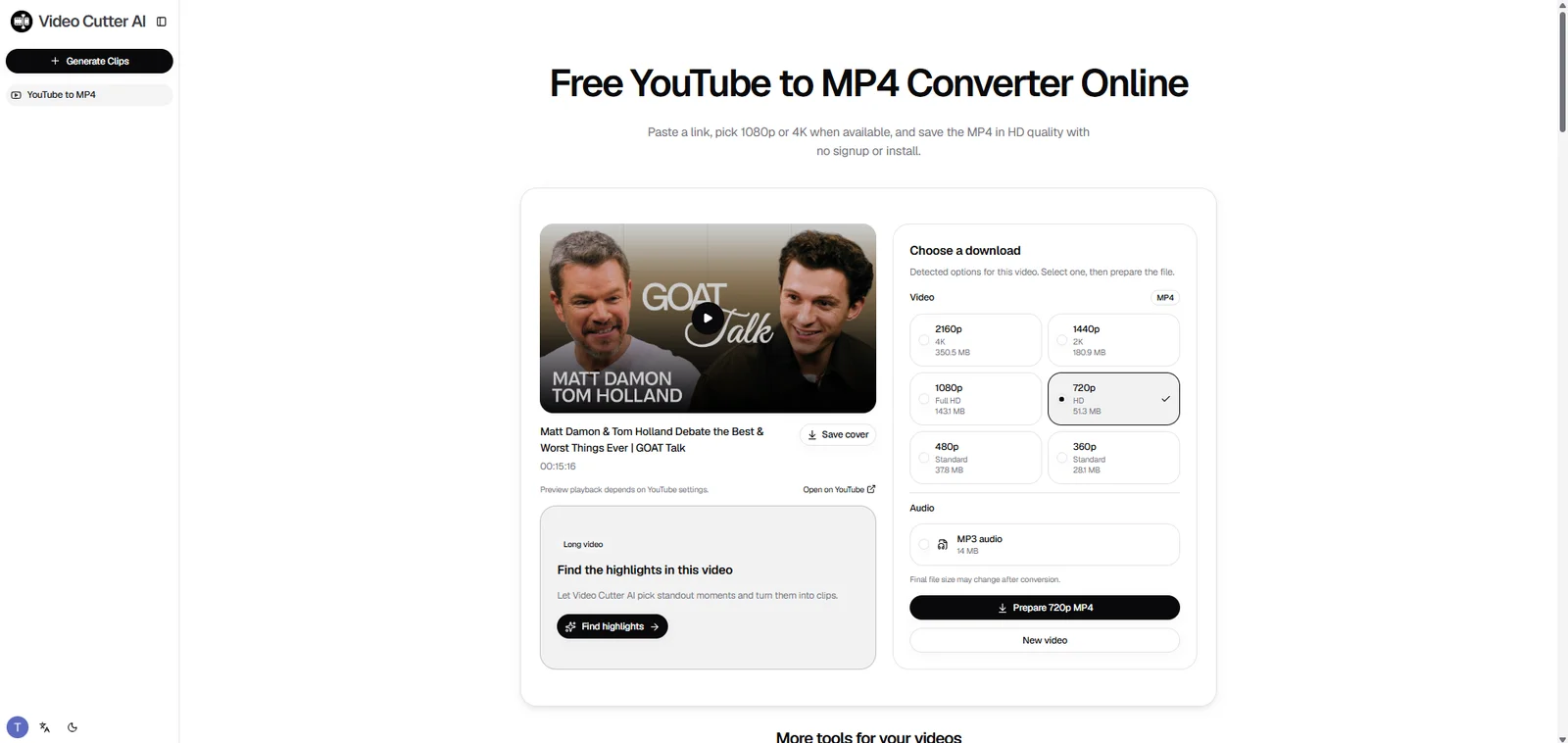
What it does: Shows the video's title, cover, and duration, followed by available MP4 qualities and estimated file sizes. You can check that you have the right video before choosing a download.
Setup and access: Works in a phone or computer browser without an account, desktop app, or browser extension.
Standout feature: Quality and estimated file size appear together in an ad-free selection panel. For the same 15-minute, 16-second interview used with the other online tools, the panel offered six MP4 options:
| MP4 quality | Estimated file size shown |
|---|---|
| 2160p (4K) | 350.5 MB |
| 1440p (2K) | 180.9 MB |
| 1080p (Full HD) | 143.1 MB |
| 720p (HD) | 51.3 MB |
| 480p | 37.8 MB |
| 360p | 28.1 MB |
That makes the trade-off concrete: for this video, choosing 720p instead of 1080p reduces the displayed estimate by 91.8 MB. You choose from the available versions rather than guessing what a resolution label means for storage.
The workflow has two main stages:
-
Get the options. Paste the YouTube link and click Get download options.
-
Choose and save. Check the thumbnail, title, and duration, select a quality-and-size option, and click its preparation button—Prepare 720p MP4 in the captured example. Download the file once preparation finishes.
The quick, ad-free workflow keeps attention on the file you want. Quality and size choices are visible together, so deciding what to save takes little effort.
Limitations: This flow handles one video link at a time. Available qualities depend on the source and access conditions, and the page notes that final file size may change after conversion.
Best for: People who want a free, ad-free way to choose and download an MP4 without signing up or installing software.
The useful distinction is visibility: you can check the content and compare the options before committing to a download. For the full walkthrough, including how to choose between resolutions, read how to convert YouTube to MP4.
YTMP3
YTMP3 offers an MP4 mode alongside its audio converter, with separate controls for format, quality, and audio track. It suits users who want to choose those settings before conversion.
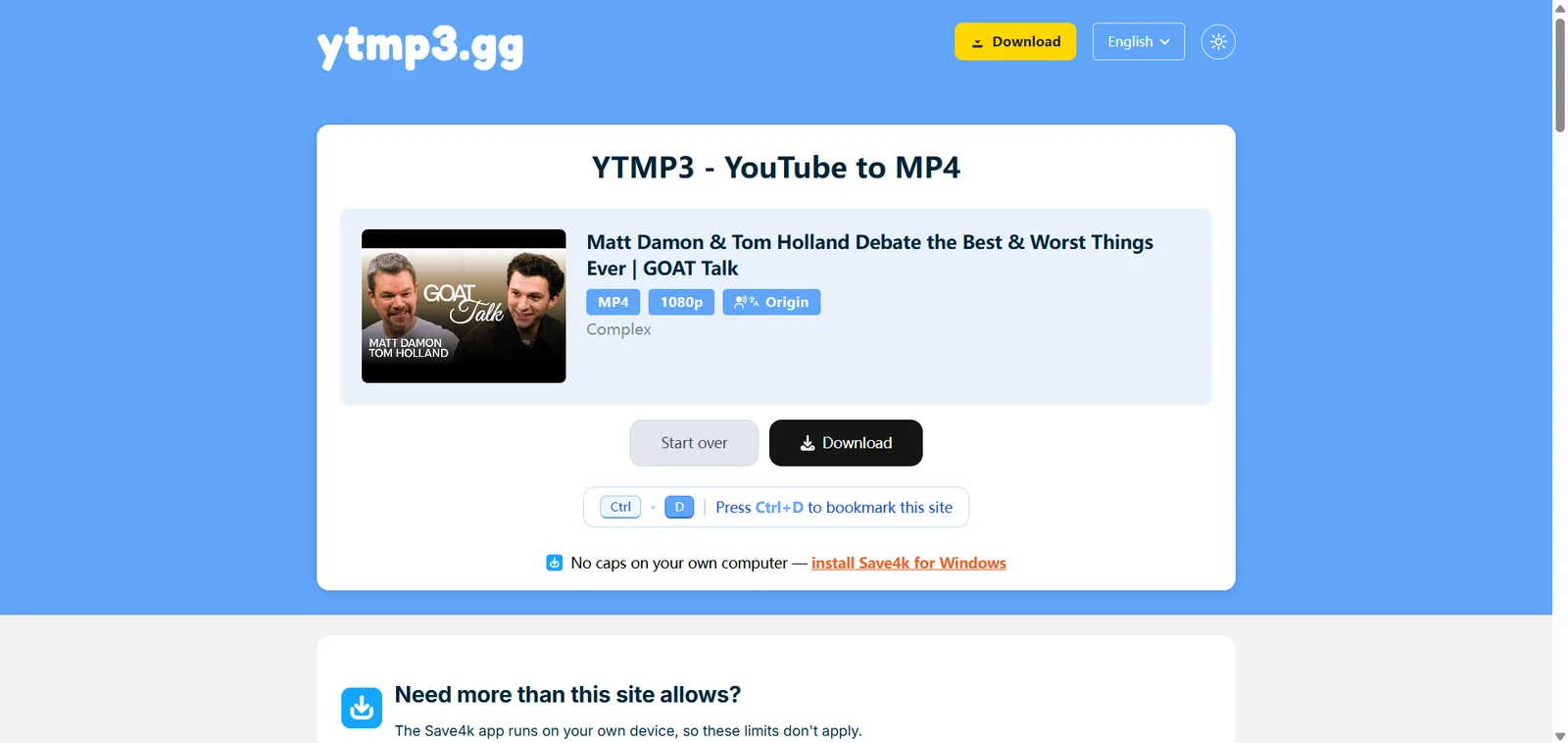
What it does: Accepts a YouTube link or search keywords and provides MP3 and MP4 choices.
Setup and access: Its product page describes browser use on phones and computers without registration or installation. In the browser walkthrough, the input page presented MP3 and MP4 modes, a quality selector, an audio-track selector, and a copyright-confirmation checkbox before the Convert action.
Standout feature: With MP4, 1080p, and “Origin” selected, the conversion produced a result card showing the interview's thumbnail, full title, channel, and matching format labels. A black Download button appeared beside Start over, and the file downloaded successfully. The selected settings remained visible at the point of download.
Limitations: The result page promoted a separate Windows downloader below the actual Download button, adding an extra software offer to the page. You can complete the browser download without installing it. Keep MP4 and the desired audio track selected when you want video with sound.
Best for: Users who want audio and video choices within one browser tool and are comfortable checking the format and track selections.
TurboScribe
TurboScribe offers a dedicated YouTube-to-MP4 downloader alongside its transcription service. Paste a video URL into the download page to request an MP4 file.
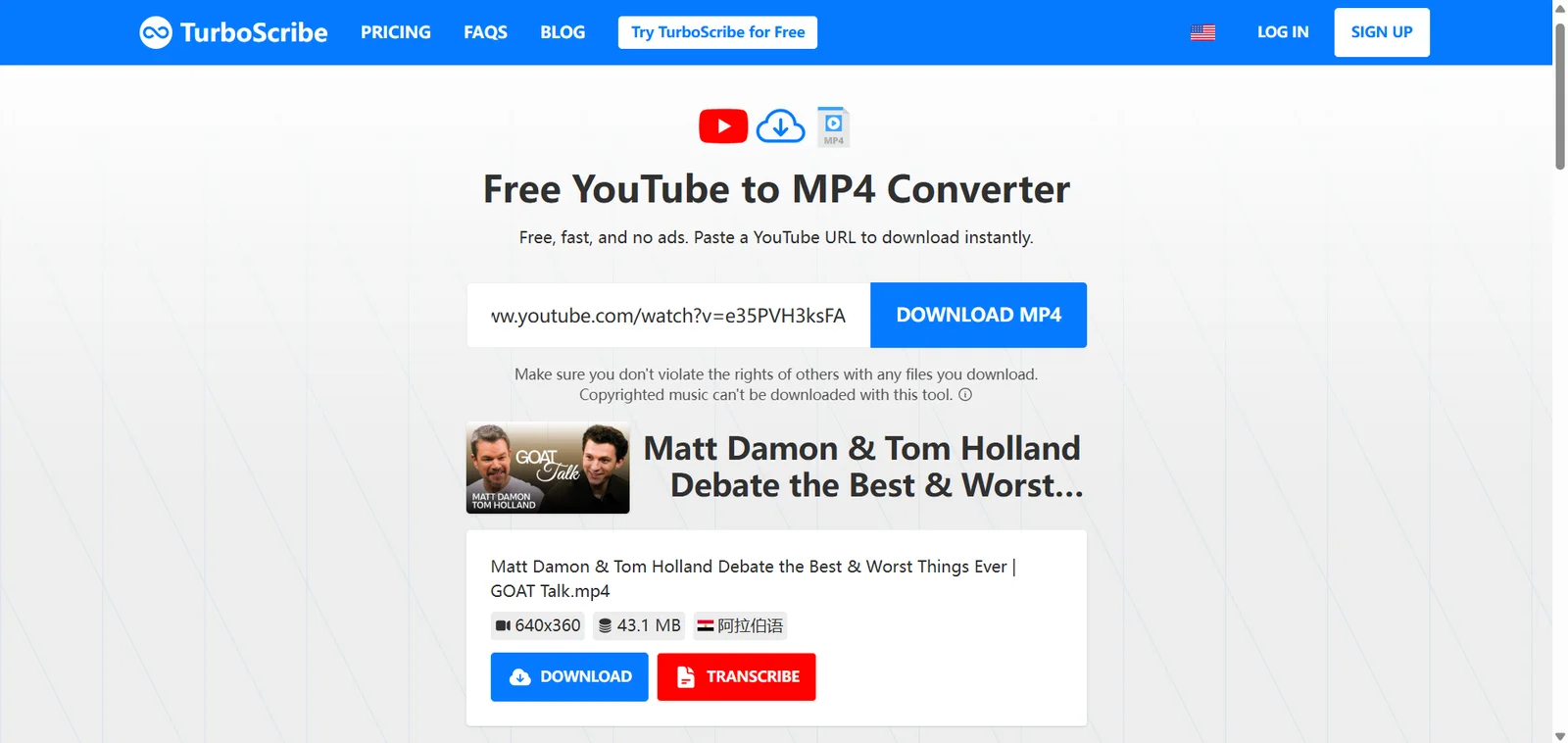
What it does: Provides a browser-based YouTube-to-MP4 download page.
Setup and access: The free browser downloader requires no sign-up. The download interface is simple, with a separate route into the transcription service.
Standout feature: The walkthrough began with a URL field and a Download MP4 button. Processing revealed the interview's thumbnail and title, followed by an MP4 file card listing dimensions, size, and a language label. Separate Download and Transcribe buttons made the two next steps easy to distinguish, and the MP4 downloaded successfully.
Limitations: For this interview, the result card listed 640 × 360 and 43.1 MB, with an Arabic language label. The download flow presented this result directly instead of a panel of quality choices. If choosing between HD and a smaller file is a priority, Video Cutter AI's resolution-and-size panel is more useful. TurboScribe's page also states that copyrighted music cannot be downloaded.
Best for: Users who prefer a minimal download interface, particularly when transcription is another part of their work.
noTube
noTube offers browser-based conversion for YouTube and other supported platforms. Its format selector covers both audio and video, so checking the output choice is an important part of the workflow.
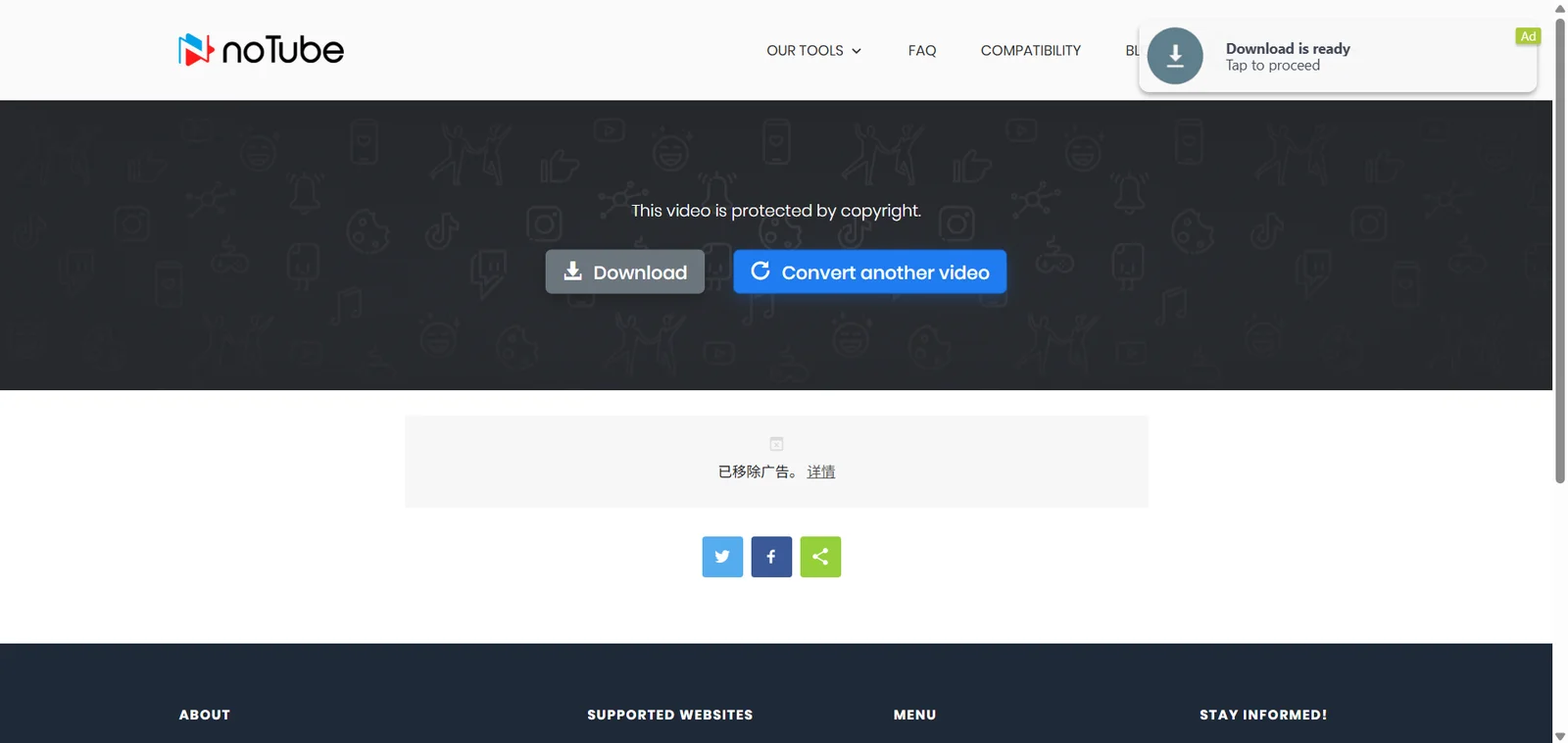
What it does: Accepts a video URL or keywords and offers conversion to formats including MP4.
Setup and access: The browser form initially selected MP3. Its dropdown included MP3, MP3 HD, M4A, and MP4, so requesting a video required switching to MP4 before clicking OK. The converter is free to use without registration.
Standout feature: Selecting MP4 for the interview link led to a successful download. The result page confirmed “Conversion complete” above the full video title, with a green Download button and a blue Convert another video button below it. The service also supports links from several video platforms.
Limitations: Multiple advertisements made the walkthrough less straightforward, even though the download succeeded. The result page included an advertising area and a floating “Download is ready” message marked Ad, separate from the green Download button beneath the video title. Having to distinguish a download-style advertisement from the real action added friction. The result screen also did not show output dimensions or file size.
Best for: Users who want its supported-source options and are willing to navigate advertising. For an individual MP4 download where a cleaner interface matters more, an ad-free converter is a better fit.
Desktop and Command-Line YouTube to MP4 Tools
Installing a tool takes more effort initially, but it can make sense when downloading becomes a regular task. These options emphasize managing multiple items or controlling the output more closely.
4K Video Downloader Plus
4K Video Downloader Plus is a desktop application with a graphical interface for individual videos and larger collections.
What it does: Handles video downloads, playlists, channels, and subtitle retrieval, with settings for the output you want to keep.
Setup and access: Requires a compatible desktop installation. Check the current operating-system requirements and which features need a paid license.
Standout feature: Collection-oriented features reduce the need to repeat an individual-link workflow for each item. Subtitle support is useful when text is part of the material you need.
Limitations: Installation and software updates are part of using it. Free access has restrictions, and some capabilities depend on the plan. Confirm your operating system and required features before committing.
Best for: Regular downloaders who want a graphical application for organizing videos and collections.
SnapDownloader
SnapDownloader is a desktop downloader for Windows and macOS. It combines download management with additional options such as trimming and scheduling.
What it does: Downloads videos in MP4 and other formats and offers playlist, queue, and scheduling features.
Setup and access: Requires a Windows or macOS application. Its trial lets you evaluate the software, while continued access follows the current licensing terms.
Standout feature: Its built-in trimmer can be useful when you want a particular section, while scheduling helps organize work across several downloads.
Limitations: Trial access is different from ongoing free use. You also need to install the application, making it a larger commitment for someone who only wants one file.
Best for: Frequent users who want several download-management tasks in one desktop application.
yt-dlp
yt-dlp is a free, open-source command-line downloader. Its appeal is control rather than a guided interface, and it is a different proposition from pasting a link into a browser page.
What it does: Supports configurable downloads, including format selection, playlists, filenames, and repeatable commands.
Setup and access: Runs on Windows, macOS, and Linux with the appropriate installation and dependencies. It does not use a browser download page, but you must manage software updates and configuration.
Standout feature: Settings can be reused and incorporated into scripts, which helps technical users maintain consistent naming and processing routines.
Limitations: Setup, command syntax, and troubleshooting require more technical confidence. Some operations need additional dependencies, such as FFmpeg for merging separate video and audio streams. Choosing an MP4 container alone does not guarantee a particular codec or playback result.
Best for: Users who want automation and detailed control, and are comfortable maintaining a command-line tool.
These controls are particularly useful when downloading is part of a recurring technical workflow. For a single file, consider whether you need that flexibility before taking on the configuration.
Frequently Asked Questions
Where Are Downloaded MP4 Files Saved on iPhone and Android?
On iPhone, check Safari's download list and the download location configured for Safari, often accessible through the Files app. On Android, check the browser's Downloads section or the Downloads folder in your file manager. The location depends on your browser and settings; downloading an MP4 does not necessarily add it to Photos or your gallery automatically.
What Is the Difference Between a Free Converter and a Free Trial?
A free converter lets you use its available free features without a trial expiry, subject to the service's restrictions. A free trial provides temporary access to software or paid capabilities. Video Cutter AI's YouTube to MP4 feature is free to use without account registration; desktop products may offer restricted free access or a trial before payment is required.
Do You Need to Install a Browser Extension?
Not for the browser-based workflow offered by Video Cutter AI. You can paste the link directly into the converter page. An extension is a separate software choice, not a universal requirement for saving an MP4. If a page asks for one, check whether it is genuinely required by that service rather than part of an unrelated promotion.
Does Downloading a Video Give You Permission to Reuse It?
No. Having an MP4 file does not grant copyright or permission to edit, republish, or use someone else's content commercially. Work with videos you own or are authorized to download and use, and check the applicable terms and permissions for your intended project.
If you have the necessary rights and only need an excerpt, an online YouTube clipper offers a separate workflow for creating short clips rather than keeping the entire recording.
Which YouTube to MP4 Converter Should You Choose?
The right choice depends on how often you download and how much control you need. Start with the simplest option that meets the task, then consider more complex software when a specific requirement justifies it.
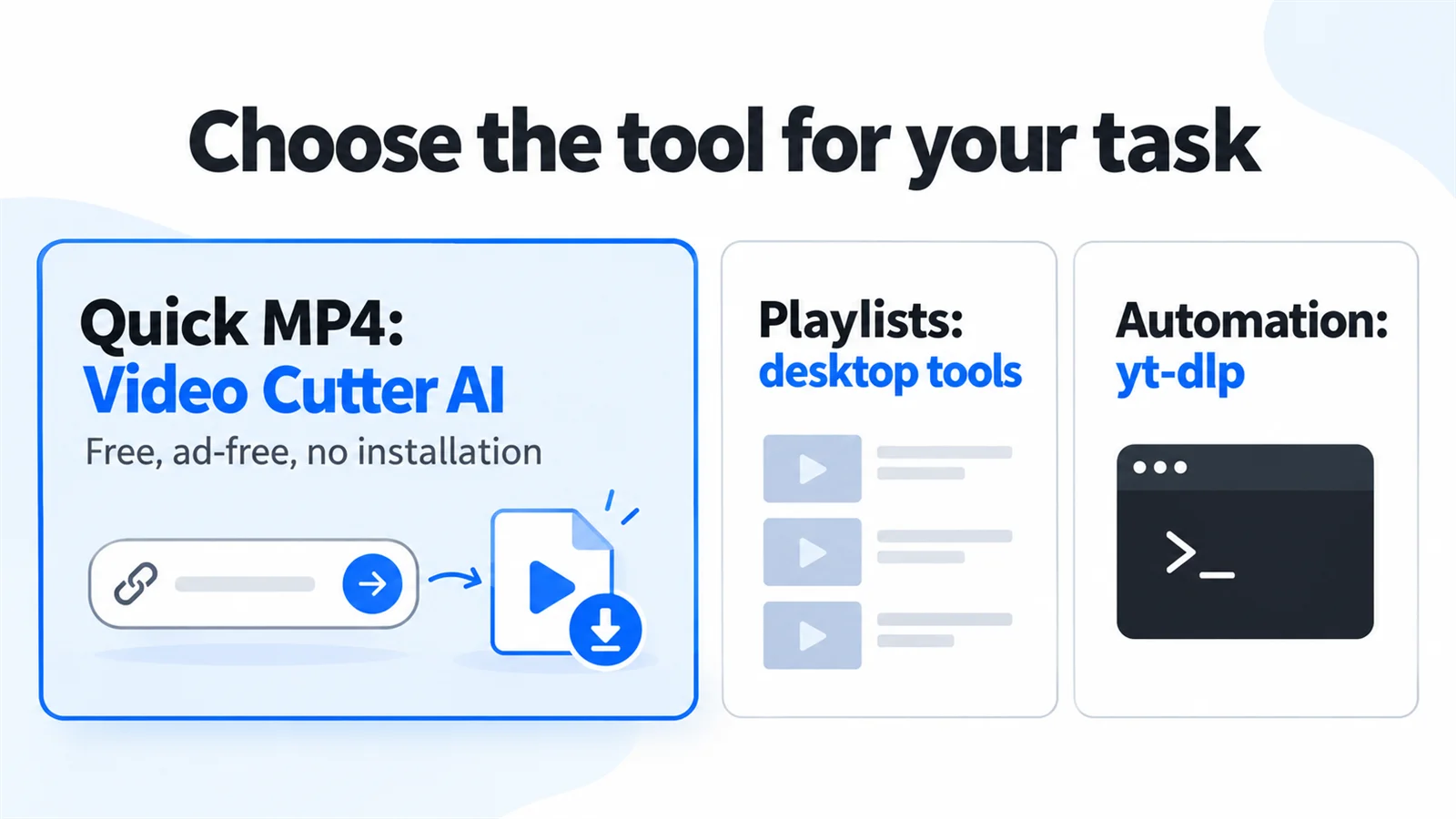
Video Cutter AI for Quick Downloads Without Installation
Video Cutter AI is our recommended starting point when you want an MP4 quickly without installation. The two-stage flow takes you from a link to clearly labeled quality-and-size choices, with no ads competing for attention. For the interview in this comparison, you could choose a 51.3 MB estimated 720p version or a 350.5 MB estimated 4K version from the same panel. That flexibility lets you prioritize a smaller file or more detail before preparing the download.
It also leaves room for a different next step. If you decide that your own long recording would work better as several short videos, the long-video-to-Shorts workflow explains that separate process. You do not need to start with an editor simply to download the full video.
Desktop Tools for Frequent Downloads and Playlists
Consider 4K Video Downloader Plus when you want a graphical application for recurring downloads and collections. SnapDownloader is another option when scheduling, queues, or trimming are important. Compare the current free and paid access against the features you will actually use.
yt-dlp for Advanced Download Controls
Choose yt-dlp when repeatable commands, naming rules, and automation justify the setup. If you would rather avoid configuration and simply choose an available MP4, a browser converter is the more approachable place to begin.
Download Your Next MP4 with Video Cutter AI
Open the ad-free YouTube to MP4 converter and paste your link to see the available options. Video Cutter AI puts quality and estimated file size side by side, so you can choose the MP4 that fits your screen and storage, prepare it, and download it—all without signing up or installing software.