
To convert YouTube to MP4, paste a video link, get the download options, choose a resolution, prepare the file, and click download. Video Cutter AI’s YouTube to MP4 converter is free to use, with no login or software installation required.
The main decision is which version to save. You need enough detail for your task without downloading an unnecessarily large file.
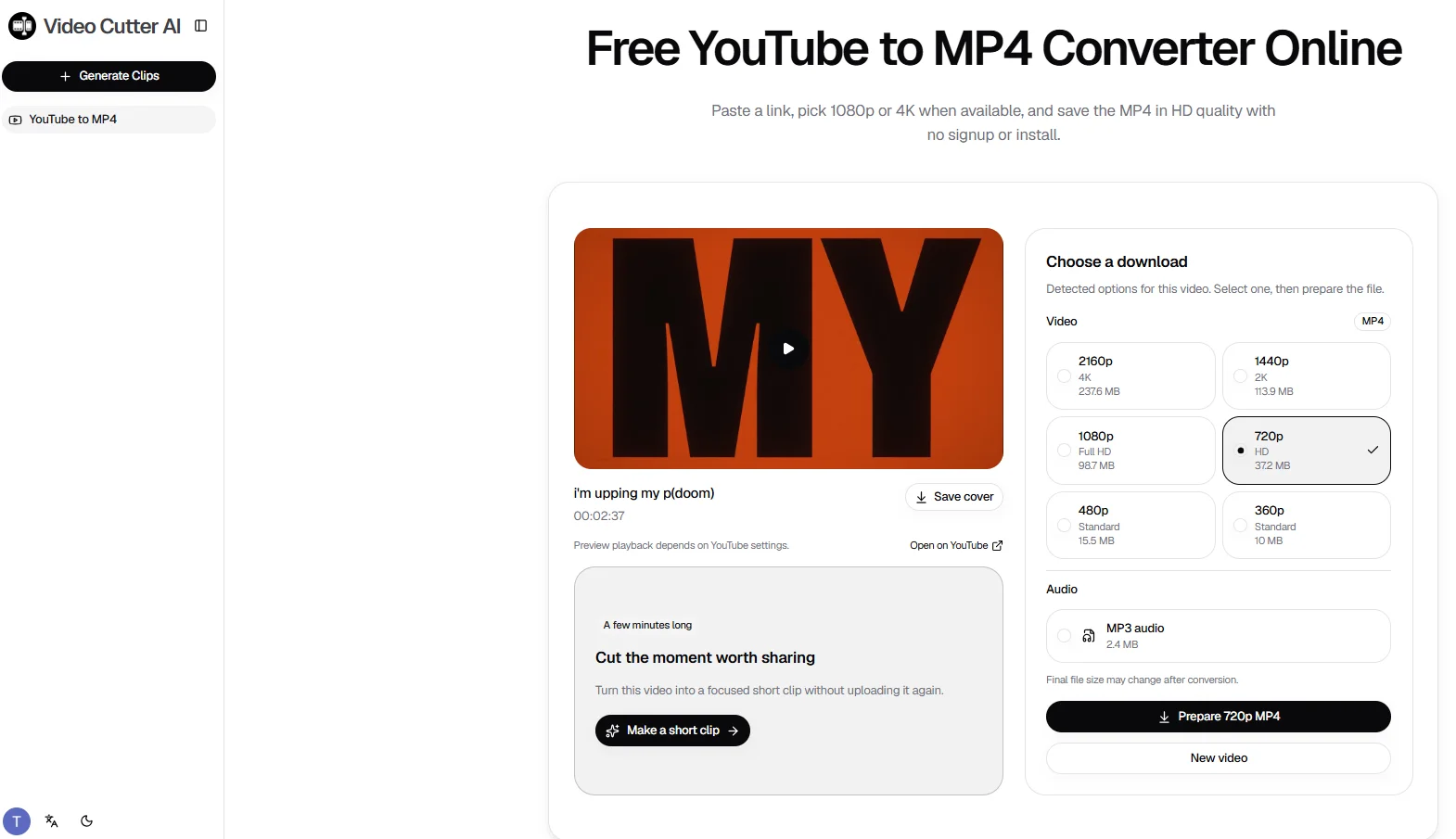
For the 2-minute, 37-second video in this guide, the 720p version is 37.2 MB, 1080p is 98.7 MB, and 4K is 237.6 MB. Here is how to download your video and choose between those options.
How to Convert YouTube to MP4 Online
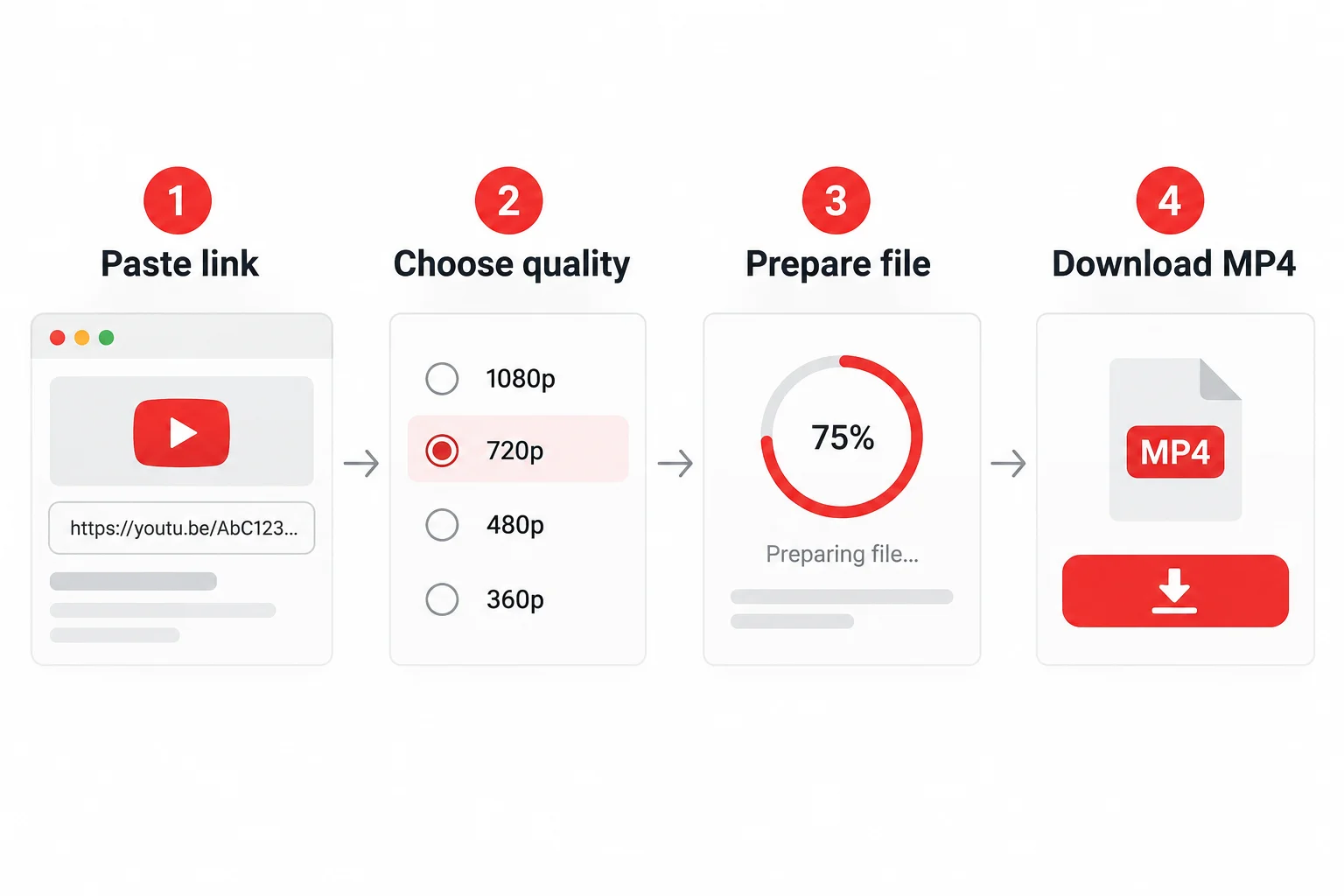
The process has four steps. Available resolutions depend on the source video and the versions the tool can retrieve.
Step 1: Paste the Link and Get Download Options
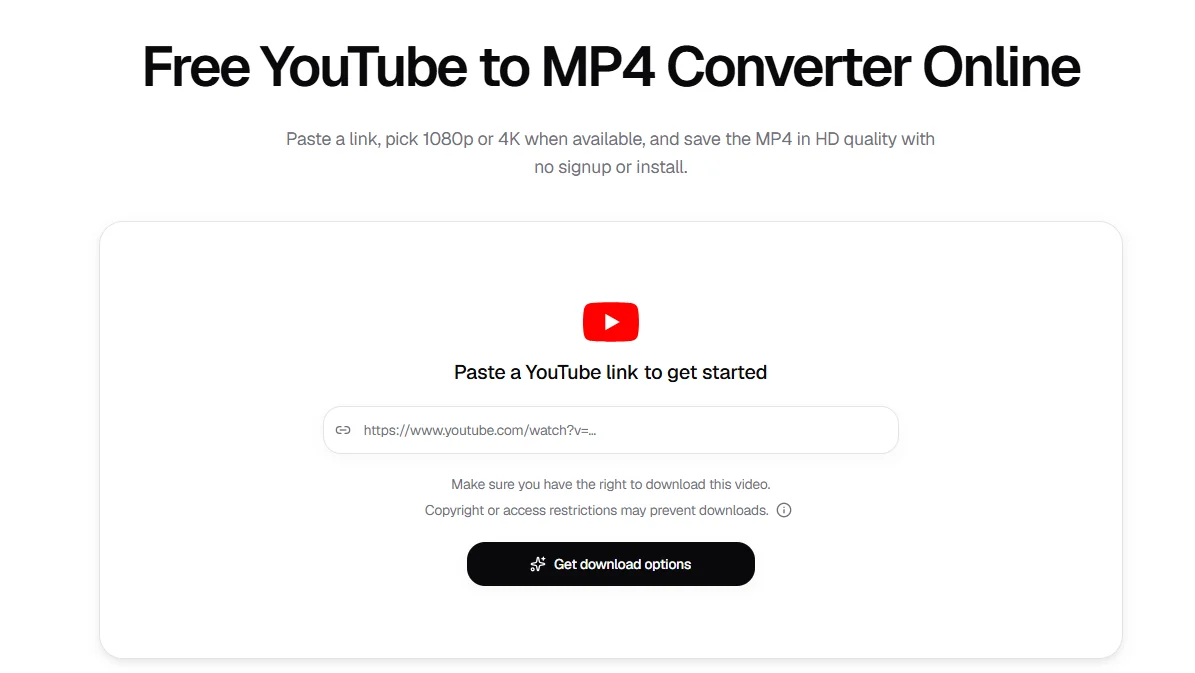
Copy the YouTube video link and paste it into the online YouTube to MP4 tool. Click Get download options, then check the title, thumbnail, and duration. This helps you confirm the correct video and avoid confusing a full recording with a shorter excerpt.
Step 2: Choose Your MP4 Resolution
Under Video, compare the available resolutions and their listed file sizes. For everyday viewing, start with 720p and 1080p. Consider a higher resolution if you need to read small text, inspect fine details, or crop the footage later.
Select an MP4 video option when you need the picture and sound. The separate MP3 audio option saves audio only.
Step 3: Click “Prepare” to Process the File
Click the button matching your selection, such as Prepare 720p MP4 or Prepare 1440p MP4. Check the resolution on the button before proceeding, then wait for preparation to finish. This step gets the file ready; downloading happens next.
Step 4: Click Download to Save Your MP4
Once the file is ready, click download to save it. Open the MP4 to check the picture and sound, especially if you will use it in a presentation or editing project. Checking it in your intended application helps you catch playback issues before you need the file.
Which Video Quality Should You Choose?
Choose a resolution that preserves the details your task requires. The largest version is useful only when its extra detail helps.
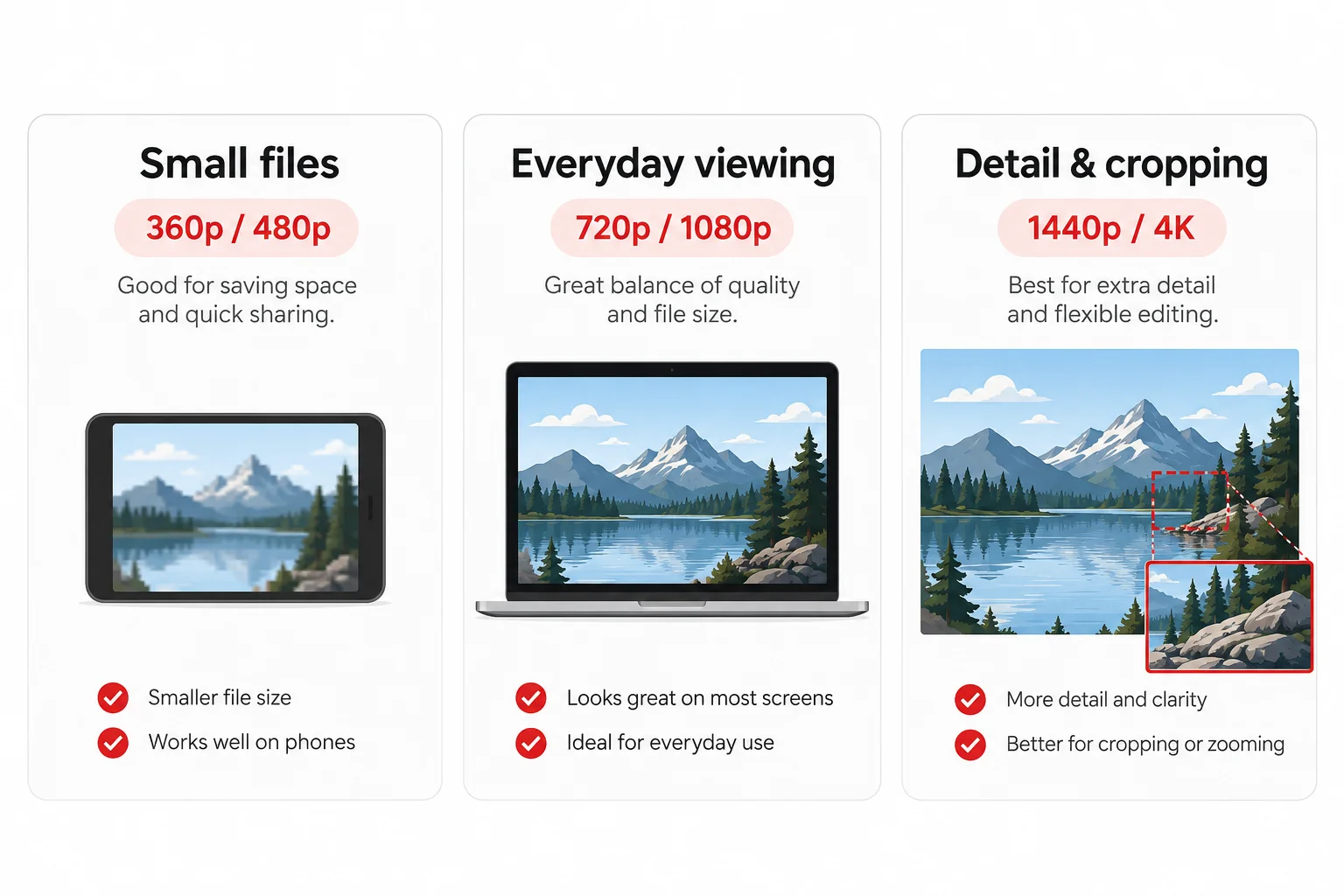
| Resolution | When to consider it | Main trade-off |
|---|---|---|
| 360p or 480p | Quick reference viewing without small text | Smaller files, less detail |
| 720p | Casual viewing and storage-conscious downloads | Moderate detail and file size |
| 1080p | Tutorials, presentations, and larger screens | More detail, often larger files |
| 1440p or 2160p (4K) | Detailed footage and editing that involves cropping | Larger downloads and storage requirements |
These are starting points, not fixed rules. A tutorial with small text may need more detail than a talking-head video viewed on the same screen. Source clarity and compression also affect how the video looks.
360p and 480p: Prioritize Smaller Files
Consider these options when following the explanation matters more than inspecting the picture.
A talking-head video watched in a small window may remain useful at a lower resolution. A software demonstration with menus, code, or spreadsheet text may not.
Before selecting the smallest file, ask: Will I need to read anything on screen?
720p and 1080p: Balance Detail and File Size
These are practical options to compare for everyday use.
720p can be sufficient for interviews and general viewing. When the source provides the detail, 1080p can help with on-screen text, presentations, and larger displays.
If you are unsure, start with the purpose: an interview may need less visual detail than a tutorial showing small buttons and menus. Then compare the listed sizes to decide whether the higher-resolution version is worth the extra storage.
1440p and 4K: Preserve More Available Detail
Consider 1440p or 4K when you need fine details or room to crop.
Cropping removes part of the frame, leaving fewer pixels. A higher-resolution source generally gives you more flexibility to isolate an area while retaining useful detail.
However, selecting a higher resolution cannot repair an already blurry source. Preserve detail that exists rather than choosing the largest number automatically.
What Determines Your MP4 File Size?
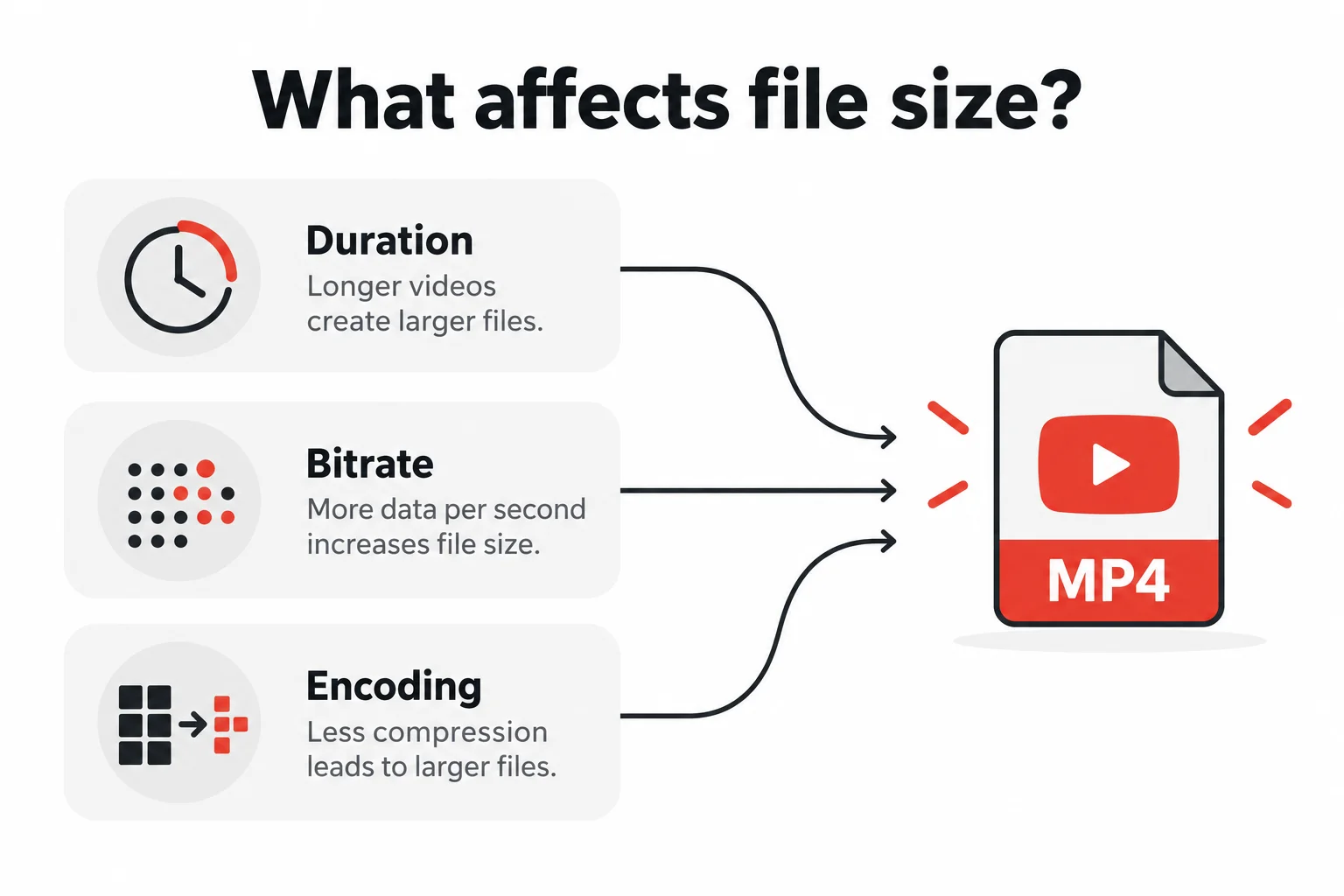
Duration and average bitrate are the main drivers of file size. Resolution influences the result, but it is not a fixed size label.
Two 1080p videos can have very different file sizes because their durations and encoding settings differ.
Compare File Sizes Across Resolutions
The following options come from the same 2-minute, 37-second video. In this example, the downloaded file sizes matched the values listed on the page.
| Resolution | File size |
|---|---|
| 360p | 10 MB |
| 480p | 15.5 MB |
| 720p | 37.2 MB |
| 1080p | 98.7 MB |
| 1440p | 113.9 MB |
| 2160p (4K) | 237.6 MB |
These are sizes for this specific video, not standard sizes for each resolution. File size does not increase by a fixed amount between resolution levels.
Here is how the figures help you choose:
-
Below a 50 MB limit: The 720p version is the highest-resolution option in this example that fits.
-
More detail without choosing 4K: The 1440p version adds 15.2 MB compared with 1080p.
-
Less storage: Choosing 720p instead of 1080p saves 61.5 MB—approximately 62%.
For your own video, compare its listed options with your storage or upload requirement before preparing the file. If the limit is strict, check the saved file’s actual size too; the interface notes that final size may change.
How Duration, Bitrate, and Encoding Affect File Size
Bitrate means the amount of data stored each second. At the same average bitrate, a longer video produces a larger file. For the same duration, a higher average bitrate produces a larger file.
Encoding determines how the picture and sound are compressed. Different codecs and settings can produce different sizes, even at the same resolution.
Frame rate can also affect the data needed to maintain quality, but a 60 fps video is not automatically twice the size of a 30 fps version.
These factors explain why resolution alone cannot predict file size.
How to Get a Smaller MP4 File
Choose the method according to what you need to preserve:
| What must stay | What you can change |
|---|---|
| The complete video | Select a lower resolution |
| Only the relevant moment | Create a shorter clip |
| Full duration and resolution | Use a separate compression tool to adjust encoding or bitrate |
The converter provides resolution choices rather than manual bitrate controls. Re-encoding with another tool may reduce size, but check the resulting quality.
Select a Lower Resolution Before Downloading
Identify the details that must remain clear, then compare sizes at acceptable resolutions.
For a complete interview, a smaller version may work well. For a tutorial, make sure text and controls remain readable.
Choose the version that meets both requirements: usable picture quality and a practical file size. Renaming the file or changing its extension will not compress it.
Create a Shorter Version With “Make a short clip”
If you only need an answer, demonstration, or highlight, click Make a short clip to enter a separate clip-creation workflow.
The interface includes a segment selector, aspect-ratio options, and caption presets. Keep enough context for the excerpt to make sense, and use natural start and end points. You can explore Video Cutter AI for the broader long-video-to-short-clip workflow.
A shorter duration can reduce size when other settings are comparable. The clip is a separate output, and its final size still depends on its export settings.
For a fuller walkthrough of saving an excerpt, read How to Download Clips from YouTube.
Troubleshooting YouTube to MP4 Problems
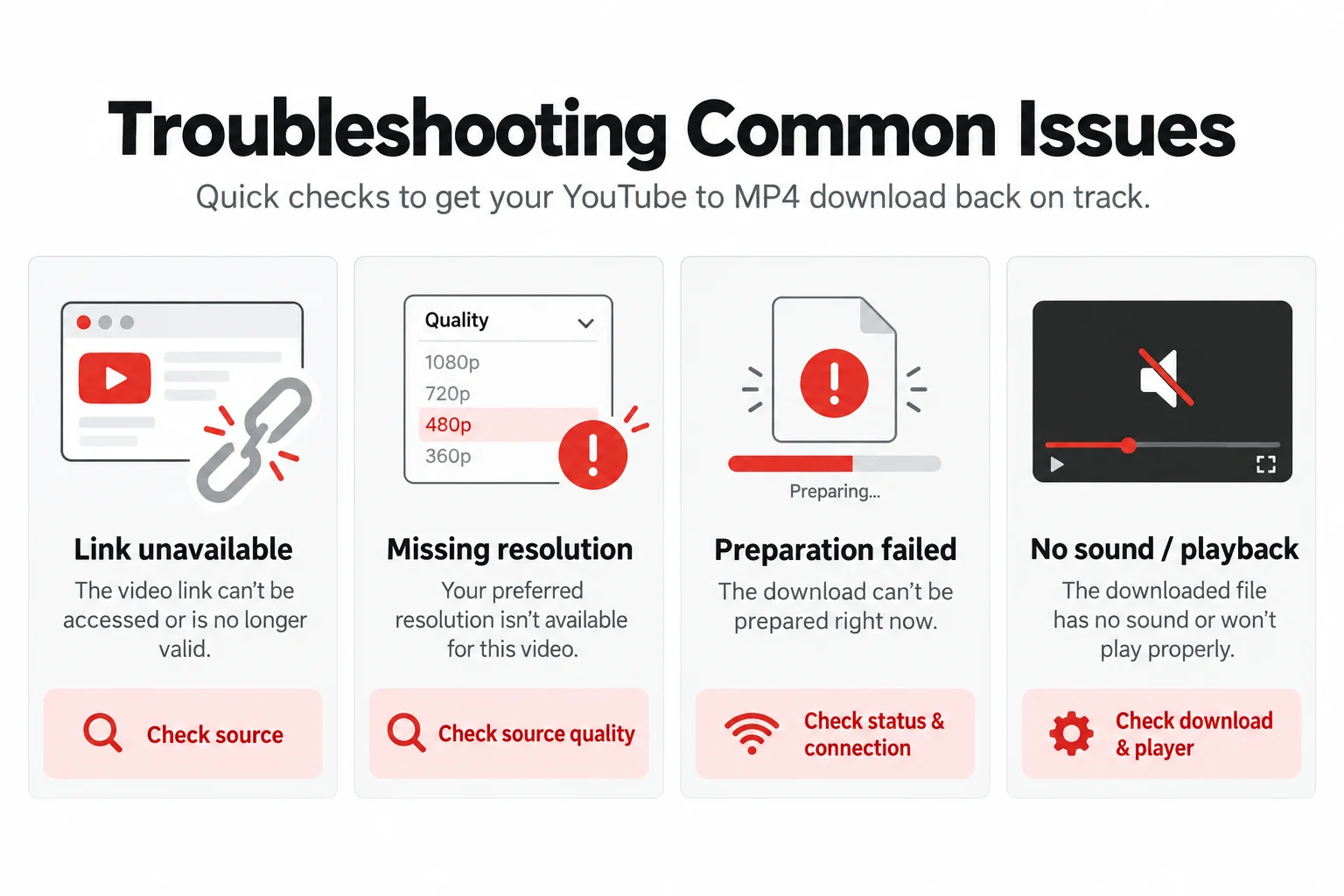
Identify whether the issue occurs when retrieving options, preparing the file, or playing the download.
The Video Link Cannot Be Processed
Open the link on YouTube to confirm that the video is available, then copy it again and retry Get download options.
Private, deleted, or access-restricted videos may not be accessible to an external tool. A video playing in your signed-in account does not necessarily mean the tool can retrieve it.
Your Preferred Resolution Is Missing
Check the resolutions available on the source video.
If it only provides 720p, the converter cannot retrieve genuine 1080p or 4K detail. If a higher resolution exists but is not listed, that version may not be retrievable at the time.
File Preparation Fails or Takes Too Long
Check the page status, error message, and internet connection. If preparation explicitly fails, retry once rather than starting many duplicate attempts.
If it continues failing, record the video link, selected resolution, and complete error message to help identify the problem.
The MP4 Has No Sound or Will Not Play
Confirm that downloading has finished, the original video has sound, and your player is not muted. Then try another player.
MP4 playback also depends on support for the codecs inside the file. If it fails in multiple players, download it again and recheck.
Frequently Asked Questions
Does Converting YouTube to MP4 Reduce Quality?
It can, depending on the source version and processing. A lower resolution generally retains less detail, although the difference may be less noticeable on a small screen. Re-encoding can also affect appearance. The highest resolution does not guarantee a lossless copy.
Can a 720p Source Become True 1080p?
Upscaling can create 1080p dimensions, but it does not recover the original detail of a genuinely higher-resolution source. Use the available source quality as your baseline.
Does MP4 Always Mean 1080p or 4K?
No. MP4 is a container format; 1080p and 4K describe resolution. Files with the same .mp4 extension can have different dimensions, bitrates, and sizes.
Is the YouTube to MP4 Converter Free to Use?
Yes. Video Cutter AI’s YouTube to MP4 feature is free to use. Paste a YouTube link, retrieve the options, choose a resolution, and prepare the file.
What Is the Difference Between MP4 and MP3?
In this tool, MP4 provides video, while MP3 provides audio only. Choose MP4 for picture and sound, or MP3 when you only need to listen.
How Is an MP4 Download Different From Premium Offline Viewing?
Premium downloads are intended for offline viewing within YouTube, rather than as standalone MP4 exports for other players or editors. An MP4 is a separate file. Confirm the relevant usage rights before sharing or repurposing its content.
Choose the detail you need, compare the listed sizes, and convert your YouTube video to MP4.