
Three 21-minute interviews add up to 63 minutes of source video. Vizard's free plan gives you 60 credits a month and charges one credit per upload minute, so the third interview would push you past the allowance. The clips you do export are capped at 720p with a watermark, and free projects expire after three days. Those are concrete reasons to look for a Vizard AI alternative, even if you like its AI-selected moments.
The right replacement depends on which limit actually slows you down: processing more footage, creating a clean Short with Video to Shorts Converter, or correcting the AI's start points, captions, and crop. This comparison follows eight tools from input to download and shows where each one fits. Competitor plan details reflect information available in September 2026 and may change.
Quick Comparison: Vizard vs. 8 Alternatives
Start with the workflow and free access that fit your needs, then check export restrictions before committing to a publishing schedule. An unpublished term should not be read as unlimited access.
| Tool | Free access | Free export | Main advantage |
|---|---|---|---|
| Vizard AI (benchmark) | 60 credits/month | 720p; watermark | AI clips plus editor access |
| Video Cutter AI | 180 credits/day | 1080p; no watermark | Link or file input; free caption edits |
| OpusClip | 60 credits/month | Up to 1080p; watermark | Automatic clip suggestions |
| Klap | Free clip generation and preview | Download requires a paid plan | Batch of clips from one upload |
| quso.ai | 75 credits/month | 720p; removing watermark requires upgrade | Clips plus social content tools |
| Ssemble | No free tier | Paid plan required | Video-credit model and scheduling |
| VEED | AI Clips: one free use per account | 720p; watermark | AI highlights with browser editing |
| Riverside | Magic Clips included in Free | Up to 720p; watermark | Recording and clipping together |
| reap | One hour/month | 720p; watermark | Topic and clip-length controls |
How We Compared the Tools
What the Free Plan Actually Covers
We compared current plan terms, source-video limits, watermark rules, and export resolution, alongside our Klap download check. These numbers are not directly interchangeable: one tool counts uploaded minutes, another counts videos, and another may meter editing as well as clipping. Whether a plan charges by minute, by video, or by processing action changes how many recordings it can cover.
What the Clipping Workflow Lets You Control
We also looked at each tool's stated approach to finding moments, adding captions, reframing for vertical video, and letting a creator adjust a suggested clip. These are available controls and workflow differences, not proof that one tool makes better clips. A clip-quality winner would require inspecting outputs from the same footage.
Vizard AI: The Benchmark for Our Comparison
Vizard turns longer recordings into AI-generated clips and includes an editor on its free plan. The plan provides 60 credits per month, with one credit charged for each minute of uploaded video. Free exports are capped at 720p, carry a watermark, and projects are stored for three days.
That makes Vizard a useful benchmark: a 20-minute upload would use 20 credits under its published upload rule, while the watermark and three-day storage limit matter for regular publishing. The reason to switch should be specific: a different free allowance, a cleaner export, or a workflow that better fits how you edit and publish.
1. Video Cutter AI — Best for Free 1080p Shorts and Caption Control
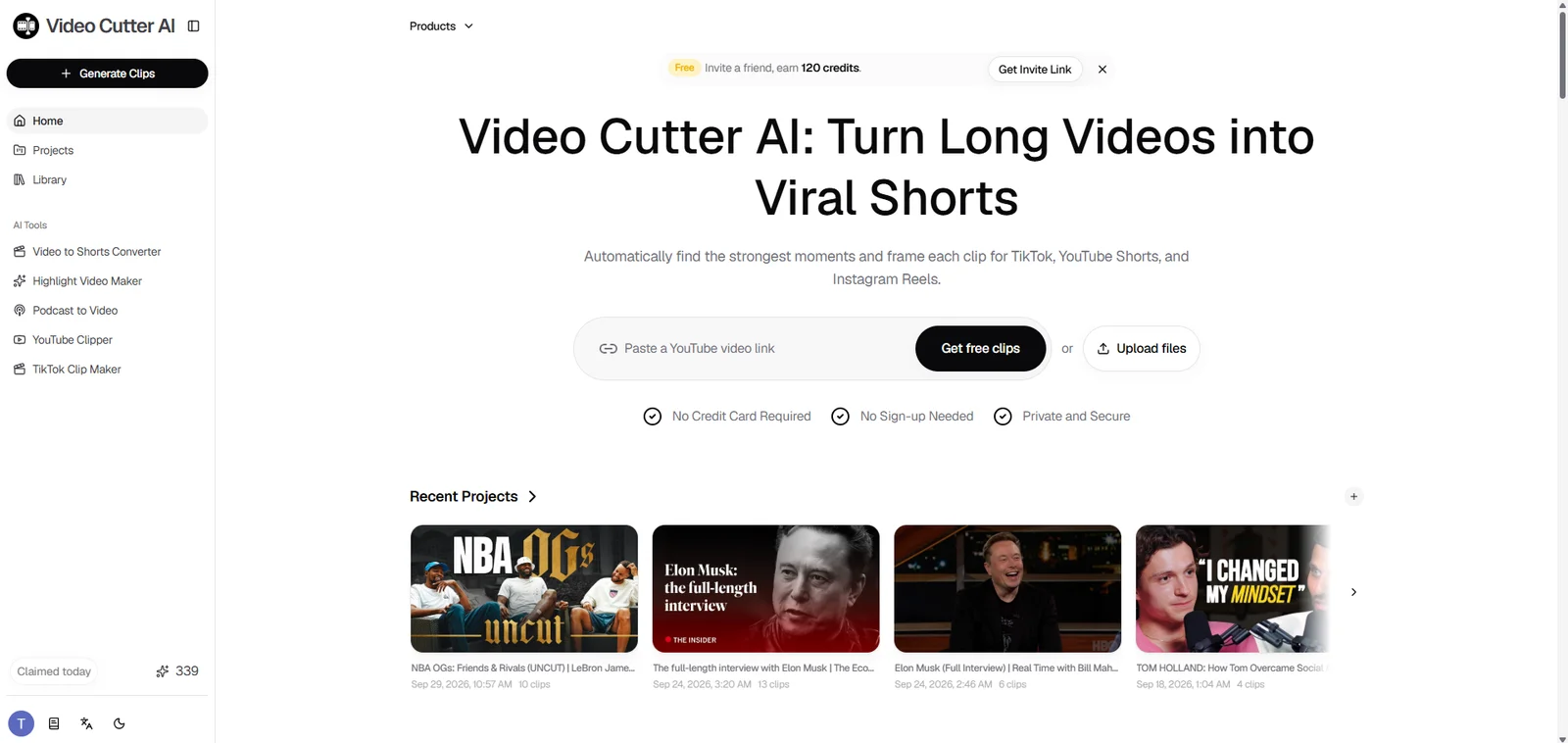
Suppose your interview is already on YouTube and you need three clips for this week's posts. Video Cutter AI accepts the link or a source file, finds highlight candidates, adds captions, and reframes them for Shorts. YouTube Clipper fits an existing upload. Video Cutter AI supports multiple languages, so the workflow is not limited to English recordings.
Here is where the editing flow becomes useful: if a caption spells a guest's name incorrectly, click that caption to jump to its timestamp and matching frame, check what was said, and correct the text. Caption text editing is free. You can review a specific line in context instead of repeatedly scrubbing through the whole clip. For a recorded podcast, Podcast to Video applies that workflow to a spoken episode you want to turn into short social cuts.
Free access also extends to the finished file. The tool gives you 180 credits each day, and exports reach 1080p without a watermark. That is a meaningful difference if you need a Short you can publish, not just an AI preview. Its focus is repurposing footage you already have, rather than recording remote guests or scheduling posts. Check how many credits your typical source uses before planning a daily batch.
2. OpusClip — Best for Automatic First-Pass Clips
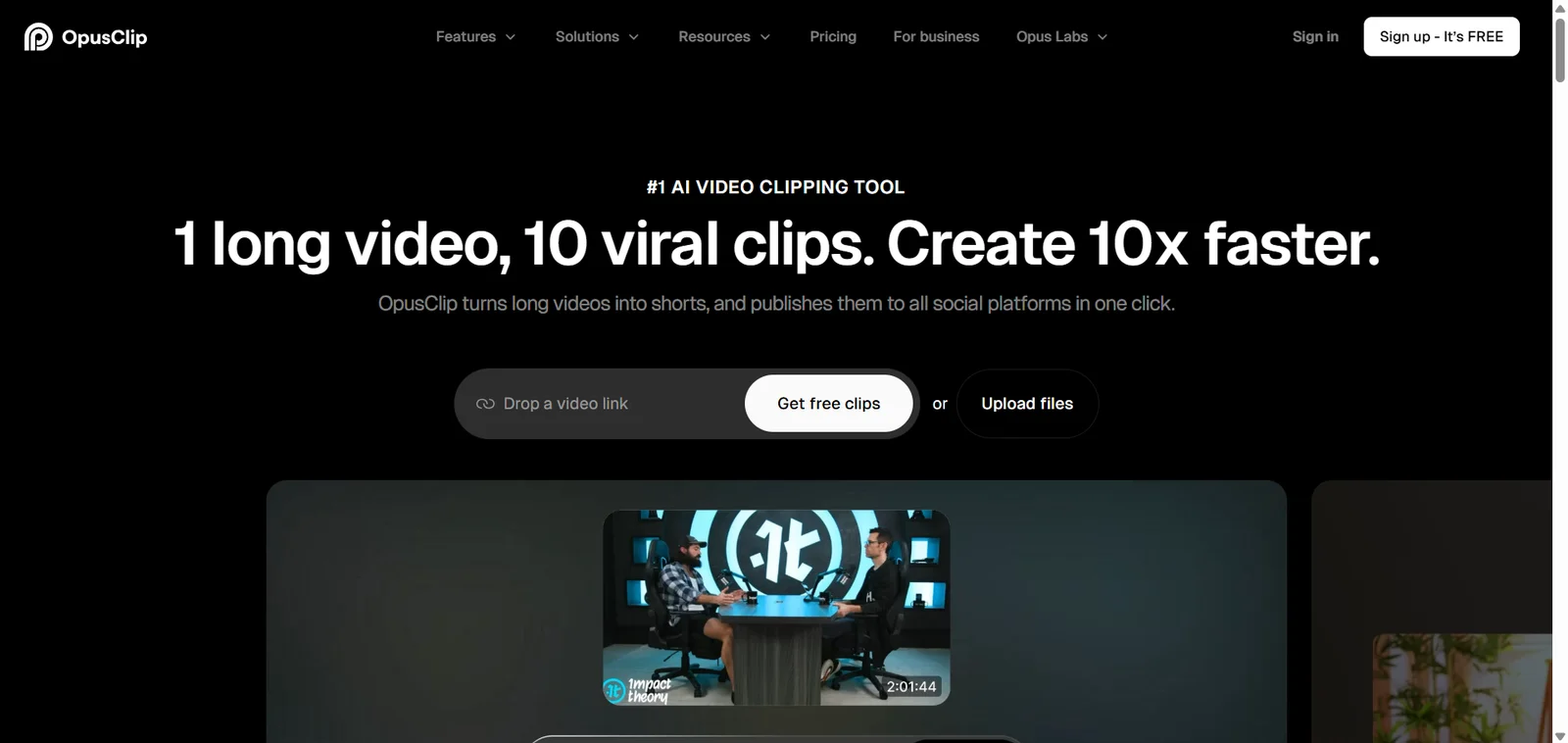
Imagine turning a webinar into a shortlist before deciding which moments deserve a human edit. OpusClip finds short-form candidates, reframes them, and adds captions. Its free plan gives 60 credits each month and renders up to 1080p, but adds a watermark. Clips become unexportable after three days.
The deciding limitation is that free users cannot edit the clips. If a 30-second answer begins with “as I said earlier,” or the cut ends before the actual takeaway, you cannot fix that boundary inside the free plan. OpusClip is strongest as an automatic first pass for someone willing to review quickly and pay for the editing and clean export they need afterward.
3. Klap — Best for Previewing a Batch Before Paying
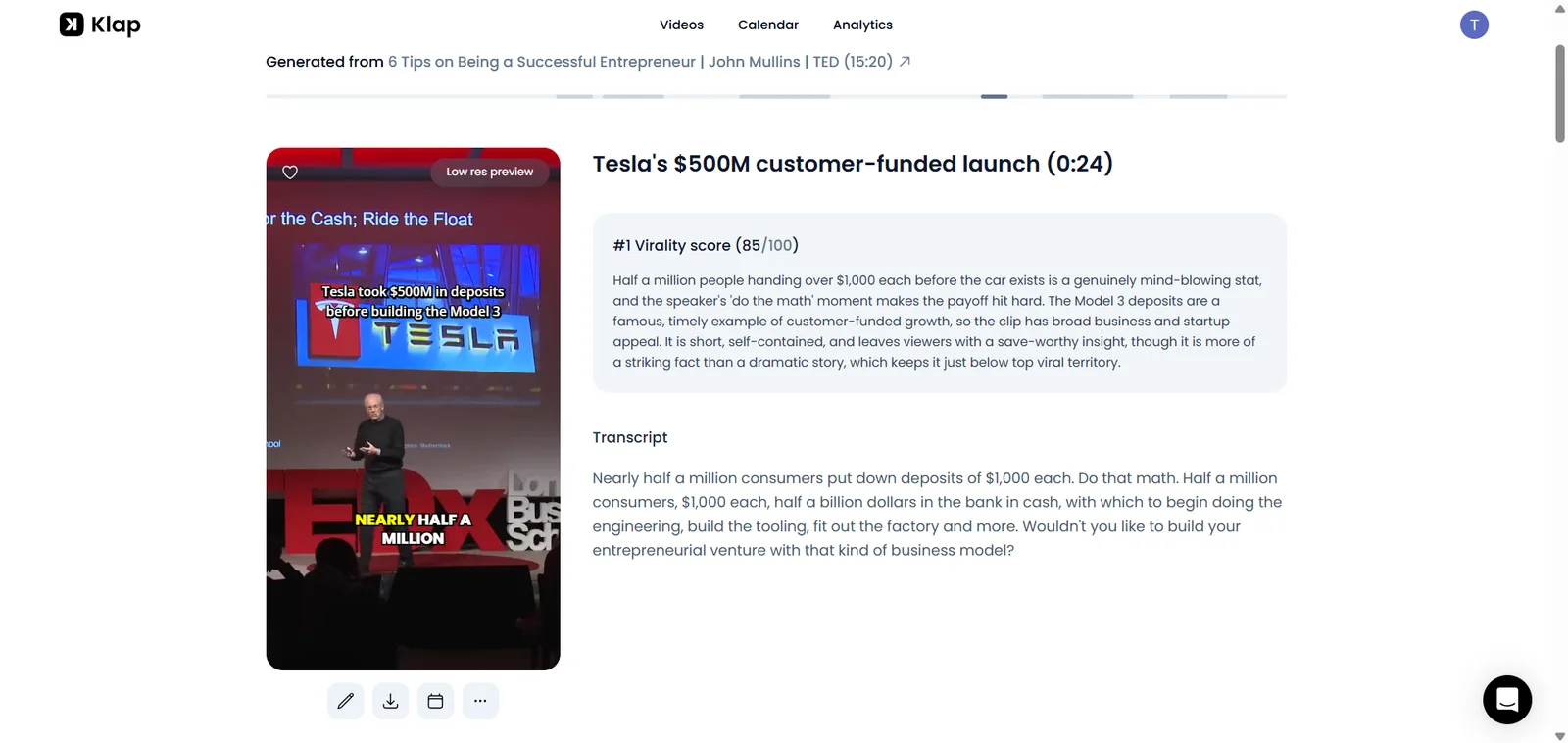
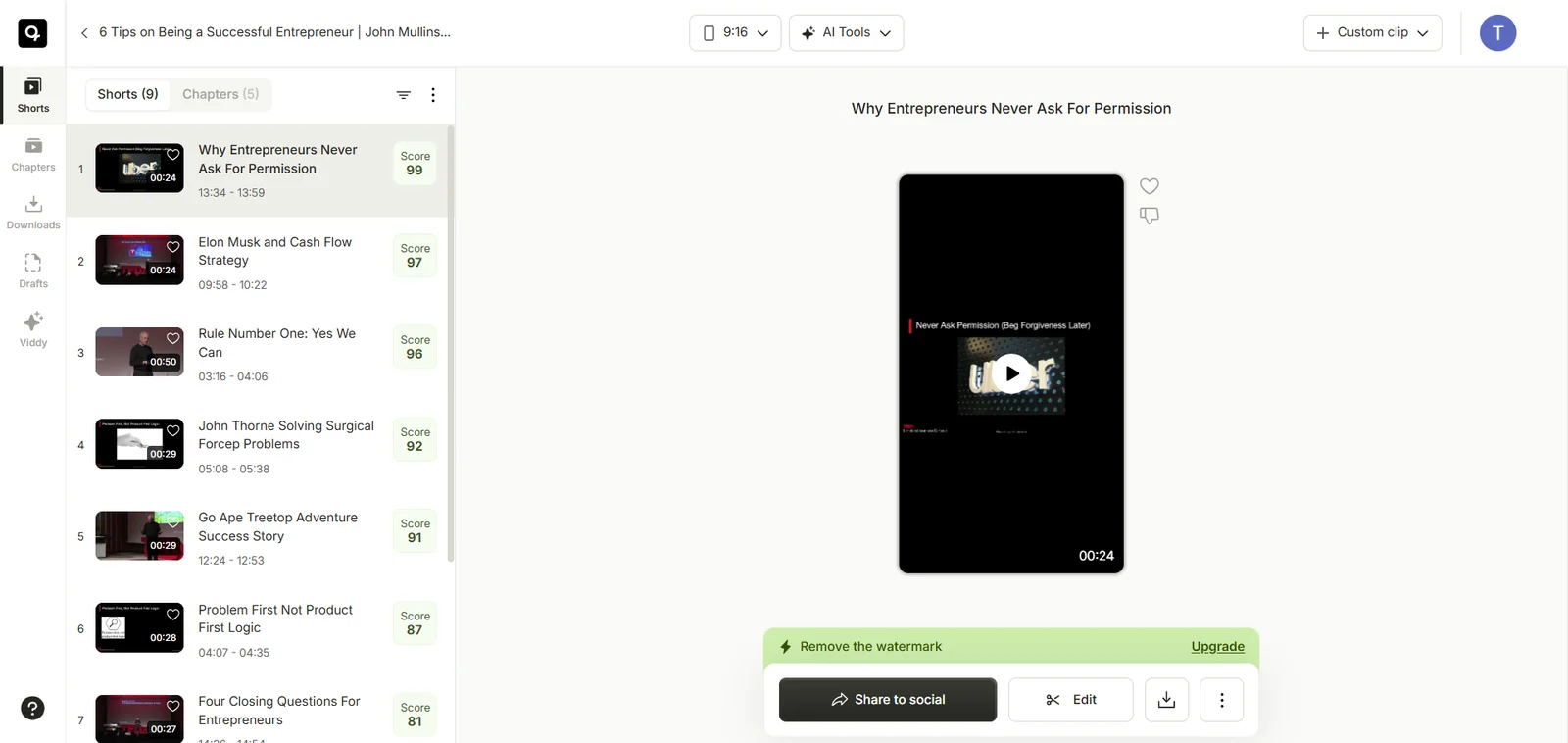
Klap suits the creator who wants to feed in one talk and scan a ranked batch instead of hunting through the timeline. It accepts a file or link and generates vertical clips with captions, speaker tracking, and scores. You can compare the candidates on screen before deciding whether the workflow deserves a budget.
There is a clear stopping point: we generated and previewed a clip, then clicking Download opened an “Upgrade to download” paywall. Klap is therefore useful for evaluating its AI suggestions at no cost, but not for getting a publishable free file. A high score is a review priority, not a substitute for checking whether the clip has a complete beginning and ending.
4. quso.ai — Best for Clips That Feed Social Posts
If one podcast episode needs to become several clips and supporting social posts, quso.ai offers more than a clip grid. Formerly vidyo.ai, it combines AI clipping, captions, editing, and publishing tools. The free plan provides 75 credits per month, 720p rendering, and seven days of project retention.
The 75-credit number needs context: roughly one credit covers a minute of processed video, but clipping, captioning, and editing can all consume credits. It is not a promise of 75 finished minutes. The free editor asks you to upgrade to remove the watermark. Choose quso.ai when the same source needs a wider social content workflow; choose a simpler clipper when the only deliverable is a clean video file.
5. Ssemble — Best for Paid Clip Production and Scheduling
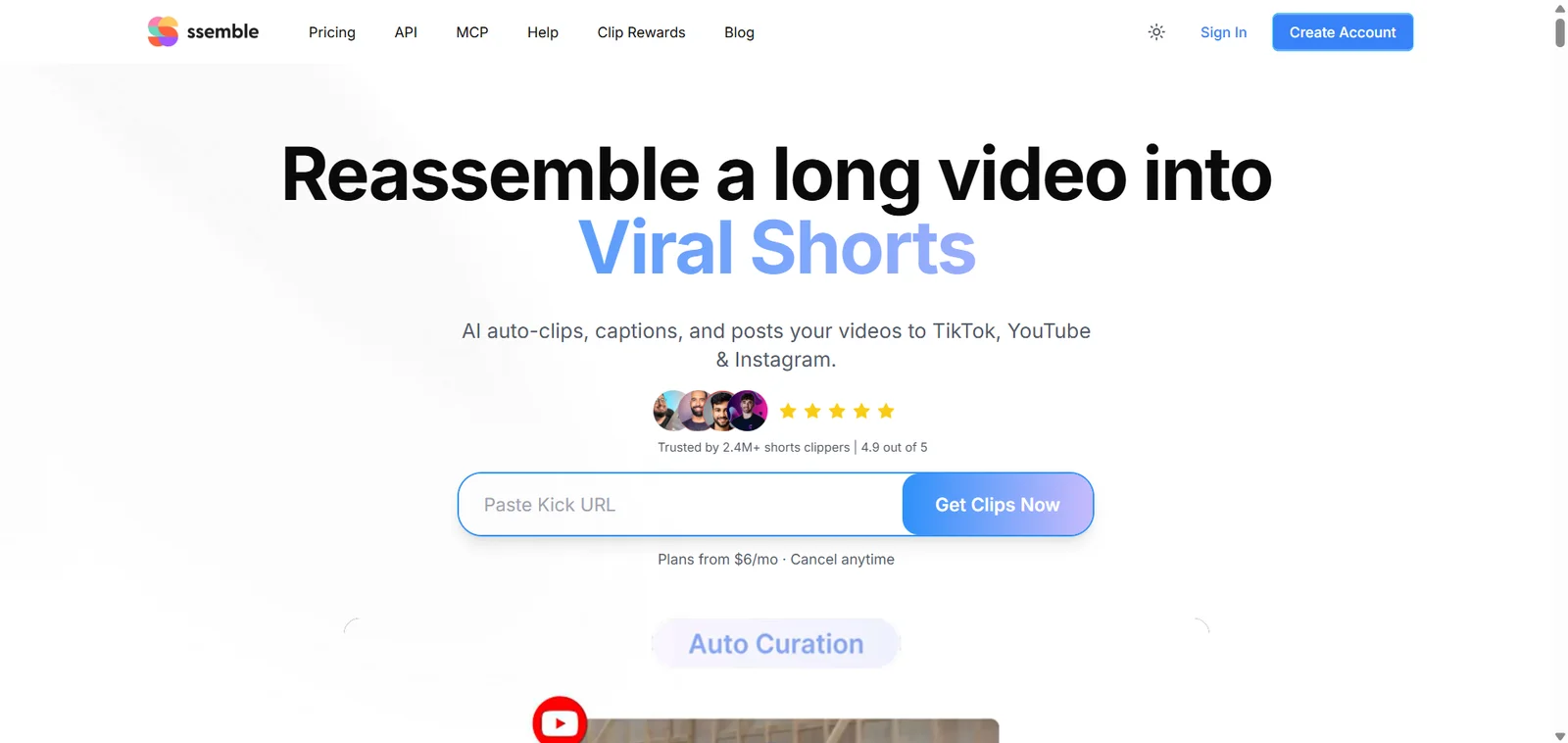
Ssemble makes more sense for a team that already expects to pay and wants clip creation connected to a posting schedule. Think of a show publishing a new episode every week and preparing a queue of Shorts for several days afterward. Its credit model is based on videos or selected sections rather than simply counting every uploaded minute: one credit covers a video of up to 20 minutes.
Ssemble has no free tier or trial. For a 21-minute interview, the useful question is what happens to the extra minute: the tool lets you select a section of up to 20 minutes, but its public terms do not fully explain every longer-video scenario. Confirm the selected section and credit charge before committing a recurring series. If your priority is testing free exports, this is not the first tool to try.
6. VEED — Best for a One-Time Browser Trial
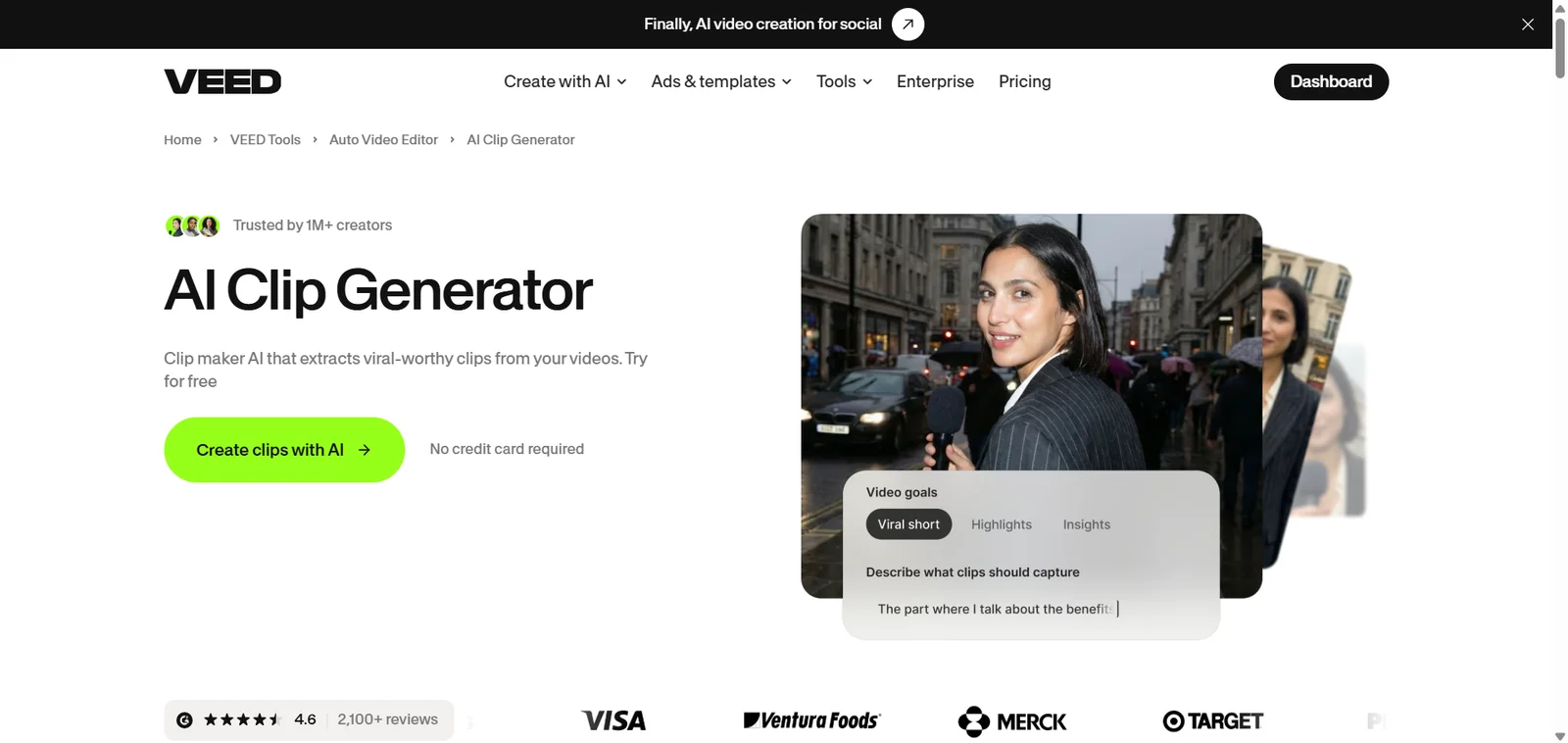
VEED is useful when an interview answer is almost right but needs a tighter first sentence. AI Clips finds highlights, centers the speaker, adds subtitles, and removes filler words. You can set a clip goal and maximum length, then trim by dragging through the transcript and edit captions in the browser.
Its free plan allows one AI Clips run per account, with 720p watermarked downloads; clean exports and repeated use require payment. The source also needs at least one minute of speech. That makes VEED a concrete browser-based trial for a tutorial or interview, but a poor match for silent gameplay or a weekly series on a free plan.
7. Riverside — Best for People Already Recording There
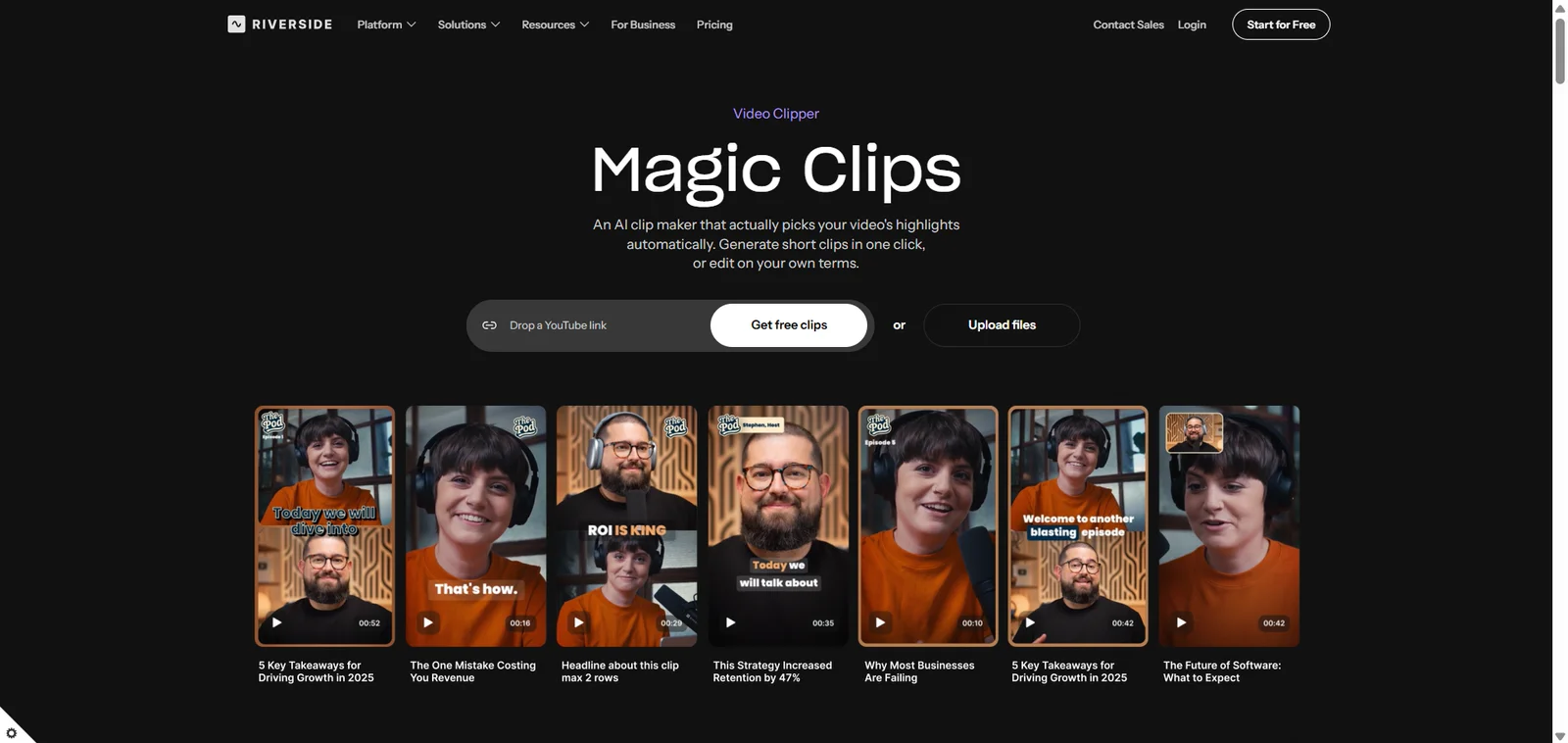
If your guests already record through Riverside, turning the finished conversation into Magic Clips avoids moving the recording to another service. Riverside creates clips from recordings or uploaded media, then ranks the suggestions. The feature needs a transcript and more than three minutes of content, which makes a spoken interview a natural source.
The free plan includes one automatically generated set of Magic Clips per recording, with exports up to 720p and a Riverside watermark. If that batch misses the story you wanted, generating another set requires a paid plan. Riverside is strongest when recording and clipping are one workflow; a creator who only needs to cut an existing YouTube video may find the recording workspace unnecessary.
8. reap — Best for Topic-Directed Clipping
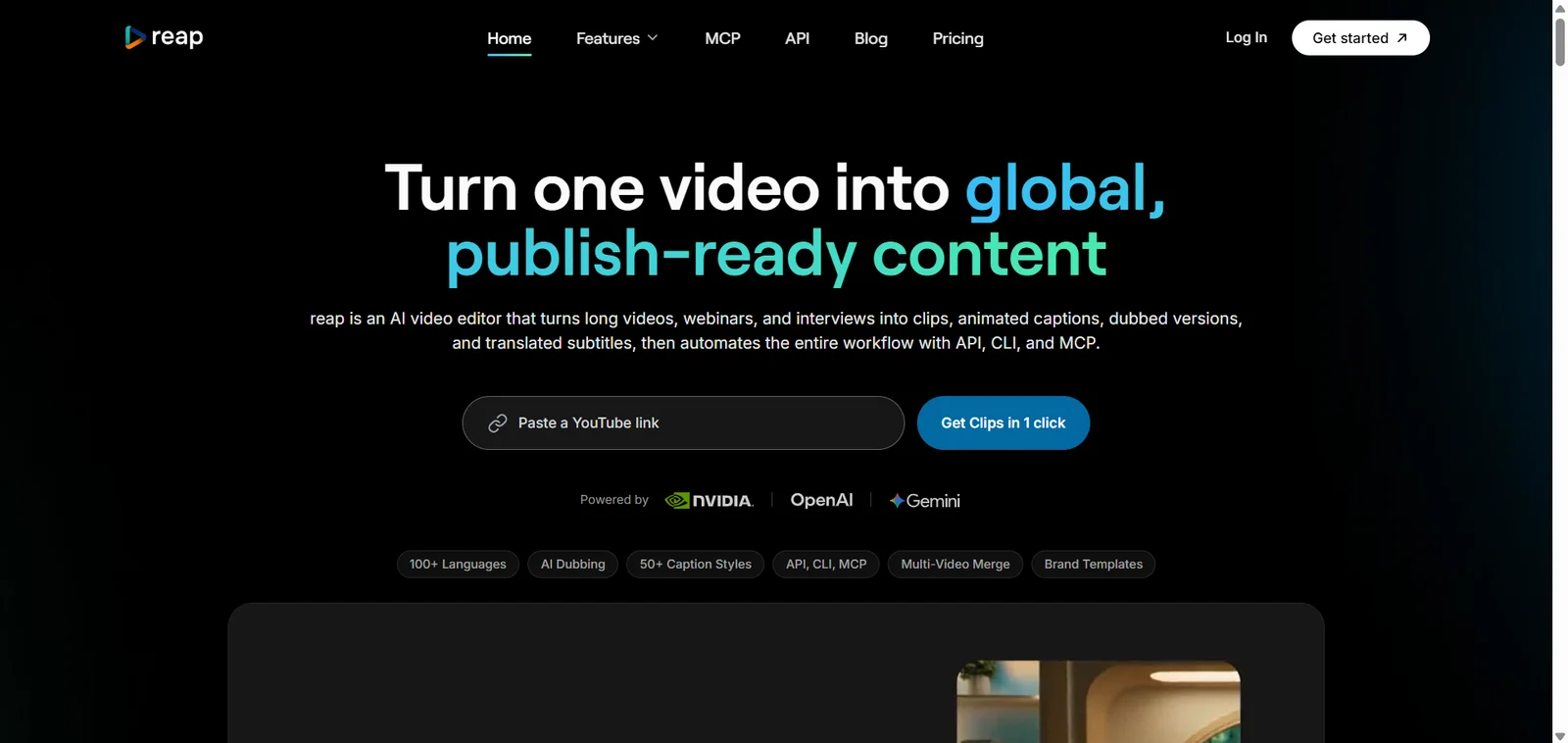
Say a 50-minute panel covers hiring, pricing, and customer support, but your next post should discuss pricing only. reap lets you direct clipping by topic and choose a clip-length range, so the first pass can focus on that one thread. It can also import from video platforms including YouTube.
The free plan provides one hour of AI clipping each month, 720p watermarked exports, and seven-day project retention. One 50-minute source would leave only ten minutes of that monthly clipping allowance, so this plan is easy to budget but not roomy. reap fits someone who can name the exact topic they want and is comfortable with a watermark while testing.
Free Plans Compared: Limits, Watermarks, and Exports
Video Length and Monthly Usage Limits
The table helps separate a one-off project from a recurring schedule. For repeat work, map your typical source length against how each tool deducts usage: uploaded minutes, selected segments, or actions such as clipping and captioning. A daily reset and a monthly pool are different kinds of budget. Plan around the full workflow, especially if one upload will be edited more than once.
Download Access, Watermarks, and Export Resolution
The table separates access from delivery. Before relying on a free plan, follow one clip through preview, editing, and download. This catches the difference between a generated candidate and a file you can post. Also note when the editable project or generated clip expires; a draft you cannot reopen may disrupt a weekly schedule. An unstated limit should never be treated as unlimited access.
Clip-Making Features Compared: Selection and Editing Control
Finding Moments and Adjusting Cut Points
A score is useful for deciding what to watch first; a topic prompt is useful when you already know what to find. Neither tells you whether a clip will make sense to someone who has not seen the full recording. For each candidate, play the first five seconds without the source video: does it identify the subject, or begin with “as I said earlier”? Then play the ending: does the thought finish, or cut off before the point lands? If the moment is right but the boundaries are wrong, check whether your plan lets you trim them. Vizard and VEED offer editing paths; OpusClip's free tier does not. For a fuller checklist of context, clarity, and natural cut points, read How to Find Good Clips in a Long Video.
Captions and Vertical Framing
Watch one candidate with the sound off. Can you read the captions at phone size? Do they cover a face or a product demonstration? Then check a proper name, a technical term, and a sentence where two speakers overlap. Video Cutter AI lets free users correct caption text, so a misspelled name does not have to survive into the export. A good 9:16 crop should keep the active speaker visible without hiding slides or screen content that explains the point. Multilingual support matters here too: test the actual language and accent you publish in, not merely whether the tool lists that language. These checks reveal editing work that a clip score cannot show.
Final Verdict: Which Vizard AI Alternative Should You Try?
For Previewing AI Suggestions: Klap
Klap generated and displayed candidate clips in our check, but the Download button led to a paid upgrade. Use its initial conversion to assess the workflow; budget for a paid plan if you need the finished files.
For Recurring Free Trials with Watermarks: reap or quso.ai
reap states its free allowance as one hour of AI clipping a month and offers topic controls. quso.ai offers 75 credits and a broader content workflow, though more than clipping can consume those credits. Both describe watermarked free exports. Choose reap when source-hour budgeting and targeted clipping matter most; consider quso.ai when one recording should also feed social posts.
For a One-Time Browser Trial: VEED
VEED allows one free run of AI Clips, then lets you trim, edit captions, and download the result. Free downloads are 720p with a watermark. It is a clear way to test AI selection and editing in one browser workflow, but continued AI clipping requires a paid plan.
For a Focused Shorts Workflow: Video Cutter AI
Video Cutter AI puts file and YouTube inputs into a workflow centered on short clips, captions, and vertical framing, with support for multiple languages. It provides 180 free credits each day, and exported clips reach 1080p without a watermark. This fits creators who already have footage and want clean Shorts rather than a recording or social management suite. Check how many source minutes a credit covers for your expected volume.
FAQs
Can I Paste a YouTube Link Instead of Uploading a File?
Several options accept a URL, including Video Cutter AI, Klap, quso.ai, and reap. VEED's current AI Clips flow requires a file upload; its import window does not accept a YouTube watch link. If you want to surface moments from an existing YouTube recording, start with Highlight Video Maker that accepts a link. Check that you have permission to use any video you import.
Do AI Clippers Work on Videos Without Dialogue?
Some may, but speech-led tools can have less context for choosing standalone moments. Klap says its converter works best with clear spoken audio and is less effective for silent recordings. Riverside says Magic Clips require a transcript. If your source is gameplay, sports, or a silent screen recording, try a short sample before judging the tool by its podcast results.
Can You Manually Adjust Clip Start and End Points After AI Clipping?
That depends on the tool and plan. Vizard includes editor access in Free; VEED lets you trim AI clips from the transcript and edit captions afterward. OpusClip's Free plan explicitly says “No editing.” Check whether trimming is available before committing to a plan if AI-selected boundaries usually need a small fix.
Do These Tools Support Languages Other Than English?
Yes. Video Cutter AI supports multiple languages, as do several other tools here. quso.ai has multilingual subtitle tools; Klap supports captions in 52 languages, and reap lists more than 100 caption languages. Language support for source transcription, generated captions, and translation can differ, so check the functions you need with a sample containing names, accents, or mixed-language speech.
How Long Do Projects Stay Available on Free Plans?
Retention rules vary, and a generated file's availability is different from the lifespan of an editable project. Vizard lists three days of free project storage; OpusClip says free clips become unexportable after three days; quso.ai and reap list seven-day periods. Keep a separate copy of your source footage and download finished clips promptly.
Can You Publish Regularly Using Only Free Plans?
It depends on how many source minutes you process and what you can download. Video Cutter AI's daily allowance and clean exports make it a candidate for repeat use; tools with monthly pools need a calculation against your usual upload schedule. Klap's free preview does not provide a downloadable clip, while Ssemble requires payment from the start. Estimate your monthly source minutes and complete one export before building a regular publishing workflow around any tool.