Video Converter Online Free, Any Format, No Sign-up
Convert videos between popular formats in just a few clicks. Choose your output format and convert videos online for free, with no sign-up required.
Choose videos to convert
Add up to 50 videos. They never leave this device.
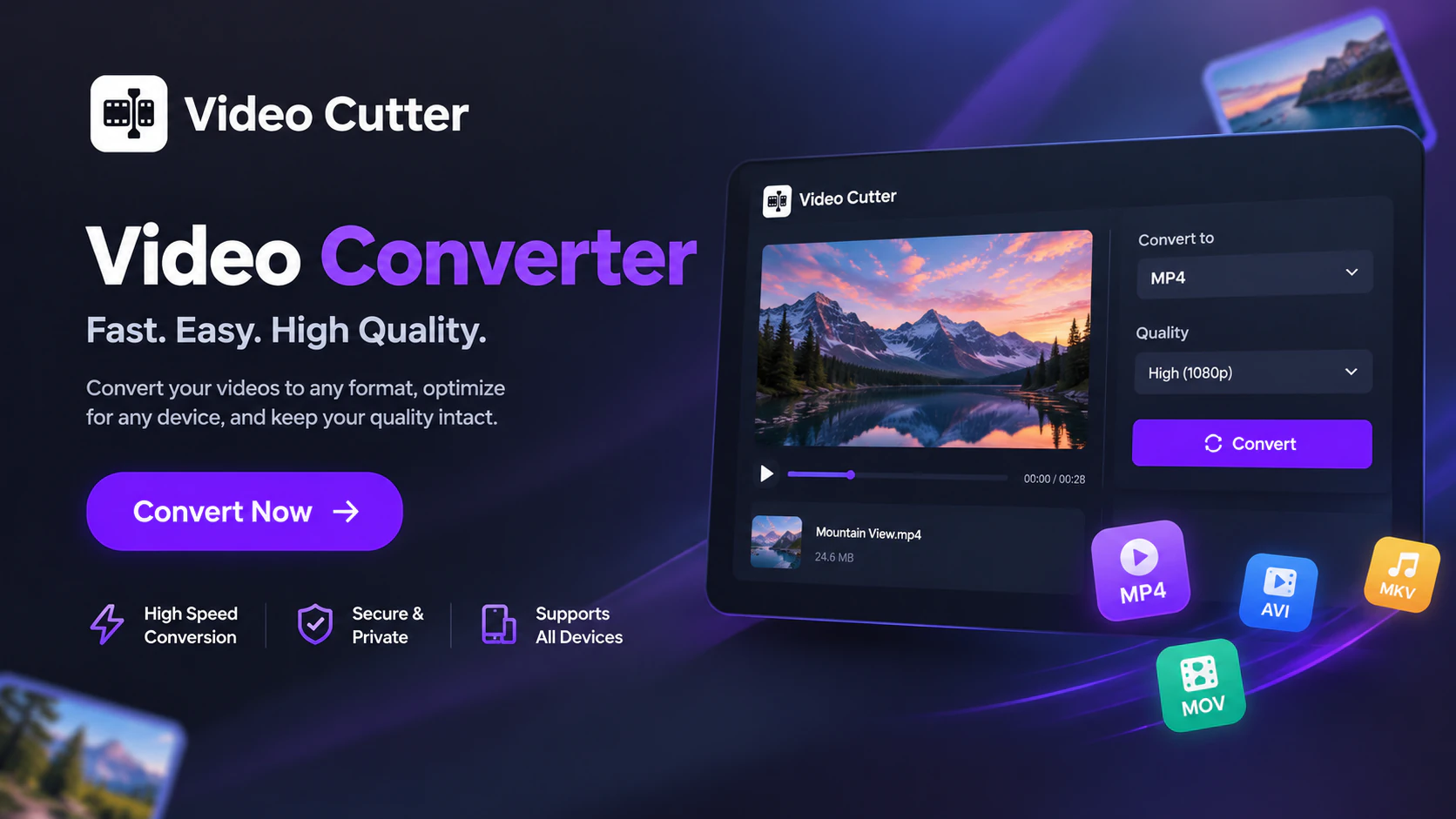
Video Converter: Free Video to Any Format Online with AI
Convert videos online for free between supported formats with AI. Choose your output format and get videos ready for playback, sharing, and editing. No sign-up required.
How to Use the Video Converter
Choose your videos, set the output format and save location, then start conversion. The Video Converter processes up to 50 queued files one at a time.
Choose Your Videos
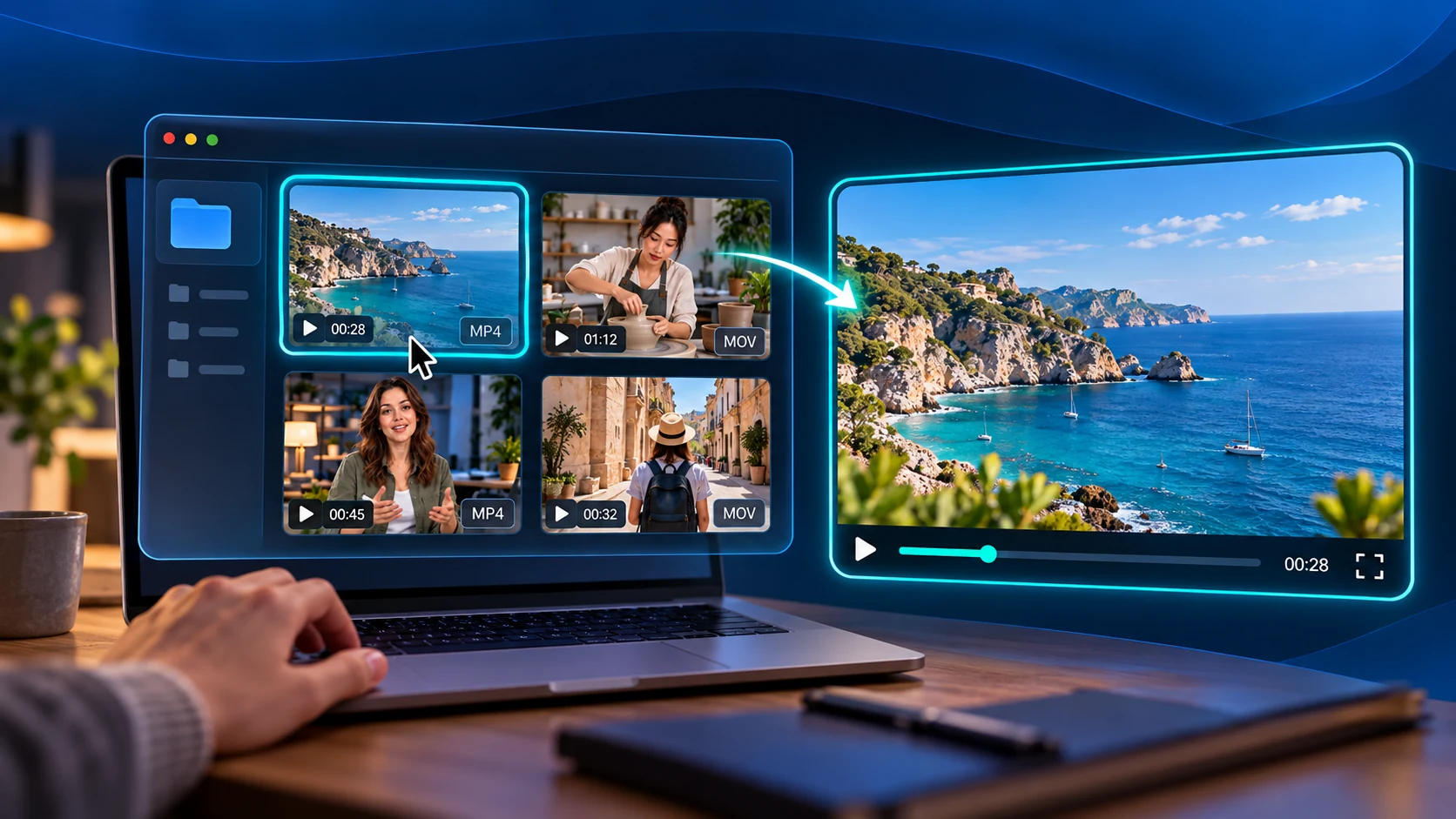
Click Browse videos to select files from your device. Add up to 50 videos to the Video Converter, then review the conversion queue. Use Add videos to include more files or remove unwanted items.
Set Format, Resolution and Quality
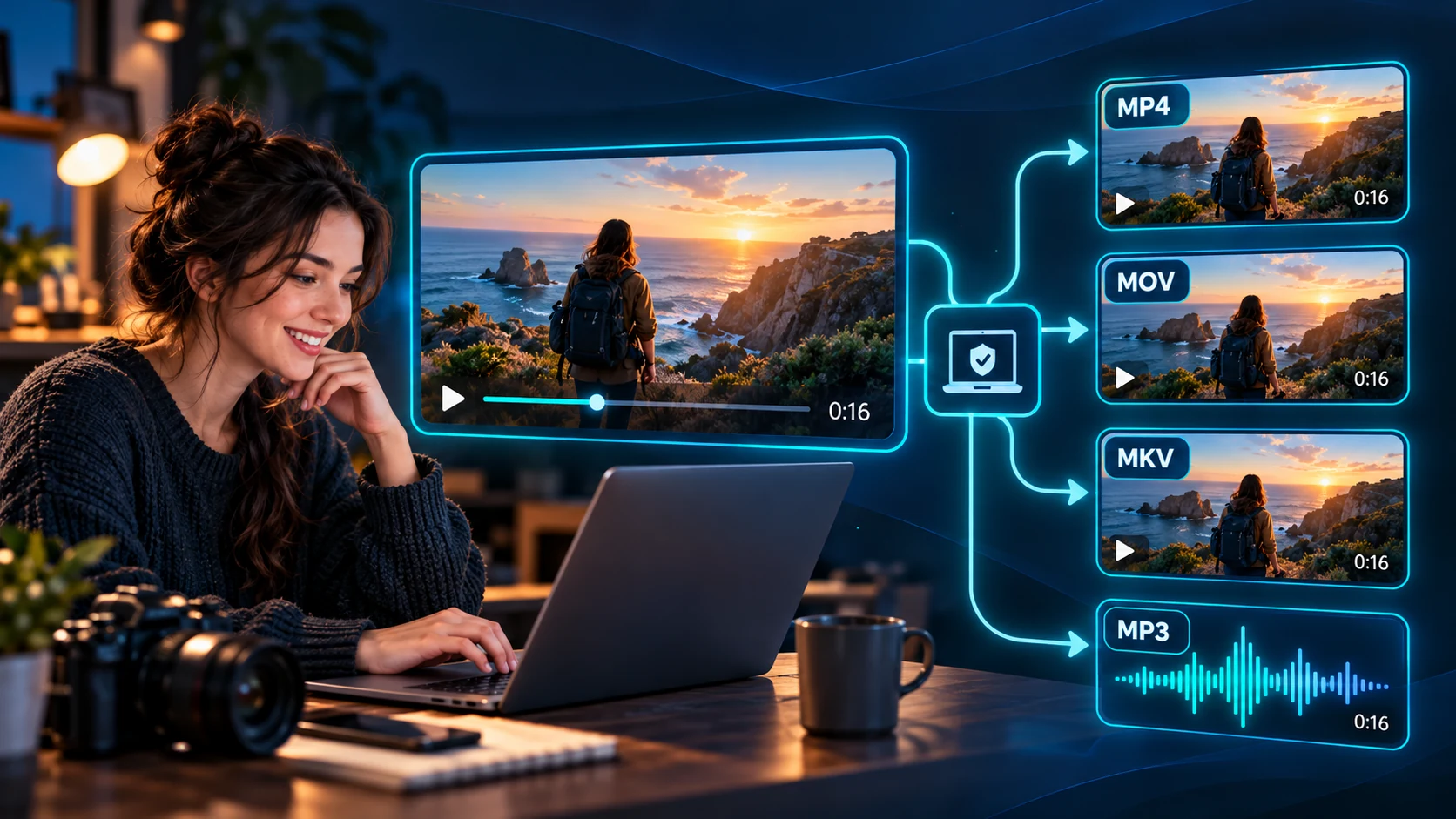
In Output settings, choose MP4, MOV or MKV, or select MP3 to extract audio. For video output, select Original, 1080p, 720p, 480p or Custom resolution, then choose Compact, Balanced or High quality.
Choose Where to Save and Convert
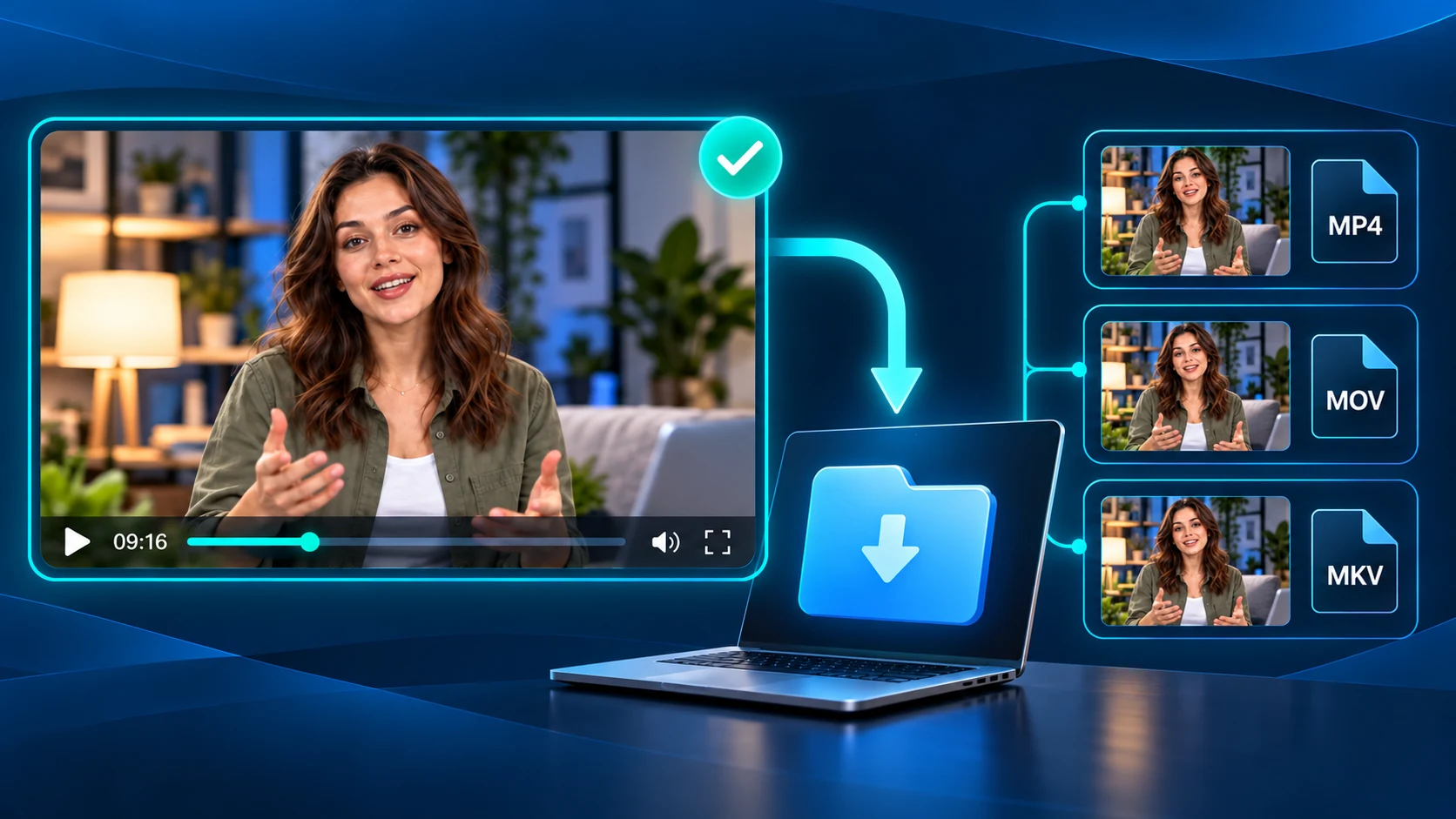
Keep Browser downloads or select Choose output folder where supported. Click Convert to start the Video Converter batch. Files process one at a time and are saved using your selected destination.
Video Converter Features for Easier File Preparation
Prepare video and audio copies for your next task with the Video Converter. Keep batch settings consistent, choose the right balance of detail and size, and organize exports while retaining your source files.
Convert up to 50 Videos
Set your export preferences once in the Video Converter and carry them across up to 50 queued videos. A shared setup helps keep a collection consistent, while files are processed one at a time.
Convert Video or Extract MP3
Prepare a video copy for viewing or editing, or keep only the soundtrack for listening. The Video Converter exports MP4, MOV and MKV video, with MP3 extraction available for sources that contain audio.
Preset & Custom Resolutions
Decide how much screen space your export needs. The Video Converter lets you retain source dimensions, select a resolution preset or enter a custom size, giving you control over the output dimensions.
Three Quality Levels
Make the trade-off that suits your next task. Choose Compact when smaller files matter, Balanced for a middle ground, or High when visual detail takes priority. Results depend on the source and export settings.
Browser or Folder Saving
Choose an output folder where supported to collect converted files in one place. Otherwise, use browser downloads and your browser’s destination settings to organize the new copies for review or delivery.
Local Conversion, No Uploads
Work from files on your device without sending selected media to a conversion server. The Video Converter saves separate outputs, so your source recordings remain available for another format or a different set of settings.
Use the Video Converter for Everyday Tasks
Use the Video Converter to prepare presentations, save audio from lessons, or deliver recordings to your team. Choose the output settings that fit how you plan to watch, share or edit each file.
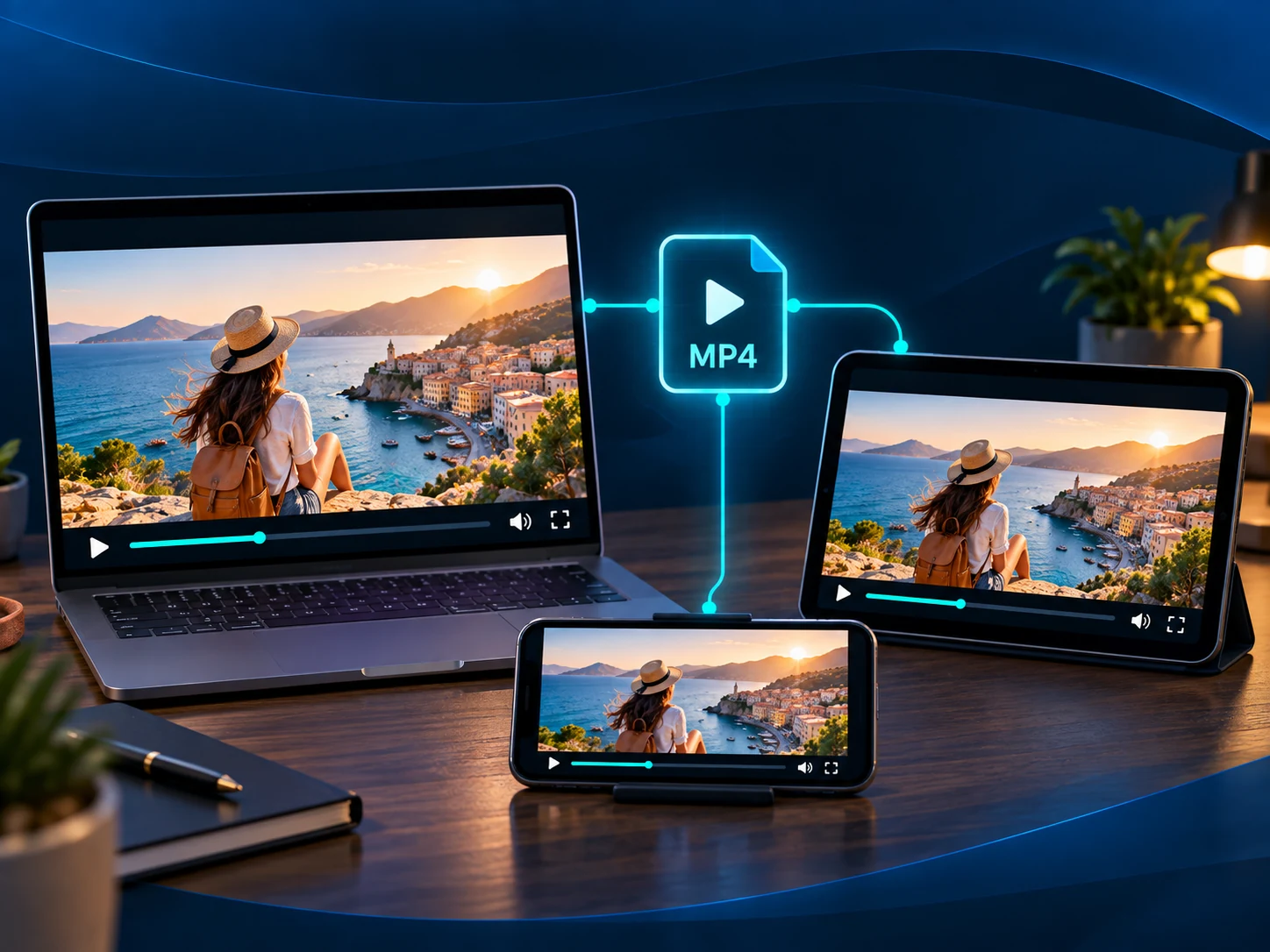
Prepare Videos for Presentations
Use the Video Converter to create an MP4 copy of a lesson, product demo or client presentation. Choose resolution and quality for the screen you plan to use, then check the saved file on that device. Keep the original recording for later edits and share the playback copy with your audience.
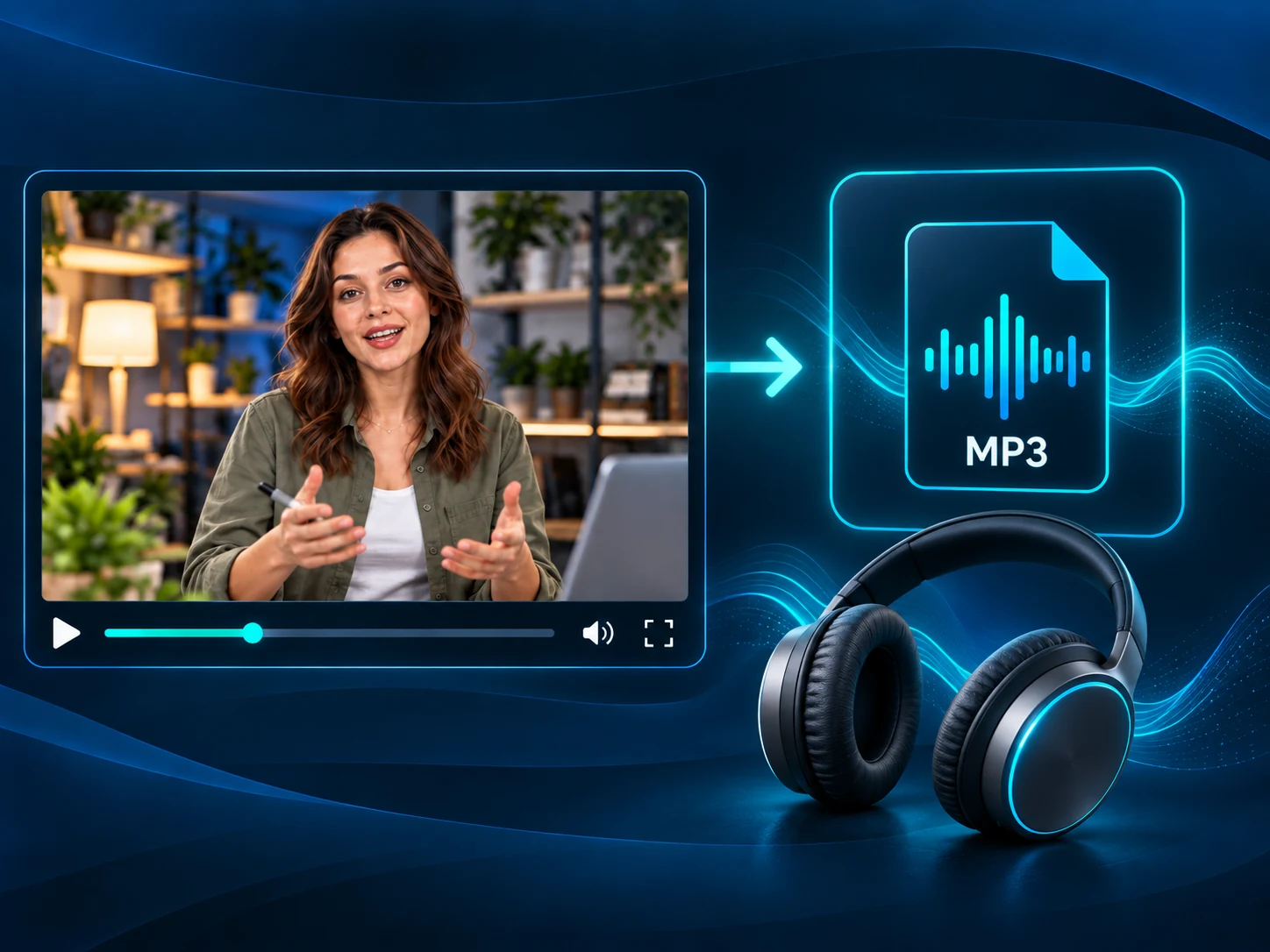
Save Lessons and Interviews as Audio
Turn a recorded lesson or interview into an MP3 listening copy with the Video Converter. Review spoken ideas without watching the screen, or keep audio notes for your next project. For highlights from a YouTube source, use YouTube Clipper as a separate workflow to create shareable video clips.
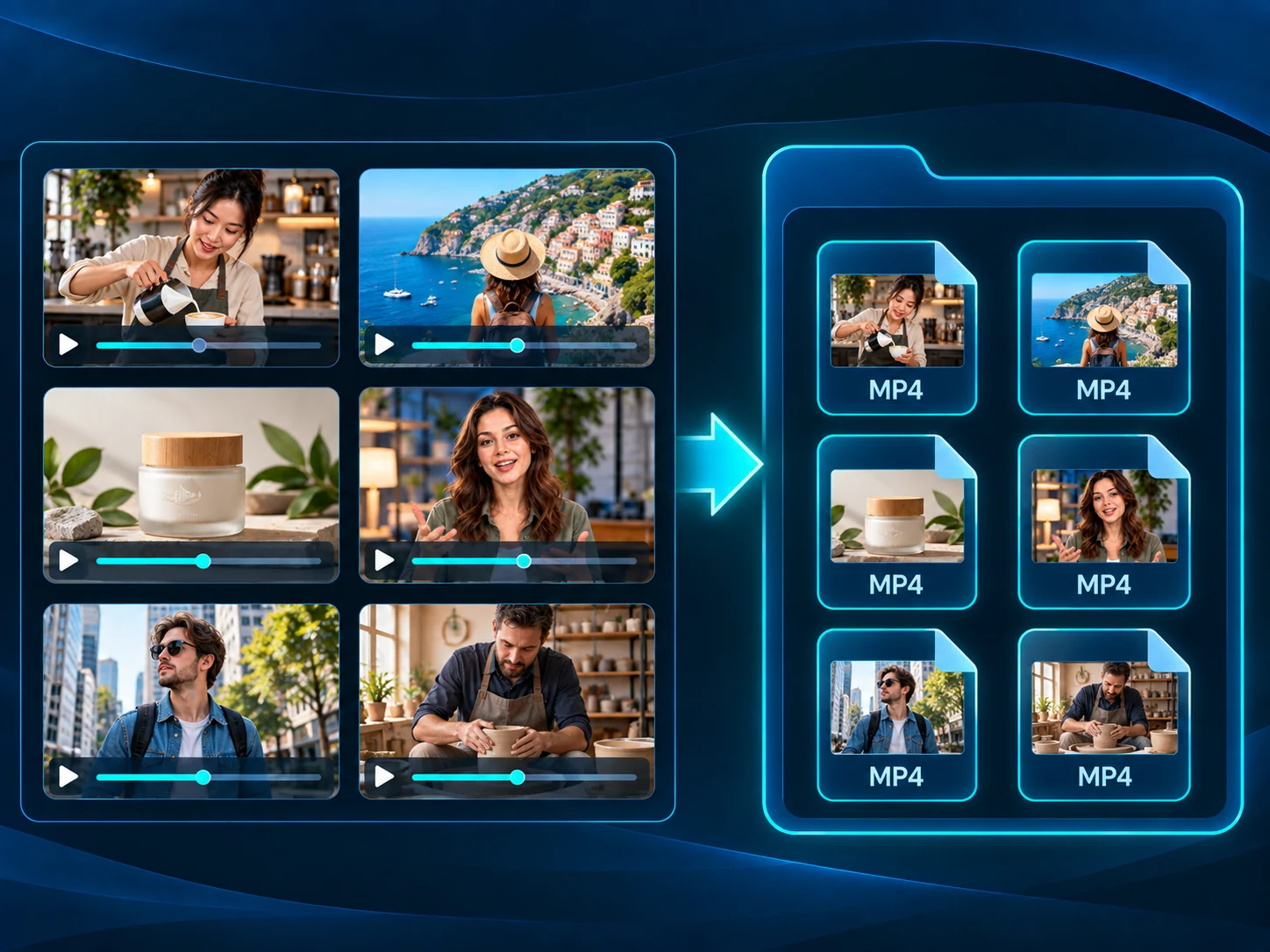
Prepare Recordings for Team Handoff
Give workshop recordings or project footage consistent output settings with the Video Converter. Export MP4, MOV or MKV to match your team's delivery requirements, then organize the new copies for review or editing. Queue up to 50 files and keep your source recordings available for future versions.
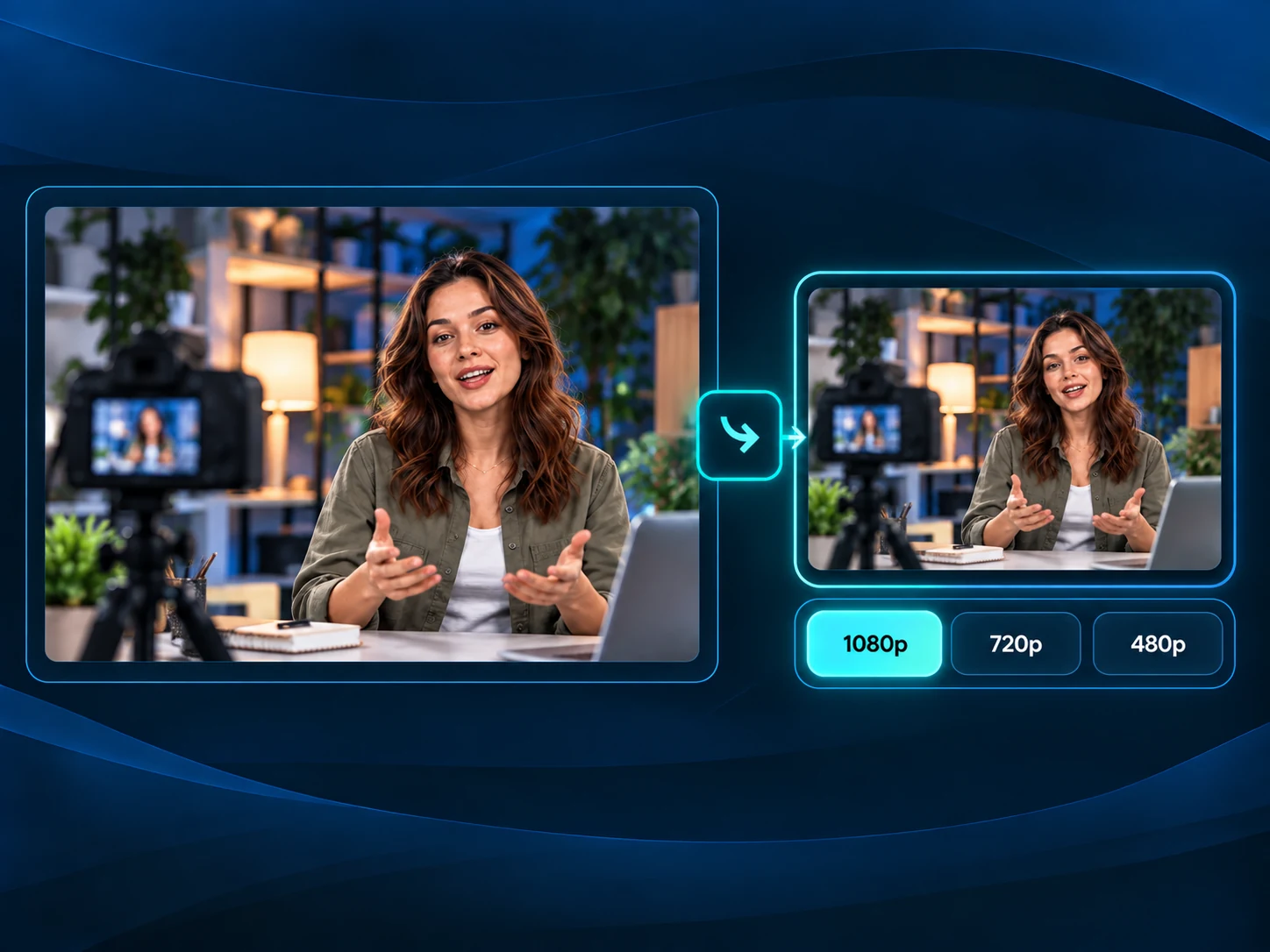
Create Review Copies and Social Clips
Use the Video Converter to prepare a lower-resolution draft for feedback, with Compact quality when file size matters. For captioned vertical clips, continue in Video to Shorts Converter as a separate workflow. Review the new framing and captions before sharing on Shorts, TikTok or Reels.
Video Converter FAQs
Start Using Video Converter for Free
Convert videos to MP4, MOV or MKV, or extract MP3 audio. Get files ready for playback, sharing or editing—free, with no sign-up required.