Video Cropper Online Free, Any Size, No Sign-up
Crop videos to any aspect ratio or size. Adjust your video frame for TikTok, YouTube Shorts, Instagram, and more, all online for free with no sign-up.
Drop a video here
or choose a file from your device
Processed locally · Never uploaded · MP4 / MOV / MKV / WebM
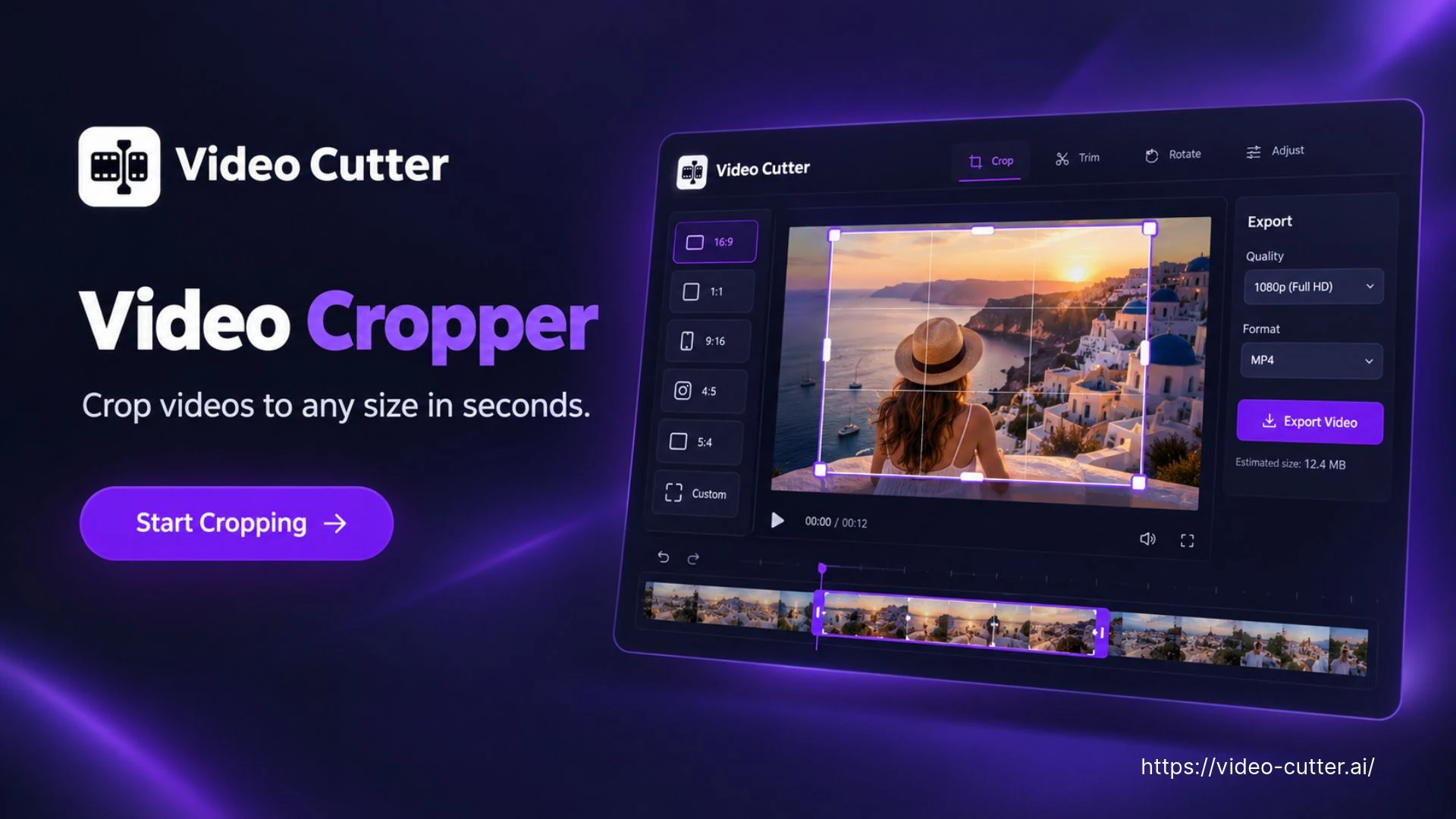
Video Cropper: Crop Video to Any Size Online Free with AI
Crop videos with AI to fit your chosen aspect ratio or size. Use the Video Cropper to prepare framing for TikTok, YouTube Shorts, Instagram and other layouts, with options to fine-tune the result. No sign-up required. For captioned clips from longer recordings, try our Video to Shorts Converter.
How to Use the Video Cropper
Start with a local recording, choose your frame and review the result. The Video Cropper helps you adjust the visible picture before exporting a separate copy.
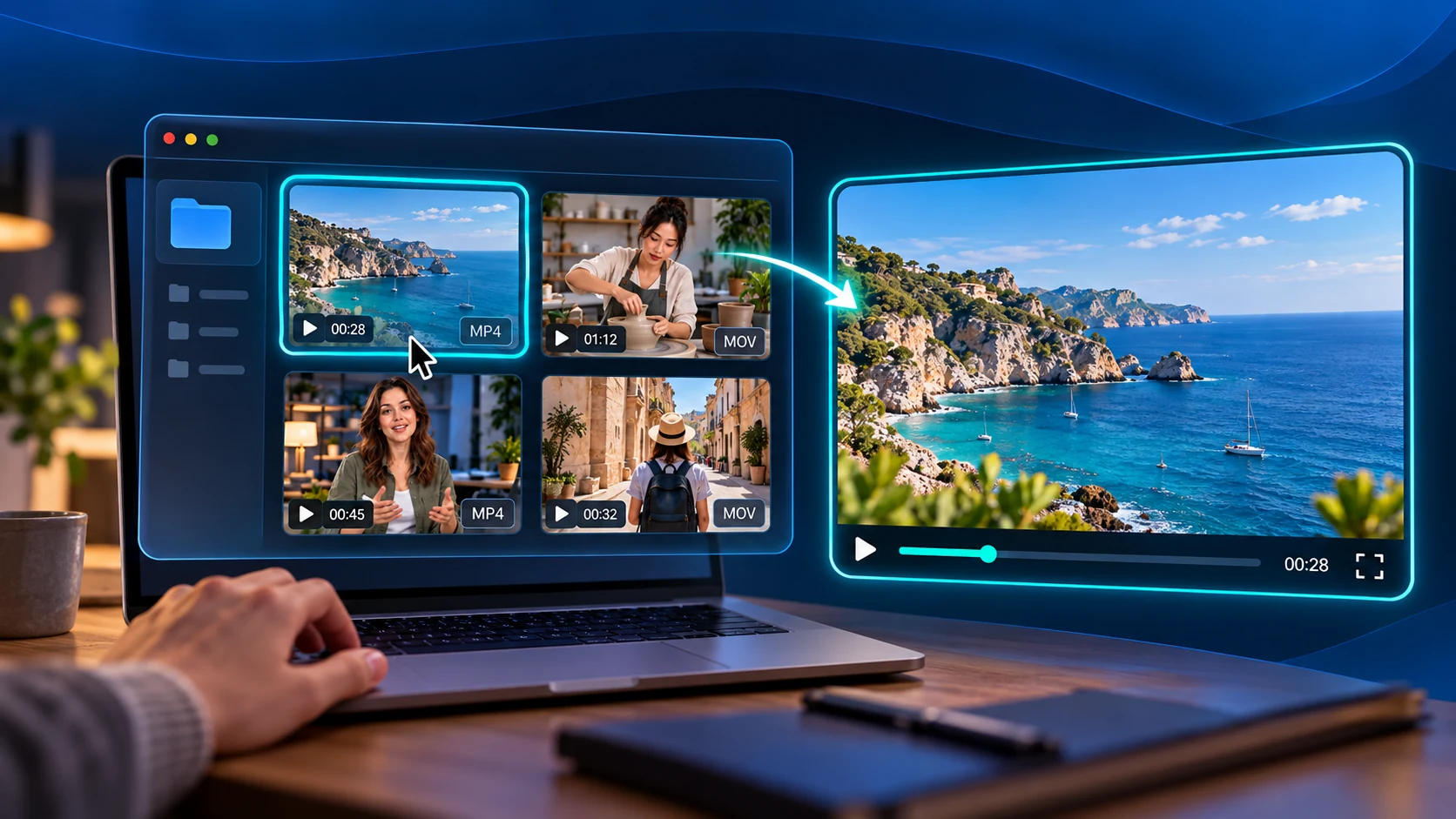
Choose Your Video
Drag and drop a video or select a file from your device. Open it in the Video Cropper and check where faces, products and captions appear throughout the recording.
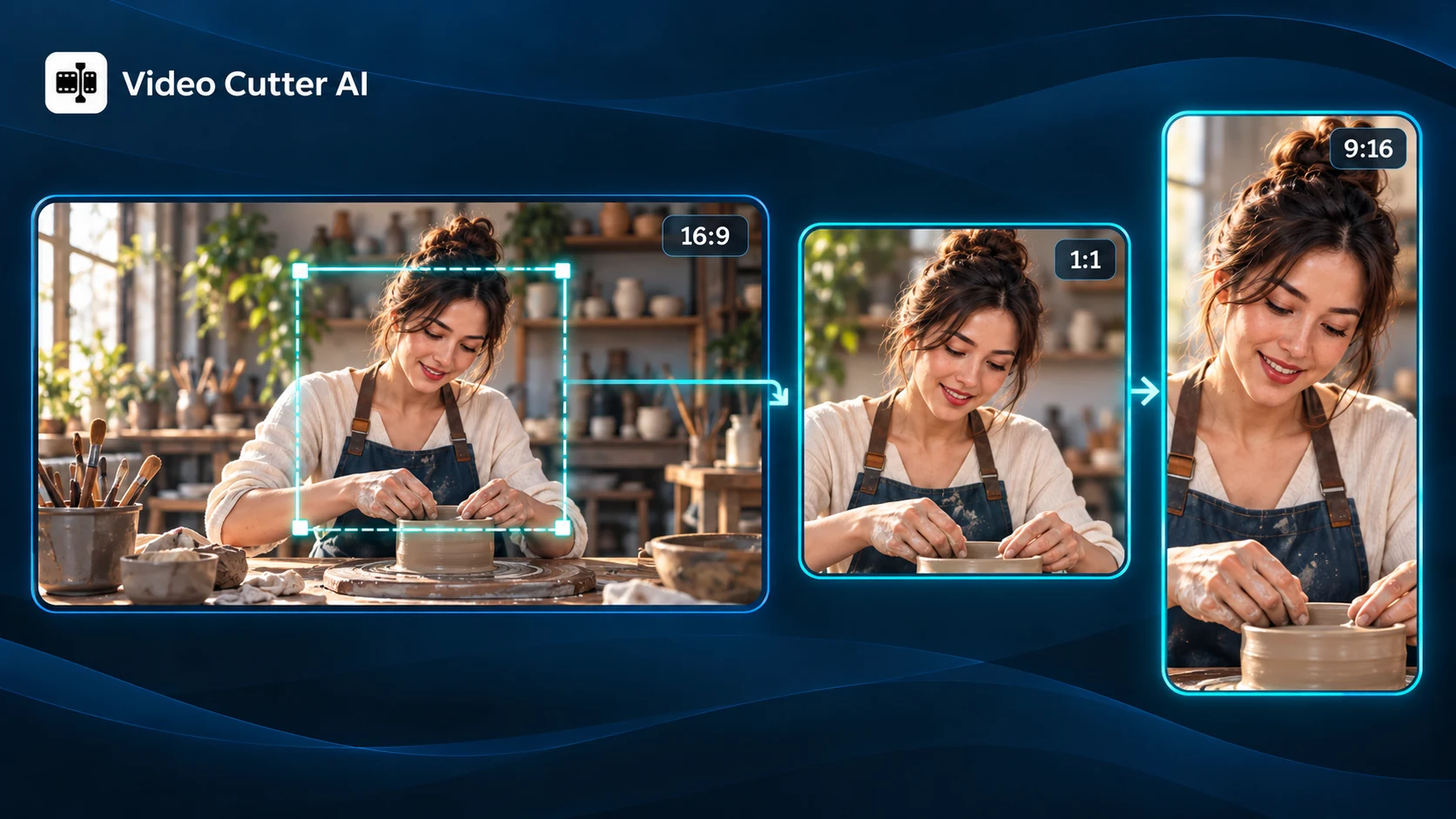
Set Your Frame
Choose a preset ratio or custom output size in the Video Cropper. Zoom and reposition the source to place important content inside the frame, leaving room for movement.
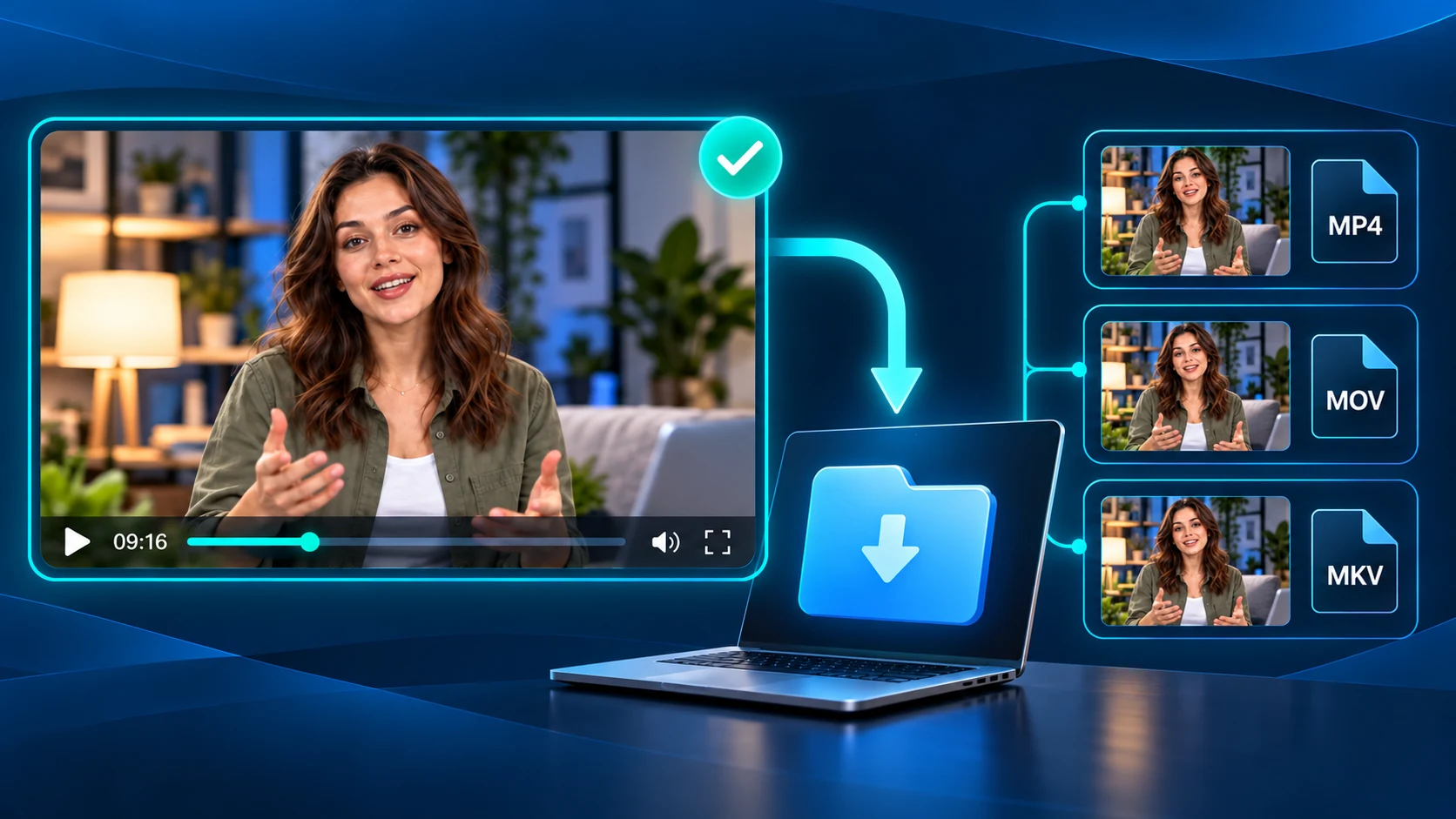
Review and Export
Preview several moments to check the framing, then choose MP4, MOV or MKV. Start cropping and save your Video Cropper result as a new file, keeping the original for another layout.
Video Cropper Features for Better Framing in Any Layout
Choose what stays in view and how it fits the space. The Video Cropper combines aspect ratios, exact dimensions and framing controls to help you reshape existing footage around the content that matters.
Ready-to-Use Aspect Ratios
Switch between vertical, square and landscape compositions with the Video Cropper. Choose from ratios such as 9:16, 1:1, 16:9 and 4:5, then check how your subject fits the new shape.
Exact Width and Height
Prepare footage for a placement with specific dimensions. Enter the required width and height in the Video Cropper, then review the framing so important details fit within the chosen output size.
Zoom into Key Details
Give a product, face or demonstration more space in the picture. Adjust the zoom to emphasize useful details, checking that the closer view retains enough context and clarity for the intended display.
Reposition the Frame
Place the subject where it works best within your chosen layout. The Video Cropper lets you adjust the framing to balance a speaker, product or on-screen text, with room for movement throughout the recording.
Crop Out Unwanted Edges
Exclude black borders, spare background space or distractions along the outer picture. Tighten the visible area around your content while checking that nearby labels, gestures and other useful details remain in view.
Preview Across the Clip
A composition that works at the start may miss something later. Use playback in the Video Cropper to inspect different moments, checking moving subjects and existing captions before committing to the crop.
Use the Video Cropper Across Different Layouts
Reuse existing footage where the available space changes. The Video Cropper helps prepare vertical posts, cleaner demonstrations and focused product views from recordings you already have.
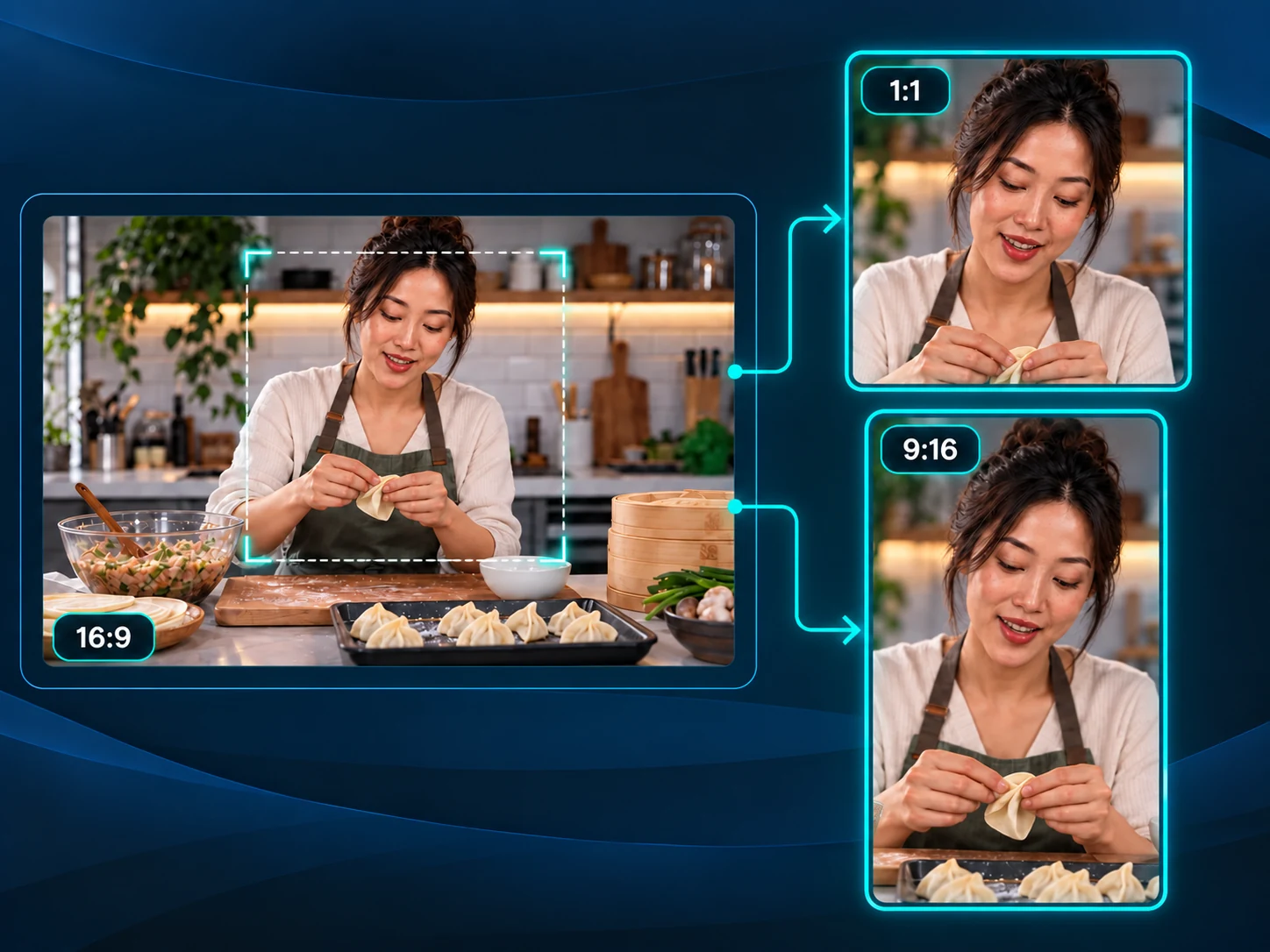
Prepare Vertical Social Videos
Use the Video Cropper to adapt a landscape recording to a 9:16 layout for TikTok, Reels or Shorts. Position the subject within the vertical frame, then check faces, gestures and existing captions throughout the clip. Leave enough room for movement before exporting a version for mobile viewing.
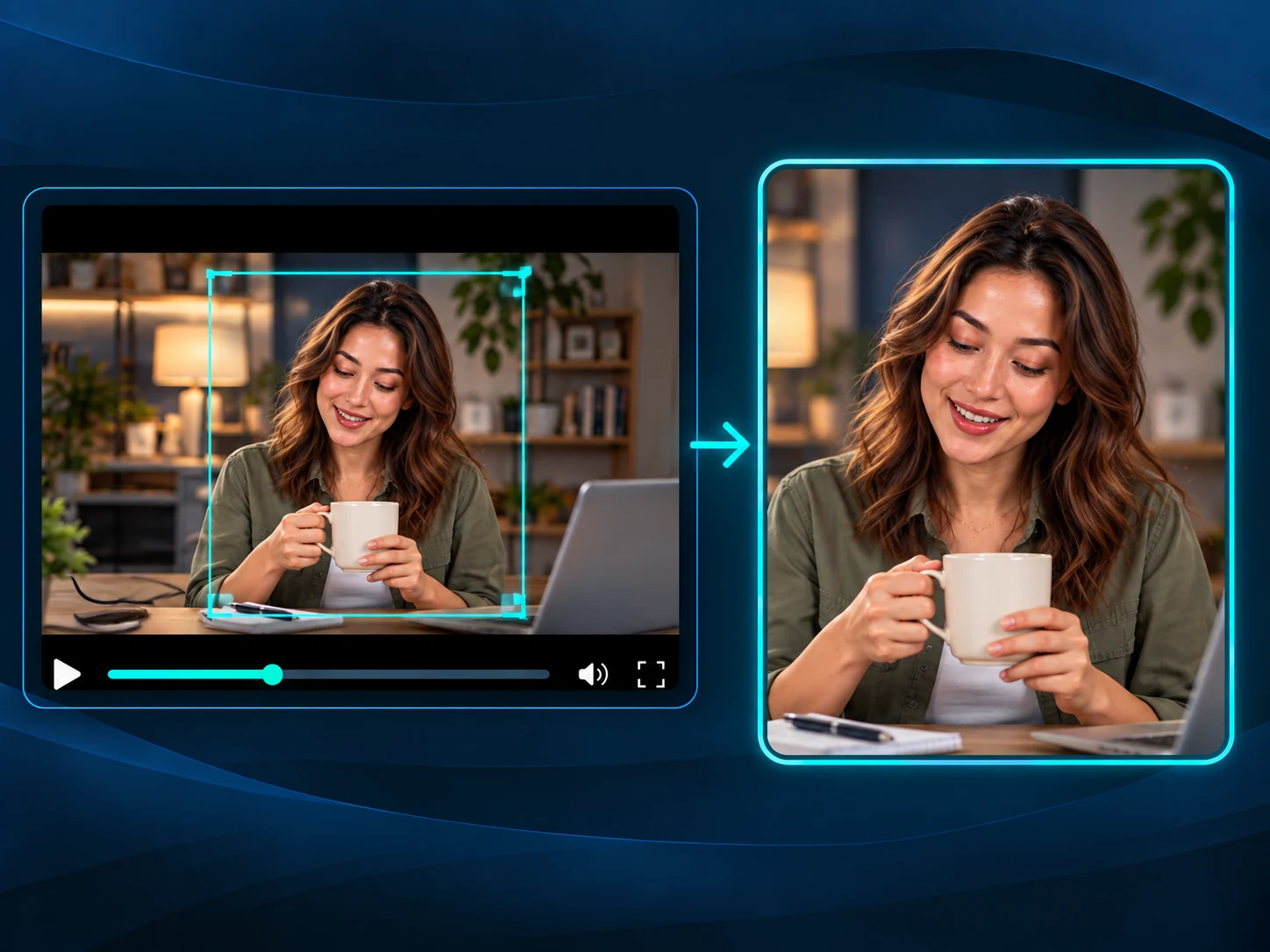
Remove Distracting Edges
Tighten a screen recording or filmed demonstration with the Video Cropper to leave out black borders, spare desk space or clutter near the edges. Keep the instructions and useful action visible, then review the full clip to make sure important details stay inside the selected frame.
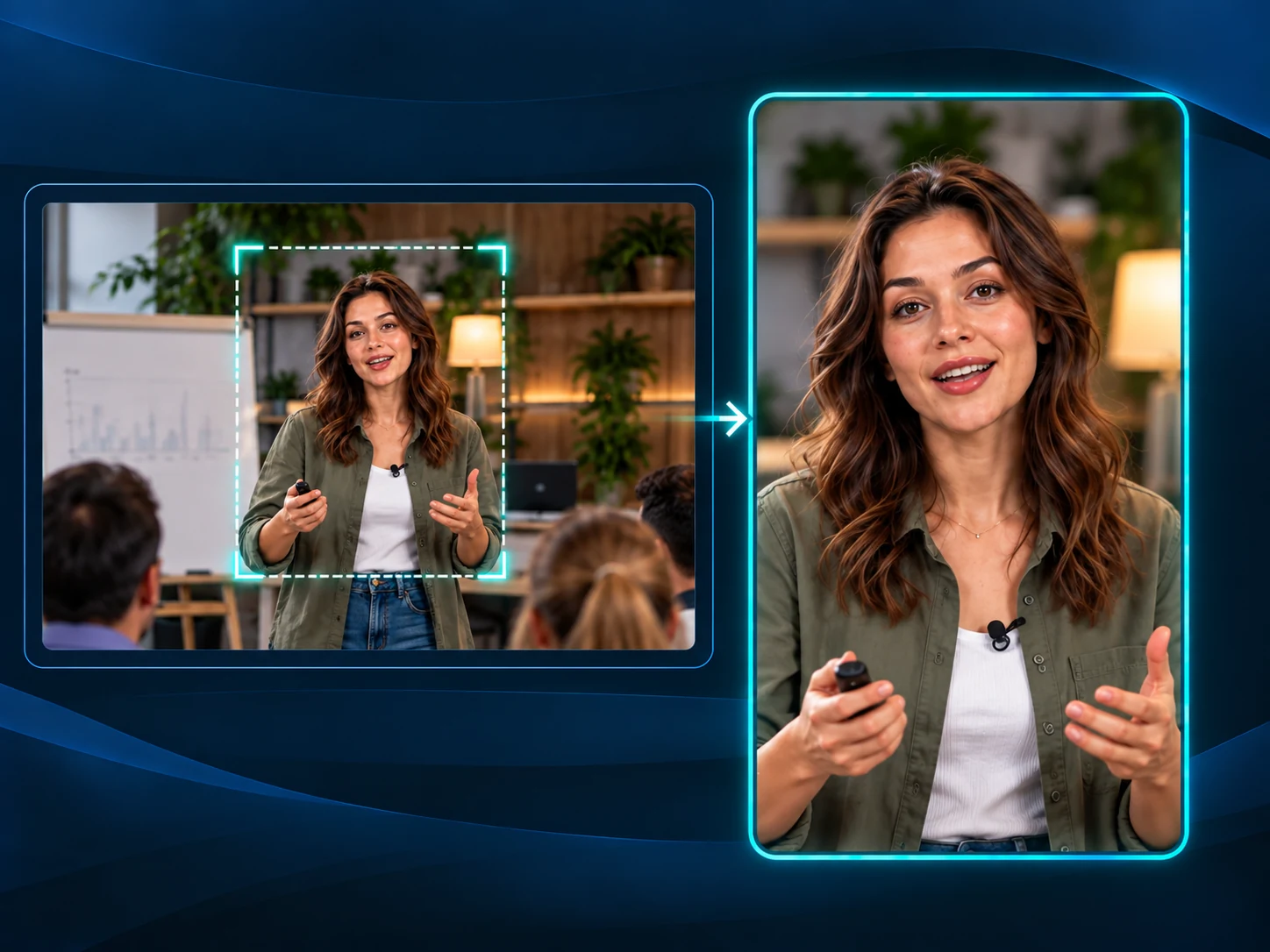
Focus on Product Details
Use the Video Cropper to give a product, craft technique or teaching demonstration more space in the frame. Zoom and reposition the picture to emphasize the useful detail while retaining enough context. Review the result at its intended display size before adding it to a page or presentation.
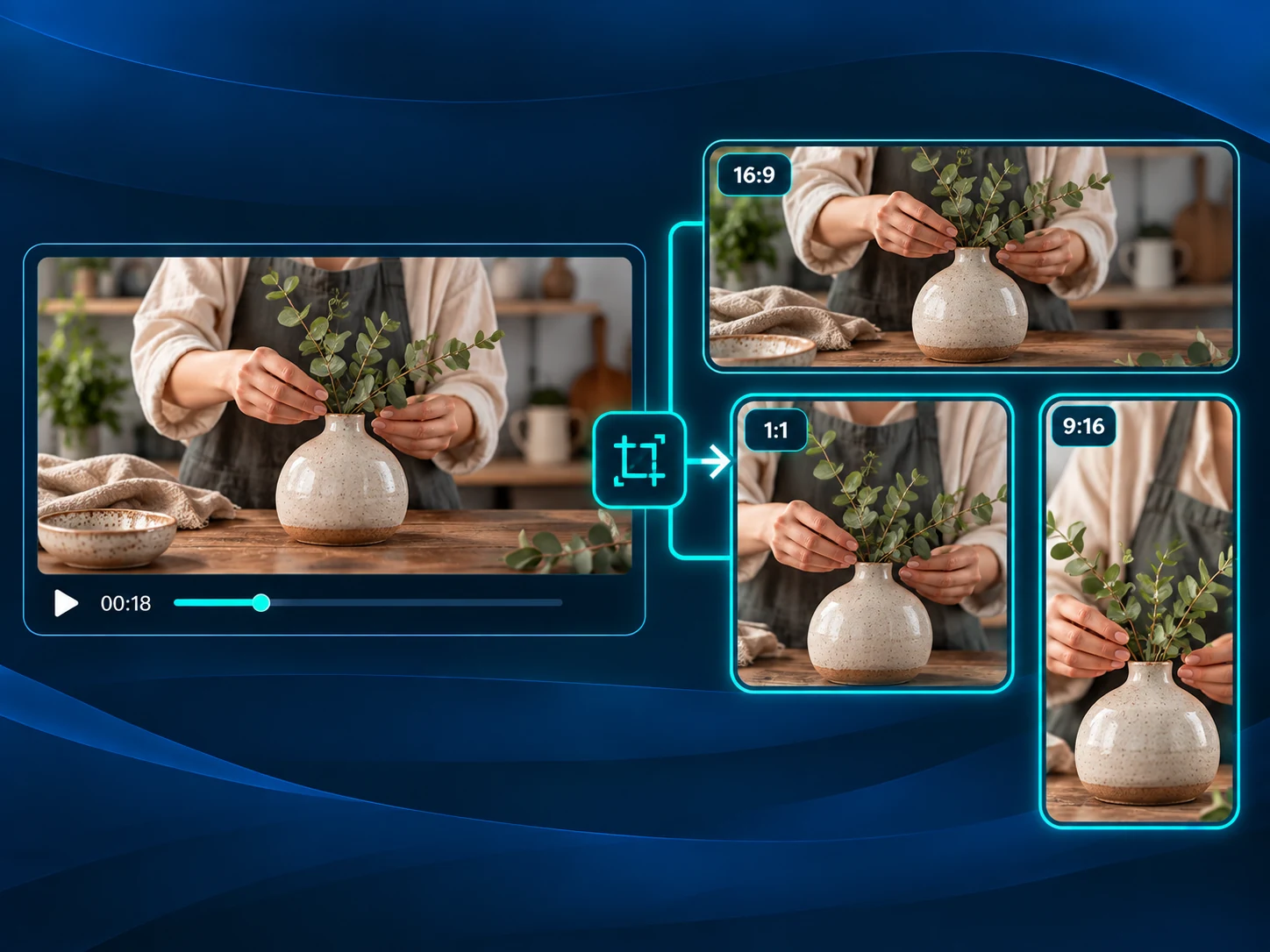
Create Square Presentation Clips
Prepare a square clip with the Video Cropper for a slide or content panel without reshooting the source. Keep key text and gestures inside the frame. If your project begins with a YouTube video and needs shorter highlights, use YouTube Clipper in a separate workflow before refining the layout.
Video Cropper FAQs
Start Using Video Cropper for Free
Choose a ratio or custom size, adjust your framing and save a new version for your next layout. Get started online with no sign-up required.