Video Trimmer Online Free, No Watermark & No Sign-up
Trim videos in seconds, cut unwanted parts, and adjust start and end times. Free to use online, with no watermark and no sign-up required.
Drop a video here
or choose a file from your device
Processed locally · Never uploaded · MP4 / MOV / MKV / WebM
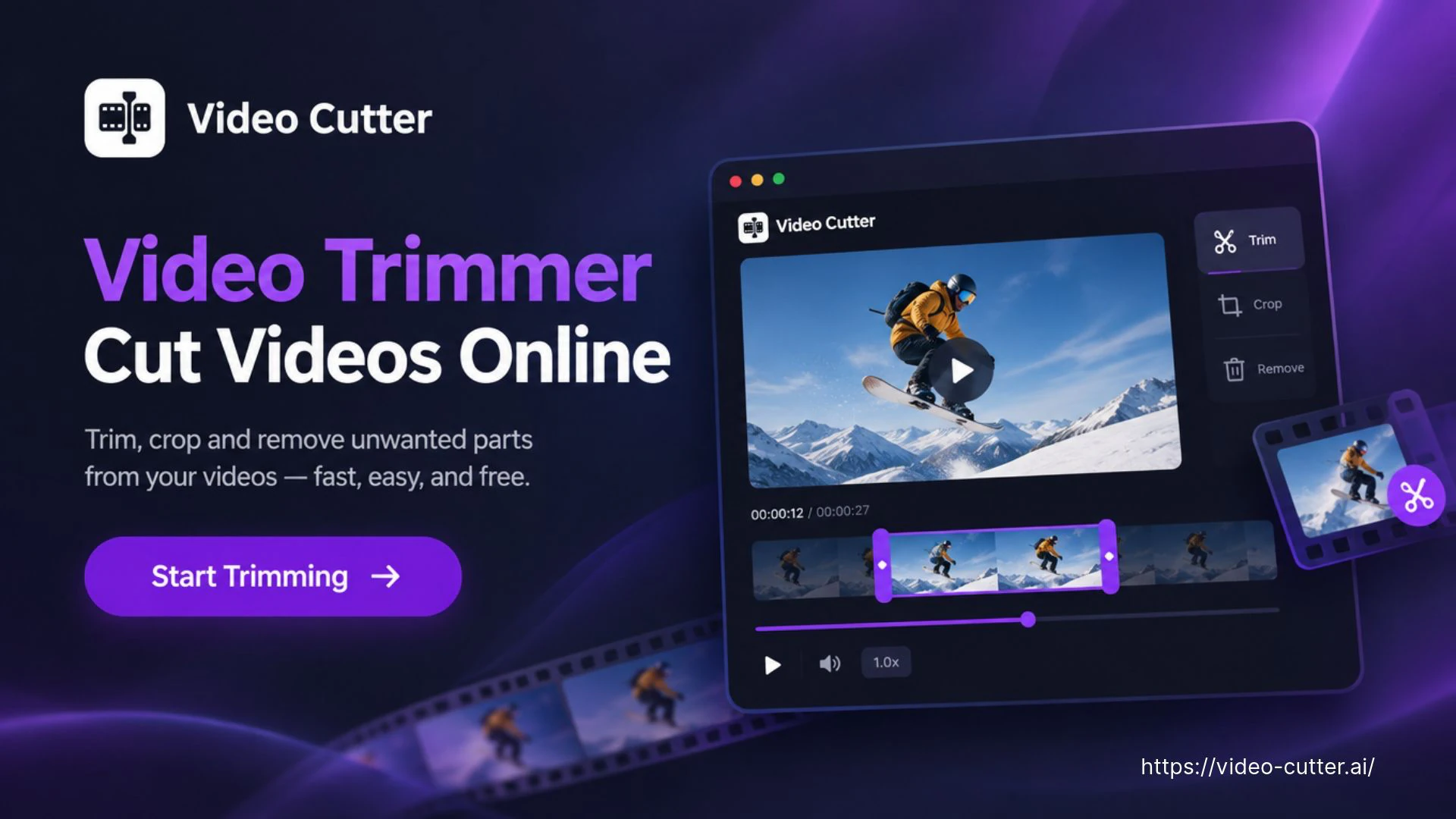
Video Trimmer: Trim Video Online for Free No Watermark by AI
Trim videos online for free with our AI Video Trimmer. Cut unwanted parts, adjust start and end times, and export without watermarks or sign-up.
How to Use the Video Trimmer
Choose a recording, mark a range and decide what to keep. The Video Trimmer lets you review your selection before exporting a separate file.
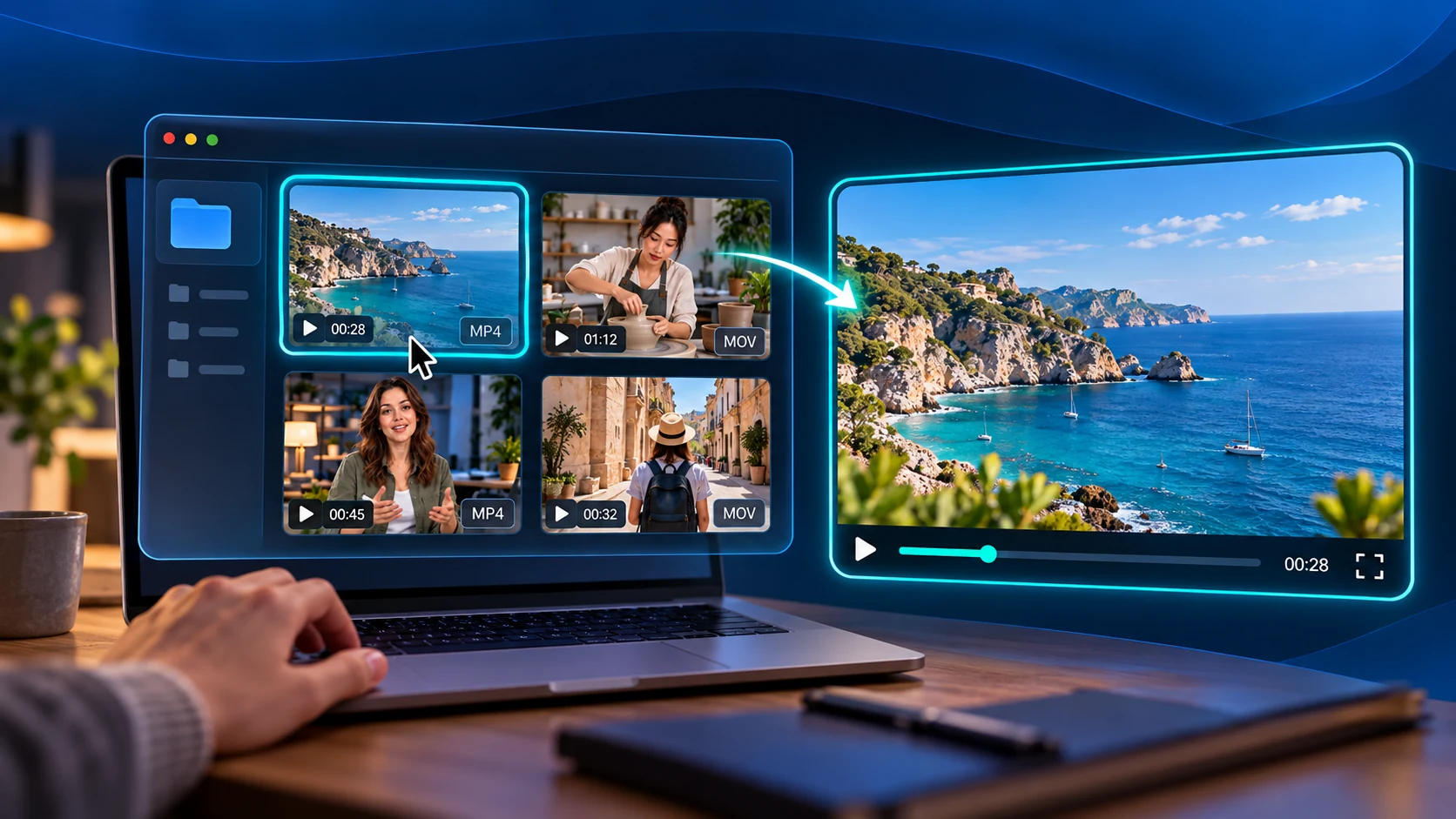
Choose Your Video
Drag and drop a video or select a file from your device. Use playback and the thumbnail timeline in the Video Trimmer to locate the moment you want to keep or the section you want to remove.
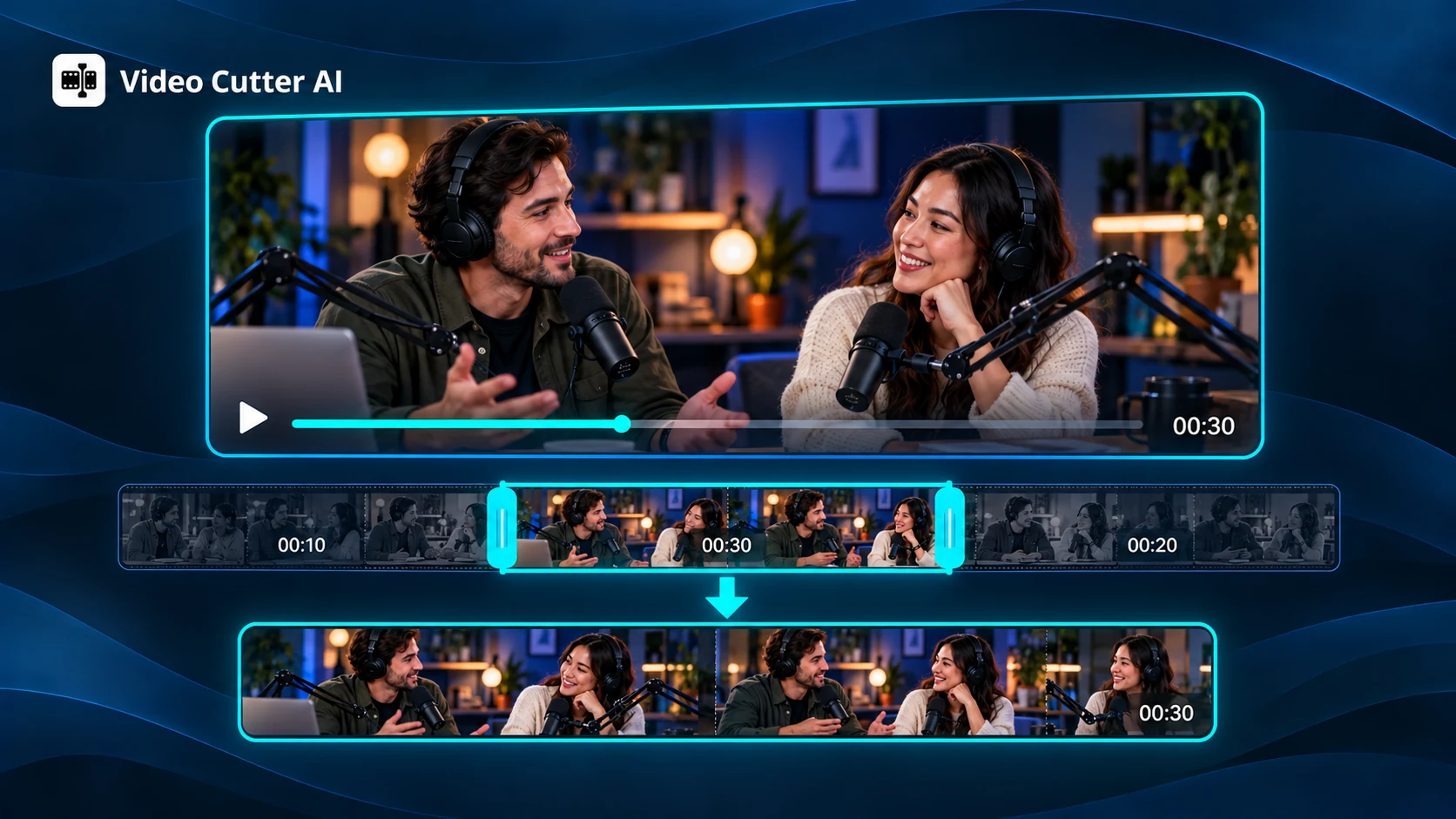
Select a Range and Mode
Drag the handles or enter start and end times in the Video Trimmer. Choose Keep selected to retain that range, or Remove selected to join the footage on either side.
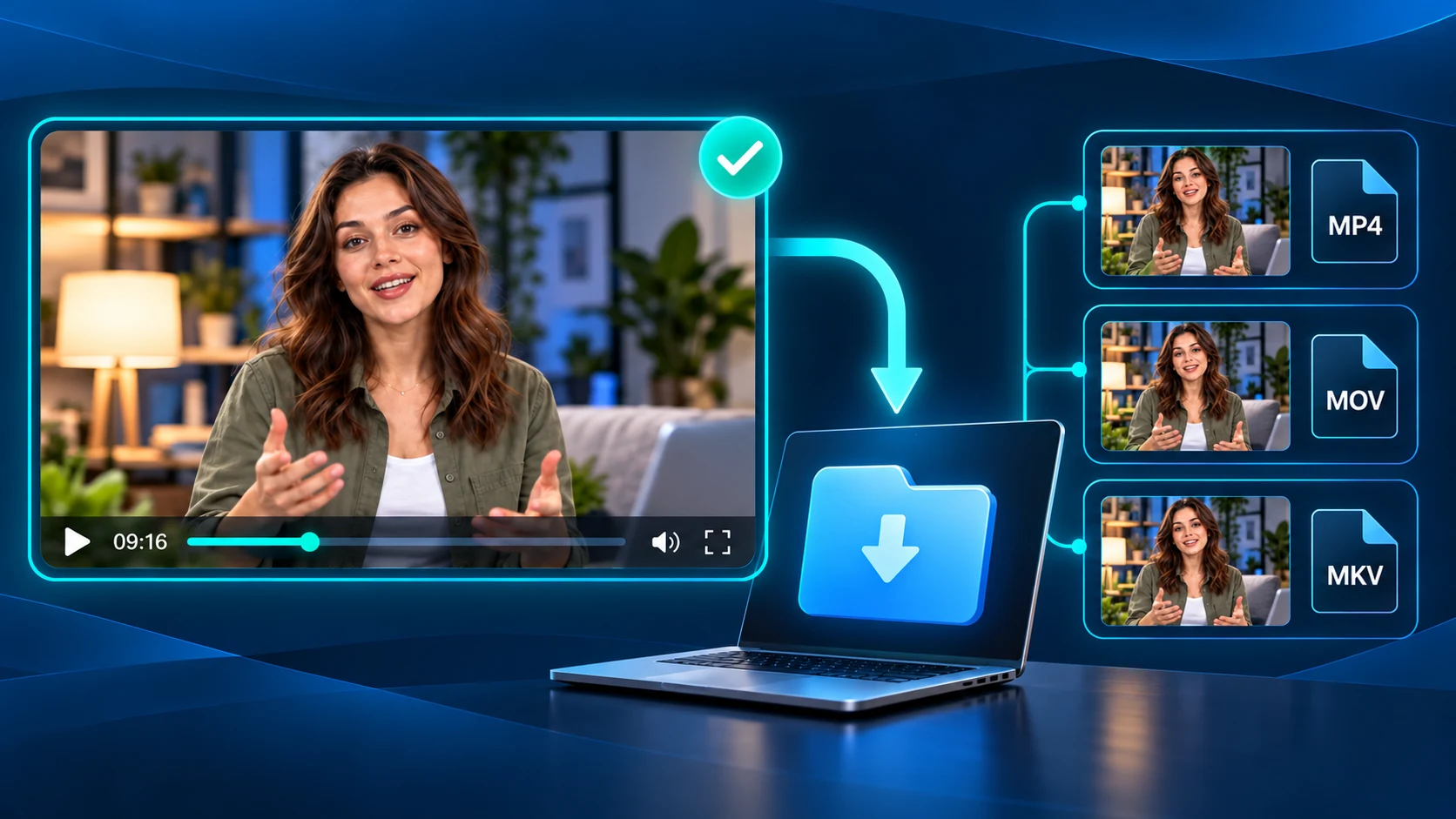
Review and Export
Check the selected boundaries and resulting duration. Choose MP4, MOV or MKV, then export your Video Trimmer result as a new file while keeping the original recording.
Video Trimmer Controls for Keeping Moments and Removing Interruptions
Decide which moments belong in your finished video. Video Cutter AI’s Video Trimmer combines two range-based editing modes with a visual timeline and time controls, helping you shape a recording around complete actions and ideas.
Keep One Complete Moment
Turn a selected interval into a standalone clip. The Video Trimmer keeps everything between your start and end points, making it useful for saving a complete answer, explanation or demonstration from a longer recording.
Remove a Middle Section
Leave out an unwanted interval while keeping the footage before and after it. The Video Trimmer joins the remaining sections into one video, so you can remove a pause or repeated attempt without exporting two separate pieces.
Find Moments Visually
Scan thumbnail frames to locate a speaker change, action or demonstration step. The timeline gives you a visual starting point, while playback helps you choose boundaries that preserve the context of the moment.
Fine-Tune Start and End Times
Use the selection handles to mark a rough range, then refine it with the time fields. The Video Trimmer supports repeatable selections, with the preview helping you check whether a word or action falls too close to either boundary.
Check the Resulting Duration
See how your selected range and editing mode affect the output length before exporting. Keep a brief excerpt or remove an interruption from a longer recording, then check whether the resulting duration suits your intended use.
Review Where Sections Meet
When removing a section, review the footage around both boundaries to judge how the remaining parts will connect. Listen for interrupted speech and check visual changes so the edit preserves a clear explanation or sequence of events.
Use the Video Trimmer to Remove Waiting Time and Keep Complete Moments
Give viewers the part they came to see. Use Video Cutter AI’s Video Trimmer to shorten empty openings, remove interruptions or save a complete exchange, with enough context to keep the result clear.
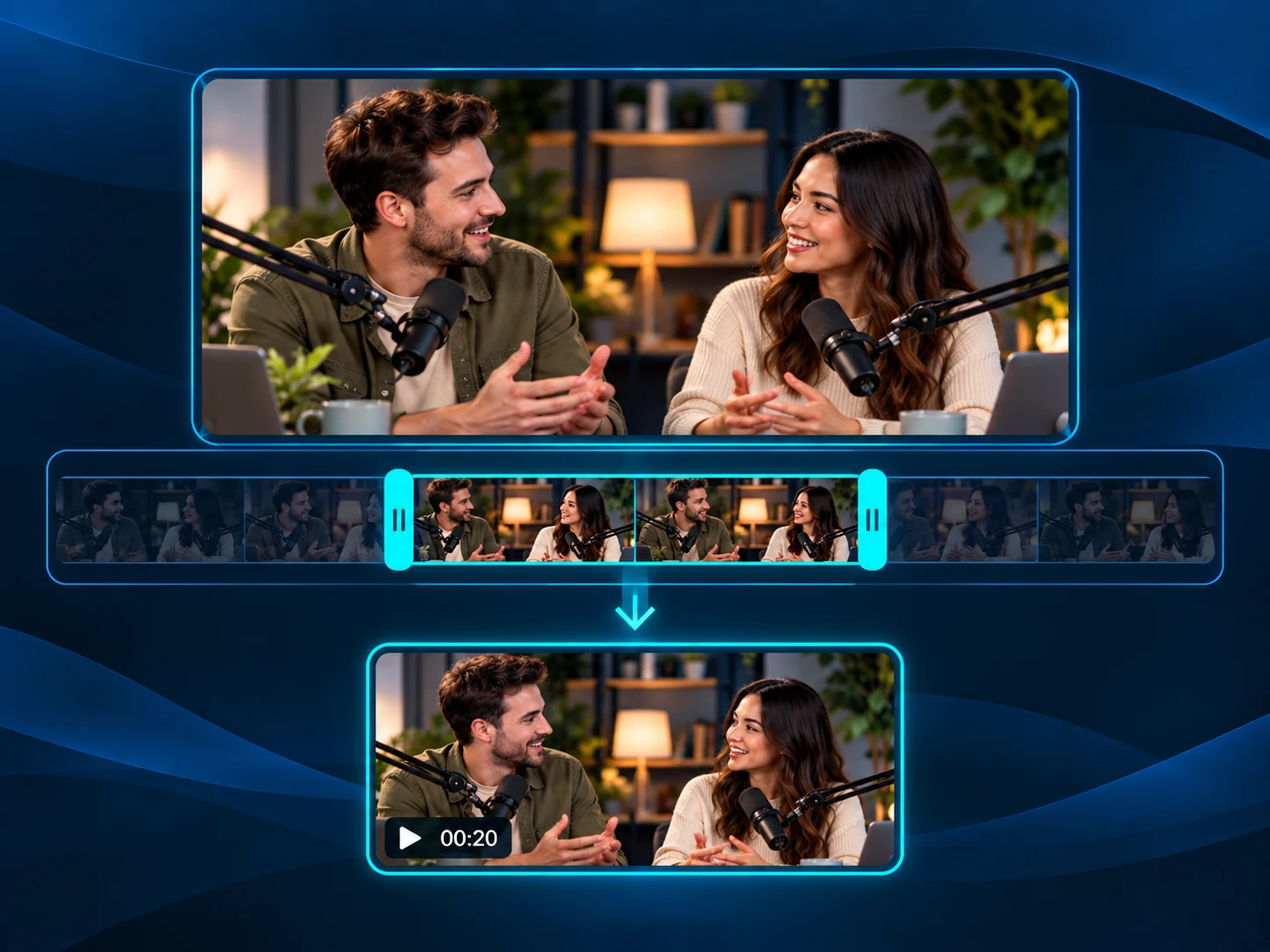
Trim Intros and Outros
Use the Video Trimmer to remove a countdown, opening slate or trailing silence from a recorded webinar. Set the start where the speaker begins and the end after the final useful sentence. Keep that range to give viewers the full session content without the waiting time at either end.
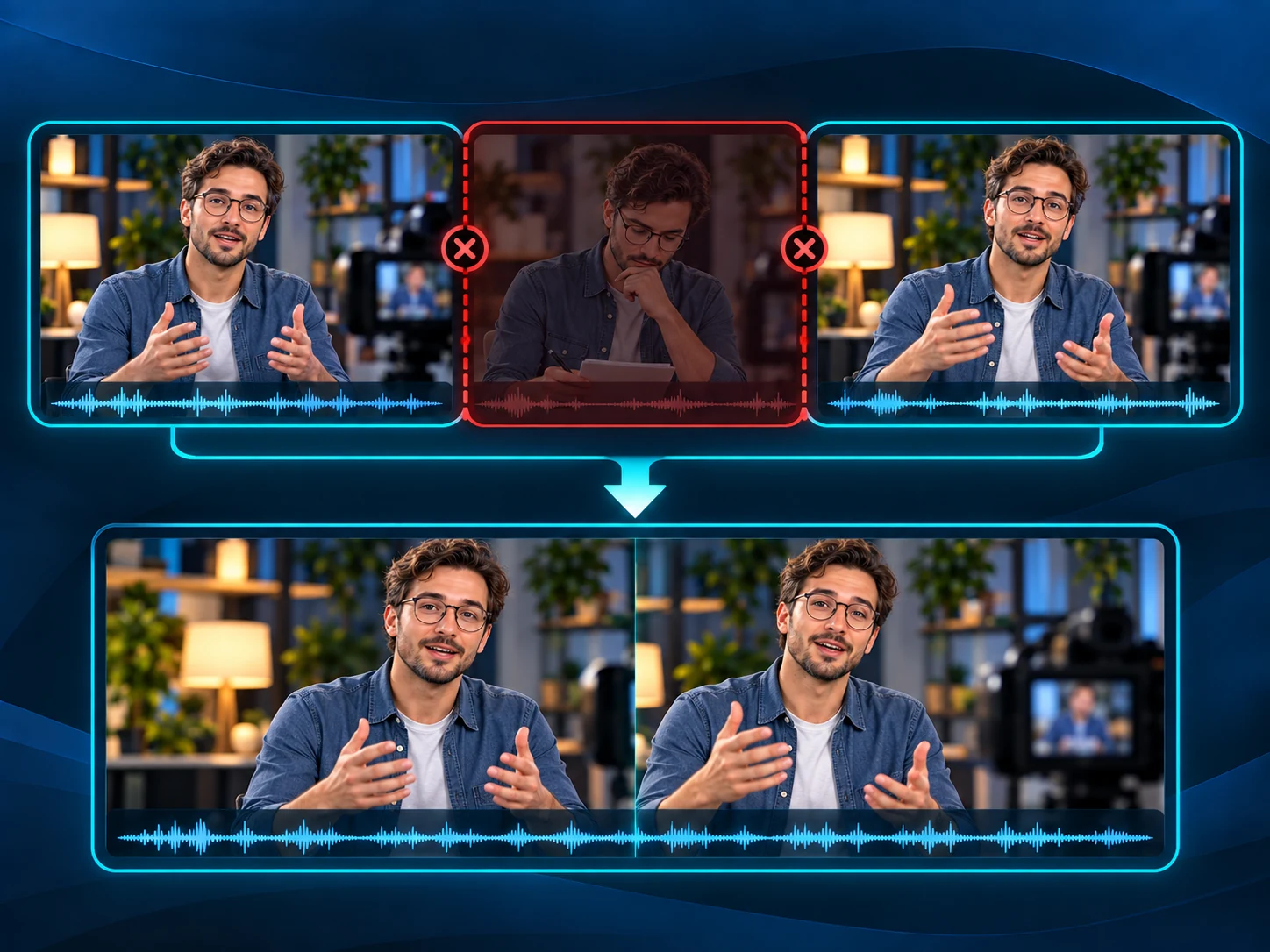
Remove Waiting Time
Shorten a software walkthrough with the Video Trimmer by removing a section spent waiting for an installation or loading screen. Join the explanation before the wait to the result after it, then review the connection so viewers can still follow what changed and why the next step makes sense.
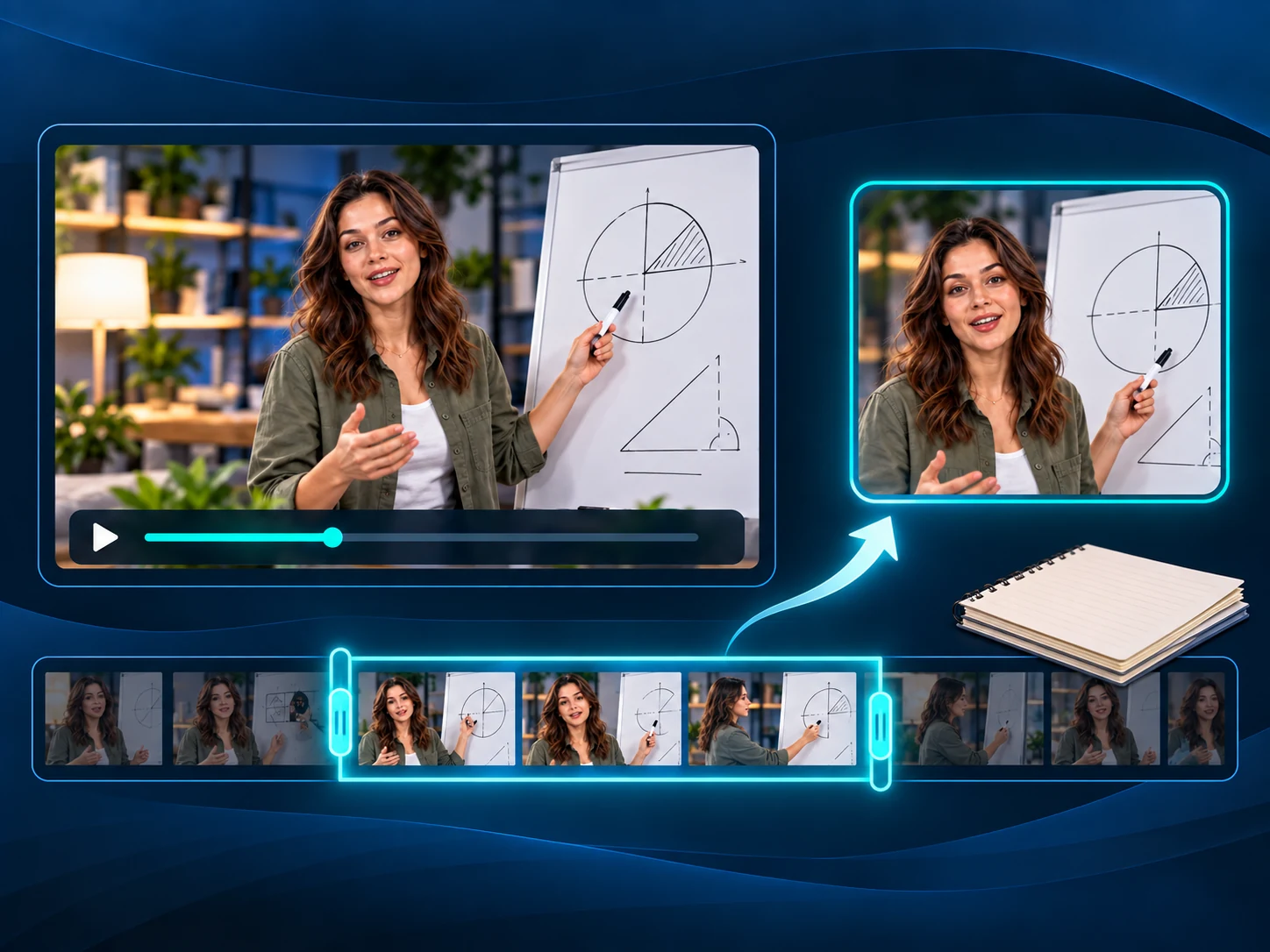
Keep One Complete Play
Save a single goal, rally or gaming round with the Video Trimmer. Include the lead-up and outcome so the action makes sense as a standalone clip. If you have a full match and need help finding moments first, try Highlight Video Maker for AI-suggested clips, then review the selections.
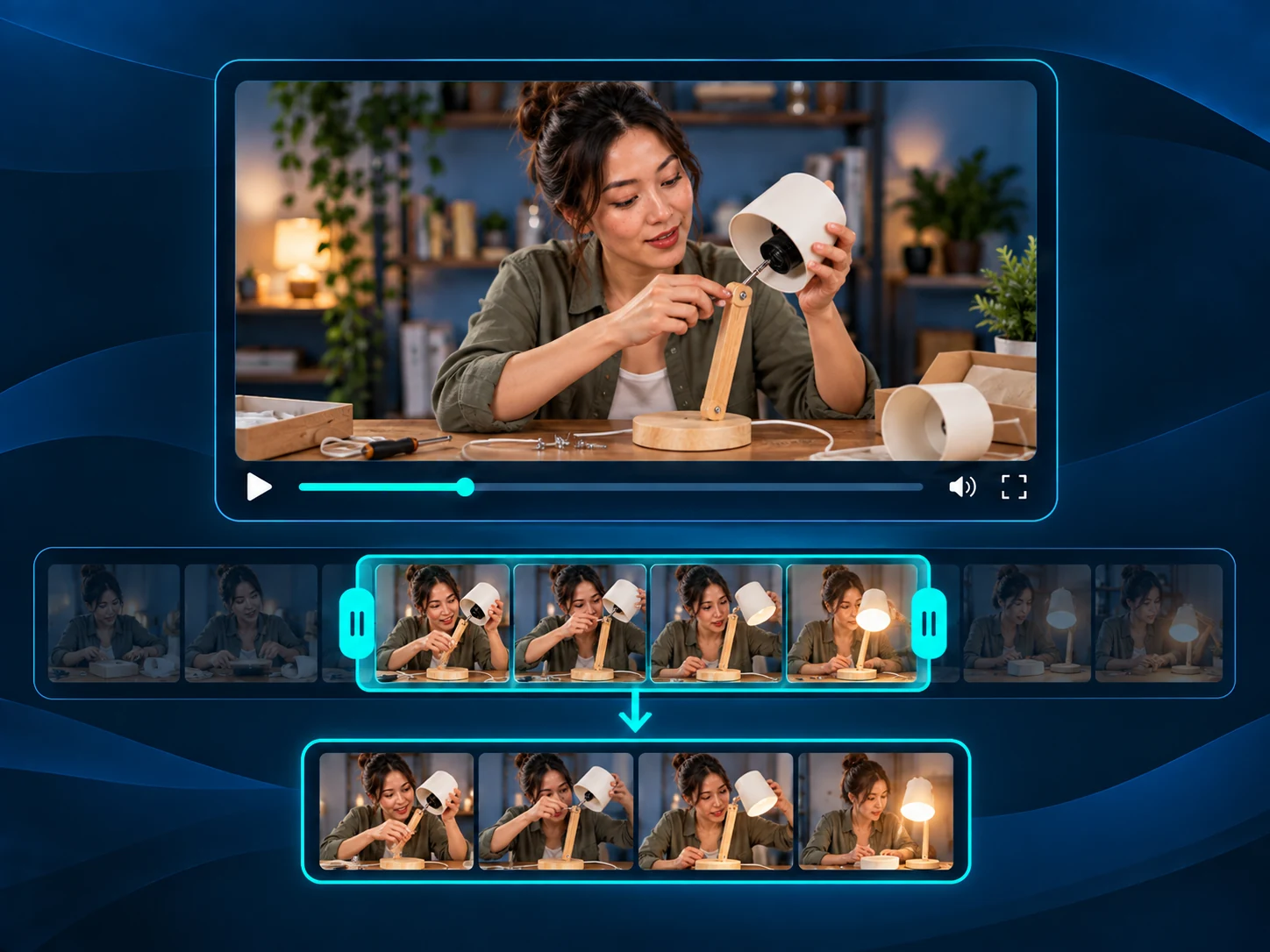
Extract a Q&A Exchange
Use the Video Trimmer to keep one audience question and the speaker's answer from a longer session. Set boundaries around the complete exchange so the response retains its context. Starting from a published YouTube session? Try YouTube Clipper to find clips directly from a supported video link.
Video Trimmer FAQs About Time Ranges, Edits and Exports
Make Your Next Edit with the Free Video Trimmer
Choose a recording and mark the time range. Keep the moment you need or remove an interruption, then export with no sign-up or added watermark.