
To download a YouTube transcript online, paste the video link into Video Cutter AI’s YouTube Transcript Generator, click Get YouTube Transcript, and export it as TXT, SRT, or VTT. No sign-in is required to get started.
Looking for one line in a long lecture or interview? Search the transcript for a phrase you remember, then click its timestamp to hear the line in context before you save it. If the video has no captions, Video Cutter AI can generate a transcript from the spoken audio.
Generate and Download a Transcript With Video Cutter AI
Step 1 — Paste the YouTube Video Link
On YouTube, select Share → Copy link, then paste the URL into the field labeled Paste a video link. You can use a standard YouTube video or a YouTube Short. If you already have the recording on your device, select Upload files beside the link field.
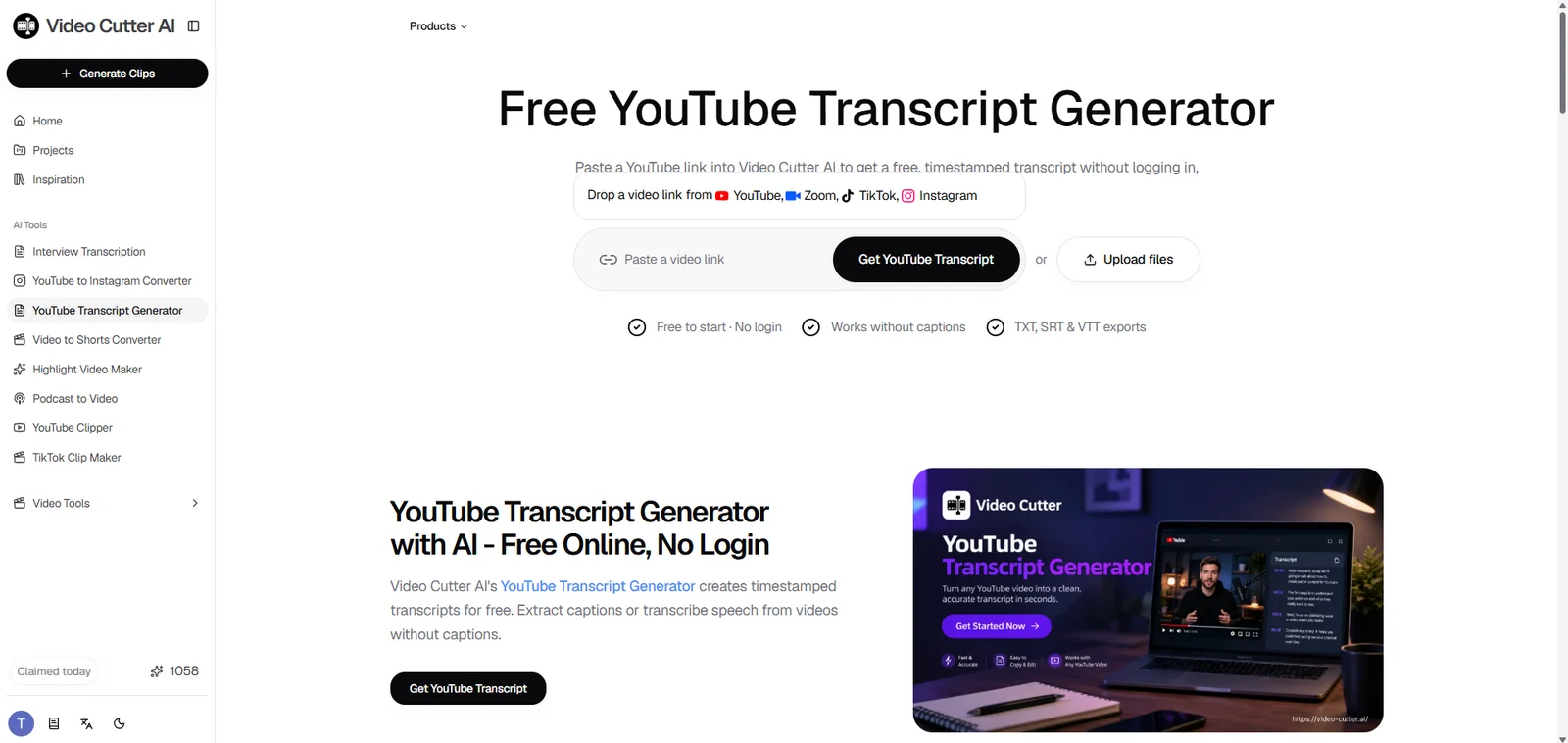
Step 2 — Generate and Preview the Transcript
Click Get YouTube Transcript. The results page shows the video player above the timestamped transcript. Enter a name or phrase in Search transcript to find a specific passage. To read along as the video plays, turn on Follow playback.
Step 3 — Copy the Text or Download a File
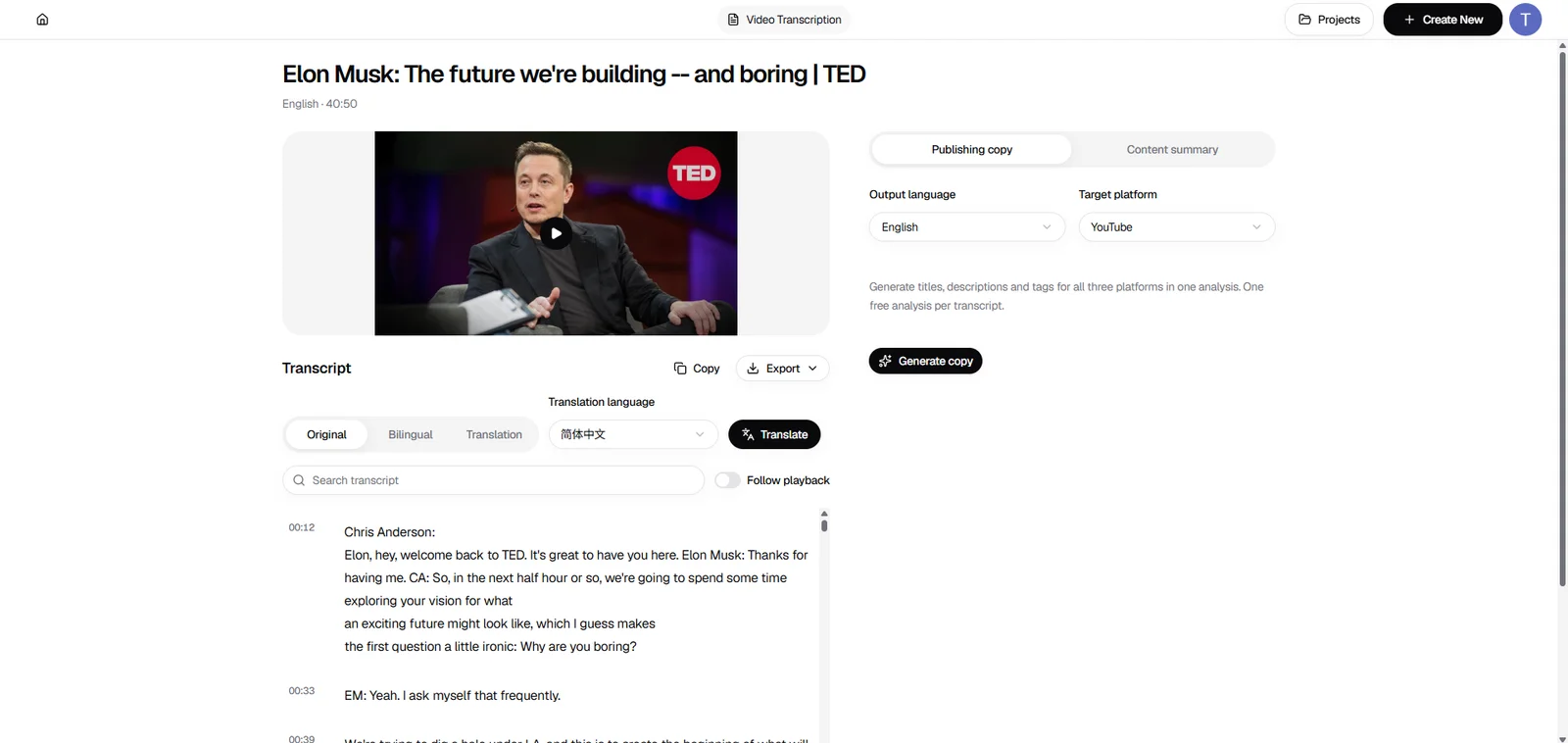
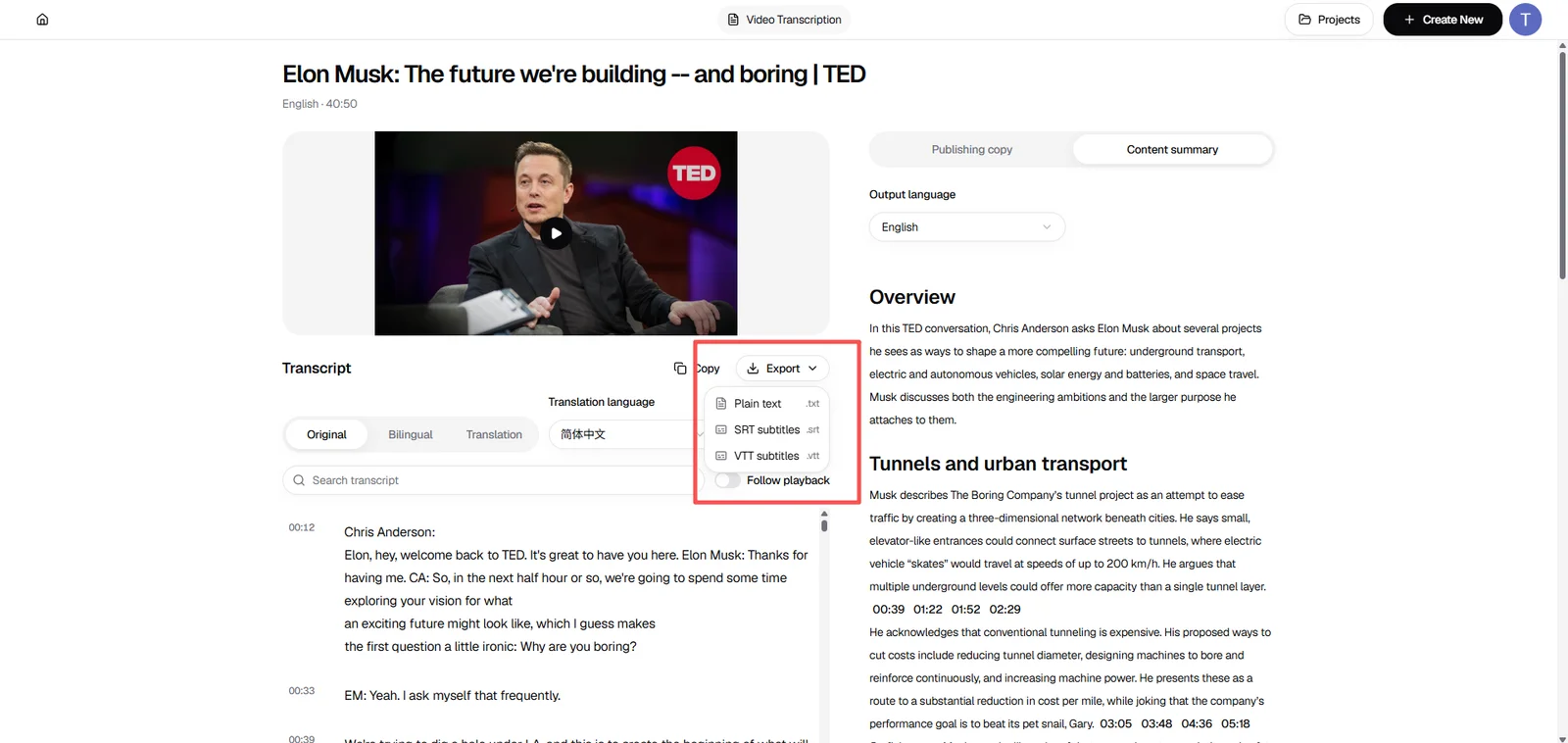
Select Copy above the transcript, then paste the text into your notes or a document. To download a file, select Export and choose Plain text (.txt), SRT subtitles (.srt), or VTT subtitles (.vtt). Use TXT for text you want to read or edit, and SRT or VTT when you need to keep the subtitle timing.
What to Do When YouTube Doesn’t Show a Transcript
How to Find the Transcript on YouTube
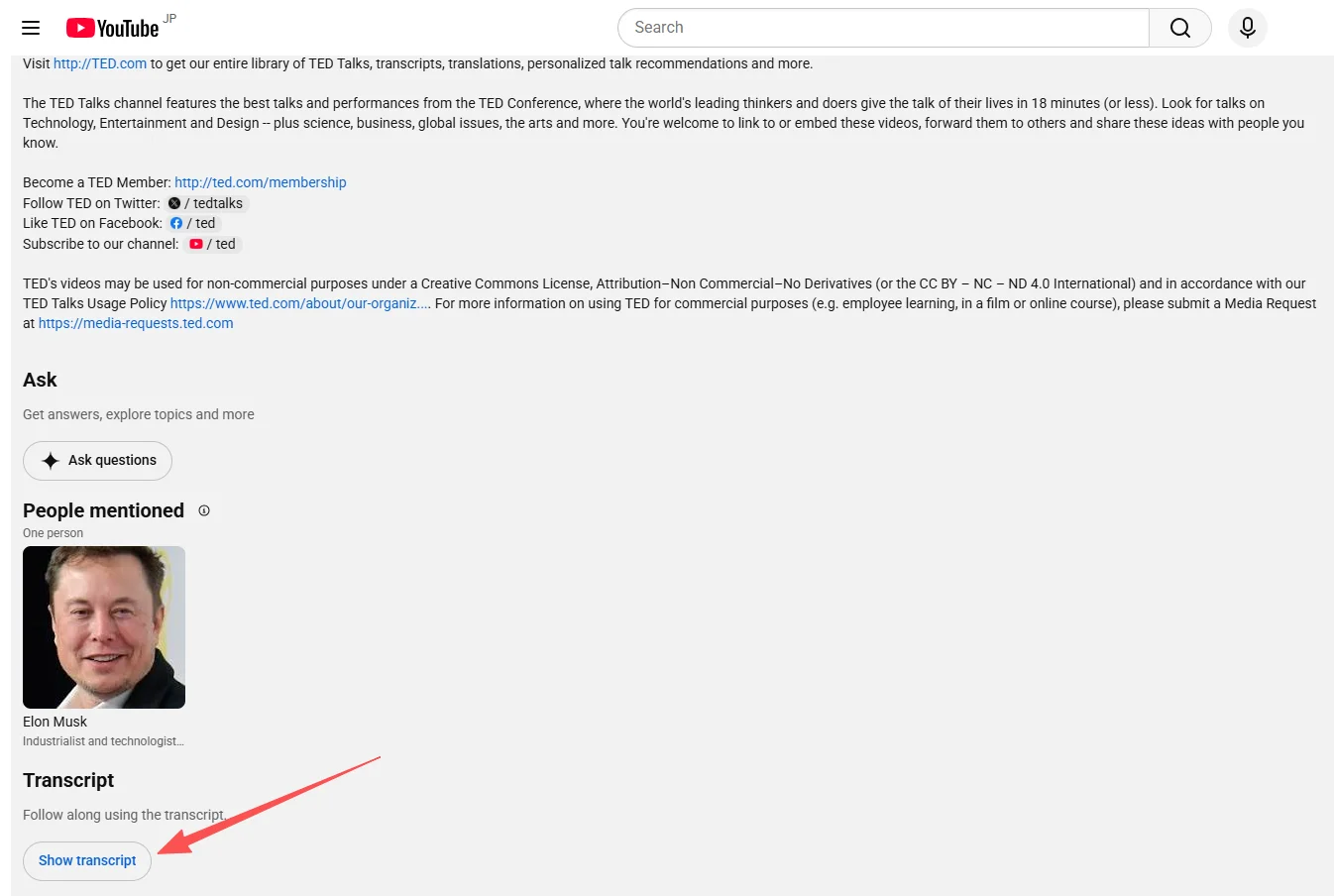
YouTube’s Help Center explains that videos with captions have a transcript you can read while watching. Expand the video description and look for Show transcript. Select it to view the transcript, then click a line to jump to that moment in the video.
Generate a Transcript From the Audio
If you need a YouTube transcript without captions, paste the video link into Video Cutter AI’s YouTube Transcript Generator. It transcribes the spoken audio and adds timestamps, so you can go back to a particular explanation, interview answer, or tutorial step.
Check Names and Technical Terms Against the Audio
Before sharing a transcript, double-check names, numbers, acronyms, and technical terms. If a software tutorial mentions a command, for example, listen to the full instruction and check how the command appears on screen before copying it into your notes.
TXT, SRT, or VTT? Which Format Should You Download?
Video Cutter AI’s Export menu offers three formats. Choose based on where you’ll use the file.
| Format | Best for | Example |
|---|---|---|
| TXT | Plain text for notes, quotes, or drafts | Save a tutorial’s instructions in your project notes. |
| SRT | Timed subtitles for an editor or platform that accepts SRT | Import a subtitle track into your editing project. |
| VTT | Timed captions for a web player that supports WebVTT | Add a caption track to a video on your website. |
Both SRT and VTT store the start and end times for each subtitle cue. Check which format your editor or player accepts before you export.
How to Verify a Quote From a YouTube Video
Use the Timestamp to Find and Check the Quote
Suppose you’re quoting a presenter’s advice on export settings. Search the transcript for export settings, then click the timestamp beside the relevant line to hear it in the video. Listen to the sentences around it, too. A phrase like for this project can tell you whether the advice applies to a specific setup.
Record the Video Source and Timestamp
Save the verified wording with the video title, channel name, link, and timestamp. That gives you enough information to find the passage again when you’re writing or editing.
“[Verified wording]” — [Channel name], [Video title], [timestamp], [video URL]
If you want to share a passage from your own video, our guide to finding good clips in a long video explains how to pick a segment that makes sense on its own. Once you’ve marked where the idea starts and ends, you can trim it with Video Cutter AI’s YouTube Clipper.
Frequently Asked Questions About YouTube Transcripts
Can I Download a Transcript From YouTube Shorts?
Yes. Copy the Short’s share link and paste it into the transcript generator. Once the transcript is ready, you can copy the text or export it as TXT, SRT, or VTT.
Can I Get a Transcript With Speaker Labels?
For an interview where you need to know who said what, use Video Cutter AI’s interview transcription tool. It adds speaker labels and timestamps so you can follow the conversation and find the passage you need.
Can I Translate a YouTube Transcript Into Another Language?
Yes. On the results page, choose a target language under Translation language and select Translate. Use Bilingual to compare the translation with the original, or select Translation to read the translated text on its own.
Why Does My YouTube Transcript Contain Errors?
Background music, overlapping voices, and unfamiliar terms can make speech harder to recognize. If a line looks wrong, replay it and correct the wording in your saved copy. Pay particular attention to details that can change the meaning, such as a date, a price, or a technical instruction.
How Do I Get a YouTube Transcript on My Phone?
In the YouTube app, tap Share → Copy link, then paste the link into the transcript generator in your phone’s browser.
Can I Transcribe Only Part of a Long Video?
Yes. If you already have the section you want as a separate file, select Upload files and add that clip. For example, you can upload one interview answer or a single chapter from a tutorial you have permission to use.
Have a YouTube video in mind? Paste its link into Video Cutter AI’s YouTube Transcript Generator to get a searchable transcript without signing in. Find the line you need, click its timestamp to hear it in context, and save the text or subtitles for later.